59.6.2.394 Sony XDCAM resource editor
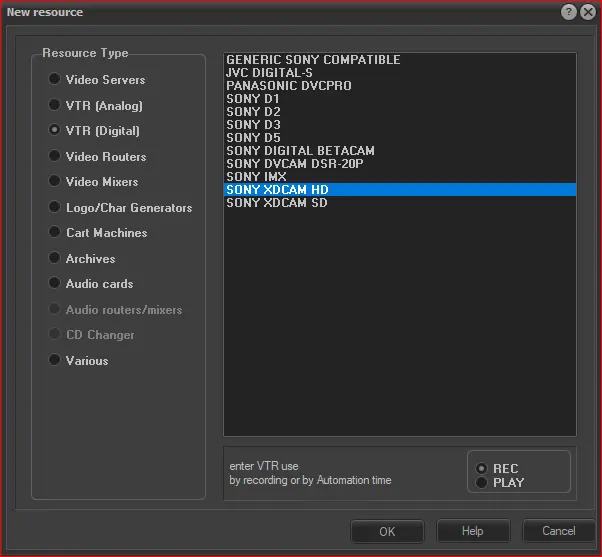
Select Add Resource à Digital VTR à Sony XDCAM HD or SD (choice between High Definition and Standard Definition).
NB: It is also important to specify whether the Decks (VTR) will be used for PLAY (Automation) or to RECORD:
xdcam_resources
The function of the decks and their quantity will determine their resource configuration, for example, with an XDCAM Cart containing three decks:
• three decks, all to be used for AUTOMATION > Configure 3 Digital VTRs identified as 'Play'
• three decks for RECORDING > Configure 3 Digital VTRs identified as 'Rec.'
• three decks to be used BOTH for Automation and Recording > Configure 3 Digital VTRs identified as 'Play' and 3 Digital VTRs identified as 'Rec'.
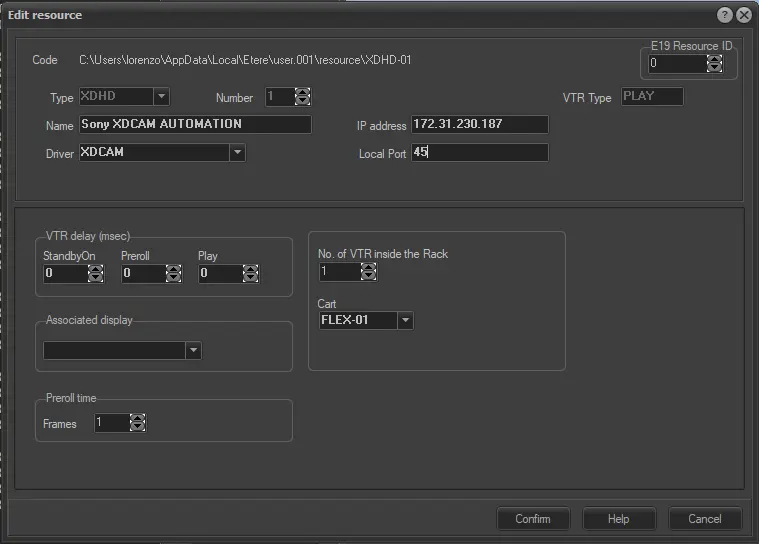
Resource parameters to configure for each deck:
•Code shows the path for the Resource being edited
•Type shows the resource type (XDHD or XDSD)
•Number shows the resource type number (i.e. if there are already two other resources of the same type already set up, this number would be 3)
•VTR type: shows the function of the deck as specified in the previous 'New Resource' screen
•Name: specify a description of the Resource
•Driver: specify the driver for the Resource (default set at XDCAM)
•VTR delay (msec):
✓Standby On: time required by the VTR to get into Standby On status
✓Preroll: the time required by the VTR to get into Preroll status
✓Play: the time required by the VTR to get into Play status
•Associated display: it is possible to associate a (preconfigured) DISPLAY resource to the VTR to show its status. If none is associated, leave this field empty
•IP Address: specify the address of the PC where the VCC Controller program is installed (and in turn connected to the XDCAM Cart with a serial RS422 cable)
•Local Port: specify the local port where the VCC Controller waits for commands (default should be 4000)
•No. of VTR inside the Rack: specify the deck number in the XDCAM Cart. Usually, it will be top to bottom 1, top deck, 2 second deck down, etc.
•Cart: specify the FLEX resource in which the VTR (deck) is situated.
If the VTR (deck) is to be used to RECORD, you can configure FTP details for uploading and downloading data via FTP:
•IP Address: Specify the VTR's IP address
•User: the user name for accessing the VTR (default is 'admin')
•Password: the password for accessing the VTR (default is the VTR model, for example, deck 'pdw-1500.'
•Preroll Time: set the VTR's preroll time in frames. Ingest will use this value for recordings. By default, specify 125 or 150 frames (equal to 5 seconds)
VTR's_preroll_time_in_frames
Once the Cart and the VTRs have been configured, selecting the USERS for each Resource is necessary. This can be done from the primary 'EDIT RESOURCES' screen by selecting the appropriate Resource from the resource tree and clicking 'Users':
•User: specify the user's pc name
•ID number: automatically generated once the user is selected from the list
•PC name: automatically generated once the user is selected from the list
•Function: specify the relevant ETERE module that will use the Resource. The list is respective of the VTR type (REC or PLAY)
•Router: indicate the various input and output values (and monitor if available)
Sony XDCAM resource editor - User
After setting the user and the program for the Resource's activation, it is necessary to develop other data:
Router:
Input: insert the router's output channel where the Resource's input is connected (-1=not managed)
Output: insert the router's input channel where the Resource's output is connected (-1=not managed).
Monitor: insert the router's output channel where the monitor is connected (-1=not managed).
 xdcam_resources
 VTR's_preroll_time_in_frames