84.4.5.22 STANDARD > IMAGINE > ASRUN
Import Scope
The Imagine As Run Import allows you to import a broadcasted schedule from the date specified supplied in either Binary (.LOG) or Text (.TXT) format.
Import Parameters
This import module requires the following parameters to be set in order to be correctly used:
Import_standard_louth_asrun
Import tab
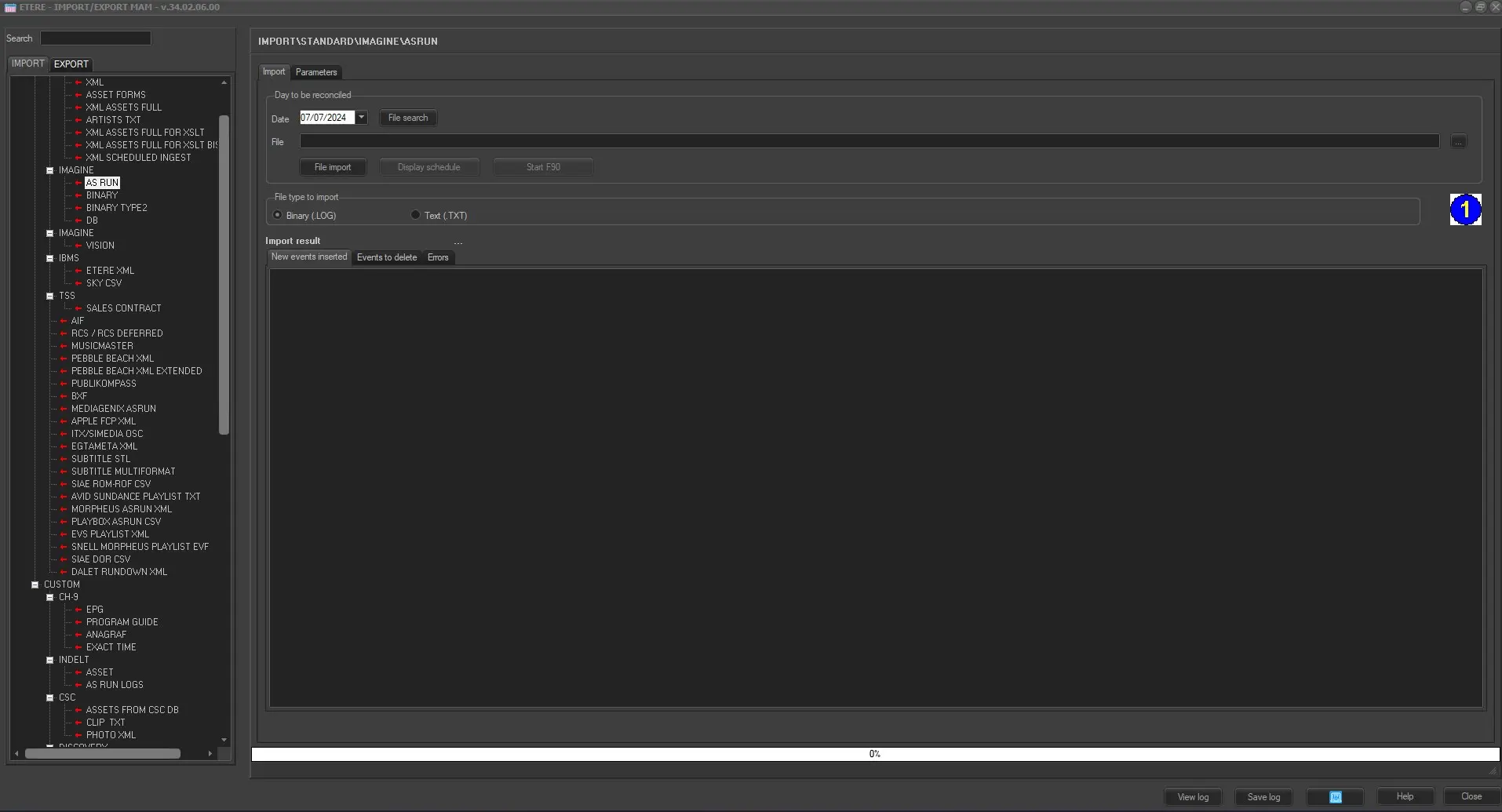
•Day to be reconciled: Specify the date of the schedule to be imported into Etere.
•File to import: Insert or browse for the file to be imported,
•[File search]: This button allows to automatically compile the 'file to import' field inserting the filename corresponding to the selected date.
•[Display schedule]: It will open the Etere schedule of the current selected day into the Executive Editor module.
•[Start F90]: This button will make Etere F90 to be automatically launched once the import process is finished.
•[File type to import]: Indicate here if the file to be imported is either in binary (.log) or text format (.txt).
•Import result: Once import has been launched and then finished, this field will contain:
- New events inserted : Events present in the imported schedule but not in the Etere schedule (i.e. therefore, successfully inserted),
- Events to delete : Events present in the Etere schedule but not in the imported one (i.e. therefore, selected for deletion),
- Errors: Possible errors encountered during the import operation.
Import_standard_louth_asrun_1
Parameters tab
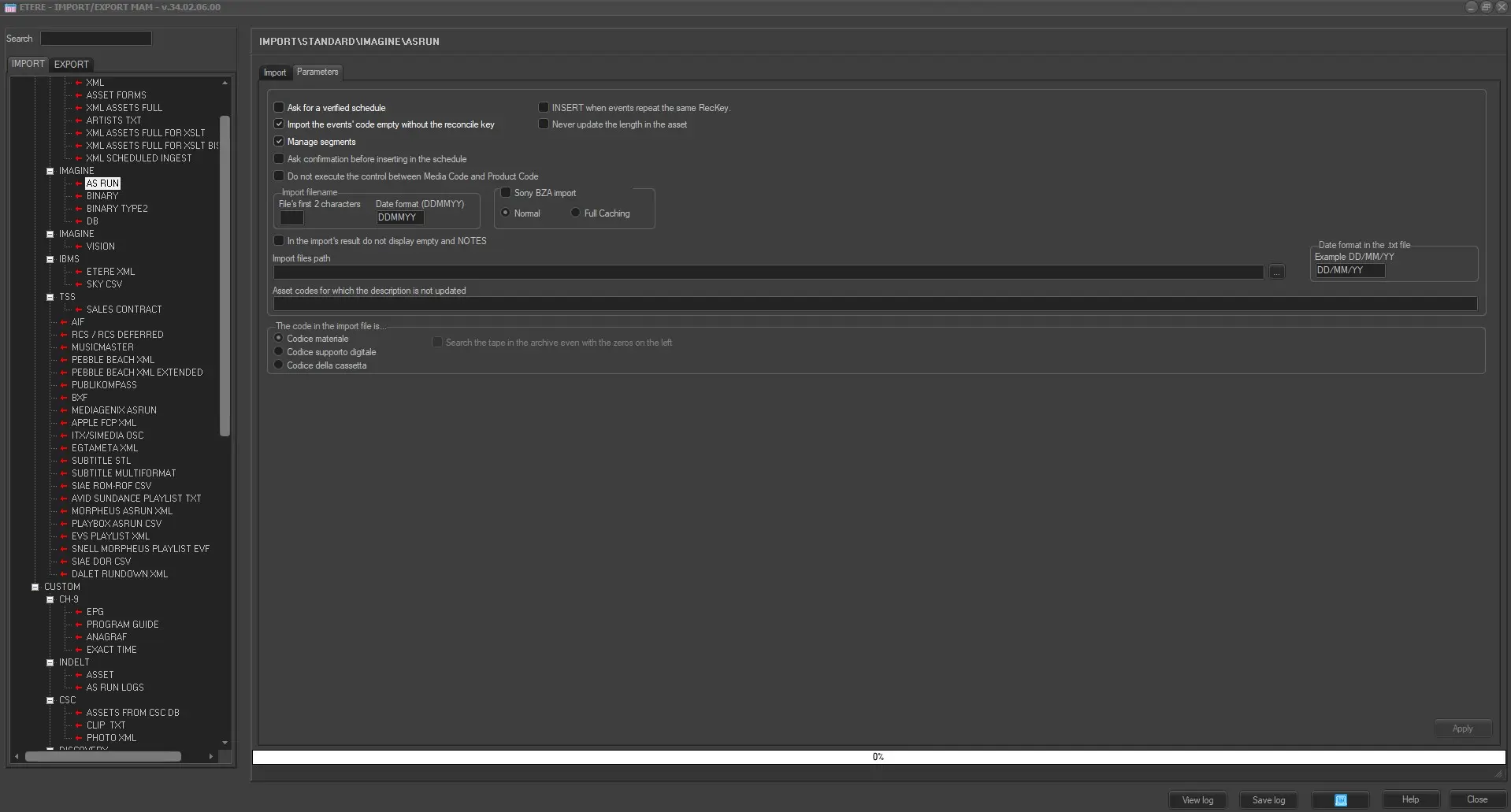
•Ask for a certified schedule: If enabled, it will be only possible to import daily schedules for days with a certified schedule.
•Import the events code empty without the reconcile key: Allows you to choose if new events inserted in Imagine which are not in the schedule, should be inserted in the schedule without a code.
•Manage segments: In case of importing exploded events (i.e. programs divided in parts), the proper EDL interruptions will be automatically created for said events.
•Ask confirmation before inserting in the schedule: Import asks you for confirmation before inserting into the schedule any event directly added in Imagine.
•Do not execute the control between Media code and Product Code: If in the file to be imported the Reconciliation Key is present, and this corresponds to the imported day, the control of the correspondence between the Product Code of the scheduling and the Imagine file Media Code is ignored, and the scheduling's Product Code is considered the correct one.
•INSERT when events repeat the same RecKey: Allows you to insert into the schedule events with the same Reconciliation Key even if there should be only one event per each reconciliation key.
•Never update the length in the asset form: Allows you to choose to never update the duration inside the asset form but only update it in the schedule
•Import filename: Set here the first 2 characters to be used as a user-defined identification string and the last 6 characters related to the date of the schedule in question.
•In the import's result do not display 'empty' and NOTES: fields classified as NOTES or empty fields will not be displayed in the imports' results.
•Sony BZA import: In case of importing data from a Sony transmission software (e.g. Sony BZA830) specify the import mode:
- Normal: If the playout automation is not entirely performed by means of a transmission software.
- Full caching: If the playout automation is entirely performed by means of a transmission software (the marks of the events exploded in the schedule will be imported).
•Import file path: Specify the file path where the import files are to be saved. You are also able to specify a list of asset codes, separated by a comma (,) for which the original description of the imported file is kept and not changed in the schedule with that found in the asset form.
•Date format in the TXT file: Amend here the format with which dates are present in the importing file.
•Asset code for which the description is not updated: Optionally, indicate -separated by commas- the codes of the events for which the original imported description will be maintained, that is, won't be updated with the asset form description.
•The code in the import file is: Here it is possible to specify how to define the code in the import file: Asset code, Digital Media code or Tape code.
•Search the tape in the archive even with the zeros on the left: If Tape code is selected in previous option, enable this option to search for tape codes with zeros (000) appended to the tape ID, e.g. 0001, 0014, etc)
Launch the import
Once the import has been configured, it can be started just by pressing the Start button, once the import has finished, it will be possible to display the schedule of the related day to verify and/or approve the import operation.
 IMPORT_IMAGINE_ASRUN
 IMPORT_IMAGINE_ASRUN_PARAMETERS