70.3.4.2 Database Backup
The "Database Backup" tool allows archiving database backups into data tapes for secure long-term storage. You might need to enter a password to authenticate the "Etere" user to proceed. The "Database Backup" includes the following three sections:
Parameters
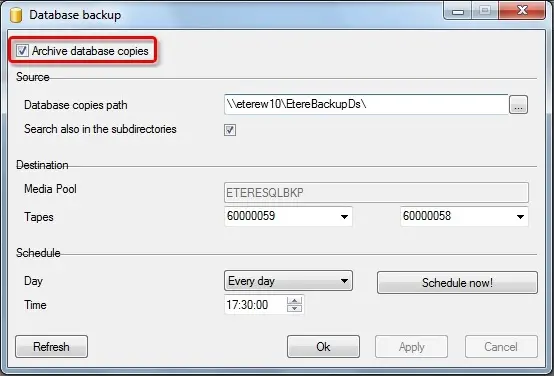
Access the "Parameters" section to enable and configure the database backup. It is necessary first to set the following parameters and press the [OK] button:
Database Backup 1
Parameter - Archive database copies
Description: Use this parameter to turn the Database Backup feature on or off.
In case database backups are performed using Etere Backup, this path can be the same as specified in that module to give more versatility to the archiving process.
Parameter - Source
Description: Set here the following parameters related to the location where database backups are stored:
•Database copies path: Enter the path location where database backups (*.bak) are stored.
•Search also in subdirectories: If enabled, Etere HSM will also search for database backups within the subfolders of the specified path.
This parameter is required, for instance, in case database backups (i.e. production, drama, historical) are created in separated folders by an automatic SQL Server Maintenance Plan.
Parameter - Destination
Description: Set here the following parameters related to the location where database backups will be archived:
•Media Pool: Here will indicate the media pool (~EtereSQLbkp) used for archiving databases; this system media pool uses two tapes (see parameter below) for archiving databases.
•Tapes: Select the data tapes to be used for storing database backups; Etere HSM will alternate the archiving between them; that is, Etere HSM will archive on one tape until it is complete, then, it will automatically start archiving on the other tape and so on, thus avoiding storage limit issues.
Parameter - Schedule
Description: Set here the following parameters related to the location where database backups will be archived:
•Day and Time: Use it to program the archiving operation to be performed daily or on a fixed day (e.g. all Sundays) at a specific time.
•Schedule now!: It performs the request for archiving the database backup. A report detailing the request (explained below in this chapter) will be displayed.
NB: If there are changes in configuration settings applied to the "Global.ini" file, the archive operation will re-establish the database connection to prevent communication link failure.
Report
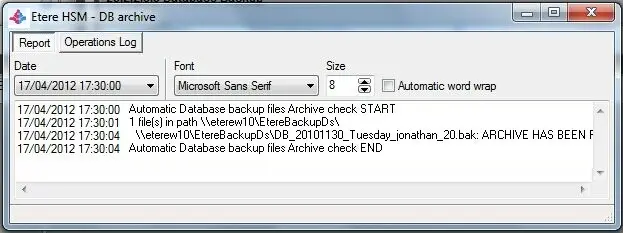
The "Reports" section allows to view an overall "Report" of the archiving of database backups as well as an "Operations log" of all the archived database backups:
Etere HSM -DB archive
Management (Restore archived backups)
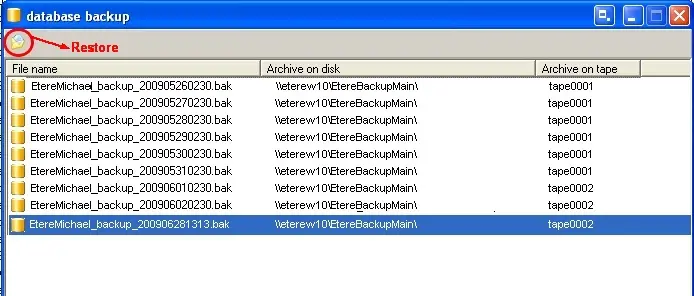
The "Management" section allows to view and also restore any previously performed backup contained; all performed backups will be listed showing their 'name', 'path' (from where they were taken) and 'tape' (where they were stored):
Database Backup 2
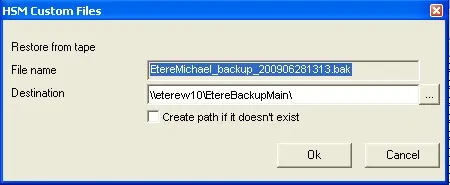
To restore a backup, just click on it and select the "restore" button; then, a small window will appear allowing you to specify the restore and press [OK] (the request of restore will be added to the Etere HSM's current job list):
HSM Custom Files
Parameter - Filename
Description: The filename corresponding to the selected backup.
Parameter - Destination
Description: The UNC Path (e.g., '\\MyNetwork\Backups\') to where the file will be restored; you can leave the default value, which is the folder from where the file was taken, or enter any other path to where you want to save the file.
NB: For information on restoring a database from a backup file, please consult the How to Restore a Database chapter using SQL Manager.
IMPORTANT NOTE
It is worth mentioning that backup copies of Etere databases can be created following any of the following procedures:
•Using Etere Backup
•Using SQL Server Manager
 HSM_Custom_Files
 Database_Backup_1
 Database_Backup_2
 Etere_HSM_-DB_archive