54.3.3.4 Delete
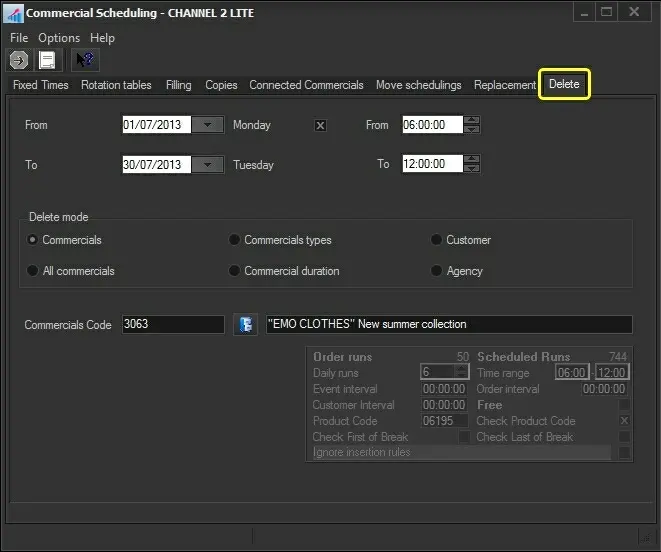
The Delete function allows you to delete any event from the schedule, from one or several days and from all or only specific time ranges, according to the various modes. To delete a commercial, search for the commercial using the [Commercial Code] button and then compile the following parameters:
Delete
Parameter - From - to (dates)
Description: Inserts the dates range in which the asset will be deleted. By default, the order's start & end dates will be proposed.
Parameter - From - to (times)
Description: Optionally, specify the time range in which the asset will be deleted. By default, the order's start & end times will be proposed.
Parameter - Delete mode
Description: Indicates the method to be used for removing the asset:
Commercials - Delete a specific commercial event. If you don't remember the commercial code to delete, select the button to display a relative list from which you can search.
All commercials - Delete all commercial events (i.e. which type has the "commercial" property enabled) scheduled on the selected period.
Commercial types - Delete all the events of a specific commercial type (i.e. types having the "commercial" property enabled)—for instance, spots, trailers, etc.
Commercial duration - Delete from the schedule all the commercial events (i.e. which type has the "commercial" property enabled) that have a duration between the specified intervals.
Customer - Delete all commercial events relative to a specific customer.
Agency - Delete all commercial events relative to a specific agency.
Parameter - Code
Description: Depending on the "delete mode", select the commercial (e.g. 3063), type (e.g. spot), customer (e.g. emo clothes), agency (e.g. devil agency), or duration (e.g. within 00:00:01 and 00:00:20) to be deleted.
Parameter - Order's scheduling info
Description: When deleting commercials, the bottom part will display (as read-only) the scheduling parameters of the commercial order related to the asset (e.g. runs, schedules runs, daily runs, time range, etc.).
Once all parameters have been configured, press the [RUN] button to delete the scheduled events. The system will ask to confirm before the deletion is complete.
 Delete