81.2.2 Schedule the Promos
Once the promo(s) has been selected, it is possible to proceed with the compilation of the parameters that will determine its automatic scheduling. the compilation process is an easy task and it has been detailed step-by-step in the procedure described below:
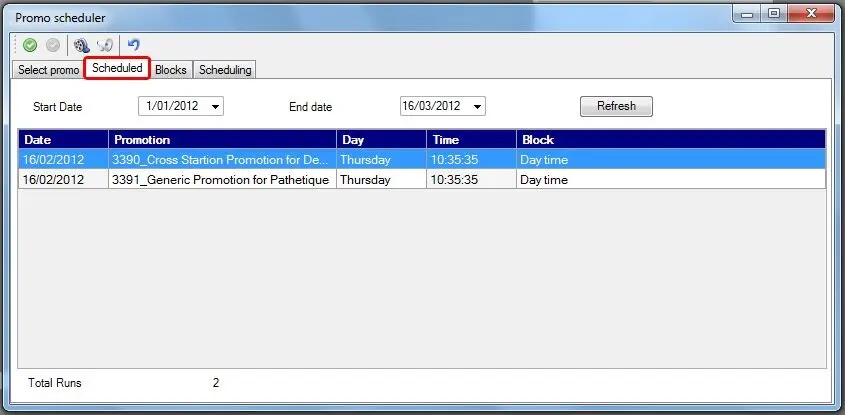
1. SCHEDULED
The Scheduled tab will show a list containing all the schedule appearances of the selected asset over the selected period. For each scheduled asset appearance, it will be detailed its date, day, time, block, broadcast type (i.e. premiere, prime or repeat) and split network on which it has been programmed.
This section provides some functions for managing scheduled asset runs, these functions include:
4835_Scheduled
Period - Change the displayed period by modifying either the start or end dates, then, click the [Refresh] button.
Contextual menu - Making right-click on the scheduled run(s), the operator will be allowed to:
•Select all (CTRL-A): Select all the asset runs present in the list.
•Deselect all: Deselect all the previously selected asset runs.
•Advanced selection: Select only those asset runs scheduled on specific weekdays.
•Delete (DEL): Unschedule all selected asset runs, that is, it removes them from their related broadcast playlists.
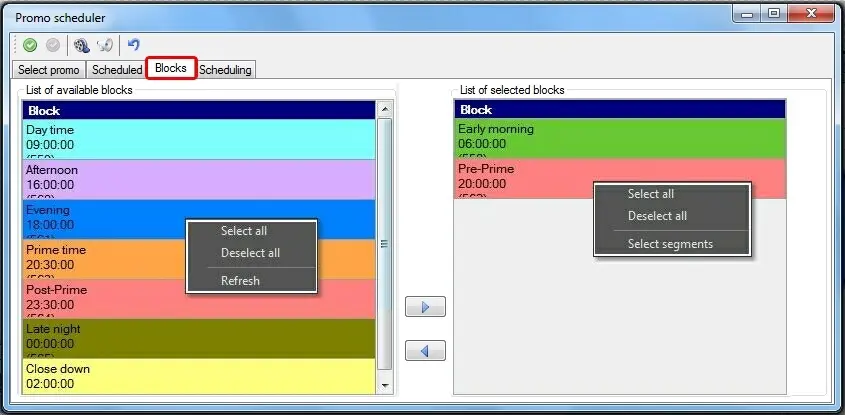
2. BLOCKS
The Blocks section allows to specify the target blocks on which the asset will be scheduled. This section is mainly formed by two lists, the left-side list one which displays all available blocks (i.e. present on the period's schedule structure and valid for the asset's type), and the right-side list which holds all the blocks added by the operator to hold scheduled asset runs. Both lists can be managed through the following functions:
4836_Blocks
=> - Add the selected block(s) to the list of blocks to be used for scheduling. Please note that this action can be quickly performed by double-clicking on the related block.
<= - Remove the selected block(s) from the list of blocks to be used for scheduling. Please note that this action can be quickly performed by double-clicking on the related block.
Contextual menu (available blocks) - Making right-click on the available block(s) will allow the operator to:
•Select all: Select all blocks present in the list (i.e. available) for being added.
•Deselect all: Deselect all previously selected blocks.
•Refresh: Update the list of blocks (availability, description).
Contextual menu (added blocks) - Making right-click on the added block(s) will allow the operator to:
•Select all: Select all blocks present in the list (i.e. added) for being removed.
•Deselect all: Deselect all previously selected blocks.
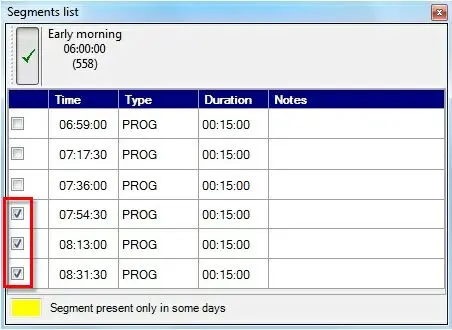
•Select segments: Specify the exact segments on which the asset will be scheduled:
4833_Contextual_menu
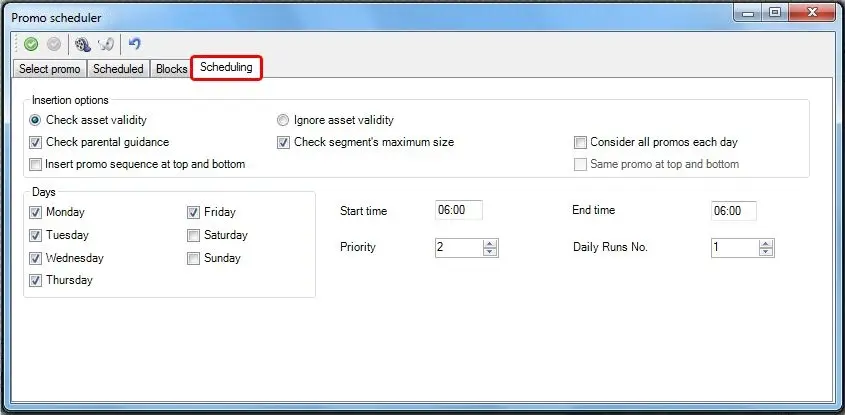
3. SCHEDULING
Go to the Scheduling tab to define the scheduling criteria that will be used for programming the selected asset:
4834_Scheduling
Insertion options - It is possible to set some actions to be performed during the scheduling operation:
•Check validity/Ignore validity: If enabled (check), the asset will be scheduled only on those days for which it is valid. If disabled (ignore), the asset will be scheduled on any day without taking into account its validity. In this case, once scheduled, a warning message will be displayed for all scheduled appearances for which the asset is not valid.
Please note that assets' validity is based on the expiry date set either under the Asset Form | Rights Management section.
•.Check parental guidance: If enabled, the selected asset will be scheduled only on those blocks on which its 'parental guidance' classification is permitted.
•Check segment's maximum size: If enabled, the asset will be scheduled only if their duration doesn't exceed the maximum duration of the segment.
•Schedule all promos daily: If disabled, all selected promos will be scheduled once per day across the entire date range. For instance, for a four-promo sequence:
Segment-A
Mon
Promo1
Tue
Promo2
Wed
Promo3
Thu
Promo4
Fri
Promo1
Instead, if enabled, all selected promos will be scheduled (if possible) each day (on different segments) all over the entire date range. For instance, for a four-promo sequence:
segment-A
Promo1
Mon
Promo1
Tue
Promo1
Wed
Promo1
Thu
segment-B
Promo2
Mon
Promo2
Tue
Promo2
Wed
Promo2
Thu
segment-C
Promo3
Mon
Promo3
Tue
Promo3
Wed
Promo3
Thu
segment-D
Promo4
Mon
Promo4
Tue
Promo4
Wed
Promo4
Thu
NB: Please note that, whether this parameter is enabled or disabled, it is possible to repeat promos within the same day just by increasing the ''daily runs number' parameter.
•Insert promo sequence at top and bottom: If enabled, the scheduler will attempt to schedule promos at the top and bottom of the target segments.
For instance, in case "schedule all promos daily" is not enabled:
segment-A (top)
Promo1
Mon
Promo2
Tue
Promo3
Wed
Promo4
Thu
segment-A (bottom)
Promo2
Mon
Promo2
Tue
Promo3
Wed
Promo4
Thu
For instance, in case "schedule all promos daily" is enabled:
segment-A (top)
Promo1
Mon
Promo1
Tue
Promo1
Wed
Promo1
Thu
segment-A (bottom)
Promo2
Mon
Promo2
Tue
Promo2
Wed
Promo2
Thu
segment-B (top)
Promo3
Mon
Promo3
Tue
Promo3
Wed
Promo3
Thu
segment-B (bottom)
Promo4
Mon
Promo4
Tue
Promo4
Wed
Promo4
Thu
•Same promo at top and bottom: In case the previous "insert promo sequence at top and bottom" option is enabled, this option will make that the same promo (or promos) scheduled at the top of a segment will be used also at the bottom of that segment.
For instance, in case "schedule all promos daily" is not enabled:
segment-A (top)
Promo1
Mon
Promo2
Tue
Promo3
Wed
Promo4
Thu
segment-A (bottom)
Promo1
Mon
Promo2
Tue
Promo3
Wed
Promo4
Thu
For instance, in case "schedule all promos daily" is enabled:
segment-A (top)
Promo1
Mon
Promo1
Tue
Promo1
Wed
Promo1
Thu
segment-A (bottom)
Promo1
Mon
Promo2
Tue
Promo2
Wed
Promo2
Thu
segment-B (top)
Promo2
Mon
Promo3
Tue
Promo3
Wed
Promo3
Thu
segment-B (bottom)
Promo2
Mon
Promo4
Tue
Promo4
Wed
Promo4
Thu
Days - Specify the days of the week on which the selected promo(s) will be scheduled.
Start/End time - It allows to specify the time slot on which selected promo(s) will be exclusively scheduled.
Priority - Specify the priority (2-998) with which selected promo(s) will be scheduled.
The priority is the criteria used by Etere to determine the position of an event within a block segment during its scheduling, lower is the priority closest is its segment top (1) and higher is the priority closest is its position to the segment bottom (999).
NB: Please note that in case the "insert promo sequence in top and bottom" parameter is enabled, it won't be possible to set the scheduling priority since it will be managed by the system (i.e. 3 for top and 997 for bottom promos).
Daily runs no. - Set the maximum number of times that the selected promo(s) will be allowed to be scheduled on the same television day (i.e. once a day, twice a day, thrice a day, etc).
4.TOOLBAR
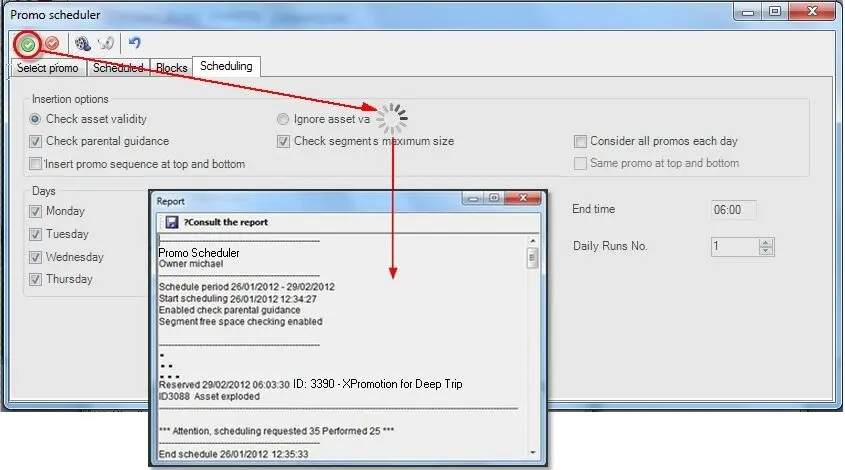
At this point, the scheduling process is ready to be performed by using the following functions available in the top toolbar:
4832_Promo_Scheduler_2
[Start scheduling] - Launches the scheduling process that will schedule the selected asset over the given period, across the selected blocks and based on the dictated criteria.
Once the process ends, a detailed report will be provided, being possible to save it as a simple text-file.
[Abort scheduling] - Interrupts the current operation, the operator will be asked to either undo the entire process or keep already scheduled asset runs.
[Undo scheduling] - Clears all the sections for a new scheduling. Please note that all previously performed changes (e.g. select asset, set dates, add blocks, configure scheduling) will be lost.
[Media Library] - Search and select the assets to be scheduled from the Media Library module.
[Promo Manager] - Search and select the promos to be scheduled from the Promo Management module.
 Scheduled
 Blocks
 Scheduling
 Contextual_menu
 Promo_Scheduler_2