72.7.2 How to produce subtitles
Etere provides the useful, intuitive and versatile way to produce in-house subtitles (e.g. subtitled movies, captioned news, etc) in short time by following the simple procedure:
Select the asset, language and subtitle
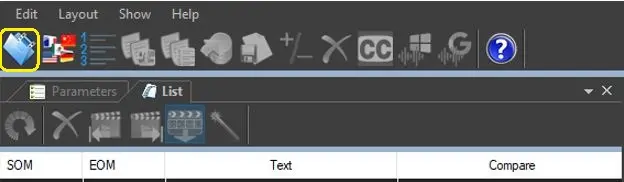
1.Launch Etere MAM and access the "Subtitles Tool" module.
2.Make click on the [Open] button to open the "Media Library Search Engine", this form will allow the operator to select the asset for which subtitles will be produced.
Subtitles Tool
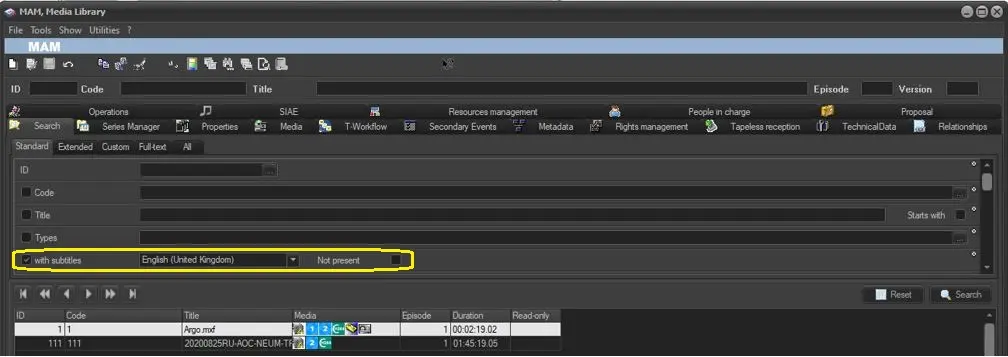
Please note that it will be possible to use the "subtitles" search filter to narrow the search to retrieve all assets either featuring subtitles in a specific/all languages or without subtitles of specific/all languages:
Featuring subtitles
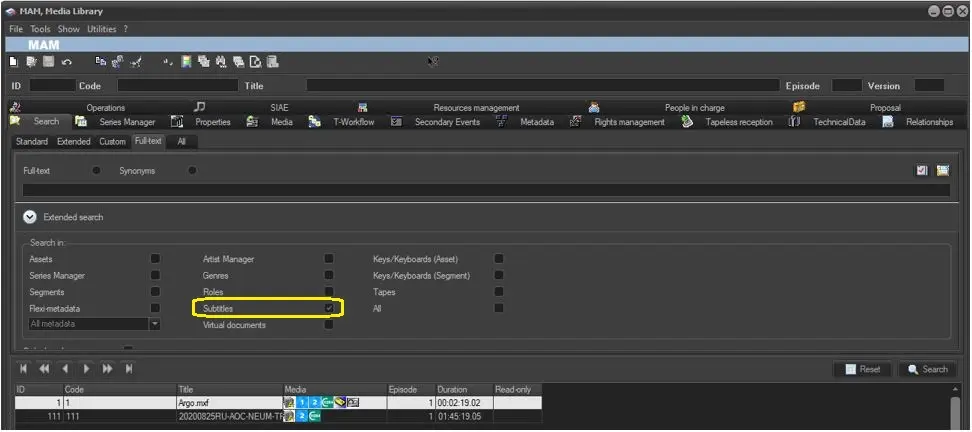
Alternatively, it is possible to search for across all subtitles content by using the "subtitles" filter of the full-text search:
Subtitles content
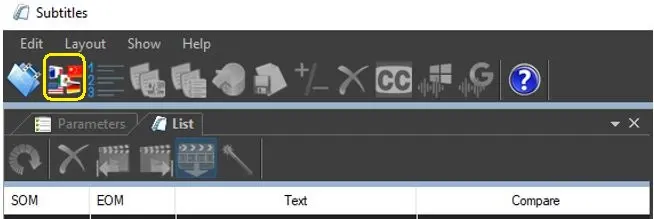
3.Once the asset has been selected, its subtitles will be automatically set to be produced in the last used language, however, it will be possible to change it through the "language" button present in the toolbar:
Language button
It's worth mentioning that the "compare" parameter allows to select a second language to be displayed as a guideline (e.g. to translate subtitles or check their correctness). For detailed information refer to the Compare Subtitles chapter.
NB: Available languages are enabled in the Etere Configuration module (in case no language is enabled, subtitles will be produced only in English).
4.In case there are existing subtitles (in the selected language) for the asset, they will be loaded in the "Language" tab,
5.The operator can either, load other subtitles from a file using the [mport] button or produce a new subtitle using the [ New] button,
Start producing the subtitle
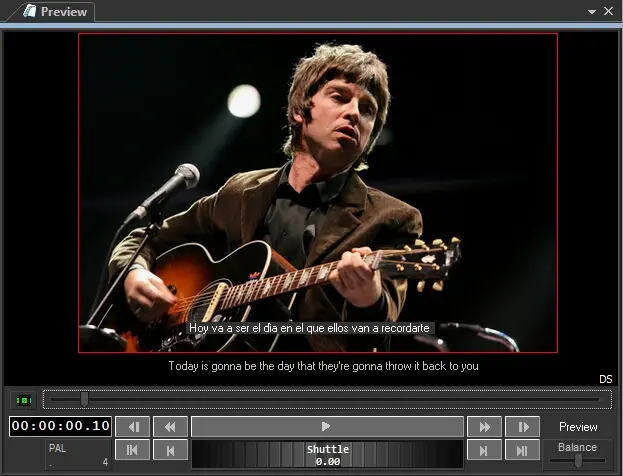
6.At this point, subtitle entries can be produced by previewing -through the Proxy Browser- the asset media and entering the related SOM (e.g. 00:00:03.26), EOM (e.g. 00:00:08.46) and Text values (e.g. "This is a sample line!"), allowing also to visualize a second subtitle in a different language (e.g. useful when translating subtitles):
Preview subtitles
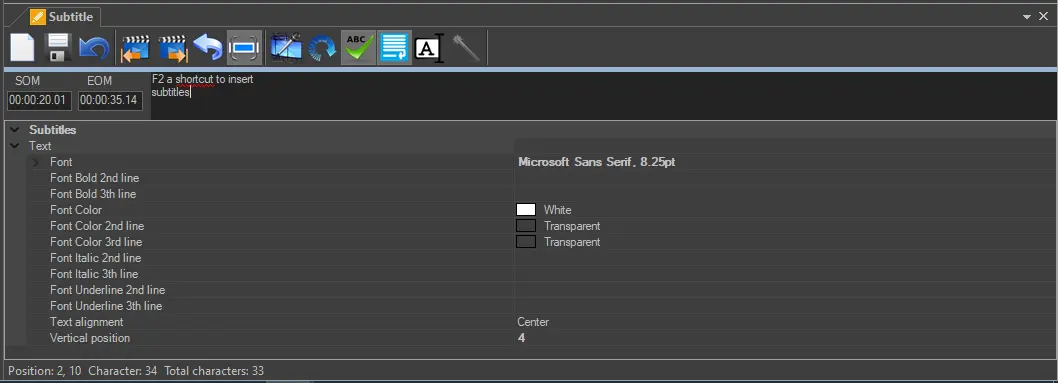
It's worth mentioning that subtitles entries can be quickly entered by using the [F2] key shortcut, as shown below:
Subtitles
Sequential actions
a - Press [F2] to retrieve SOM (from currently previewing timecode)
b - Press [F2] to retrieve EOM (from currently previewing timecode)
c - Enter subtitles in the text box
d - Press [F2] to save the subtitle entry
e - A new entry will be loaded with a SOM (equal to the previous entry's EOM plus one frame); repeat the sequence from step b to continue inserting the new subtitle.
Alternate actions
Press [F3] at any time to listen the current entry (from SOM to EOM)
Press [CTRL + F2] at any time to retrieve the SOM (from currently previewing timecode)
Press [CTRL + F3] at any time to retrieve the EOM (from currently previewing timecode)
In order to improve the insertion of subtitle entries, key functions are provided for the edit of subtitles (see Edit functions). Moreover, It's worth mentioning that wrong subtitle entries will be pointed out using icons:
Icon - Warning
Possible causes : - Text line is too long
- Exceeded the maximum number of rows
Icon - Error
Possible causes : - EOM less than SOM (i.e. EOM overlaps SOM)
- Overlap with the previous
- Overlap with the next
Save the subtitle
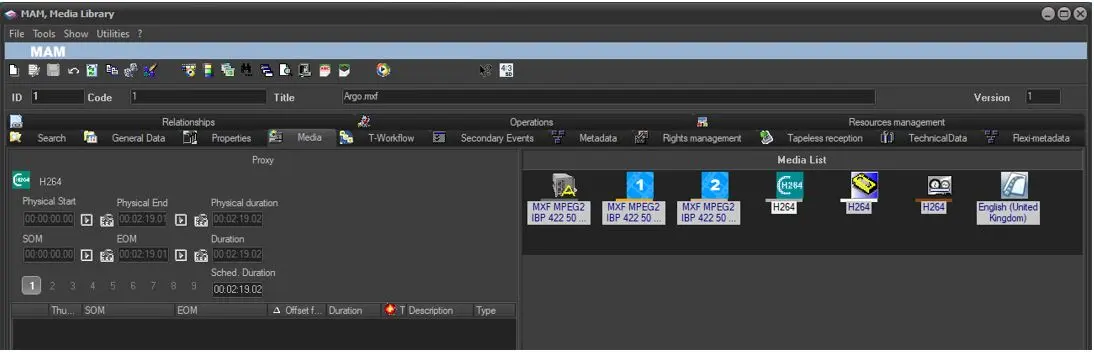
7.Each time an entry is inserted it is automatically saved in the Etere database as a language-specific subtitle of the working asset. Produced subtitles will be automatically included in the media section of the asset form in question (from which it will be possible to open and manage them):
Save the subtitle
8.Please remember that subtitles can be exported in any of the various formats supported by Etere through the [Export] button.
NB: Note that it is always possible to start creating another language's subtitle based on the current one by using the [Copy] button.
NB: In order to view subtitles embedded in media file, the language of subtitles and its definition must be selected and enabled in the Configuration > Settings > Language settings.
 Save_the_subtitle
 Subtitles_Tool
 Featuring_subtitles
 Subtitles_content
 Language_button
 Preview_subtitles
 Subtitles