16.3 Assets to send
(receiver station librarian )Select the Asset to be sent (by user)
• Launch Media Library and search for assets to be sent via Tapeless. The selected Asset must not have any media file linked to it;
• Navigate to the "Tapeless Reception" tab, and provide the information of the person in charge, the name of the Supplier and the scheduled arrival date. The scheduled arrival date must be equal to or later than the current date;
• Navigate to the "Rights Management" tab and ensure the validity date and expiry date have been set for the Asset;
• After which, the Asset would appear in the "Assets to Send" section when the Supplier login to EtereWeb.
Assets to send 2
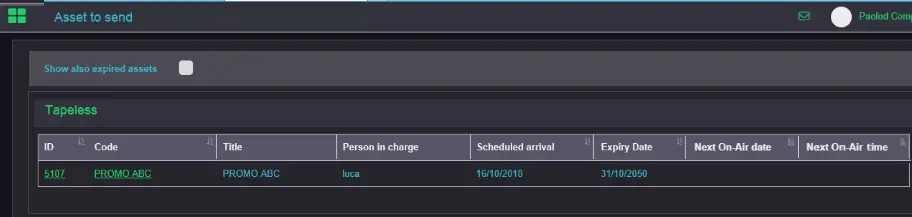
(external supplier part) This section listed all the assets in the workstation pending to be transferred via Tapeless by the logged-in user (Supplier).
Assets to send 1
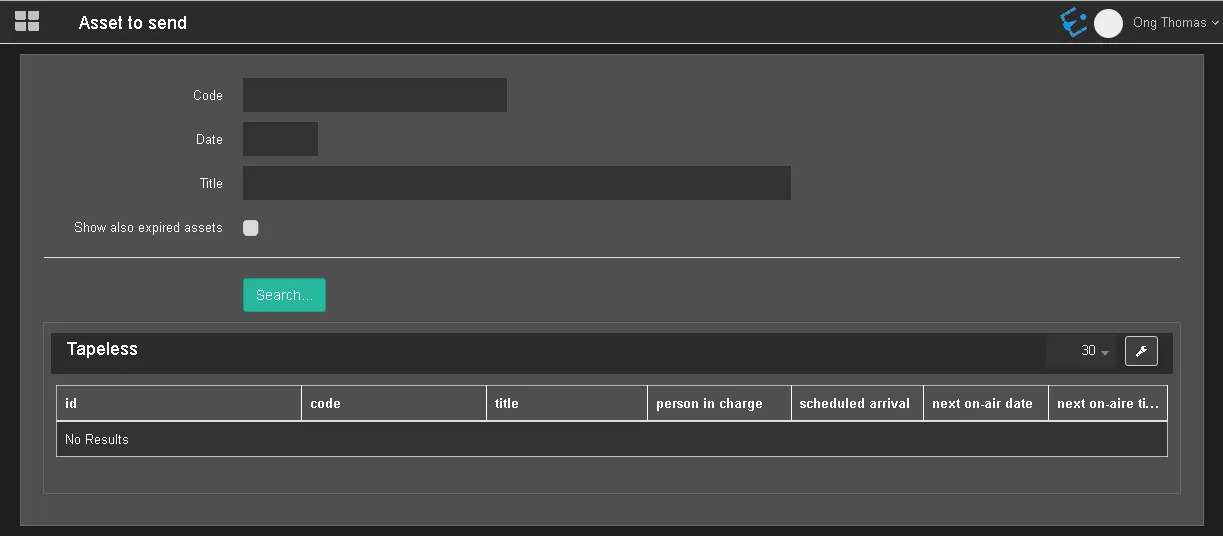
You can filter assets with the Search function to retrieve assets that match the criteria.
Code: Search all tapeless assets by extracting the asset code;
Date: Extract tapeless assets by a specific scheduled date;
Title: Search all tapeless assets by their asset title matching the specified value;
All the assets are indicated with the expected arrival time; the user must upload the assets within the expiry dates indicated for each Asset. Moreover, you can enable the "Show also expired assets" option to include tapeless assets whose scheduled date has already expired.
Upon filtering, the information available is as follows:
ID: It displays the asset identifier of the tapeless Asset;
Code: It shows the asset code of the tapeless Asset;
Title: It displays the asset title of the tapeless Asset;
Person In Charge: The name of the person who activates the tapeless reception and tracks the delivery of media files;
Scheduled arrival: The scheduled date to deliver the media file;
Next on-air date: Indicate the date when the following media file will be provided;
Next on-air time: Indicate the time within the "Next on-air date" when the following media file will be provided;
The column above names and width can be modified in Web Tapeless settings in the Etere Configuration module. The column layout can only be defined for the entire group of users or specific users.
You can click on the "Linked assets" field to consult the assets to be sent.
Click "Asset Code" to open the asset form to start the Tapeless process. Access the "Media" tab in the asset form and upload the attached media to the workstation database.
When uploading the Tapeless asset, you can view the Asset in Media Library's Operations tab in the Workstation module or view the Tapeless transaction in the "Notes" column in the Operations tab in the EtereWeb module.
Upon successful upload, the Asset will be moved to the "Sent Assets" section described in the following chapter.
 Assets_to_send_1
 Assets_to_send_2