66.4.20 L-Shape
L-SHAPE
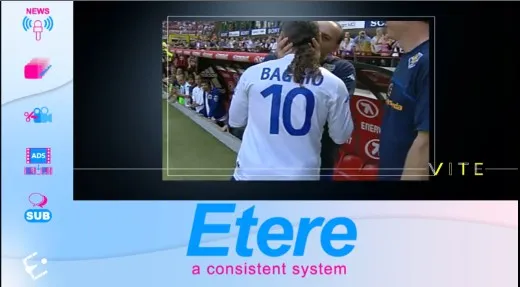
The L-Shape structure allows to show a picture or an animation combined with a video squeeze.
An example of the .ml-cgc file that will be used for the graphic is the following one, that can be modified easily with required information.
output-rect values are related to the size of the video squeezed by the L-Shape grafic, while the three dots ... on the img path value must be replaced with the exact location of the image (or sequence) to be use as L-Shape background.
L-shape
<ml-chargen>
<video-props colorspace='ARGB32' interlace='top' extra-buffer='1'/>
<video-output background='Black(0)' top-video='yes'>
<input-rect left='0.000%' right='0.000%' top='0.000%' bottom='0.000%'/>
<output-rect left='0.000%' right='75.000%' top='0.000%' bottom='75.000%'/>
</video-output>
<cg-items>
<cg-item id='item-000' pos-x='0.0' pos-y='0.0' size-x='1.422' size-y='1.0'>
<img path='...' in='0.0' out='0.0' open_props='' border='0' color='white(255)'/>
<cg-props pos-x='0' pos-y='0' show='yes' move-type='accel-both' alpha='255' bg-color='Black(0)' pixel-ar='1.0' play-mode='loop' interlace='auto' scale='fit-ar' align='top-left' width='2730' height='1080' pause='no' edges-smooth='0'>
<indent left='0' right='0' top='0' bottom='0' use-for-bg='no'/>
<group-indent left='0' right='0' top='0' bottom='0'/>
</cg-props>
</cg-item>
</cg-items>
<cg-schedule>
<timeline-file/>
</cg-schedule>
<cg-compositions/>
</ml-chargen>
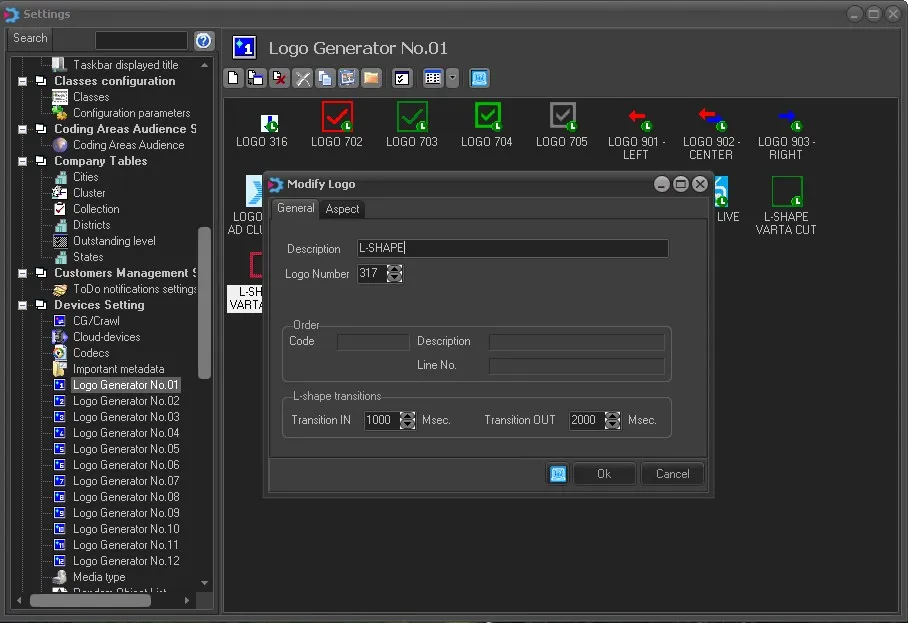
It is also possible to edit the transition timing of the squeeze effect included in the L-Shape graphics, modifying the Logo configured in Etere Logo Generator section in Etere Configuration > Settings.
Transition IN will mean how long it will take for the squeeze to be applied, and the Transition OUT will mean how long it will take to remove the squeeze.
transition_timing
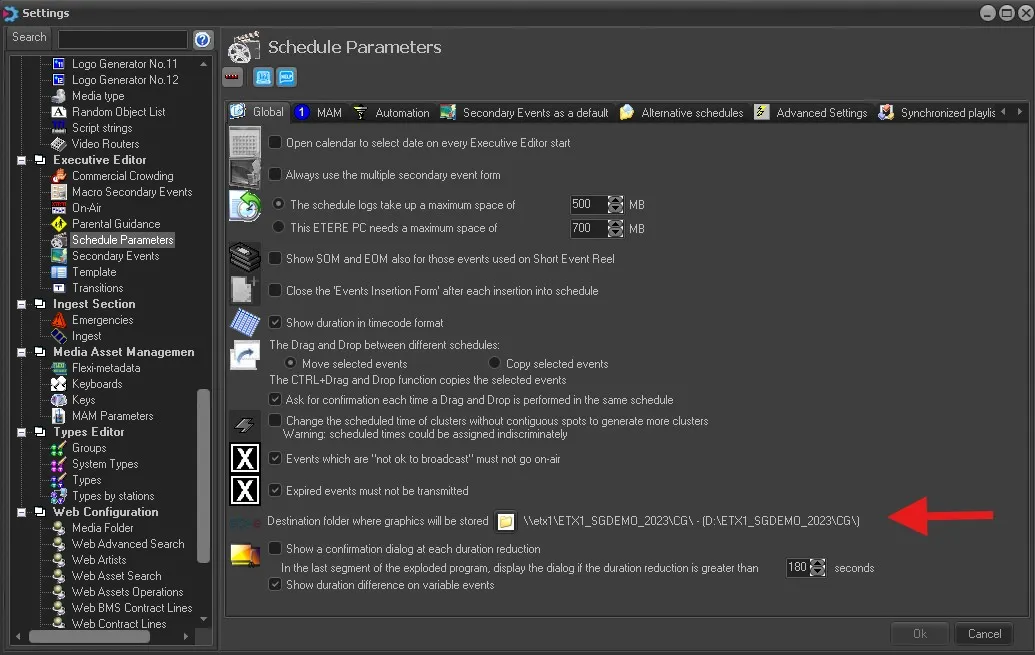
To correctly apply the transition (it will create a *.et-cgc file alongside the *.ml-cgc file, with same name), the "Destination folder where graphics will be stored" feature in Etere Configuration > Settings > Schedule Parameters > Global tab must be enabled and properly configured [please refer to related chapter 59.2.40.13 Global
Global
 L-shape
 transition_timing
 Global