72.2.1.11 Searching asset - Custom Layout
Search tabs
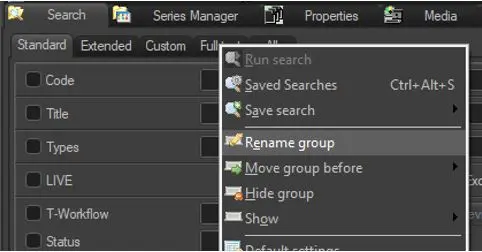
Search tabs can be freely positioned by right-click on them and using the 'move group before...' option, being additionally possible to choose to hide or show specific search tabs by suing the 'hide group' and 'show' options respectively:
Rename group
Moreover, the default tab names (generated according to the language set in Etere at its first run) can be changed at any time by right-click on it and selecting the 'rename group' function.
Search panels
Since the search engine offered by Etere is meant to be a robust tool, it has been equipped with various features for allowing users to enhance their searches. In this way, all the available filters have been divided along five panels, all of them (excepting the 'Full-Text' panel) are solely referential:
All
Extended
The user is allowed to distribute filters along panels according to his own taste (thus improving their management), this distribution can be done by drag-and-drop filters from one panel to another (see figure above), or by right-click on a certain filter and selecting the contextual-menu option 'move in':
Search filters
The user-friendly interface allows a complete customization of the filters used for searching assets, it allows the inclusion of SMPTE data, single metadevice, metadevices groups and any of the filters supported by the search engine.
Filters
In order to include a filter, right-click on the title of the Panel on which the filter should be added, and select the 'Add filter' option and choose the function that better suites to your searches:
Flexi-metadata - Select a flexi-metadata to be used as filter during searches.
Note: A "from - to" filter will be provided for "date" metadata.
Cloud-device - Add a metadevice to filter assets linked to a file stored in the specified location (e.g. MTX1).
Note: The 'exclude' option allows filtering assets "which are not" stored in the given metadevice.
Cloud-device group - Add multiple metadevices to filter assets linked to a file stored in at least in one of them (e.g. MTX1 or MTX2).
Codec - Add a codec to filter assets linked to a file matching it (e.g. IMX50).
Note: The 'exclude' option allows filtering assets "without" files matching the given codec.
Codecs group - Add multiple codecs to filter assets linked to a file matching at least one of them (e.g. IMX50 or XDCAM50).
Search filter - Search among all the search filters supported by Etere, and select the one(s) intended to be used for retrieving assets:
Search filters
NB: Filters already included in the selected search tab will be displayed as grayed items to indicate their unavailability for being selected.
Import/Export your Searching Layout
Users can either import or export the whole searching tabs arrangement by selecting from the right-click menu of the Searching tab's title the 'Import Configuration' or 'Export Configuration' respectively. Exported files are saved into a .reg format (e.g. 'EtSearchConfig.reg') and can imported from any other Etere Module or a Etere PC.
Please note that the layout of search panels can be restored to their initial configuration by using the 'default settings' function.
NB: In order to import/export searching layouts, specific rights are required, information regarding rights can be found in the proper chapter: Rights Management.
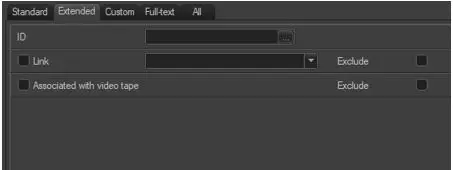 Extended
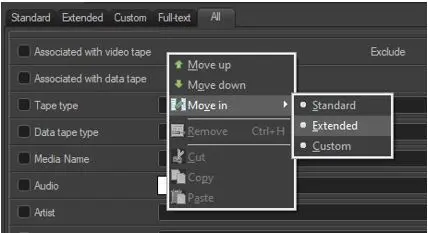 All
All
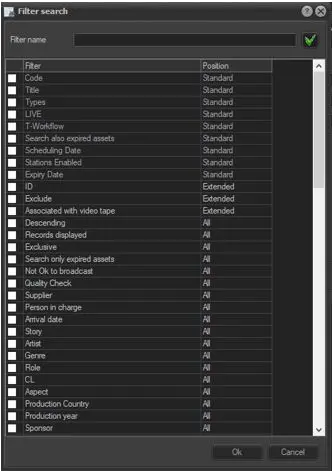 Search_filters
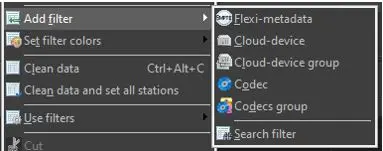 Filters
 Rename_group