56.3.1 Use a cold standby automation
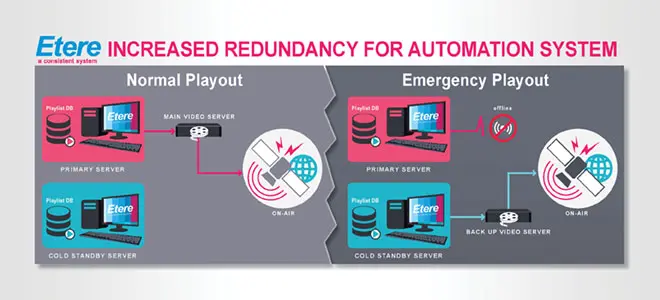
Using a cold standby automation is a redundancy method that involves having one automation server as a backup for the identical primary automation. The cold standby automation can be activated when a failure occurs in the primary automation.
To increase the level of redundancy of your playout automation system without using a backup or clone automation, you can implement a cold standby automation to be used as a fail-over server when the primary automation server fails:
Normal_and_Emergency_Playaut
This chapter details the preliminary requirements to ensure the correct functioning of the cold standby automation and the steps required to switch to the cold standby automation.
Preliminary requirements
To use cold standby automation to increase the redundancy of the automation system, the following prerequisites are required:
✓The cold standby automation must be configured in a server different from the primary automation
✓The cold standby automation must be configured with the same resources as the primary automation
✓The cold standby automation must be turned off (i.e. closed) when it is not used.
Manual switching
Switching to the backup automation is a simple task that can be accomplished by following the steps below:
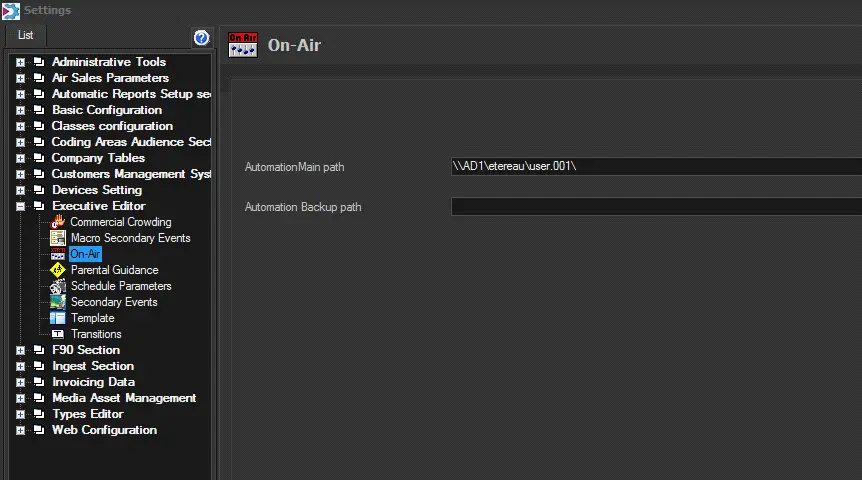
1. Open Etere Configuration and go to the “Executive Editor > On-Air” section.
2. Set in the “Automation main path” parameter the one corresponding to the cold standby automation:
Executive_Editor__On-Air
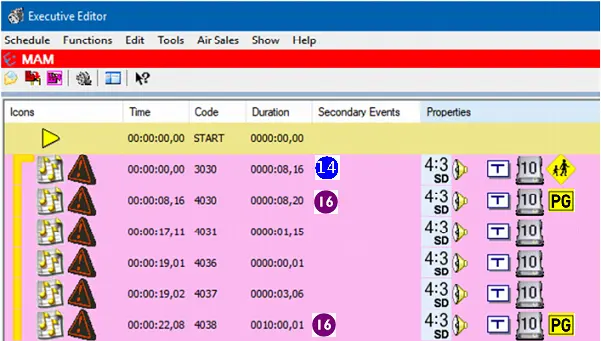
3. Restart the Etere Scheduling module. Once restarted, open the Executive Editor and press the [Publish] button to put the broadcast playlist into the configured path:
Executive_Editor
4. Stop and close the primary automation
5. Launch the cold standby automation. Select the event to start playing the playlist; this selection depends on whether the last transmitted event was completely transmitted before the emergency:
If the last event was completely transmitted - Select the event after the last transmitted event, right-click and select the [Start] function and choose to “start immediately at the beginning of the clip”.
If the last event was partially transmitted - Select the partially transmitted event, right-click, select the [Start] function, and choose “start at the middle of the clip”.
NB: Playing from a partially transmitted event is only suggested when the remaining not-transmitted duration is long (e.g. greater than five minutes).
 Normal_and_Emergency_Playaut
 Executive_Editor__On-Air
 Executive_Editor