72.2.2.19 Annotations - Media List
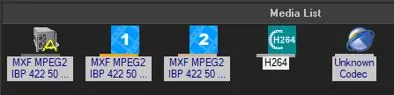
In the Media List section, all metafiles (i.e. media references) associated to the asset in question are displayed depending on the metadevice/codec configuration:
Hires file: Main file stored in the video server, intended to be used for the on-air transmission.
Lowres file: Proxy file stored in the video server, commonly used for previewing purposes.
NB: From Etere released version 27.3 onwards “.wmv” format codec is no longer supported, instead “.mp4” (H264) format is in place. Customer could use workflow “Transcode from WMV to H264” to transcode existing “.wmv” format file to the desired format.
Video tape: Source video stored in a video tape. Currently loaned tapes are displayed with a special icon
Data tape: File archived into a cartridge for long-term storage using Etere HSM.
Optical disc: File stored into a "professional disc" held into a Flexicart/Deck.
Subtitle: Language subtitle(s) produced for the asset using the Subtitles Management module.
Note 1: Every media will be displayed with a below line colored with its storage metadevice's assigned color (e.g. orange).
Note 2: In case the storage cloud-device of a media is ---offline---, a gray line will be displayed on its left side.
Note 3: A line displayed beside tapes will indicate if they are either ---online--- or ---offline--- from the library.
Note 4: Tapes containing an archived proxy file will be displayed with a "L" whereas those containing an archived hires with an "H".
Furthermore, please note that passing the mouse pointer over a certain media will display the media's main information; for example, for a tape will be detailed its title, code, barcode, part number, physical start, physical end, rack location,etc.
AVAILABLE CONTEXTUAL FUNCTIONS
The "Media" area provides different contextual menus depending on whether you select a file, a tape or none:
FILE contextual menu
FILE contextual menu
Video file export: Copies the selected media file to a certain path specified by the operator.
This function is only enabled if the access rights “Media Library\Videofile export” is set to “Allowed” in Etere Rights Management.
NB: Export is available only for files stored in media folders not based on ftp download/upload paths.
An error message will be displayed in case the source "file doesn't exists or cannot be accessed".
Link to all season's episodes: By selecting this function link the asset to all the episodes of the season. To reverse this function, you would need to manually unlink the content from all the assets of the season.
NB: If this function is triggered unintentionally by inappropriate user, it would require substantial amount of time to manually unlink all assets from all episodes of the season. User must be granted with appropriate access rights in Media Library in order to view and execute this function.
Open by system (F9): Rather than with the Preview Browser, open the selected file (i.e. mxf, doc, pdf, zip, etc) using the external application (e.g. VLC, WinZip) set in windows as the default for opening this file type.
Execute EtereInfo Process: The Mediainfo function can be activated manually by simply right click on the video file and select “Execute EtereInfo process” function, it would update the asset duration (set duration only for *.mov files) and the codec of the video file and automatically open the form with the flexi-metadata of the video file. This function is not applicable for ETX graphic object.
Edit by Audacity: Opens Audacity to edit the audio trace
Edit: Select this function to edit the metafile configuration settings.
Edit parameters: If there is an ETX graphic associated to the media file, select this option to edit the parameters of the selected graphic. This function read or create (if file not exist) params.txt during editing.
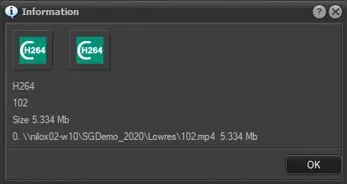
About: Show basic information on selected file (e.g. codec, filename, size and path):
Information
Flexi-metadata: This function allows editing the Flexi-metadata related to the metafile (i.e. the template associated to the metafile's codec). This information can be also set under the Technical Data tab.
Print metafile properties: Generate a document containing information the selected metafile; this report includes info on the metafile and all its associated files. Detailed info on chapter Print metafile properties.
Modify gap between Videoserver and Tape TC: Manage the difference between the video server and tape timecodes.
NB: This function is available only for non-live assets linked to at least one file in a video server.
Import archived proxy copy: Import the lowres video copy stored in the archive.
NB: This function is available only for proxy media already "archived".
Delete archived copy: Delete the file's archived copy after the user gives a confirmation (i.e. type "Etere").
NB: This function is available only for media already "archived".
Estimated time remaining: View the estimated time for completing the restore operation.
NB: This function is available only for media "queued" for being restored or currently "restoring".
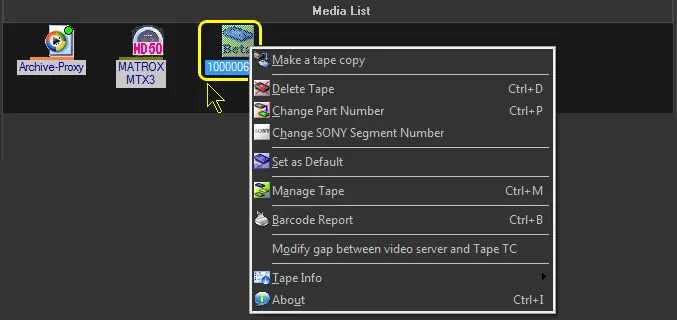
TAPE contextual menu
TAPE contextual menu
Make a tape copy: Creates a new tape featuring the same information of the selected tape (e.g. description, timecodes, etc) but with a new user-defined code and barcode.
Delete tape (CTRL+D): Delete the relationship between the tape and the current asset.
Change part number (CTRL+P): In case a clip is spread across two or more tapes, this function allows to specify the part contained in the selected tape. Detailed information on the management of spread clips can be found in the "Ingest from Multiple Tapes" chapter of the Etere Ingest manual.
Change Sony segment number: In case the tape is a Multi-Segment Tape, here you will be able to indicate the position on the tape of the segment used by the asset.
Set as default: Sets the selected tape as the default tape to use.
NB: This function is available only if the selected tape is not already set as default.
Manage tape (CTRL+M): Opens the Tape Library module allowing you to search and manage tapes (type, format, description, barcode details etc).
Barcode report: Prints the barcode of the selected tape.
Tape info: Provides detailed information on the tape's rack location, enabled slots, offline status and stored content (differentiating deleted and archived media from normal media).
About (CTRL+I): Show basic information on selected file (e.g. barcode, used space, archive location etc.).
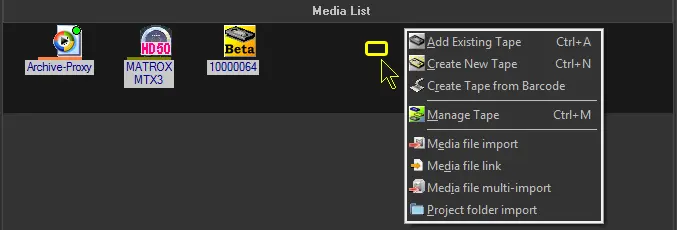
"NO SELECTION" contextual menu
NO SELECTION
Add existing tape (CTRL+A): Add an existing tape to the list of media associated to the asset form in question. Browse to select the tape and specify the difference between the Server timecode and the Tape timecode if there is any by + or – 00:00:00.00.
Create new tape (CTRL+N): Create a new tape to be associated to the asset form. The Tape Library module will appear allowing you to input all relevant tape data (description, type, format etc). Specify the difference between the Server timecode and the Tape timecode if there is any by + or – 00:00:00.00.
Create tape from barcode: Create a new tape by inserting the tape barcode and type either manually (inserted by the operator) or automatically (using a barcode reader) and pressing the [Ok] button.
Moreover, the [Preview] button allows to view how data will be retrieved from the barcode based on parameters set in "Etere Configuration > Settings > Basic > Media Library | Codes".
NB: Please note that in case the tape holds only one asset, the code of that asset will be used to automatically compile the tape code.
Manage tape (CTRL+M): Opens the Tape Library module allowing you to search and manage tapes (type, format, description, barcode details etc).
Media file import: The Video File Import allows a file-based ingest of a single media file into an asset.
NB: Further details on this functions can be found in the Media File Import chapter.
NB: When this function is triggered from workstation, the process would check the access rights configured in the “Cloud-devices for Web users” section in Rights Management. User must be granted appropriate rights to perform the function.
Media file link: The Video File Link function quickly links the asset to a file already stored in the system.
NB: Further details on this functions can be found in the Media File Link chapter.
NB: When this function is triggered from workstation, the process would check the access rights configured in the “Cloud-devices for Web users” section in Rights Management. User must be granted appropriate rights to perform the function.
Media file multi-import: The Video File Multi-import allows a file-based ingest of multiple files into an asset.
NB: Further details on this functions can be found in the Media File Multi-Import chapter.
NB: When this function is triggered from workstation, the process would check the access rights configured in the “Cloud-devices for Web users” section in Rights Management. User must be granted appropriate rights to perform the function.
Project folder import: Import all files within a local/network directory into a metadevice using unique filenames and conserving their original information.
NB: Further details on this function can be found in the "Project Folder Import" chapter.
Image multi-import: This import function import multiple image files into single metafile for each file.
Scene file import: This import function import scene file asset with extension “.ml-mpl” into Media Library, the scene files can be viewed in Radio Live module.
Scene folder import: This function import scene files with extension “.ml-mpl” stored in the destination folder defined in Schedule Parameters when all graphics and scenes files are stored.
Previewing Assets
The Media list area, for which a custom view can be enabled under the Show menu, allows to preview media files; in order to do this, just make double-click on the media to start the preview or right click and select 'Play' from the menu.
It's possible to preview both Proxy files and High Resolution files. For High Resolution files, in the case of digital files (not available for tape media) the Pc must have all the appropriate codec in order to play the video file with Windows Media Player.
Moreover, to play the video file in the video server you need a dedicated decoder set for Etere Scheduling preview on the resources. It's also possible to check and mark the tape copy; also in this case, you need to have a dedicated VTR (set up in the resources).
Note:
Please note that in case an asset has different proxy versions stored across different metadevices and the sorting index option has been enabled for those metadevices, a unique proxy icon will be displayed for it (the first available).
 Media_List_1
 TAPE_contextual_menu
 Information
 NO_SELECTION