79.6.4.1 Tasks
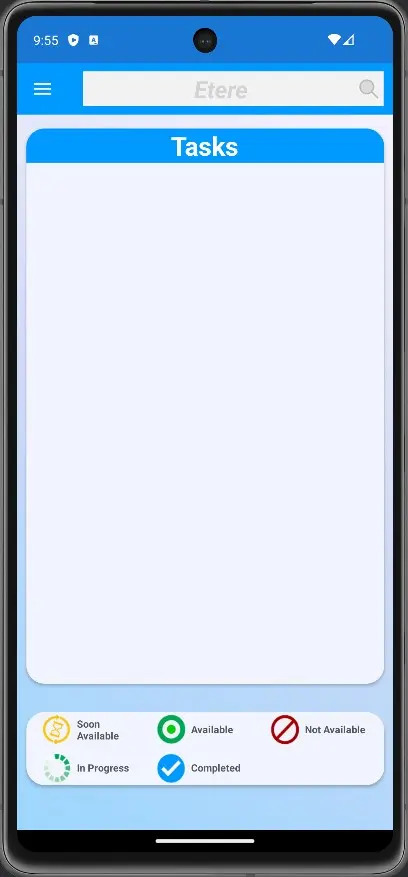
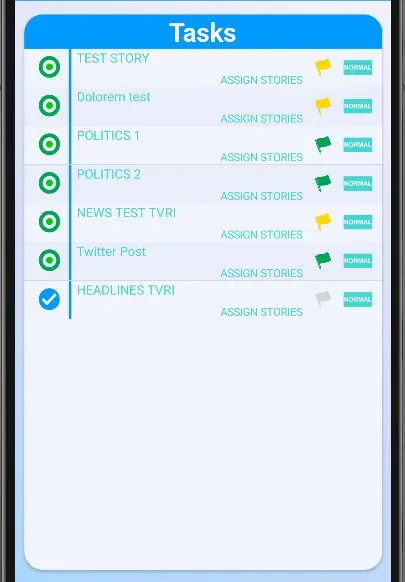
Once we login against the Etere Nunzio App, we will be redirected to the TASKS landing page, so the given user/operator can easily and quickly check any related task he/she may have pending.
nunzio_android_tasks
From the TASKS landing page is possible to perform all the wanted operations on Etere Nunzio Tasks as we are working in Etere media Asset management for instance. It worth mentioning though, that the Nunzio Task listed in the Etere Nunzio App are the ones only related to Etere nunzio Stories. No other task would be displayed.
The TASKS landing page is composed by 3 sections:
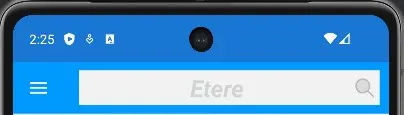
1. APPLICATION HEADER:
the same for every view in the App itself. It embeds the classic Mobile menu and the text Search;
nunzio_mobile_header
2. TASKS BODY:
the space where the task would be listed;
nunzio_mobile_body
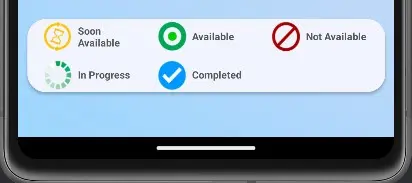
3. TASKS FILTER:
the section of the page where is possible to filter any Task State as it's possible in Etere MAM as well. We can select and de-select all of them and the system will retrieve to us the result accordingly, just by clicking any of the Icon Buttons available in the lower Menu.
In addition, any TASK can be opened, and depending on its status is possible to EDIT and SAVE it according to the operators needs.
nunzio_mobile_filters_buttons
INTERACT WITH ETERE NUNZIO MOBILE TASKS
Once TASKS have been released for any user or group in the Newsroom, they would be available, by their state, all along the body of the TASKS page.
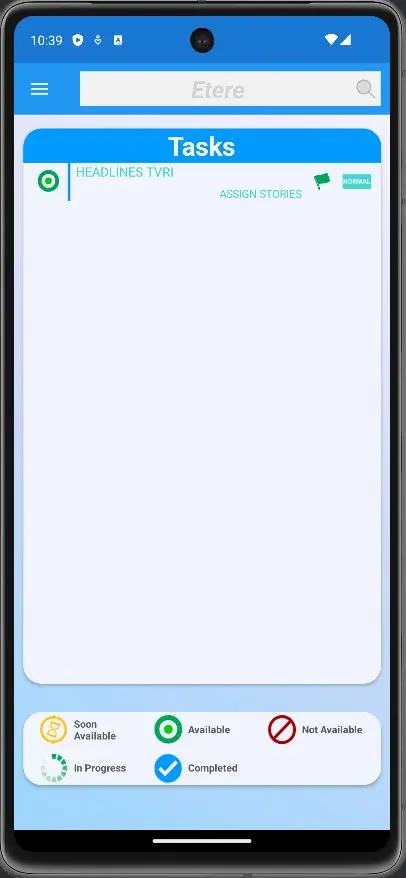
Once we have any task available, we can interact with them directly in Nunzio App.
nunzio_tasks_list
TASK STATUS
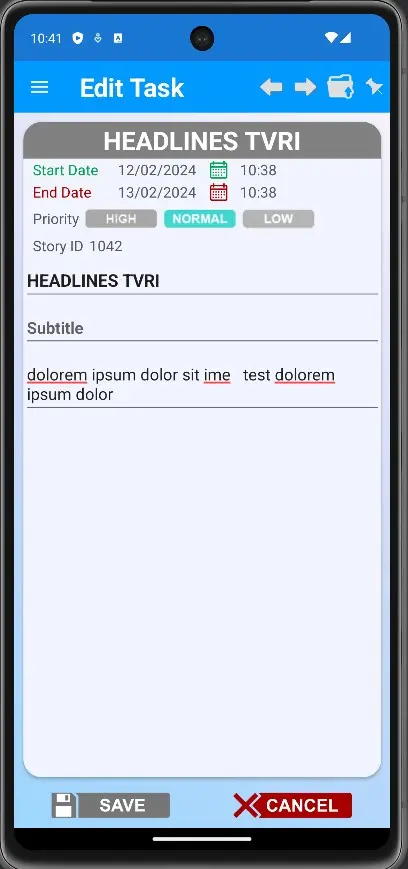
1. By clicking any of them, anywhere within the Task Object, the system will eventually open the selected Task, allowing the users to explore its details;
nunzio_android_tasks_details
2. by clicking on the Task Flag, the system would change the Task status:
a) GREEN: task available, not yet taken by any user or group;
nunzio_android_tasks_filled
b) YELLOW: Task available but take by a user or a group;
nunzio_task_set_edit_mode
c) GRAYED: task has been completed.
nunzio_task_complete
In order to start working on any task, the first step is always to take the given task.
Following, a step-by-step guide to manage tasks:
1. click the Green Flag in order to change its color to Yellow;
2. once the Flag for the given task is set to Yellow, click on the Task body in order to open it;
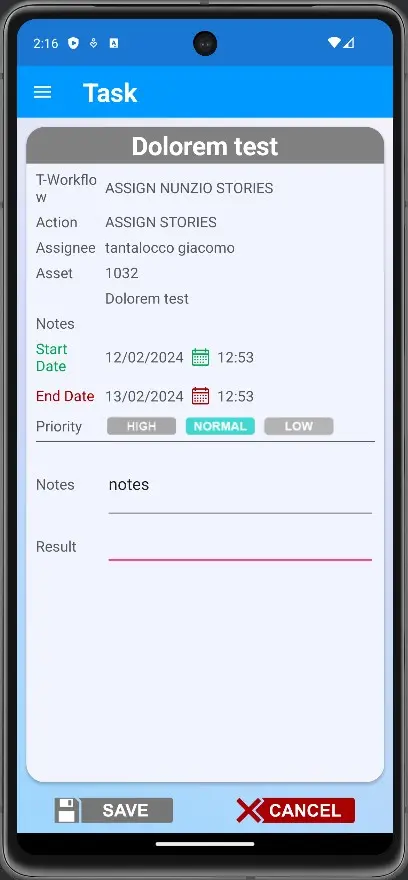
3. edit the wanted fields, then press the SAVE button;
4. once the TASK has been saved, we need to change its status by clicking the Pin button
nunzio_app_save_task
nunzio_pinned_task
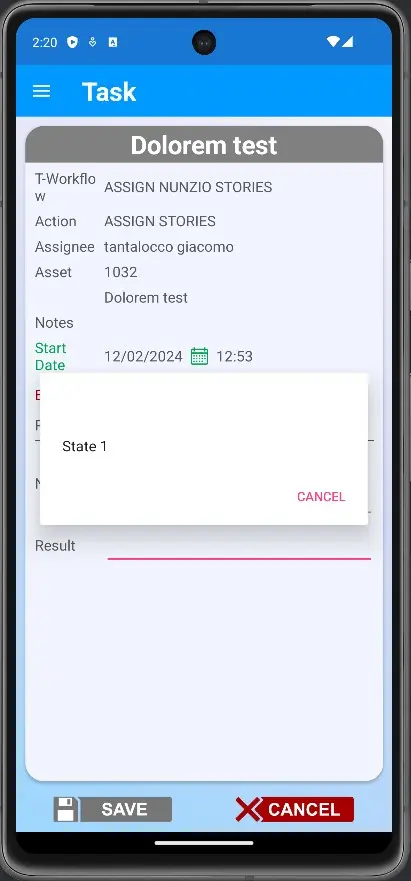
5. once the Pin Button has been pressed, the system would redirect the user to the final step in order to complete the given Task;
6. once there, insert the Task Note and the given Task Result(the one created during the Task creation) in order to set the given task as Complete.
nunzio_task_select_state
 nunzio_android_tasks
 nunzio_android_tasks_filled
 nunzio_android_tasks_details
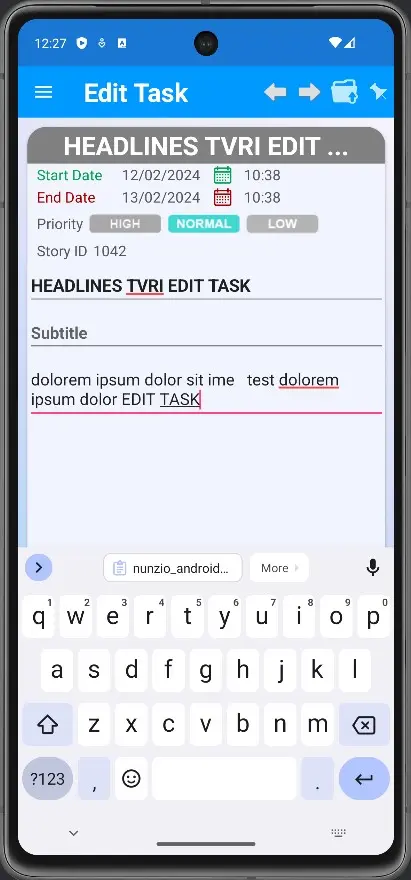 nunzio_task_edit
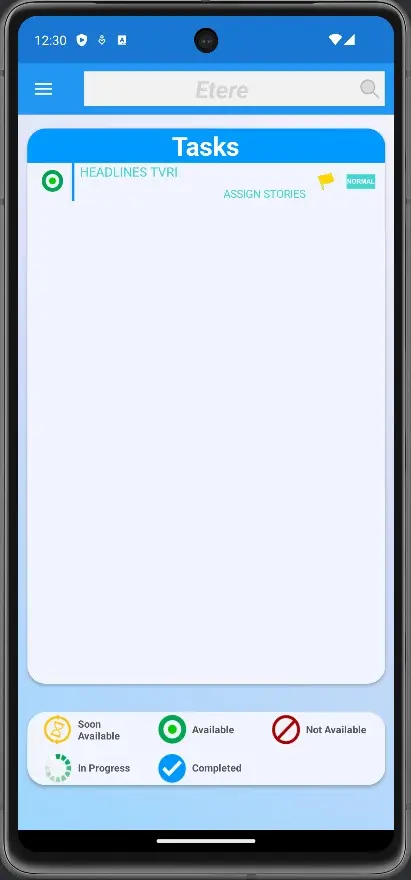 nunzio_task_set_edit_mode
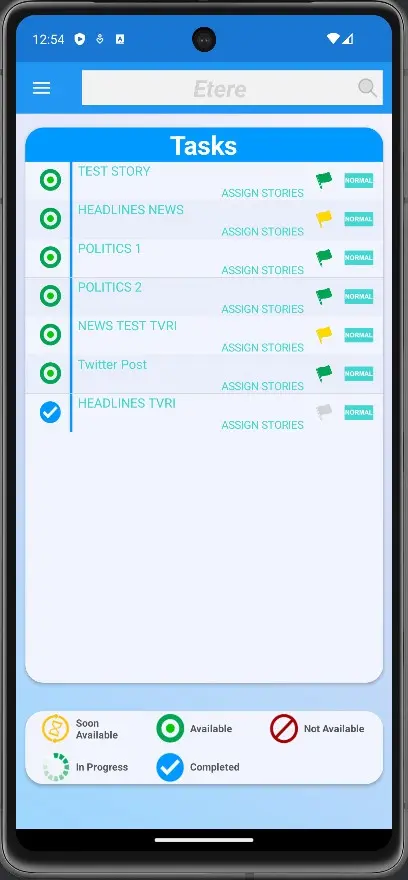 nunzio_tasks_list
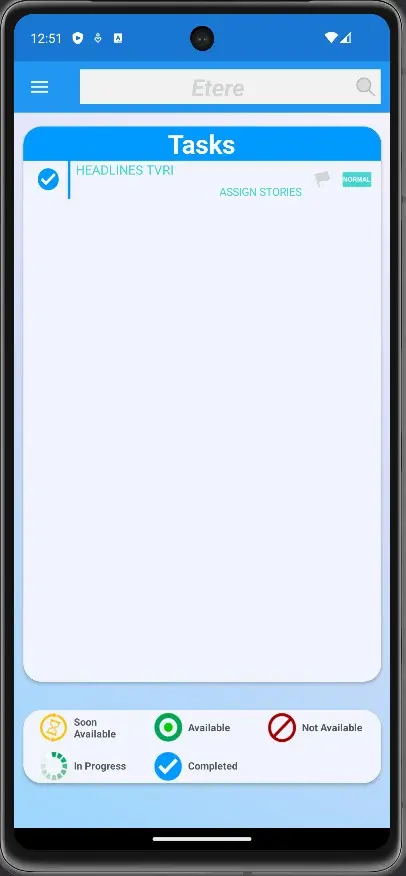 nunzio_task_complete
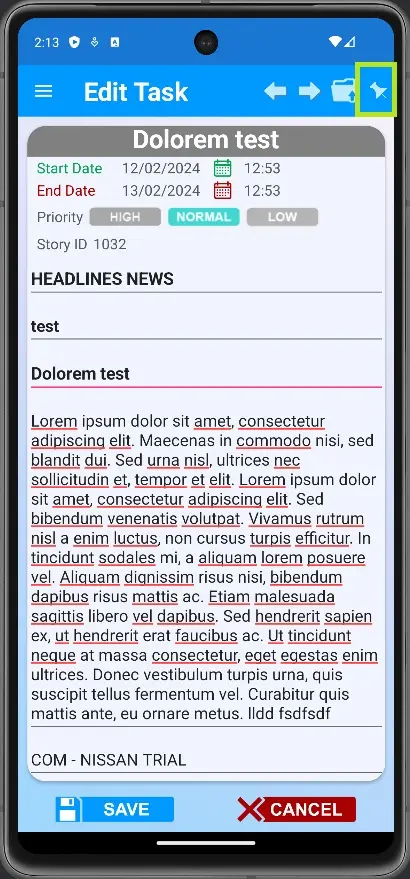 nunzio_app_save_task
 nunzio_pinned_task
 nunzio_task_select_state
 nunzio_mobile_header
 nunzio_mobile_filters_buttons
 nunzio_mobile_body