72.18.2.8 Search
Under the "Search" section, editors can search for assets in the Etere MAM system and, depending on their status, they can import, upload or preview media and contents.
Searching for material
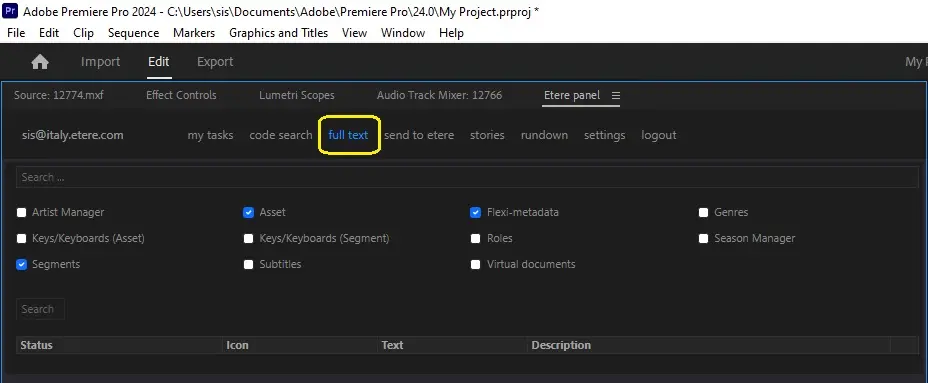
To search for segments in MAM, simply enter the keyword (e.g. postcard, phone, etc) and select the search filters under the "Full text" tab to retrieve segments matched the search criteria.
Full text
Search options
Asset - Search across the asset's season (e.g. wonderwall, breaking news, alien).
Season Manager - Search across the episodes' title (e.g. the simpons, peanuts).
SMPTE metadata - Search across the asset's custom SMPTE metadata (e.g. loudness, status).
Segments - Search across the segment's descriptions, both, manually (e.g. girl, flower) and automatically inserted (e.g. freeze, fault, change).
Artist Manager - Search across the asset's associated artists (e.g. Santana, Sting, Pink).
Genres - Search across the asset's associated genres (e.g. rock, flamenco, jazz).
Roles - Search across the asset's associated artist roles (e.g. singer, director, guitarist, actor)
Subtitles - Search across all the subtitles produced for assets (e.g. subtitles, captions, metadata).
Virtual documents - Search across the asset's linked Do.Ma. documents (e.g. pdf, doc, xls, jpg).
Keys/keyboards (asset) - Search across the keyboards (e.g. accidents, competitions) and Keys (e.g. airplane, train, car) assigned to the asset from the keyboards tab.
Keys/keyboards (segments) - Search across the keyboards (e.g. accidents, competitions) and Keys (e.g. airplane, train, car) assigned to the segment from the Etere MAM module.
Assets and segments matching the given keyword will be displayed specifying their media status (i.e. online, offline, etc).
Search by Code and Title
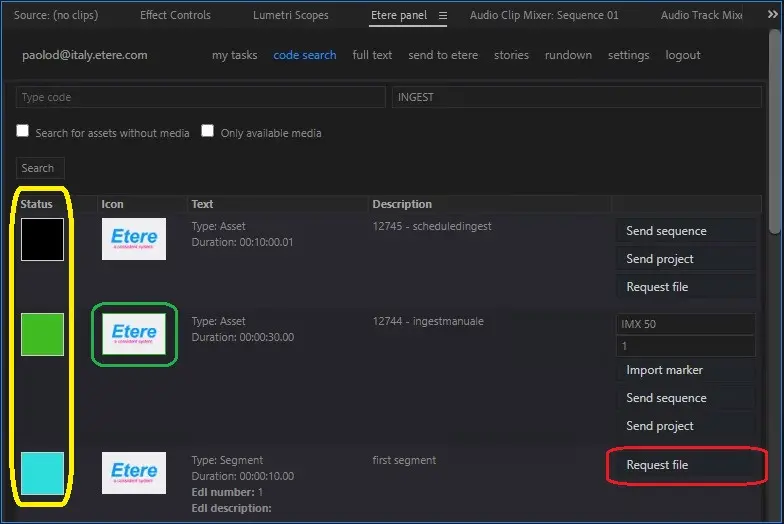
By using the “Code Search” tab, you can narrow down the search by filtering the asset code and asset title to extract assets from database.
Moreover, you can search for empty assets using the “Search for assets without media” option, or use “Only available media” option to narrow down assets with only contain available media.
Results, from both Full Text search and Code search, will have a different color depending on their status:
Black means that the media is not available in any of the Source path for import configured on settings;
Green means that the media is available in one of the Source path for import configured on settings (Online);
Blue means that it is possible to retrieve the media from the related segment running the T-Workflow associated to the "Request file" command.
If the thumbnail (on the ICON column) has a green contour, that means that it is available also a proxy version of the media to be played as preview
Code Search
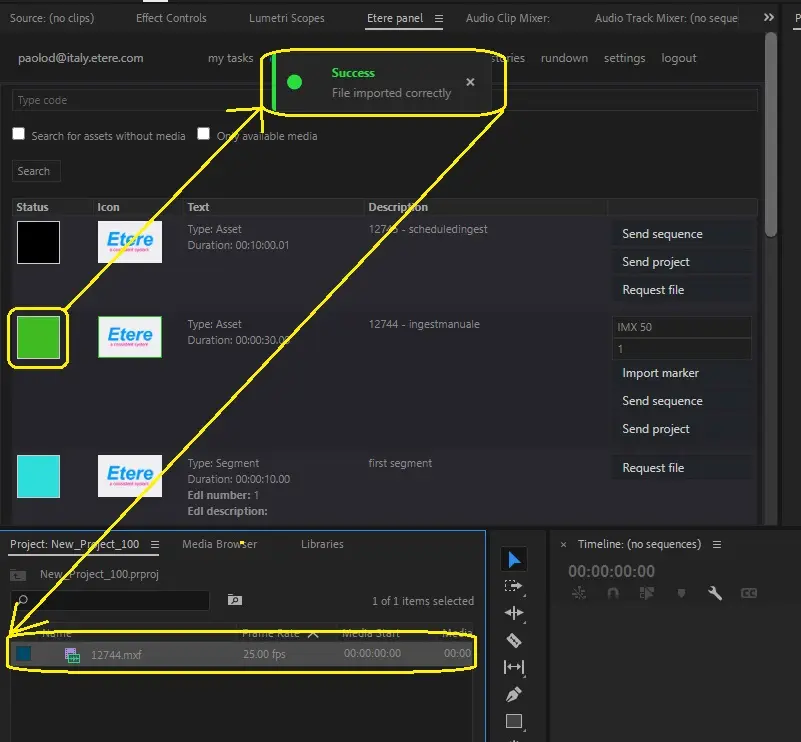
Online segments or Online media can be directly imported into Adobe Premiere just by clicking on the status icon.
Online segments
Send sequence or Send project buttons allow to export from Adobe to Etere the timeline (sequence) or the list of all media of the project (project). Any marker created in the Adobe timeline will be exported to Etere if they have a description filled (mandatory).
Import marker (selecting the related source EDL in Etere) will import to Adobe all the markers created from Etere side
 full text
 code search 1
 Online segments