59.6.2.131 GPI Boards - GPI installation and configuration
GPI (General Purpose Interface) boards are computer interfaces offering many outputs for the relay's activation and digital opto-isolated inputs on a single board. Relays can be helpful for connected device control (turning on and turning off), while opto-isolated D/I input channels are ideal for digital inputs, reducing interferences and electromagnetic noise.
Etere provides a different license depending on the inputs/outputs number of the Inputs/outputs in the GPI Board:
EA1709
GPI board 8IN-8OUT
EA1700
GPI board 16IN-16OUT
EA1701
GPI board 32IN-32OUT
EA1702
GPI board 64IN-64OUT
Activate the Etere's GPI resource
Once the Windows driver of your GPI board has been installed, you need to add and configure the board into Etere as shown below:
1. Start Etere Resources from Etere Configuration.
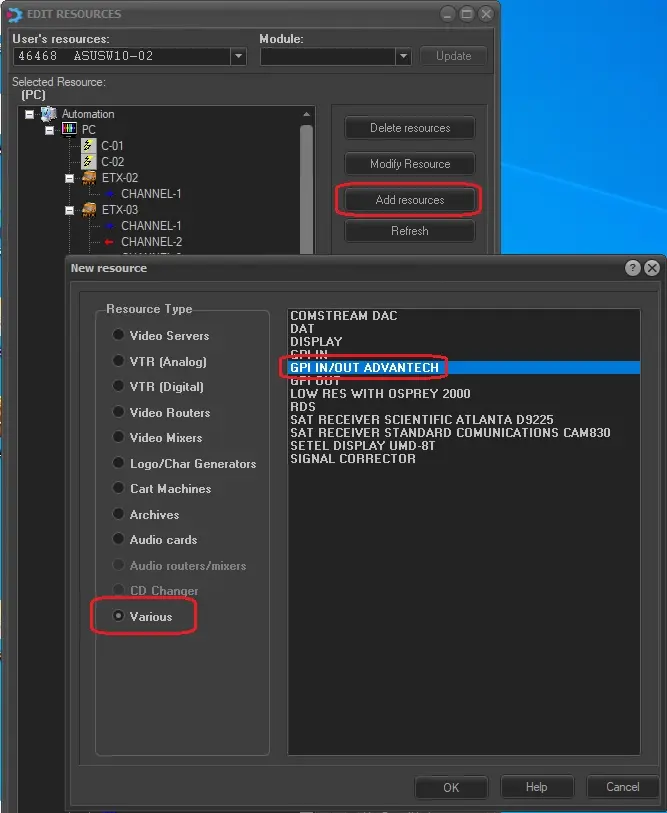
2. Click on "Add Resource".
3. In the Resource Type column, select "Various" resource type and select "GPI IN/OUT ADVANTECH" on the right panel.
Select_Various
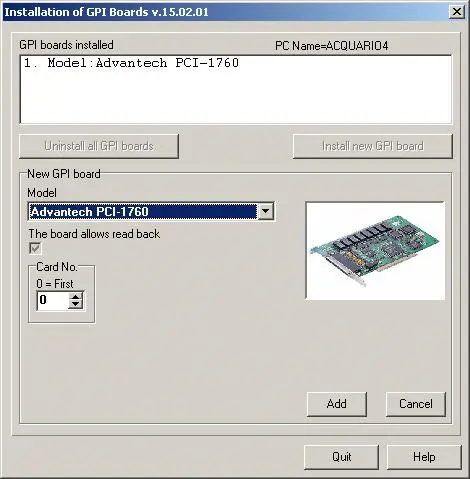
4. Click <OK> to launch the Etere GPI Board Installer utility and configure the GPI board (make sure all Advantech applications, such as DAQ Navi, are closed):
GPI_Board_Installer
Card No. The Device No. of the GPI card (e.g. Advantech 4761) to be installed.
5. Etere's resources tree would display the installed GPI board. To change or customize the resource description, select the GPI board, click <Modify Resource>, then change the resource description. Click "Confirm" to save changes and return to Resource Tree.
6. To use the GPI card, you must assign the module on the PC where the card is installed:
a. Click on Users > Add, select a user from the list.
b. Select an Etere application (e.g. Automation) to be used and click <OK>. This will assign the function to the GPI resource
c. Close the "Edit Users" dialogue after adding the user to the list.
7. A green spot beside the GPI resource confirms its activation. After that, verifying if the GPI card is working properly is possible. The appropriate testing function is available by clicking the "Test" button.
WARNING
It may happen that GPI cards don't reply even if the installation procedure has been done properly and in the test form, no error appears (e.g. when pressing the exit button, the relative contact isn't closed). This is probably due to the parameter "PLUG & PLAY O/S" in the computer BIOS setting to "YES". In this case, set the parameter "PLUG & PLAY O/S = NO" in the computer BIOS.
Use the ERROR VIEWER utility to describe the hexadecimal code of an error in Etere. For example, if the "B55 unable to open device" error appears during the GPI resource test, a possible cause could be that the GPI drivers are not installed in Etere.
 Select_Various
 GPI_Board_Installer