59.6.2.232 Master Control Ross MC1 - Configuration
The Master Control Ross MC1 is a switcher which features four keyers, two external Key/Fill sources, and two internal logo generators.
Device Driver
Etere Automation controls the device by a driver based on the Presmaster Control System Protocol. The MC1-MK supports a subset of Grass Valley™ Presmaster Control System automation commands and automation tallies. Ensure the ATMN button is toggled to ON to enable Etere to control the MC1-MK. This button is located on Ross's On Air Control interface.
Etere Automation can control the MC1, serial or via TCP/IP (see image at the bottom).
Ross MC1 only accepts one TCP/IP connection at a time, so serial device control will be the correct choice
From Etere version 31.3.48.4786, Etere improved the TCP/IP driver to superset the limits in the MC1 TCP/IP connection.
Resource Editor
The Master Control Ross MC1 must be added from Etere Configuration > Resource Editor.
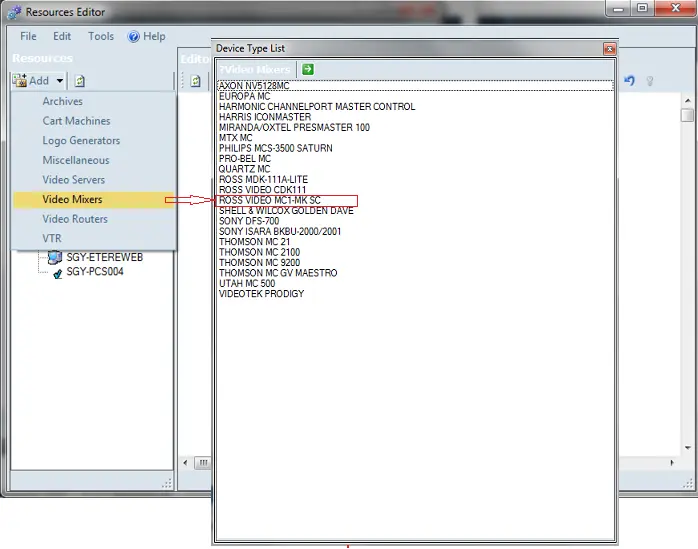
In Resource Editor, click the down arrow key in the Add button and navigate to Video Mixer. Double-click "ROSS VIDEO MC1-MK SC" from the available device types to launch the settings. You can also simply select the "ROSS VIDEO MC1-MK SC" device and click the green arrow to open the device settings.
ROSS_VIDEO_MC1-MK_SC
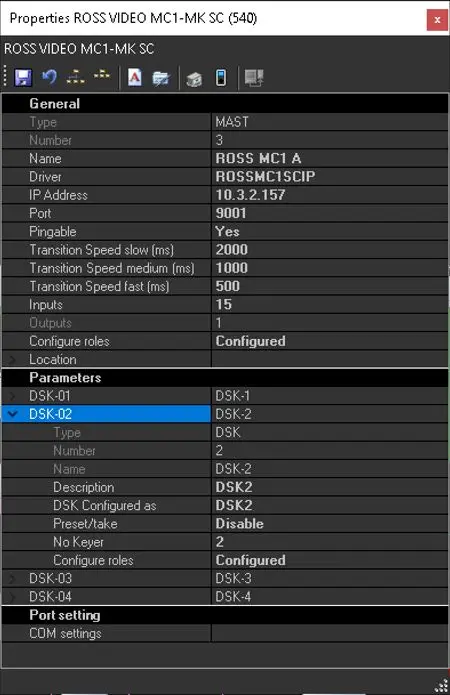
From the device settings, fulfill the required parameters.
ross_master_control_mc1_settings
GENERAL
Name: Enter the device name
Driver: Enter driver ROSSMC1SCIP or ROSSMC1SC. Both are based on the Presmaster protocol. The first driver is via TCP/IP; the second is for serial RS-422 remote access.
Port: Only for transmission via TCP/IP (not for COM port)
Pingable: Set the default speed for transitions (in milliseconds) where
• Slow: 2000ms
• Medium: 1000ms
• Fast: 500ms
This setting can be changed to be in line with ROSS configurations.
Inputs: Set the number of Inputs from the Router mapped.
Configure Roles: Assign the device to be controlled. Select Station (Users), PC (Etere PC), and role (Etere modules) on the form that opens. Then save and Exit.
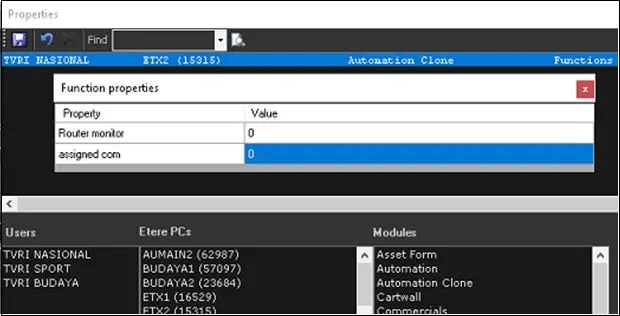
In the example below, the Master Control has been assigned to user "TVRI NASIONAL" to execute the "Automation Clone" module in workstation "ETX2 (15315)".
Master_Control_has_been_assigned_to_user
In case of control via serial, right-click on the line of role configured. And on Function properties, assign the com port for Main and for Clone (on the Clone PC)
PARAMETERS
DSK Settings: Configure the DSK here, rename it, and assign each DSK to a Keyer Number. E.g. DSK1 to Keyer1, DSK2 to Keyer 2… Automation only remote 3 DSK
NB: Set the DSK after adding the MC1-MK Logo internal resource in Etere. Then, it will be possible to associate each Keyer to an Etere layer to control the Internal Logo.
PORT SETTINGS
COM Setting: In the case of control via RS-422, this parameter defines the com port baud-rate settings.
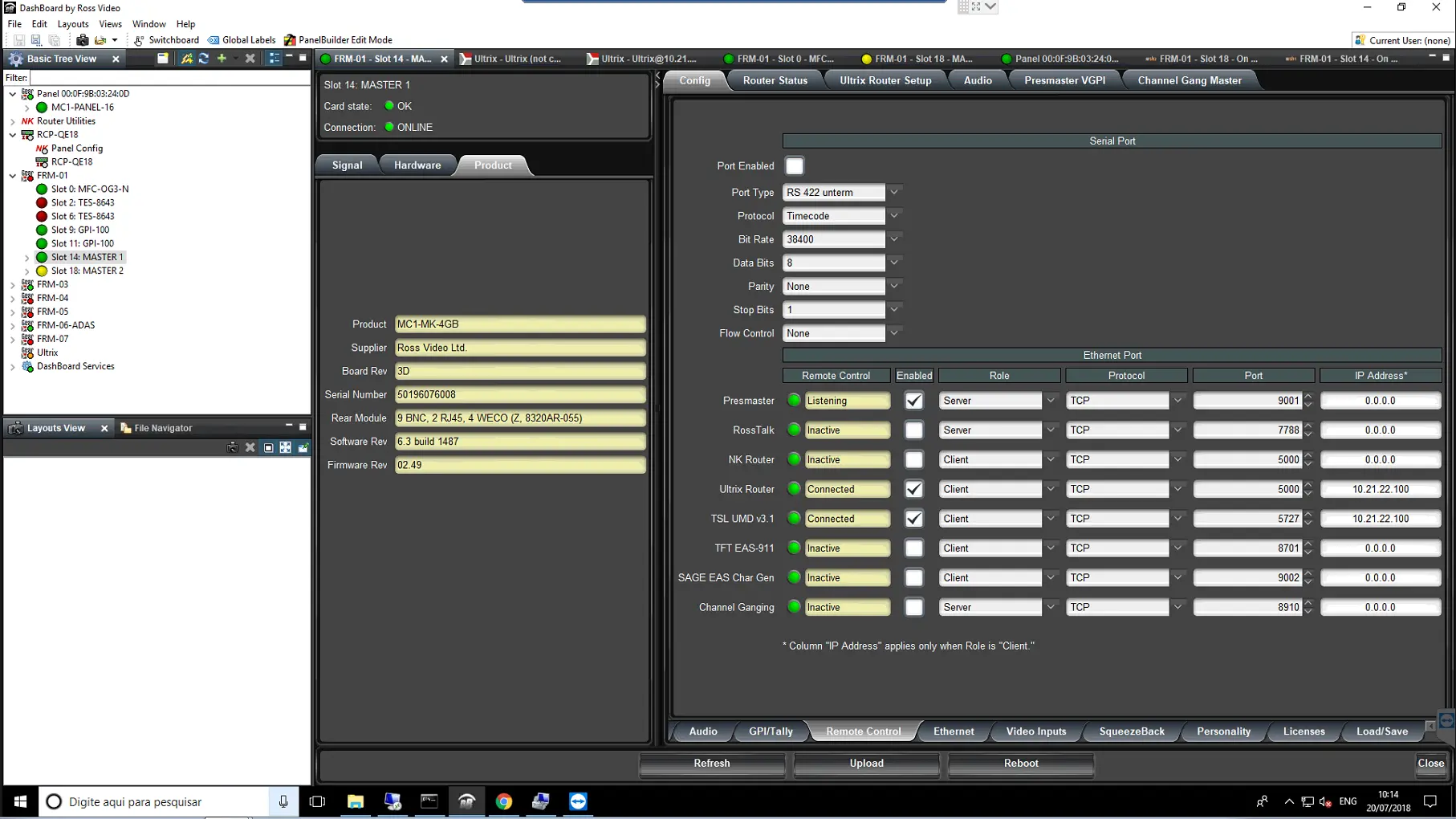
Below is an image of the configured Ross Master Control MC1 via TCP/IP.
Ross_Master_Control_MC1_via_TCP-IP
In the configured Ross Master Control MC1, you can apply the settings for optimal control by Etere:
• In DashBoard by Ross Video > Personality tab, uncheck Toggle Program\Preset Bus, and select No Change (Disarm) on Preset Keyer.
 ROSS_VIDEO_MC1-MK_SC
 ross_master_control_mc1_settings
 Master_Control_has_been_assigned_to_user
 Ross_Master_Control_MC1_via_TCP-IP.