70.3.2.3 Media
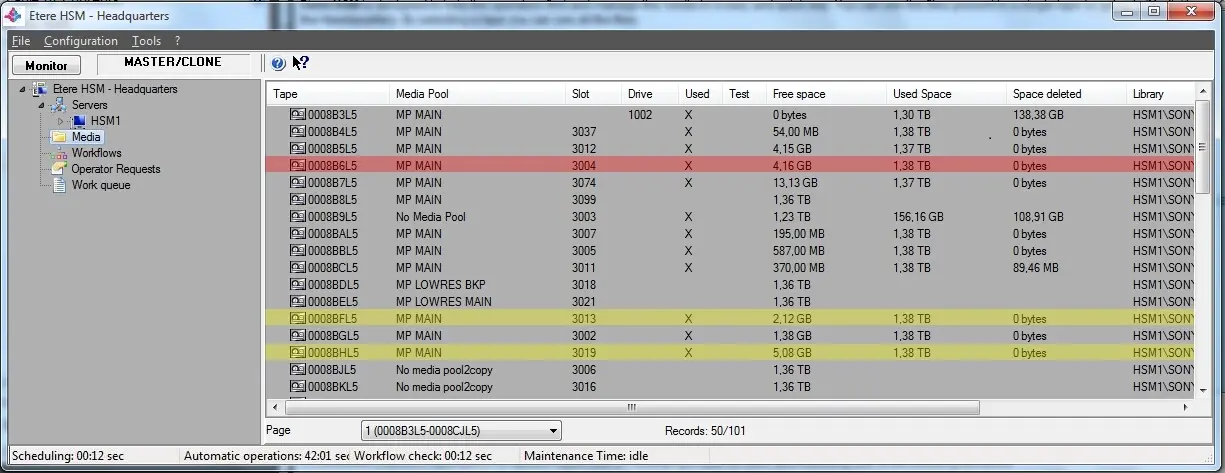
Etere HSM is designed to help the operators find and manage the media in a easy and quick way, it allows to view which files are present in a single tape. As shown in the image below, tapes displayed in this section are highlighted according to their status, a status that can be:
Etere HSM - Headquarters
Yellow line - Tape in error, it can be only read. An entire test is suggested for the tape.
Red line - Tape damaged, the test has determined that it can't be used.
NB: In the Online tape media, if the metafile related to asset's Technical Data in Media Library is inaccessible or corrupted, the tape media would be flagged as Offline when attempt to access the metafile during restoration.
Moreover, in the bottom part is available a bar that provides the following functions:
Bottom
❑ Page: Select the page (i.e. tapes ranges) to be displayed in case tapes are ordered by their tape column property and displayed across different pages (fastest visualization).
The list where it will be indicated the number of records per page (which can be set in the Configuration > Options > Media section and by default is 50).
❑Search barcode: Quickly locate tapes by entering their barcode. When a tape with blank barcode is mounted in Tape library, HSM Headquarters would bypass this tape during the archive operation to prevent writing data on unrecognized tape.
NB: When performing batch file transfer via LTFS tape media in HSM Headquarters, when a tape is loaded Work Queue would detected the tape as “To commit” status and trigger the re-catalogue process and start the related workflow.
On-click operations
It is possible to perform operations on specific tapes just by making right-click on them and selecting one of the following functions:
Show - Displays the Tape Info interface which allows to view and also print all assets stored in the selected tape,including those deleted (marked with a X).
Tape Defrag - Allows to defrag the tape with a further cataloguing of its contents, this operation could take a long time.
In the event when asset file is unintentionally deleted from database or logically deleted from the tape media, you can recover the asset file from the tape media before tape defragmentation is performed.
The defragmentation task can be aborted where necessary. When the defragmentation is re-launch, it would resumed from the position where the last defrag has stopped.
Catalogue tape - Insert the tape's content into the Etere HSM database.
Recover - Use this function to recover a tape media from read/write error or tape marked as "unusable". Refer to section “Recover tape media” in this page for recovery process.
Free - Deletes all data contained in the tape, thus freeing its storage space. This operation affects current tape operations (in progress and queued), canceling them in case the tape is not a tape used for backup (i.e. owned by the the 'database backup' user).
The “Free” function would remove the links in asset form and erase the content from the archived tape. After which, you can execute T-workflow action to archive the linked assets in Mediapool to a new tape in different Mediapool.
Eject from Library - Eject the selected tape from Library. When the tape is ejected, its status would appeared as "Offline" in the media list.
Operations Logs - Displays a complete log of all tape-related performed operations, it allows grouping results and historical operations retrieval,
Customize columns - Allows to customize the columns view of the media section,
Refresh - As its name indicates, it refreshes the current displayed list,
Scanning - Perform scanning of all tapes (both old and new tapes) in the tape library to update the tape positions, and correct any misaligned information.
Checking Media Storage
Additionally, from the Etere Media Library module, it is possible to see if a media has been stored in the Asset Form. Under the 'Media' section you can also see the name of the tape and other useful information:
Asset Form
Recover Tape Media
When a tape media is marked as "unusable" or invalid tape status, follow the steps described below to recover the tape to usable state and preserve the tape contents.
1.In Etere HSM - Headquarters > Media, right click on the tape marked as “unusable” and select “Recover” from the menu to start recovery the tape media.
Recover
Moreover, when you double-click on the unusable media to access the tape info, if the media is marked with a red “X” in the Status column you can right-click on the media and select “Re-enable” to recover the media.
Note: For untranslatable tape error, the error message displayed in GUI can be vary, e.g. for LTFS tape it would be marked as “LTFS unknown error”. You can determine various tape error from the Operations Log.
2.In Etere HSM – Headquarters > Work Queue, the recovery request has been scheduled in the job queue pending DataPump to perform the recovery process.
Work Queue
3.DataPump would execute recovery process to read the tape media contents and attempts to fix the media error if found in the tape media. Once the recovery is successful the tape media would be marked as “usable”.
4.Upon recovery, it is recommended to perform a recatalogue process to align the tape contents with database.
5.For audit purposes, the media recovery process and recataloguing process would be logged in the Operations Log.
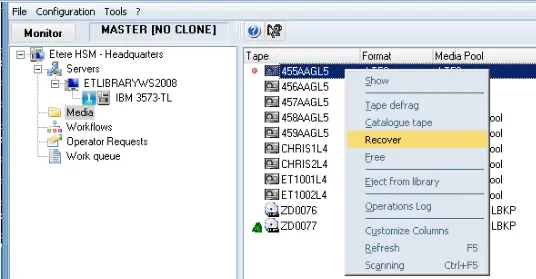 Recover
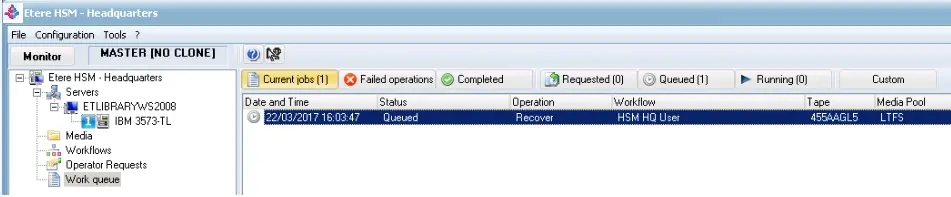 Work_Queue
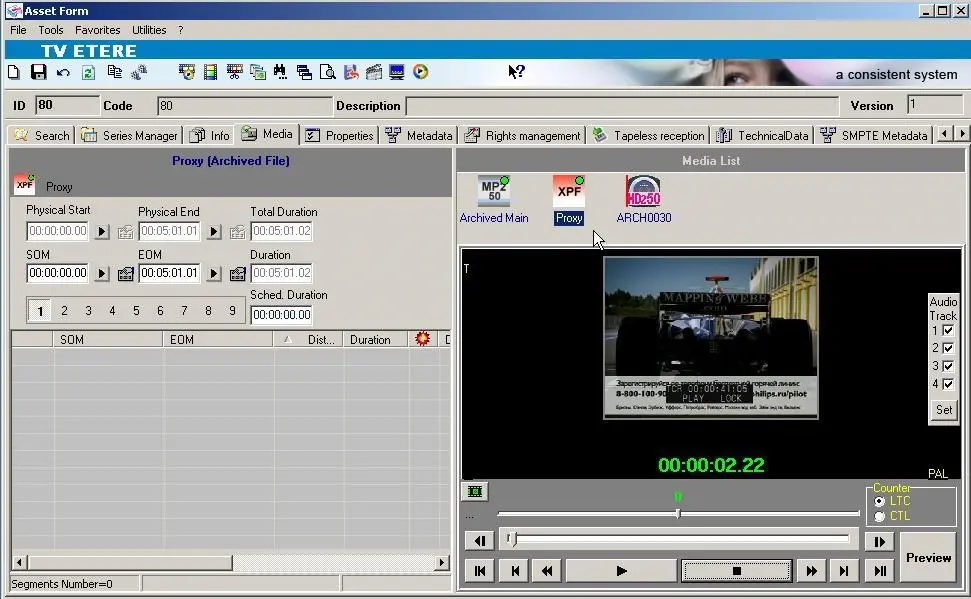 Asset_Form
 Bottom
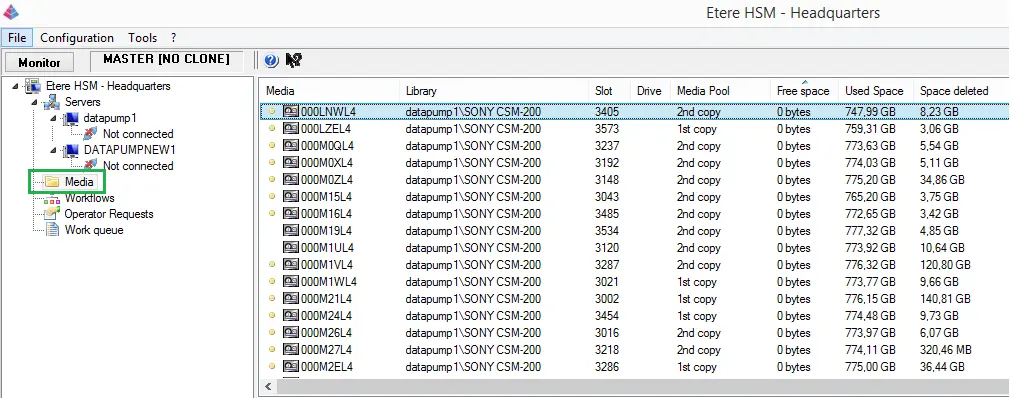 Etere_HSM_-_Headquarters
 hsm_media