59.2.39 Video Routers
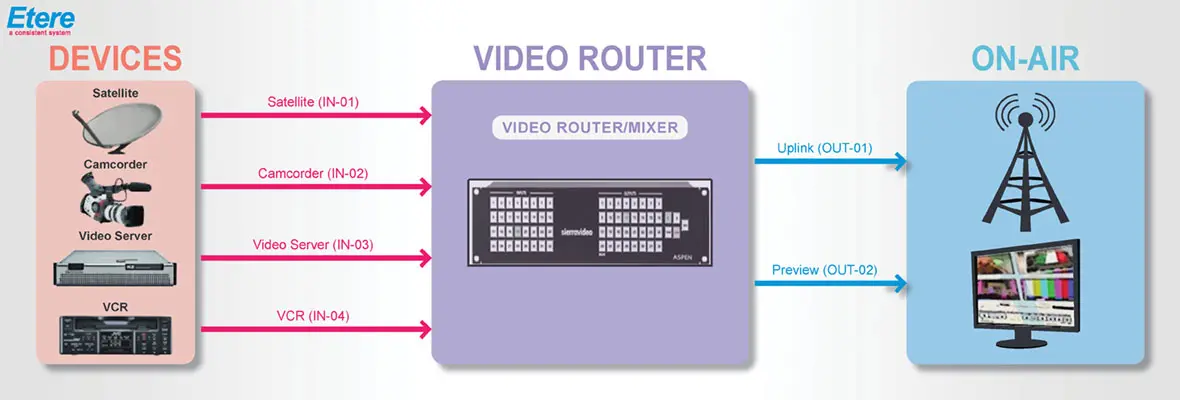
The Video Routers section allows viewing and editing of the inputs/outputs (e.g. video cameras, VCR, digital still camera, character generators, computers with video output jacks, etc.) of all routing devices (i.e. video routers and master controls) configured in the system:
Video_Router_system
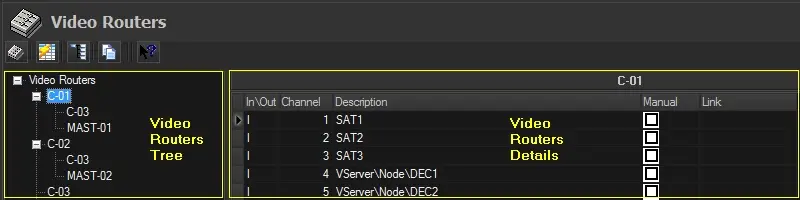
This section is mainly divided into two areas: the Video Routers Tree (showing all configured routing devices) and the Video Router Details, which allows renaming and linking routing channels through the following fields:
Video_Routers
In/Out: Indicates it is either an input channel or an output channel.
Channel: Indicates the corresponding channel number.
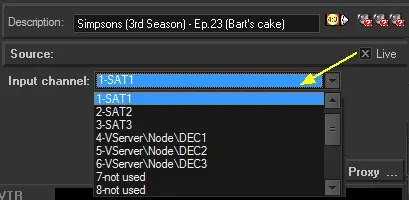
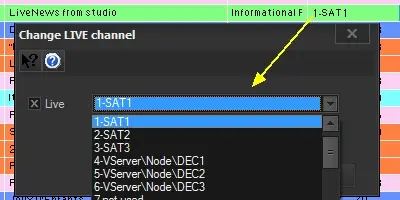
Description: Assign self-descriptive names (e.g. input source or output target) to the channel. Channel descriptions are used across various Etere modules:
Live events on Scheduling:
Live feeds on Ingest:
Live_feeds_on_Ingest
Live_events_on_Scheduling
NB: If only one router is configured, the system automatically sets channel descriptions according to their connected devices (e.g. beta01, mtx1-2, etc.).
Connection: This function allows binding the description and switching of one channel (e.g. of the backup router) to another channel of a different router (e.g. from the main router).
Further details on the chapter "Connecting routing channels".
Manual: If enabled, the channel description won't be changed by the automatic system procedure that renames channel descriptions (reading reports from connected devices) when only one router is configured.
If this option is disabled, the changes made to the channel description would be reverted and recalculated based on the resources when you reopen the configuration settings.
NB: If two or more routers are configured, a manual option isn't required as channel descriptions would not be renamed.
Used: Indicates if the channel is in use. This property (enabled by default for all channels) is useful to hide unnecessary channels from the list through the "show used channels only" filter.
NB: As multi-selection is disabled for editing channels, to quickly enable/disable this property for several channels, it's suggested to first focus on the "used" checkbox (check the little arrow beside In\Out column to know where the focus is) and press the space key while moving between channels using the up/down key.
Time delay: Set the delay in milliseconds for a live signal between preview and real time. The value set here is a default value but can be adjusted by the operator in Etere Master Control Panel module. For example, it's possible to see on MC panel preview events that have already happened earlier.
Available functions
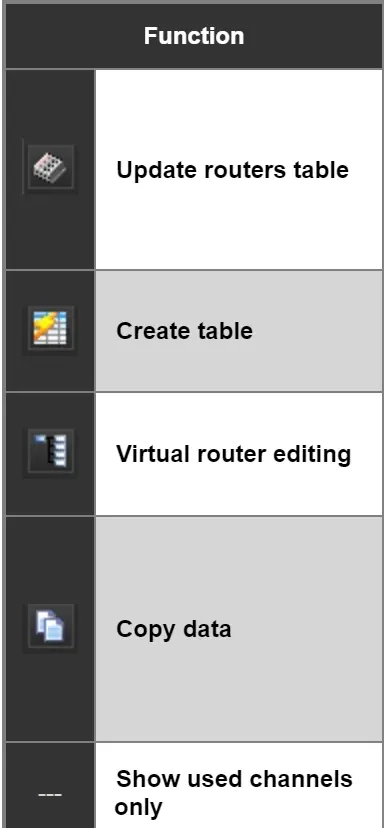
The toolbar located in the top part of this section provides access to the following routing features:
Update routers table: Load all routing devices configured in the Legacy Resources of the current station into the Video Routers Tree.
If you had to create/add a new channel to the router, you must execute the "Create table" function and regenerate the routing table to update the new channel in the router table. After which, restart the Automation module and Scheduling module for the new router channel to take effect for the event assigned to the channel.
Create table: Creates the routing table (routerlinks001) for switching between channels; this table contains the descriptions and links of the main/backup routers.
Further details in chapter "Generating the Routing Table".
Virtual router editing: Configure virtual routers to simultaneously switch multiple channels on multiple routers by defining their inputs, outputs and crosspoint table.
Further details in chapter "Configuring a Virtual Router".
Copy data: Copy the channel descriptions of a selected routing device from the current station (e.g. channel 01) to another routing device on a different station (e.g. channel 03).
Note1: Please note that only descriptions of non-linked channels will be copied since linked channels automatically take the description from other devices.
Note2: This function is also supported when the source and target resources are different because they have the same number of channels.
Show used channels only: Activate this filter to display in the channels list only those channels in which the "used" property is enabled, hiding all unused channels.
Function_icon
 Video_Router_system
 Video_Routers
 Live_feeds_on_Ingest
 Live_events_on_Scheduling
 Function_icon