72.2.1.15 Batch Asset Modification
The Media Library provides a batch capability for modifying several multi-selected assets simultaneously, this by following the procedure below:
1.Select all the assets intended to be modified together, use any of the following multi-selection methods:
Press and hold the [Ctrl] key and click on each asset intended to be included in the batch modification.
Click on a top asset, press the [Shift] key and then click on a bottom asset, all assets between the top and the bottom assets will be selected.
Use the "select all" option available on the right-click menu.
2.Open assets at the same time (e.g. right-click over the selected assets and select 'Open'):
Open
3.All the assets will be opened as if they were only one asset form. A [multi-selection] icon will be displayed at the top right of the form to indicate that a 'batch modification' is being performed. By clicking on this icon, it displayed a list of all selected assets:
Multi-selection
Note
Please note that if the selection includes a season episode (i.e. an asset forming part of a season) no batch modification will be allowed, this is because batch modifications to season should be performed using the Season Manager.
4.The open asset will allow to perform the following actions across all selected assets:
•Modify tabs: Modify the following tabs (and fields) which supports batch-processing:
Modify tabs
General data - Type, genres, stations, production country, production date, production percentage, independent producer.
Properties - Classification (e.g. CL, CA), video (e.g. AR), info (e.g. CC), sponsor, musical data (e.g. song name, track number) and Artists.
Secondary events - Only Music and Artist data (If the station has a "Music Manager (EA1228)" license).
Moreover, Scheduling data is displayed only if, besides having a music license, ALL types of selected assets are enabled with the "track" property.
Metadata - EPG language 1-2 and story line.
Rights management - Validity and expiry date, allowed days and CAD approval.
Tapeless reception - Person in charge, supplier and scheduled arrival date.
Worksheets - Manage the response to web requests.
•Execute functions: Launch any of the quick asset functions available on the right-click contextual menu (e.g. export, add to season, change event type, etc).
5.Once all modifications have been performed, press the [Save] button to store them in the database. Before saving changes, REMEMBER that all performed modifications will be applied to all the selected assets.
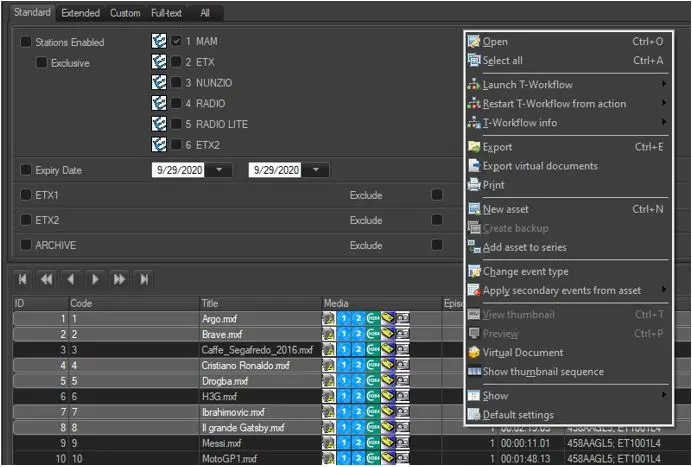 Open
Open
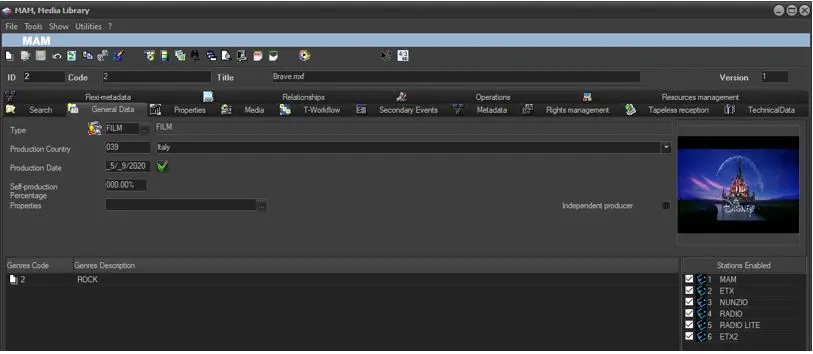 Modify_tabs
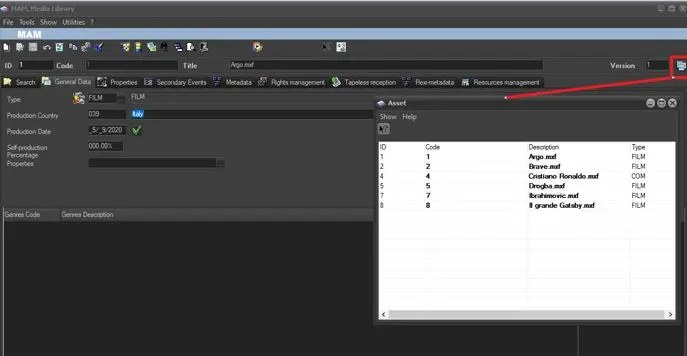 Multi-selection