58.3.13.1 Hide Effects
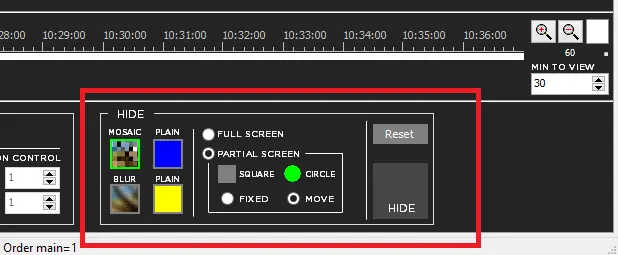
- Apply Hide Effects
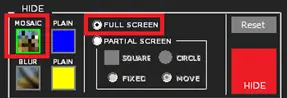
- Select the type of effect (options are: Mosaic, Blur, Plain Blue or Plain yellow)
- Select hide effect to be applied to either Full Screen or Partial Screen.
- If Partial Screen is selected, select the type of shape (in Square or Circle) and the motion of the shape to be Fixed position or Move about.
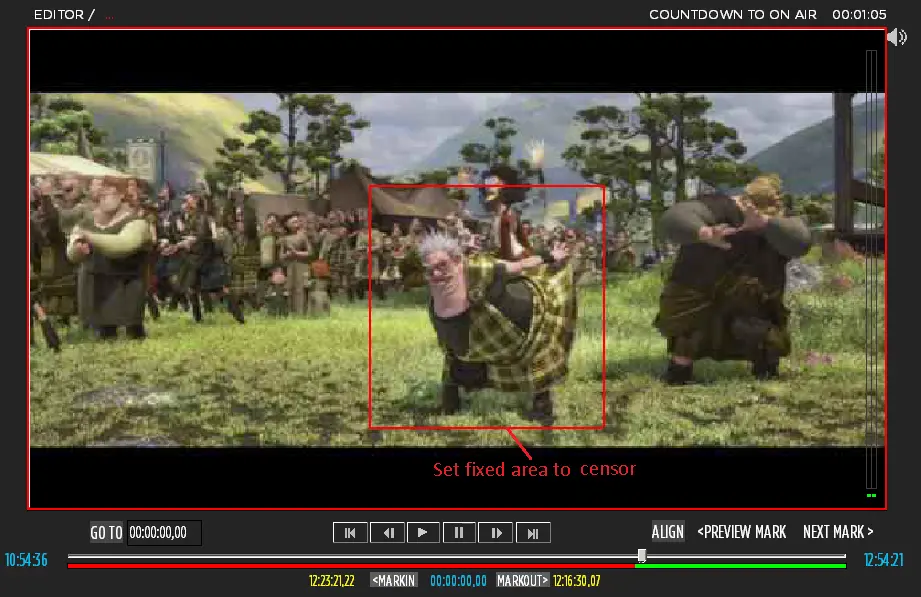
- Select the MarkIn. If Partial Screen was selected, select the coverage area on the video with left-click on the mouse.
- Select the MarkOut. If Partial Screen - Move was selected, select the coverage area on the video with left-click on the mouse.
- Click the Hide button to apply the effect.
Iintro
WARNING: Regarding the effects BLUR / MOSAIC / PLAIN, by default, the system uses the GPU graphics card where the GTS is installed, and if this is not sufficient to support the load, the GTS would be properly set to use the CPU and not the GPU graphics card.
For the BLUR effect, it is mandatory to use a graphics card type "NVIDIA Quadro K620"; otherwise, the effect will not be displayed. - Markers
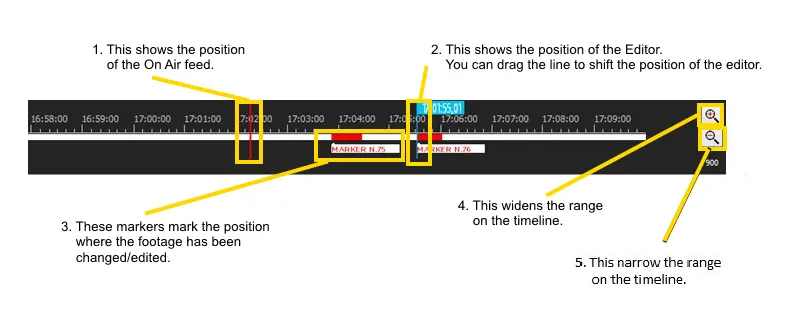
- RED VERTICAL LINE: It shows the position of the On-Air feed.
- BLUE VERTICAL LINE: It shows the position of the Editor. You can drag the line to shift the position of the Editor.
- CHANGE MARKERS: These markers mark the position where the footage has been changed/edited.
- ZOOM OUT: It widens the range on the Timeline.
- ZOOM IN: It narrows the range on the Timeline.
WARNING: The Timeline limits are those of Airnode (which is about delay x 3).
Nowtimeline002_
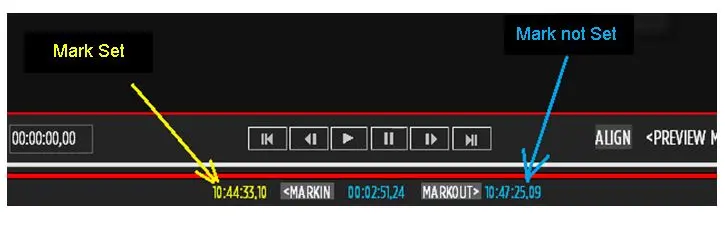
WARNING: To determine if a Mark is set, it must appear in yellow. If it appears in blue, the mark is not set. To set the Mark, select the button [<MARKIN] [MARKOUT>]
Markset
WARNING: If you select the FULL SCREEN, choosing the area is unnecessary. If you choose the PARTIAL SCREEN and FIXED, It's unnecessary to choose the area relative to MarkOut.
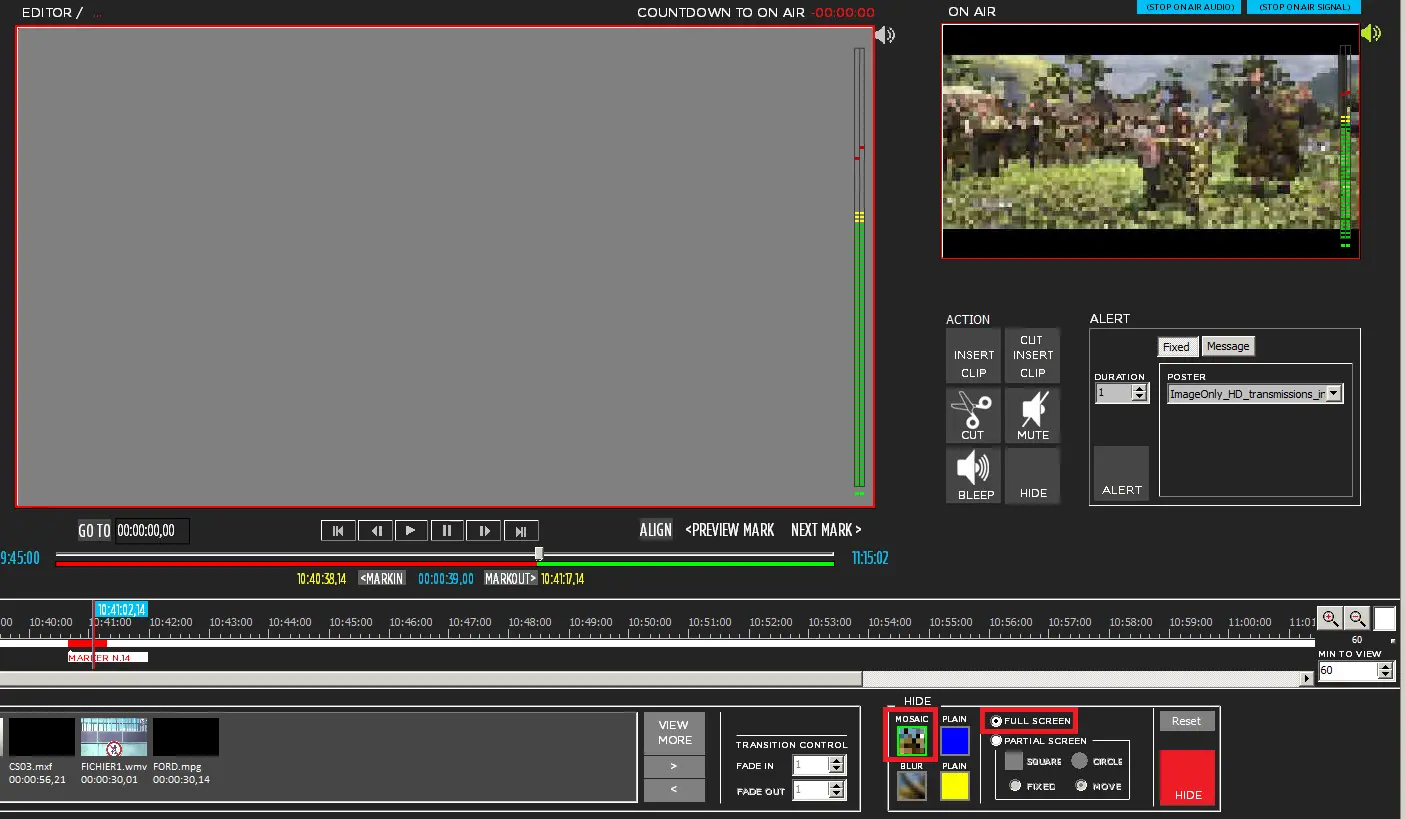
- Example 1: MOSAIC FULL SCREEN
- Select Mosaic effect and full screen.
- Set a MarkIn and MarkOut.
- Click the Hide button.
MOSAIC Full Screen in the Timeline
Mosaic
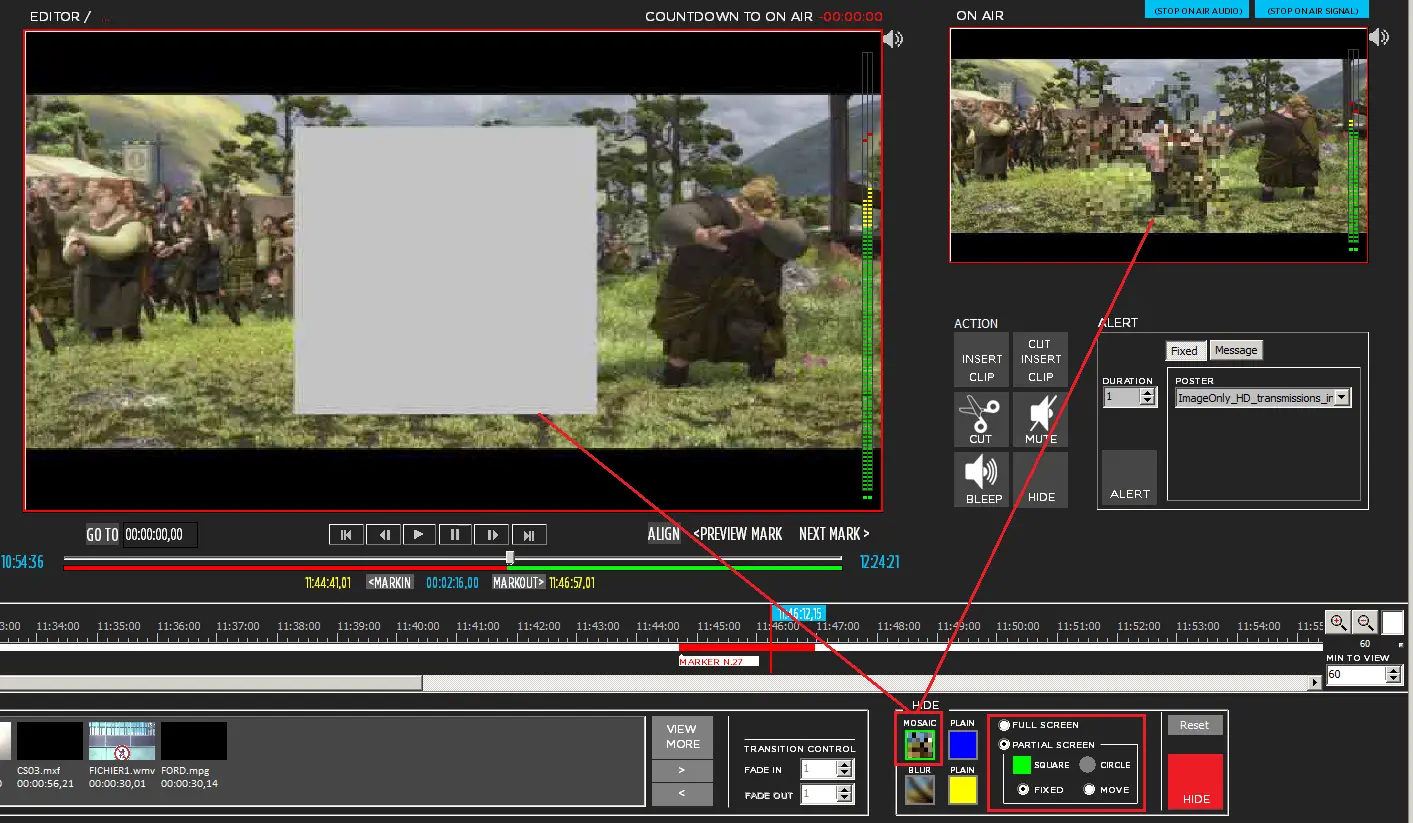
Note: The editor will display a grey mask instead of the actual mosaic effect to ensure optimal CPU performance. The actual mosaic effect will be displayed on the Main. - Example 2: MOSAIC Partial Screen - Square, Fixed
- Select MOSAIC effect and PARTIAL SCREEN, shape in SQUARE and FIXED position.
- Set on the Editor the MarkIn, and with the mouse left-click, select the coverage area.
- Set on the Editor the MarkOut.
- Click the HIDE button.
Note: The editor will display a grey mask instead of the actual mosaic effect to ensure optimal CPU performance. The actual mosaic effect will be displayed on the Main.
- Example 3: MOSAIC Partial Screen in the Timeline
Mosaic_1 - Example 4: MOSAIC Partial Screen - Square, MOVE
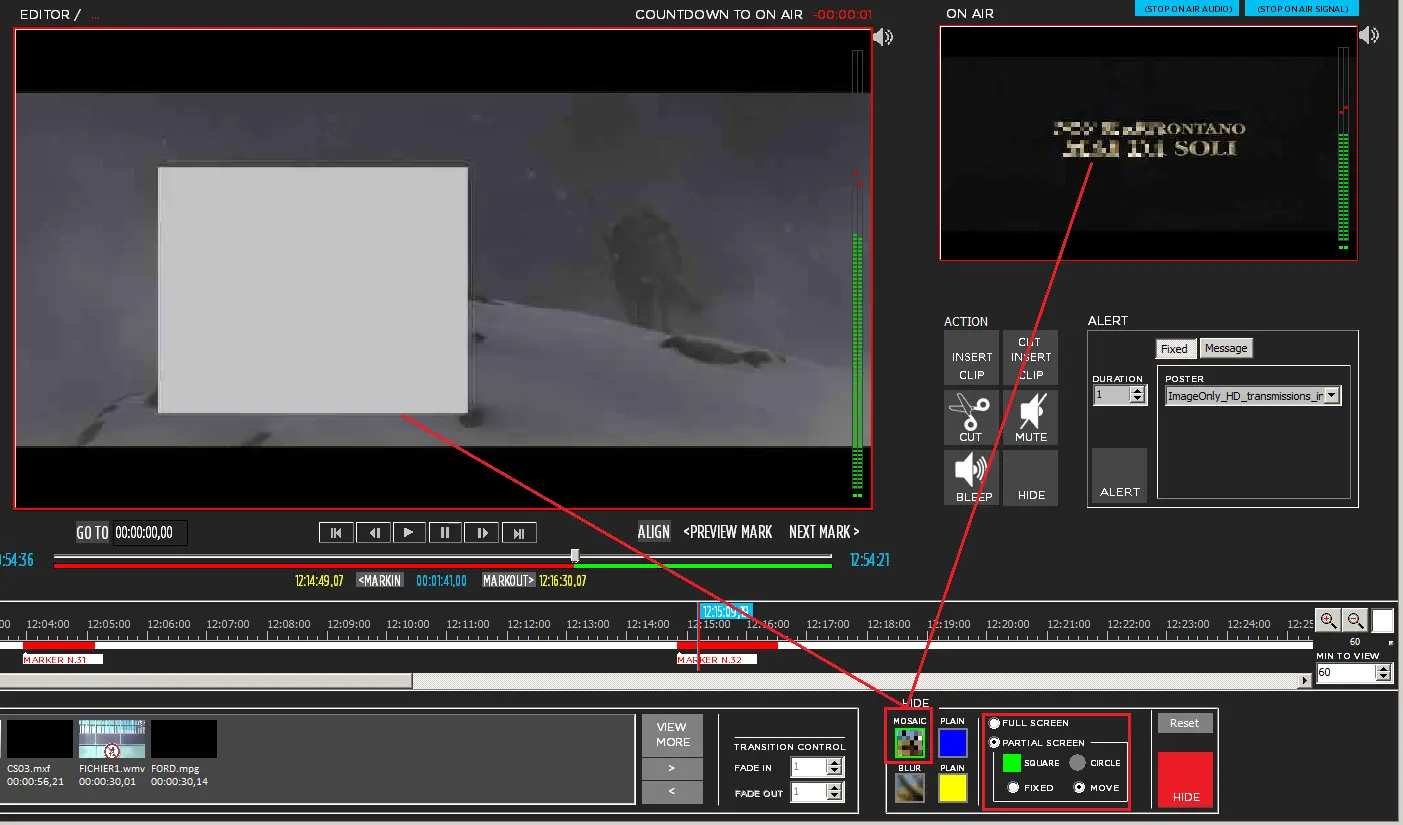
- Select MOSAIC effect and PARTIAL SCREEN, shape SQUARE and MOVE.
- Set on the Editor the MarkIn, and with the mouse left-click, select the coverage area.
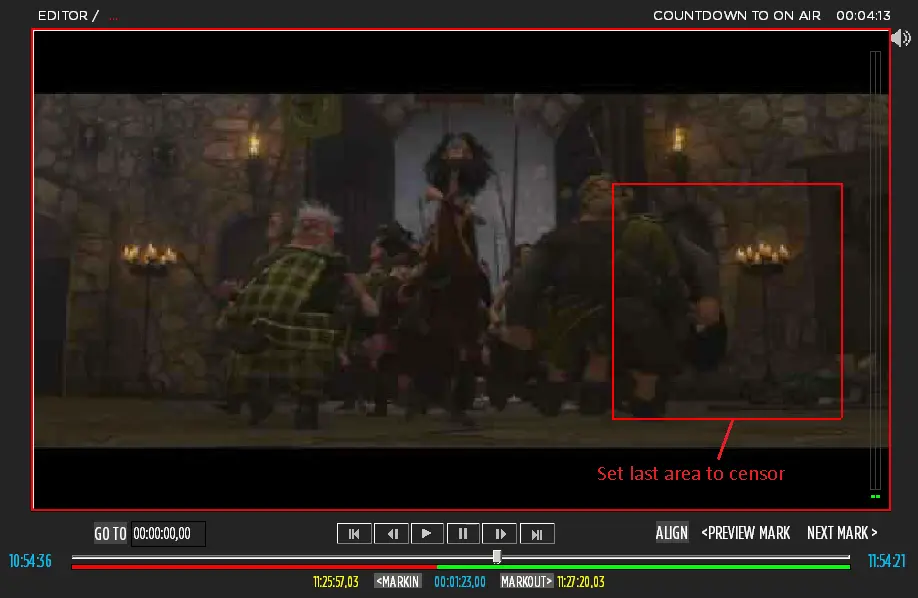
- Set on the Editor the MarkOut, and with the mouse left-click, select the coverage area. The area position to cover can differ from the area set on the MarkIn. CensorMX will interpolate the shape positions between the MarkIn and the MarkOut.
- Click the HIDE button.
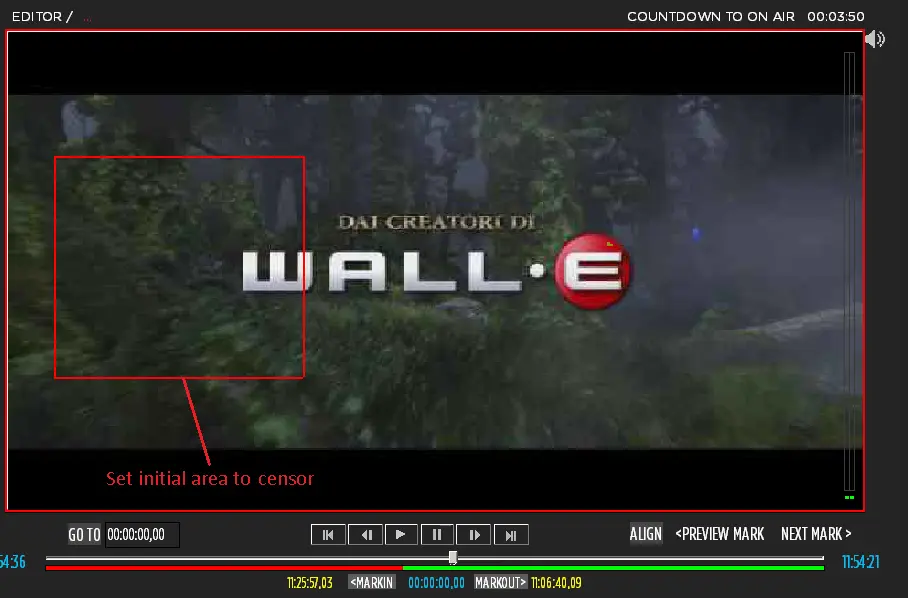
After setting the Markin, select the coverage area with left-click on the mouse.
Example
After setting the MarkOut, select the finalised coverage area with the left-click on the mouse.
Example_1
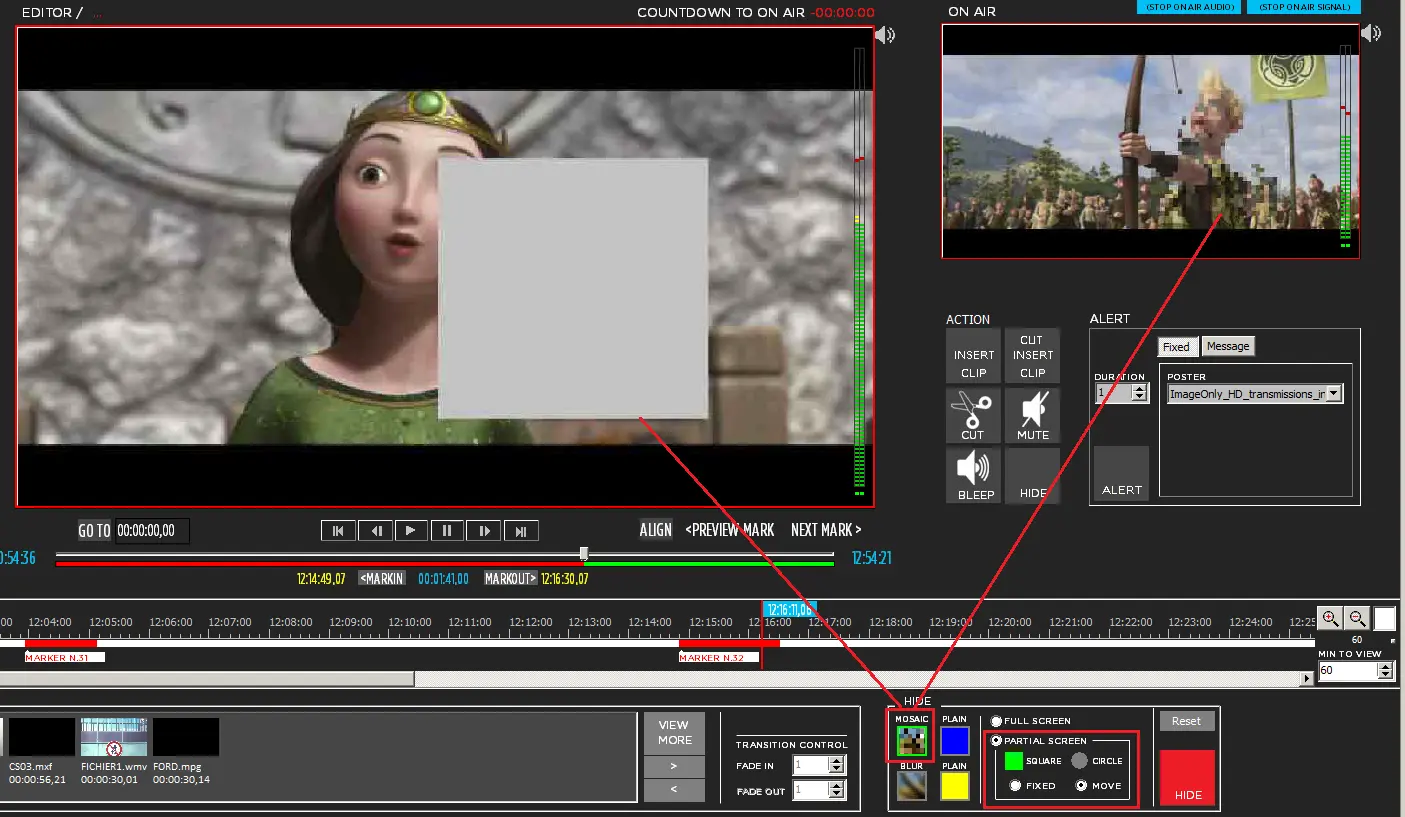
Result effect on the Editor and ON AIR:
During play, the effect moves from the first position to the final, changing shape size if necessary.
- Select MOSAIC effect and PARTIAL SCREEN, shape SQUARE and MOVE.
- Example 5: MOSAIC Partial Screen - Square- Moves in the Timeline
From initial area:
Example_2
To final area:
Example_3
 Selection
 Markset
 Nowtimeline002_
 Fullscreen
 Iintro
 Mosaic
 Example_2
 Example
 Mosaic_1
 Example_1
 Example_3