71.16.2.19 Scheduled Media Check
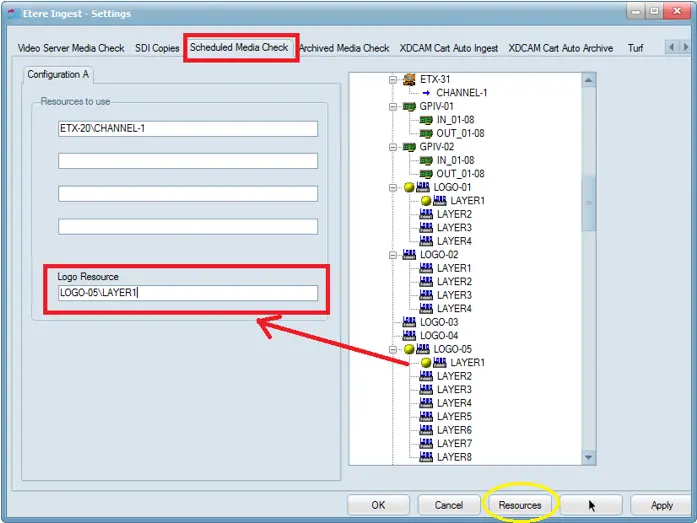
Before you can check the secondary events presented in the Scheduled Media Check section, you would first need to define the Logo resource.
From the displayed screen click on <Resources> button to list the available Logo resources in the workstation.
Scheduled Media Check
Resources to use:
Enter the name of the decoder resource to be used for the control of Automation. You can define up to 4 different decoders, each decoder must linked to a video server.
Logo Resource:
In this instance, select “LAYER1” in LOGO-05 as the logo resource to be used. Click <OK> to proceed.
NB: In Automation Control, it is possible to launch the control for Logo only by setting the Logo resource to be used without specifying any video server in the “Resources to use” parameter. After which, enable the “Use Logo Resource in the control” option described below to use only the Logo resource for scheduled media check.
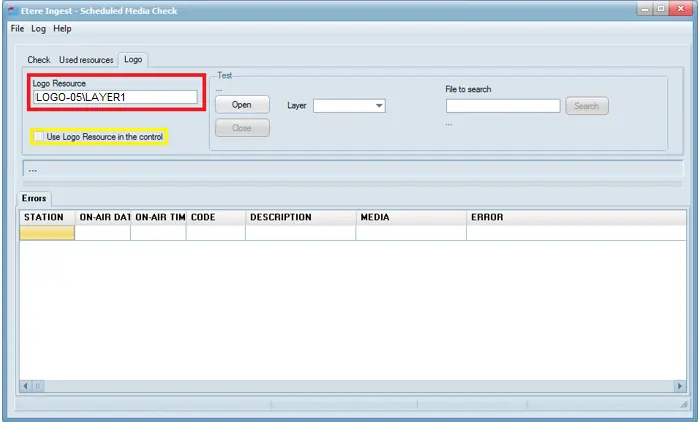
The selected logo resource is reflected in the Scheduled Media Check under the “Logo” tab, which you can start testing on the logo.
Logo tab
Ensure the option “Use Logo Resource in the control” is enabled in order to use the logo resource to search the secondary events in the control of Automation.
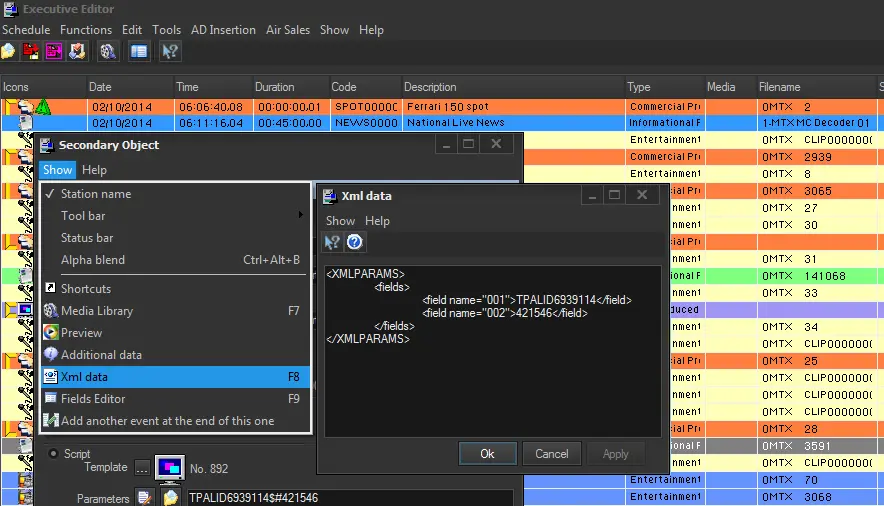
The Logo Resource function check the secondary events object in the schedule, particularly the presence of the object image.
Secondary object
In the above instance, the logo image of “LOGO n.14” was not found in the Logo machine, an error message (e.g. “Logo n.14 not found”) would be written in the error list to notify user.
 Scheduled_Media_Check
 Logo_tab
 Secondary_object