73.4.1 Start Recording
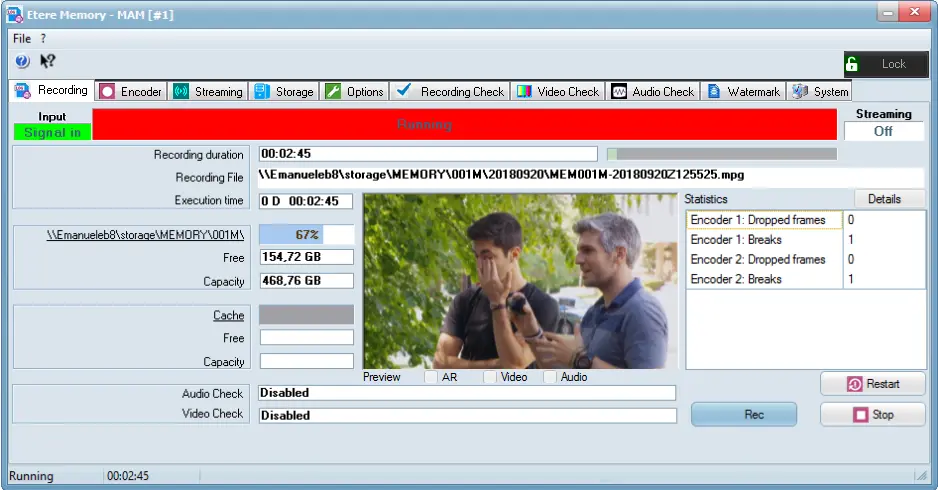
Once all the essential requirements have been accomplished, the Recording section displayed each time Etere Memory is launched for a certain station license, allows operators to launch the video logging process by clicking on the [REC] button as shown in the picture below:
Recording
When recording file in Memory, the asset file is recorded with timecode accuracy close to hundredths of a second:
•Memory would force Writer to write the exact start timecode from the start frame indicate by user.
•Memory would trigger frame time resync before every file switch take place. The resync is performed only one time per switch and the frames time would be removed from database after file switched.
•The switching of files would take place at the exact time frame, e.g. "00:00:00:00". In multiple encoding, only one thread would be active at one time during file switch to delete obsolete files and swap files from cache to storage, this would prevent overlapping of files during file switch.
Moreover, closing of Memory during file switch is not allowed, it would prevent creation of orphan files in database.
•When using 2 writers to switch files, Memory would wait 5 seconds between closing of previous file and opening of new file properties. Moreover, the writer would be opened 2 seconds before starting to write to new file.
•If the destination path is not available, the recording would continue without swapping the file and delete old media files in local cache to store the recording file. The file swapping would take place when destination path is available.
•When a file is transmitted, Memory would rename the file by its timecode of the first frame accuracy close to hundredths of a second (in UTC format, e.g. “MEM001M-20190318Z00574200” is recorded on 18 March 2019 at 01: 57: 42.00).
NB: This feature applied to all Encoder profiles configured in Memory.
•When the file is opened in Toolbox player, the timecode of the first frame would be superimposed on the preview. The timecode is superimposed only if the “Date and time overlay” option is enabled in Encoder Configuration.
•If there is error encountered during recording, or the recording stopped at certain frame for more than 30 seconds, Memory would restart the recording thread and resume the recording process.
•In multiple encoding environment, checking mechanism has been in place to check the status of all encoding, if error occurred in encoder during encoding process the encoder would be reset and resume the encoding process. Upon encoding, the encoder would be closed and set the file name one at a time for each encoder to prevent file corruption.
•If a file is corrupted during recording, all the assets in the file would be marked as defective.
The Recording section provides operators with the following information regarding the content capturing process:
GUI Lock / Unlock
Lock / Unlock - When Memory module is launched on workstation by the Active Directory’s user, the icon button would be present at the top right corner. You can click on the Lock button to freeze the GUI while you are away from the workstation. Upon activated, the Lock button would change to preventing other users access to the workstation.
The GUI would be automatically locked 5 minutes after Memory is launched. When GUI is locked, all function tabs and the Rec, Restart, and Stop buttons would be disabled.
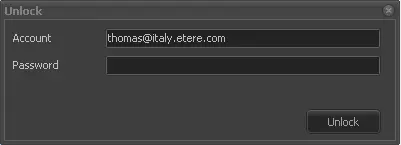
To resume operation on the workstation, you can simply click on the button and enter the password of the current (Active Directory) login user to unlock the GUI.
Unlock
Upon unlocked, the locking of GUI would occurred for interval of 5 minutes. When the GUI is locked, it can only be unlocked by the current login user, or an Active Directory user with System Admin rights. The Active Directory user who unlock the GUI would be recorded in the Log of Access report for tracking.
INPUT SIGNAL
Input - The Input label at the left corner indicate the status of the input signal detected by Memory.
•The incoming signal has been received by Memory.
•No input signal has been detected by Memory.
NB: If input device is connected via NDI (network device interface) protocol and NDI signal is not presented, Memory would continue searching for the NDI input device and indicate the search by indicating and blinking interchangeable until a NDI signal is received.
RECORDING CONTROLS
[REC] - Starts recording the audio\video into the main or backup folder (it depends on the "start as backup" option). Recorded video files are stored into daily sub-folders (i.e.: yyyymmdd) with a hourly name (i.e.: MEM[station][M or B]-yyyymmdd-hhmmss.wmv).
For instance, a video file recorded from the station 001 on 13/01/2010 at 12:03:34 will be saved as follows:
\\MyRecordingPath\20100113\MEM001M-20100113-120334.wmv
The recording start time is calculated from the file registration. If the time took more than 5 seconds, the Memory file would be created with suffix “_0001” appended to the file name.
NB: Please note that the recording process requires some parameters to be set as explained in the Memory Configuration chapter.
[STOP] - Use it to stop recording. When this button is clicked a confirmation will be asked before the recording operations are actually stopped.
To restart recording, you would need to click the [Restart] button to resume the streaming process.
NB: When recording stopped, an “.hdr” (high dynamic range) image format file would be created in recording folder. A “Cleaning recording folder” task has been included in Maintenance Operations to delete all “.hdr” files in recording folder 30 seconds after the recording stopped.
[Restart] - This button restart the recording process previously stopped using the [Stop] button.
[Preview] - This button allows to preview the input video before recording. The [Preview] button is available only if the Direct3D component (of DirectX9) is present on the system, it avoids possible freezing issues when Etere Memory is accessed via Microsoft Remote Desktop.
NB: In case your video card doesn't support Direct3D, the preview would display a message indicating this issue ('VMR9 preview not available because Direct3D feature of DirectX9 is not enabled').
RECORDING INFORMATION
Status - The top bar of the "Recording" tab is a graphical component that indicate the current status of the source encoder. Possible status includes stopped, starting, recording, running, restarting, etc.
NB: If the recording remains in cued status for more than 30 seconds, the recording would be reset.
Recording duration - Indicates start time of the current recording process, indicating the time (hours, minutes and seconds) used for recording the current file.
Recording File - Indicates the current ingest file, including the full path and file name with extension.
Execution time - Indicates the duration time (number of days, hours, minutes, seconds) that Etere Memory has been recording (this is useful to find out if the application has been terminated for some reason). Log files are available to check the functioning of Etere Memory software. You can select the Options menu and select the Log option to view the log file.
MAIN STORAGE SPACE
Disk info - Indicate the percentage of storage space used for recording the current file.
Free - Indicate the available disk space current presented in the recording directory.
Capacity - Display the total disk space presented in the recording directory.
CACHE STORAGE SPACE
Cache / Free / Capacity - If a local cache has been enabled, it display relevant information regarding disk space usage, the available disk space and total capacity assigned.
AUDIO CHECKING
Audio Check - If enabled, it display the loudness settings of the recording video file.
VIDEO CHECKING
Video Check - It display the black frames and freezes encountered during the recording process (e.g. 'black video from 13:05:24 to 13:06:50', 'frozen video from 23:13:00 to 23:15:24').
PREVIEW RECORDING
Preview - The preview function right under the recording window enable you to preview recording by selecting the features below,
❑AR: Manage the aspect ratio in preview. If checked, it maintain the aspect ratio of the input video signal. When unchecked, the aspect ratio of “16:9” would be applied to fit the preview panel.
❑Video: Preview the video file in recording with or without audio.
❑Audio: Preview the audio channel in recording with or without video.
The recording window would displayed blank if “Video” option is not selected for preview.
NB: Besides the above settings, alternatively you can set the QC mode by access to configuration file “MemoryX.Y.ZZZZZ.ini” in Etere data folder (in “C:\Users\user_name\AppData\Local\Etere\user.001”, where X=cod_user, Y=license #, ZZZZZ=machine ID) and set the following value:
In [AVCHECK] tab set “AVCheckMode” = 0 or 1, where “0” is default value which QC on separated playlist playing Live input, and “1” to perform QC directly in Writer cloned frames.
Statistics Collection
When recording is in progress, the “Statistics” window at the right panel would be activated and start collecting the dropped frames and recording breaks occurred during recording in each Encoder, depending on the number of Encoder profiles you had configured.
When recording dropped frames and breaks, the following conditions applied:
•Dropped frames includes slow processing frames with process time over 2x frame duration.
•Breaks are refer to “time_breaks” occurred during recording which resulted in loss of frames.
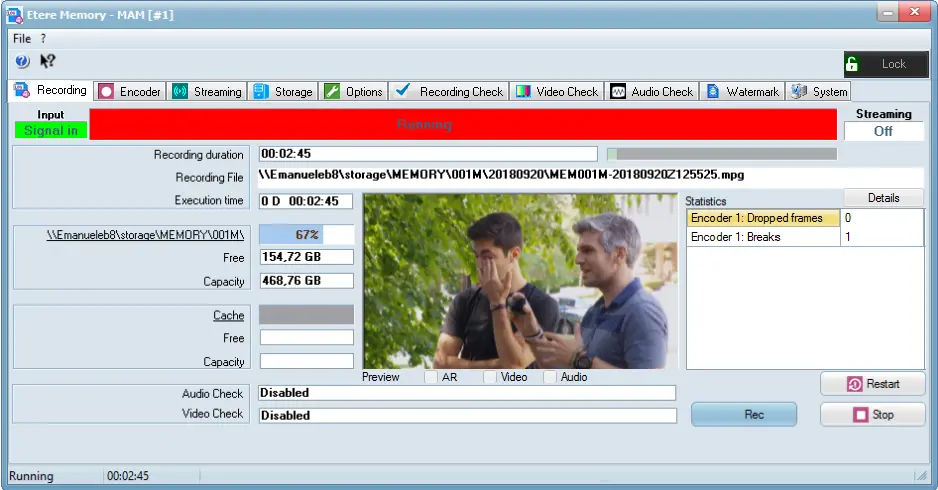
Memory recording running start
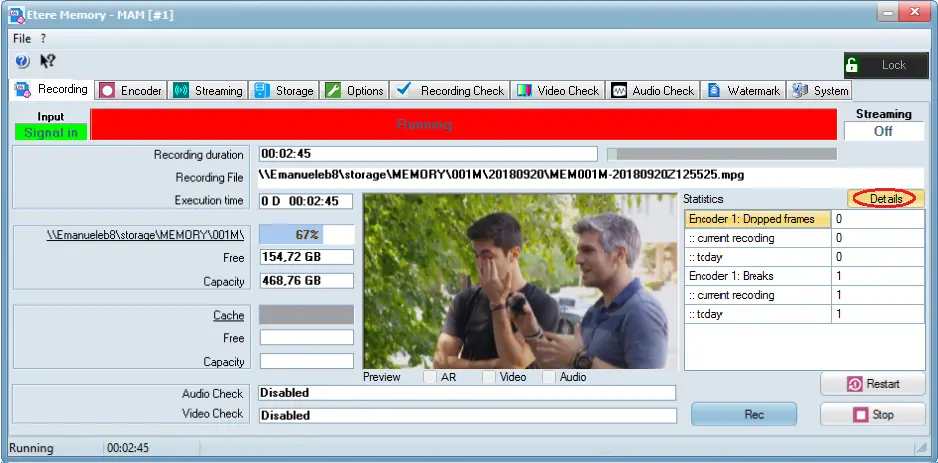
In this instance, only one Encoder profile “Encoder 1” in created in Memory. The statistics are captured and compressed in summary, you would need to click on the <Details> button to view the detail statistics captured during recording in Encoder 1.
Details
STATISTICS
Encoder 1: Dropped Frames - The total number of dropped frames captured in Encoder 1.
:: current recording - Total dropped frames occurred in current recording in Encoder 1.
:: today - Total dropped frames occurred in current day recording in Encoder 1.
Encoder 1: Breaks - The total number of breaks captured in Encoder 1.
:: current recording - Total breaks occurred in current recording in Encoder 1.
:: today - Total breaks occurred in current day recording in Encoder 1.
In the Memory station, the encoding process would be written to log file “MemoryEncoding.log” in user specific application data folder. The “MemoryEncoding.log” records the statistics information and properties settings defined during the encoding process. In Statistics panel, system buffer are allocated for statistics collection during encoding, statistics information would be written in “MemoryEncoding.log” if the buffer achieved 75% utilization.
During recording, if any dropped frame, streaming break, freeze or black screen is detected in any Encoder, SNMP messages would be triggered to alert user. You must enable the “Enable SNMP Sending” option in the Recording Check Configuration tab in order to trigger the SNMP messages.
Memory instances
When recording assets, if there are multiple Memory instances the “CONTENT TYPE” metadata is mapped as follow to register Memory instances for identifying the asset creation, where
•'M' indicate asset created in Main Encoder, e.g. MEM001M-20191224Z14215900.mpg
•'N' indicate asset created in 2nd Main Encoder, e.g. MEM001N-20191224Z14215900.mpg
•'B' indicate asset created in Backup Encoder, e.g. MEM001B-20191224Z14215900.mpg
•'C' indicate asset created in 2nd Backup Encoder, e.g. MEM001C-20191224Z14215900.mpg
NB: Regardless if the Memory is auto-started or started manually, only one instance of Memory is allowed to be launched from the same user station at a time.
 Recording
 Details
 Unlock
 Memory_recording_running_start