9.3.3 Search
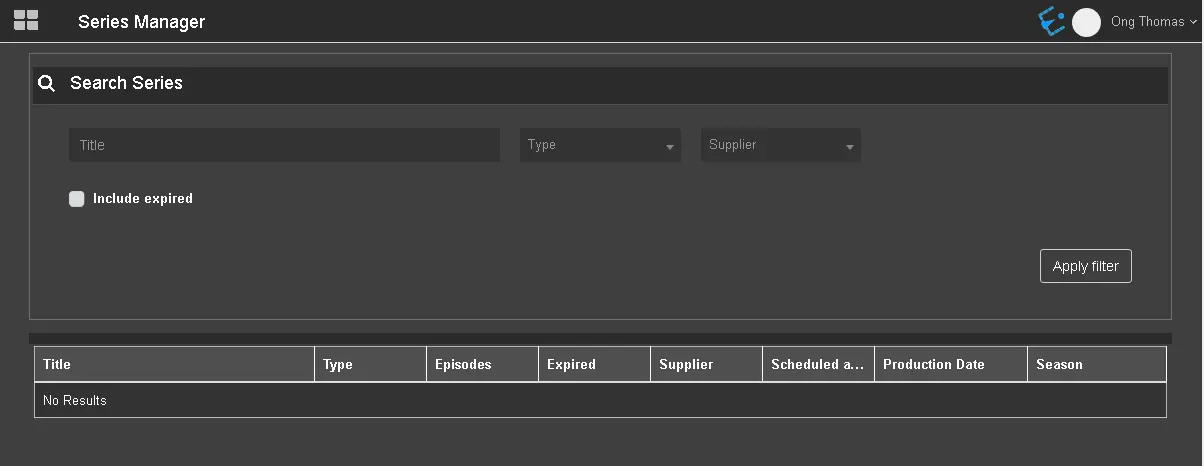
The Search function allows you to filter season assets that match the criteria.
filter_season_assets_matches_the_criteria
- Title: Search season by filtering the season title;
- Type: Indicate the specific type of season to be filtered, e.g. COM, ETXG, NEWS, PGM,etc.;
- Supplier: Indicate the name of the supplier;
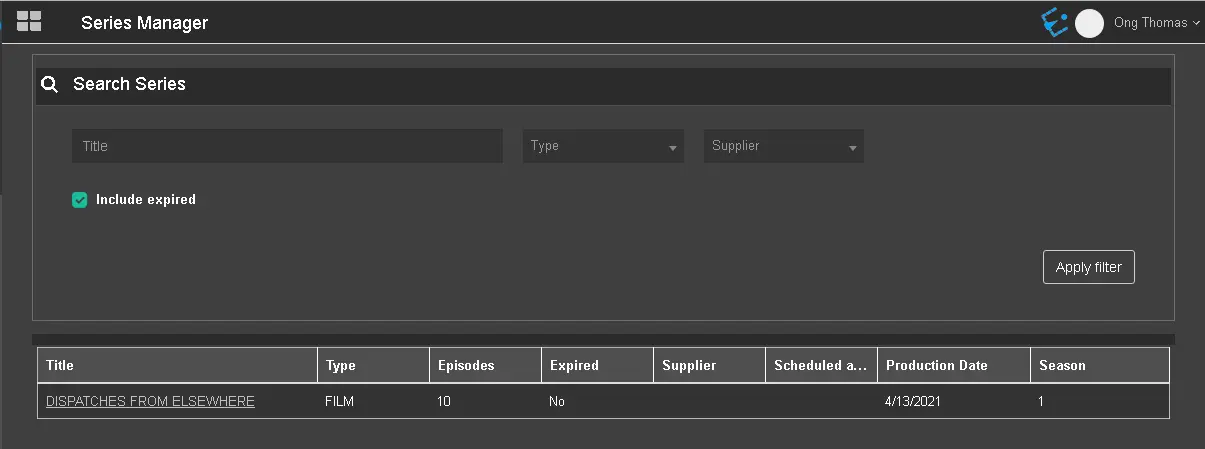
- Include expired: Enable this option to include filtering of expired season assets;
When all parameters are fulfilled, click the <Apply filter> button to retrieve season assets that match the criteria.
series_include_expired
In the search result, you can click on the season title to view the properties of the season asset.
When viewing the season asset, the Metadata tad would be launched if the season has a trailer linked to the purchase. If there is no attached trailer, the General tab will be found.
Suppose there are two seasons with the same title, e.g. one HD version and one SD version. In that case, you can identify the specific season in the Properties column, which contains up to 20 input characters to differentiate one season from another. The Properties column would only be available from Etere version EtereInstall_31.2.591.4715.zip onwards; the column is only visible in EtereWeb.
Note: In the Search form, the number of filters is not equivalent to the desktop, as the seasons are automatically displayed based on the user’s rights and broadcaster.
 filter_season_assets_matches_the_criteria
 series_include_expired