72.2.2.1 General Data
The General Data tab (called Season Manager for season assets, see the next chapter) allows to view and modify some relevant data including the following properties:
General Data tab
Type: Select from list the asset type. These are user-defined in Etere Configurations > Settings > Types.
NB: The changed type is extended to all asset versions and updated across broadcast playlists.
Production Country: Select from drop-down list the country where the asset has been produced,
Production Date: Enter the date on which the assets has been produced. Pressing the "tick" button inserts the current date automatically.
Self-Production Percentage: Indicate the station's production percentage that will determine if the asset is:
Self-produced - The asset's "self-production percentage" is equal to 100%.
Co-produced - The asset's "self-production percentage" is greater than 0% but less than 100%.
Other-produced - The asset's "self-production percentage" is equal to 0%
Independent Producer: Specify if the asset has been produced by an independent producer. This information is used by the Events Log Report and Statistics Report to specify under the "self-produced / other produced" column if the asset is has been produced "independent" (i.e. by an independent producer).
Genre Code & Description: Make right-click in the Genre section and associate the asset to one or more genres. Genres are user-defined in Etereweb > System > Genres.
Stations Enabled: This parameter allows users with "system admin" rights to select here the stations for which the current asset will be enabled/disabled (e.g. for being scheduled from Executive Editor).
The "reset" right-click function will allow system administrators to automatically mark only those stations which are enabled for the current asset type (e.g. movies).
NB: Default stations are assigned to types under the "Configuration > Settings > Types > Types by stations".
Thumbnail: This area (grayed if no thumbnail is set) displays a picture that represents the asset's video content. Thumbnails are set as follows:
a - Opening an asset which doesn't have a thumbnail but does have a proxy file, the thumbnail will be automatically generated using the first frame of said proxy file,
b - Launching the 'acquire thumbnail from proxy' tool for an asset linked to a proxy file, the thumbnail will be generated using either the first frame of the proxy file or the current previewed frame (in case the proxy file is being previewed under the media section).
c - Making double-click on the thumbnail square and browsing for the file (jpg, bmp, ico, emf or wmf) to be used.
d - Attaching to the asset a T-workflow containing an "icons regeneration" action with the "thumbnail acquisition" enabled.
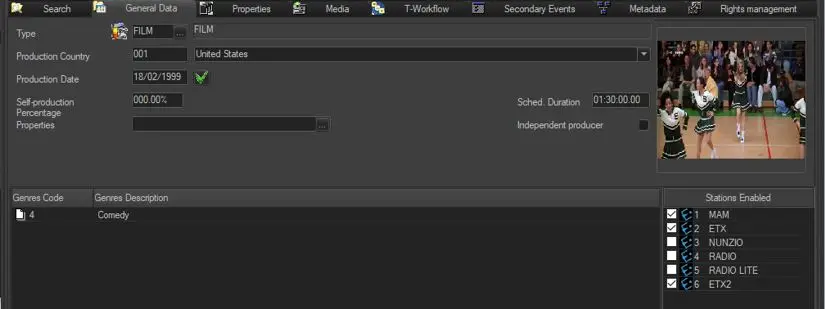 General_Data_tab