59.5.15.3 Events Report
Report Description
It allows to generate a report based on specific parameters related to commercial orders such as 'customer', 'agency', 'order', 'lines', 'date range', and 'commercial type'.
NB: In order to be used, this report requires the 'Use Manual Scheduling' option to be enabled under the Etere Configuration | Settings | Air Sales | Scheduling Rules section.
Report Filters
All the parameters that permits a detailed generation of the report have been spread across seven different tabs to allows an easier configuration. By default all filters are disabled (i.e.: they are either blank or unselected), to enable them it is enough to configure at least one parameters on their inside. Available filters includes:
•Customer: Indicate the customer for which the order has been elaborated,
•Agency: Specify the agency related to the order,
•Order: Select the order that will be detailed in the report,
•Details: Choose the order line for which the report is intended to be generated,
•Date range (from - to): Indicate the date interval from which data will be retrieved, that is, the period for which the report is intended to be generated.
•Commercial type: Indicate if there will be included only commercials, sfhfna (a commercial that is present in a break inside a program, it's used to manually customize a program) or both of them,
•Status: Indicate the exact status that retrieved events must have, available status includes payment, free, sponsor, barter or any.
In order to proceed with the generation of a report, at least an agency and an order must be specified.
Report Preview
The [Settings] permits to configure the page layout of the outgoing document; once filters and settings have been set it will be possible to select between displaying a preview using the related [Preview] button or printing the document directly using the [Report] button. Please note that some reports permit to export the generated document in the most common formats (pdf, csv, doc, xls, xml, etc) just by using the [Export] button.
Events_Report
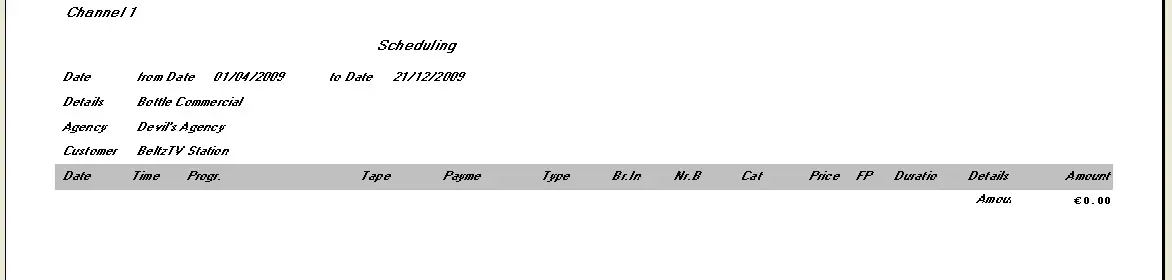 Events_Report