55.2 General Settings
Etere Aligner requires the following parameters to be set in order to properly fulfill stations needs:
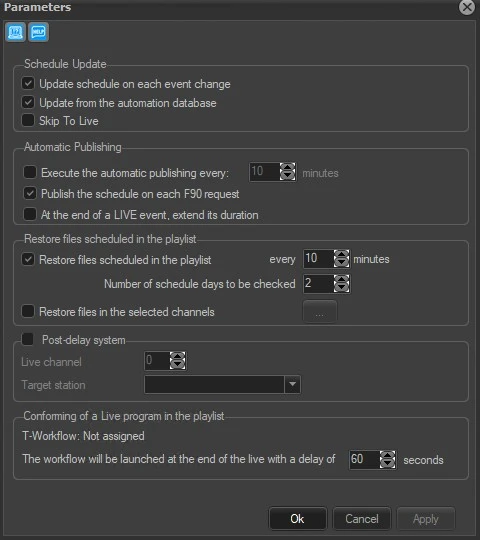
Parameters 1
Schedule update
(update the programming schedule during the playout)
Parameter - Update schedule on each event change
Description : Set the update of the published schedule (viewed from Executive Editor) each time a new event starts.
Parameter - Update from the automation database
Description : If enabled, the automation schedule (i.e. tpal file) of the previous day will be checked and in case it exists, the related programming schedule (i.e. tpalinse table) will be updated based on it with the actual transmission times; then, once this operation is completed, the automation schedule will be renamed (i.e. tpalMMDD.dbf >>> tpalMMDD.tra).
NB: Events updated by this function will be marked in the Executive Editor as automatically certified.
Parameter - Skip to Live
Description : If checked, it bypass all scheduled events and start new event.
This option is available when the value of the event is set to zero (0).
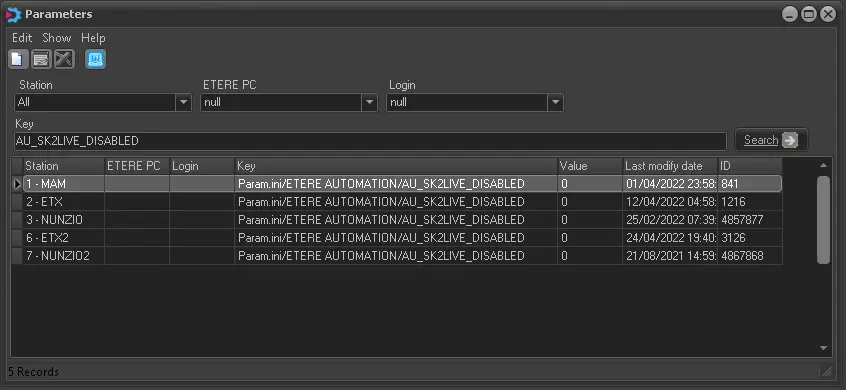
Parameters 2
If this option is enabled in automation schedule, the value of all on-air events and Live events would be set to zero (0).
Automatic Publishing
(automatic publishing of the programming schedule)
Parameter - Execute the automatic publishing every
Description : Enable the publishing to be performed in periodical basis and/or each time F90 requests it,
Parameter - Publish the schedule on each F90 request
Description : If enabled, the programming schedule will be automatically published each time Etere F90 request it (e.g. after an import operation).
Parameter - At the end of a LIVE extened its duration.
Description: If enabled, during the play of live events that are in DSTILL status or have a negative countdown, their duration is periodically extended to delay the start time of subsequent secondary events.
With each extension, the following is also sent:
1. a notification to F90, which re-exports the schedule with the updated times.
2. a notification to the Executive Editors, who then update their schedules
The duration of the live event is increased approximately every two minutes.
The Aligner log must contain a section titled "Extend Live Duration", containing information relating to these operations.
Restore files scheduled in the playlist
(restore clips each time they are scheduled for going on-air)
Parameter - Restore files scheduled in the playlist
Description : Set the number of files and the frequency with which they will be restored once scheduled.
NB: The restore is performed through the restore workflow set in Etere Configuration > Conf.Editor > T-Workflow > Default T-workflows.
Parameter - Number of schedule days to be checked
Description : In case the "restore files scheduled in the playlist" parameter is enabled, indicate here the number of following days for which scheduled clips will be restored.
Parameter - Restore files in the selected channels
Description : Enable this option and click on the select channel icon Aligner_Selected_Channels_Icon to open a list of available channels where you can select multiple channels (not all channels) and launch the restore workflow using a single aligner.
NB: This option is useful where you can run restore workflow on multiple channels without Automation.
Post-delay system
(adjust the time on post-delay systems)
Parameter - Live channel
Description : Enable the "post-delay system" option when using a post-delay system that -partially- transmits the same contents of the current station across a second station. If enabled, Etere Aligner will continuously check if LIVE events have been transmitted in the configured live channel (e.g. 8), and in affirmative case, the following actions will be performed on the target station (e.g. channel 3) for the delayed live event:
Parameter - Target station
Description :
1. Adjust the duration of the segments that holds the delayed live event according to the transmitted source event.
2.Set the event type of the delayed live event as 'timecode', this is for transmitting it from its mark-in point (SOM) to its mark-out point (EOM)
3.Publish the schedule where the delayed live event is present
4. Reload all -Executive Editor- opened schedules
Note: In the event when the fixed event start time is shifted, if the shifted start time is less than 5 frames, the scheduled on-air time is retrieved from the asset scheduling playlist (TPALINSE) instead of from the automation playlist (TPAL) to ensure fixed event is aired on fixed start time.
Enable the use of Etere Aligner from Etere Automation
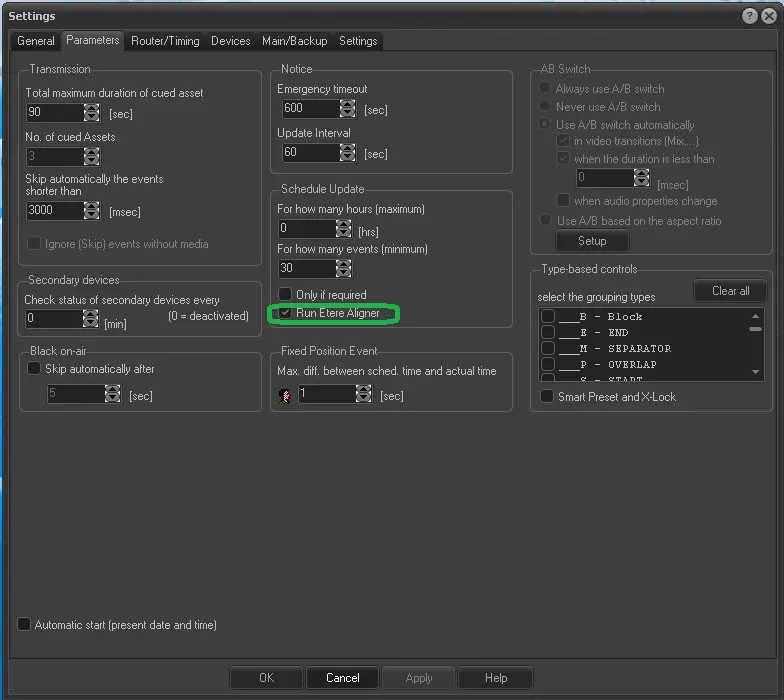
Besides setting the abovementioned parameters, it is important to set Etere Aligner to start automatically when Etere Automation is launched, so you need to ensure the 'Run Etere Aligner' box is active under Automation | Settings | Parameters:
Settings
 Aligner_Parameters
 Parameters_1
 settings