201.3.1 What is Season Manager
A Television season is a special program type, which is composed by various single asset called episodes which will be broadcasted over a long period of time according to specific rights permissions.
The Season Manager module allows to define television season that will be used within an Etere system, it permits to easily detail all generic season data including season, episodes number, scheduled duration, etc, as well as season episodes data such as linked assets.
Once launched, the Season Manager module allows to start managing television season in two different ways:
Searching for a Season
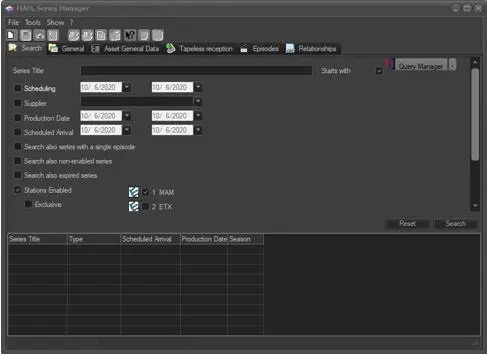
On the Search tab you can search for an existing season using various search criteria including:
Airsales_seriesmanager01
Filter - Season title
Description : Use it to perform the search only among the seasons which title either contains or starts with the given value.
Filter - Supplier
Description : It's the agency who provides the asset to the station.
Filter - Production date
Description : Indicate the date interval on which retrieved seasons must have been produced.
Filter - Scheduled arrival
Description : Specify the period on which the media meant to be linked to the season should arrive (via Tapeless Reception).
Filter - Search also season with a single episode
Description : If enabled, those seasons contains only one single episode will be listed in the results.
Filter - Search also non-enabled season
Description : Extend your search to those seasons which are not enabled for the current station.
Filter - Search also expired season
Description : Carry out the search to includes expired seasons (i.e. outside its validity period).
Once all search filters have been set, launch the 'search' and double-click on the season intended to be managed (all its information will be loaded across the five different tabs available). Use the 'reset' button to set all filters to their default values (e.g. for performing a new search with different criteria).
Another useful feature consist of the possibility of changing the columns arrangement of displayed results, simply drag-and-drop the columns titles from one position to another; changes performed to the columns arrangement will be automatically saved.
NB: For software performance consideration, only maximum of 1,500 season data would be displayed in the Search form. If you want to locate the season beyond the 1,500 season data, enter the search word in the “Season Title” field, for example, if the search form displayed seasons title from character A – S, you can enter “THE….” In the “Season Title” field to display the remaining seasons items beyond character “S” starting from T – Z.
Show Expired Episodes
When searching for season assets in Media Library, the expired episodes in the season within the validity period would be hidden from Search results. You can view the expired episodes in the Season by selecting the “Show also expired episodes” function from the Show menu.
Series_manager_show_expired_episodes
Creating a New Season
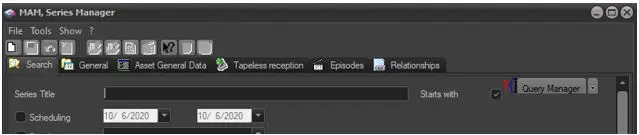
In order to create a new Season click on the 'New' button from the toolbar:
Airsales_seriesmanager02
It will be possible to compile its most relevant data though five different tabs.
Saving Season
Each time the [save] button is pressed, all changes will be stored in the database and the operator will be prompted if changes should be extended to all the episodes which forms part of the season. You can also use the Default Season Manager option to save your selections.
Please note that in case of extending changes to all episodes of a season, only recently 'modified' fields will be updated across the entire season.
 Airsales_seriesmanager01
 Series_manager_show_expired_episodes
 Airsales_seriesmanager02