79.3.2.2 Edit Menu
The Edit functions listed below enable you to manage the Rundown.
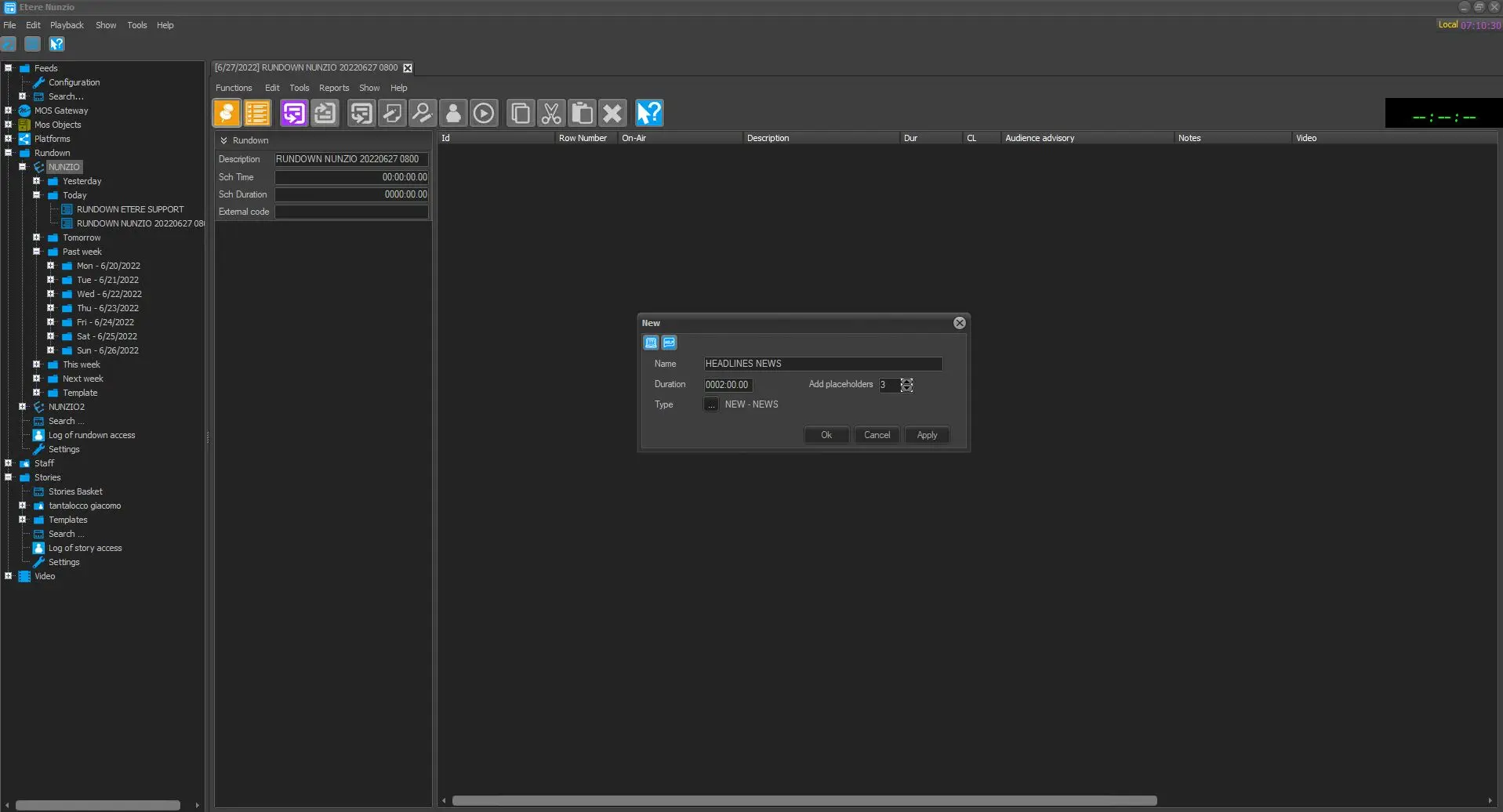
- Append segment: Insert a new segment at the end the rundown, specifying the following information:
- Name - Enter a brief descriptive name for the segment
- Duration - Specify the on-air scheduled duration of the segment.
- Type - Indicate the type of the segment.
- Add placeholder - Select the number of place holders to be created within the segment.
insert_segment
inserted_segment_and_placeholders
- Insert segment here: Add a segment immediately before the currently selected segment. The program would automatically create a 2-frames segment in the Rundown.
- Append placeholder: Insert a new placeholder at the end the rundown.
- Insert placeholder here: Add a placeholder immediately before the currently selected placeholder/story.
- Insert story [INS]: Browse the Media Library and select an asset to be inserted within the selected segment.
WARNING: Only assets belonging to the NZST type (Nunzio Story) are available for insertion.
- Edit [CTRL - E]: Load the selected story into the Story Management for view and editing.
- Replace: Replace the selected story with a new asset selected from the Media Library.
WARNING: As per insertion, only assets belonging to the NZST type are available for replacement.
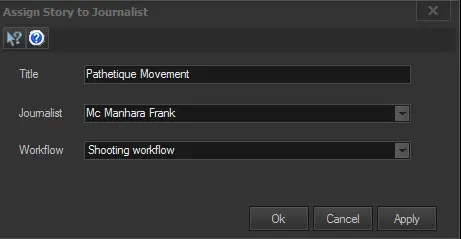
- Assign to: Assign (or change the assignment of) the selected story to a specific journalist indicating a T-workflow to be immediately launched for the story asset:
Assign
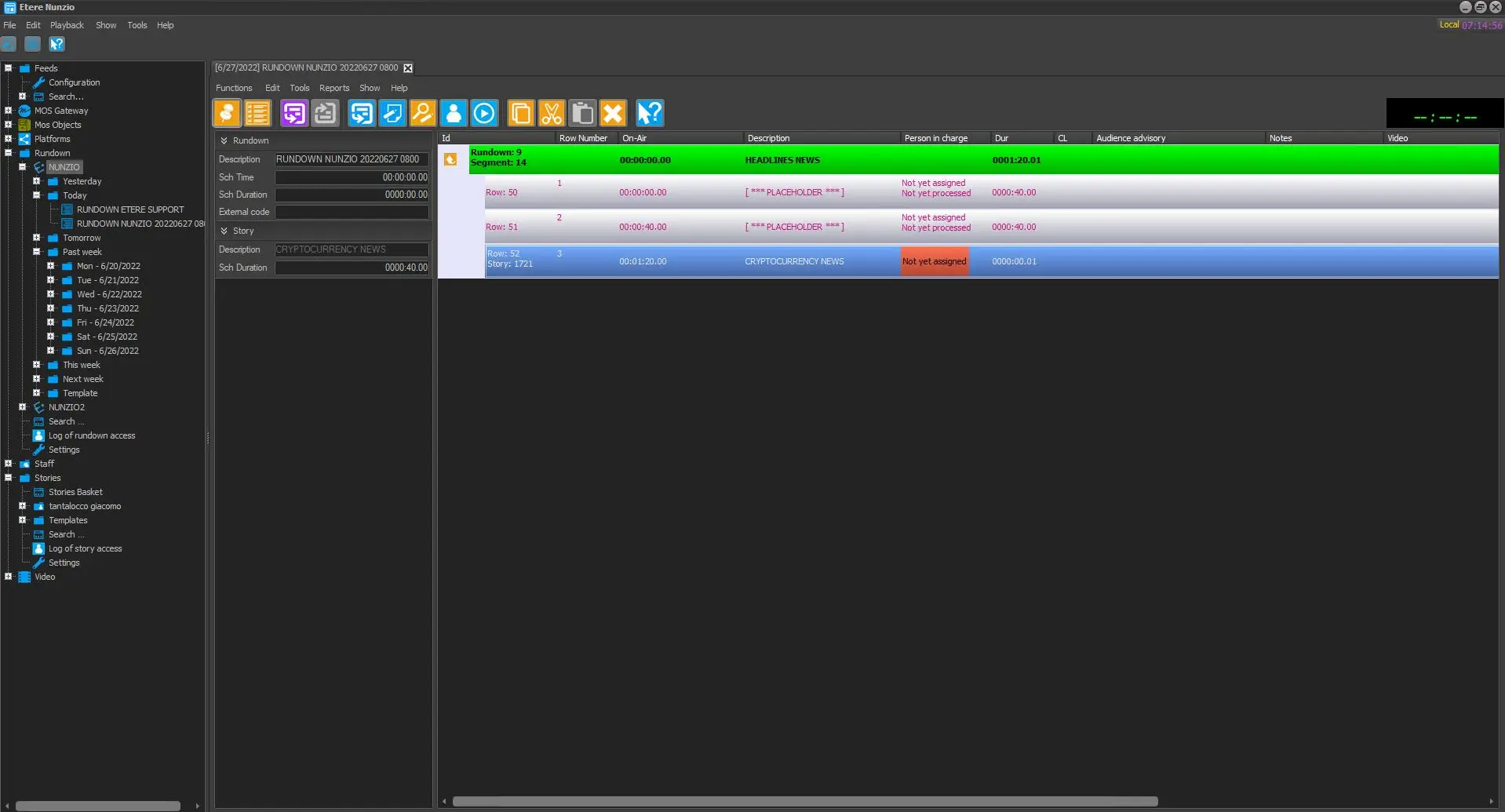
If the Story is not assigned to any Journalist (leave the “Journalist” parameter as blank) during the creation of Story, the Story would be indicated as “Not yet assigned” under the “Personal in charge” column.
not_assigned_story
WARNING: This function is available only for placeholders and stories (not segments) featured within regular rundowns (not rundown templates).
- New version: When copy a story from rundown, select this option to create a same story with a new version.
- Task [CTRL - C]: Open the task assigned to the current user for the selected story.
- Lowres preview: If available, load the proxy preview of the selected story in the Preview panel.
- Video input: Select the router channel from which video is transmitted.
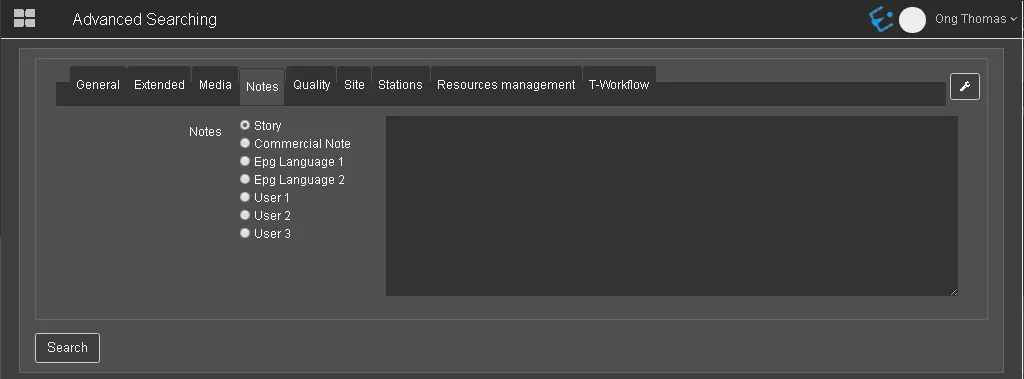
- Notes: Input additional information related to the event in rundown, e.g. if “Live” is inserted, you can enter the name and contact numbers of the staff members working on the field for reference purposes.
Beside “Notes” field, you can also manage other Settings inserted in Rundown Editor.
Notes
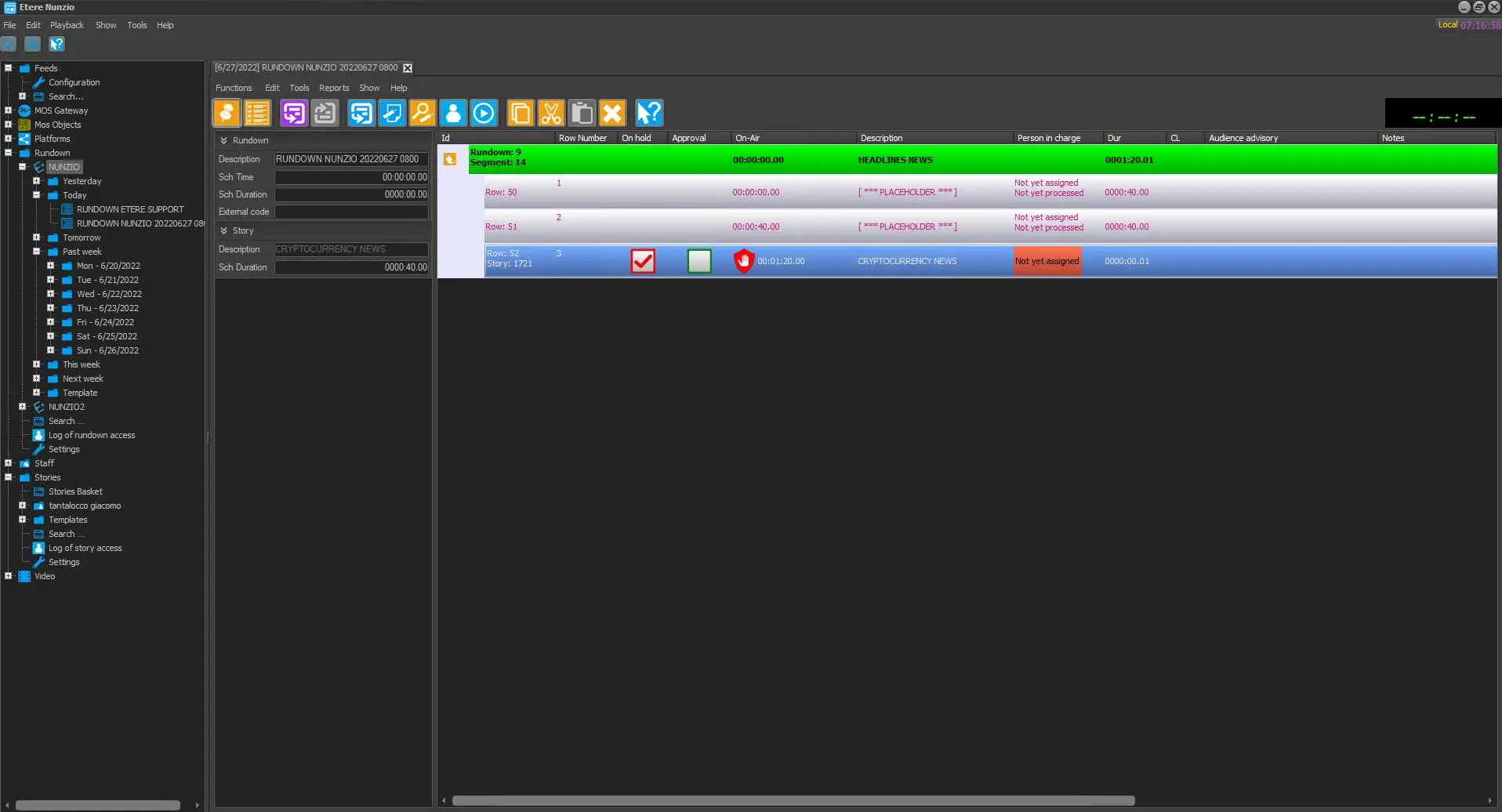
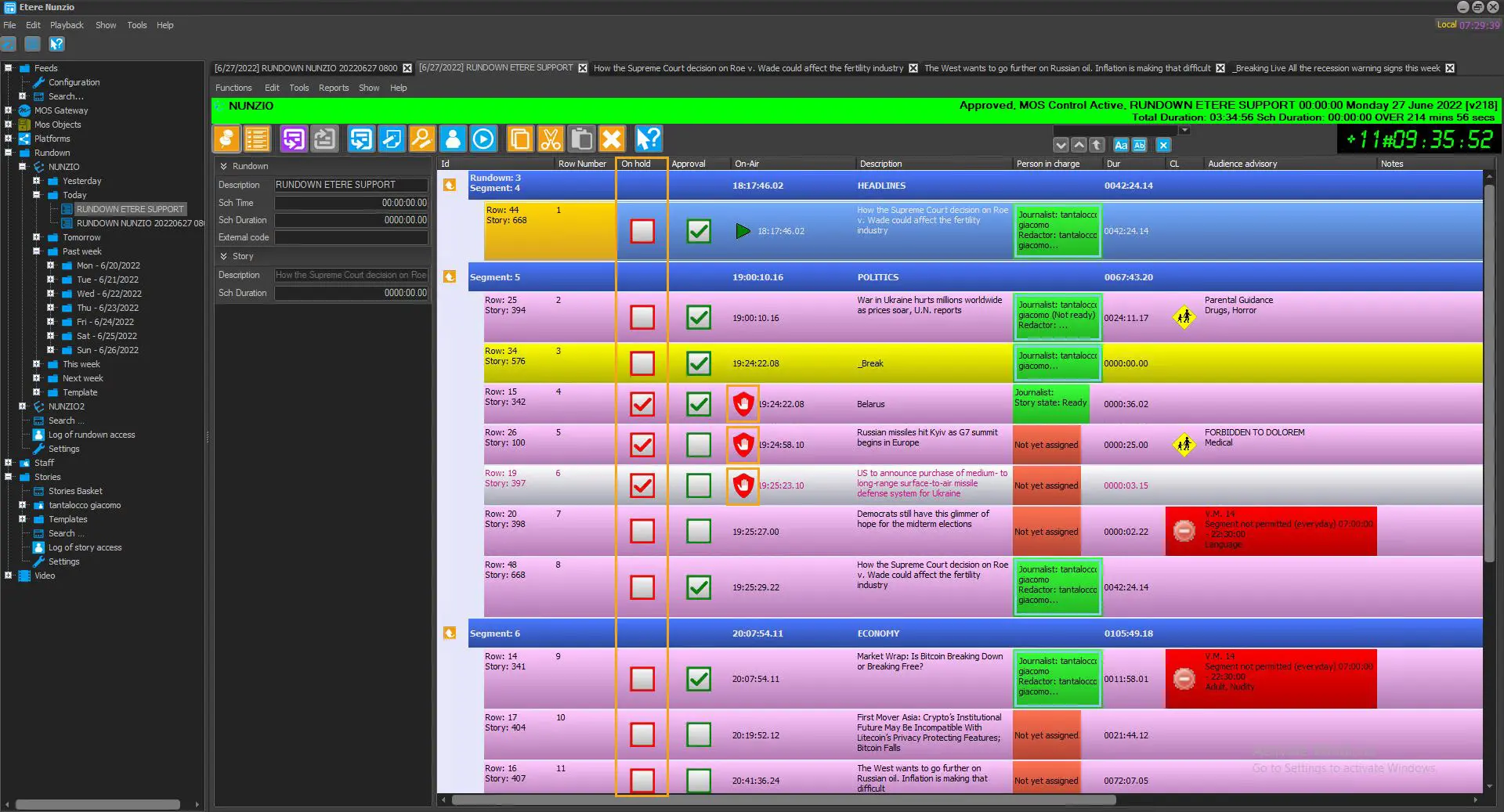
- On hold: You can put the story on-air, or put it on-hold. In the On Hold column, there is a checkbox for each row that contains a story, you can enable (checked) the checkbox to put the story on-hold, or disable (unchecked) the checkbox to put the story on-air.
On hold
on_hold_story_real_world_case
WARNING: The “On hold” function is only available if the access rights in “Functions\Nunzio\Rundown\Story\On hold” is set to “Allowed” in Etere Rights Management.
- Approval: The Approval function allows the executive producers to approve a story without checking the video or the text. In the Approval column, there is checkbox on each row that contain a story, the executive producers can approve the story by simply enable the checkbox in Rundown Editor.
WARNING: The “Approval” function is only available if the access rights in “Functions\Nunzio\Rundown\Story\Approval” is set to “Allowed” in Etere Rights Management.
- Assign to manual player: Load the selected story in a manual player selected among the available ones.
- Copy [CTRL - C]: Put the selected story in the clipboard.
- Cut [CTRL - X]: Put the selected story in the clipboard and remove it from the Rundown.
- Paste [CTRL - V]: Paste a copied/cut story in the current Rundown position.
If a story is copied into another Rundown or to a different station using the copy/cut-and-paste function or drag-and-drop function, a dialogue box would popup for user selection, you must choose to copy the story or create a new version of the story.
- Paste New Version [CTRL - ALT - V]: Paste a copied story into a placeholder. This will replace the placeholder with the copied version.
- Delete: Remove the selected story from the Rundown.
- Main menu: Give quick access to the Rundown's main menu functions.
- Double-click: Depending on whether you double-click on a story or a placeholder you can:
- Story: Load the story into the story editor.
- Placeholder: Open the Etere story Creator form to create a new story (from scratch or template), assign a journalist for its preparing and select a T-workflow for its management. Once created, the new story is loaded into the story editor.
NB: The preview panel is based on the Proxy Preview module.
WARNING: This function is only available if the access rights “Functions\Nunzio\Rundown\Story\Notes” is set to “Allowed” in Etere Rights Management.
WARNING: If the changes made in Rundown is beyond midnight, the changes would be updated into current date Rundown.
 Notes
Notes
 Assign
 insert_segment
 not_assigned_story
 on_hold_story
 on_hold_story_real_world_case