1.1.3.5 Reserved Area features
In this section you can edit the password that you use to access the Reserved Area. To do so, you must first input your old password in the homonymous field, then input twice your new password (on the fields New password and Repeat new password) and finally click on the Save>> button.
• Support Fee
In this section you can view your support contract details, which means the the fee and the expiration date.
• Contacts List
In this section you can view the contact details of who will receive communications related to support and invoicing from Etere.
• Public Files
In this section you can download useful tools to help you manage your Etere system and the most recent installation packages.
• Software Updates
In this section you can download the most recent installation packages, grouped in three tabs: ETERE APP, ETERE WEB and OTHERS.
• Licences List
In this section you can see the licences linked to your contract.
• Licences
In this section you can download your licence and other files linked to your contract.
• My Files
In this section you can access and download files stored in your private directory of Etere's FTP server.
• Upload
In this section you can upload files in your private directory of Etere's FTP server.
• Log Out
Click here to log out from your account.
• Etere Help
Click here to be redirected to this very guide you're reading right now.
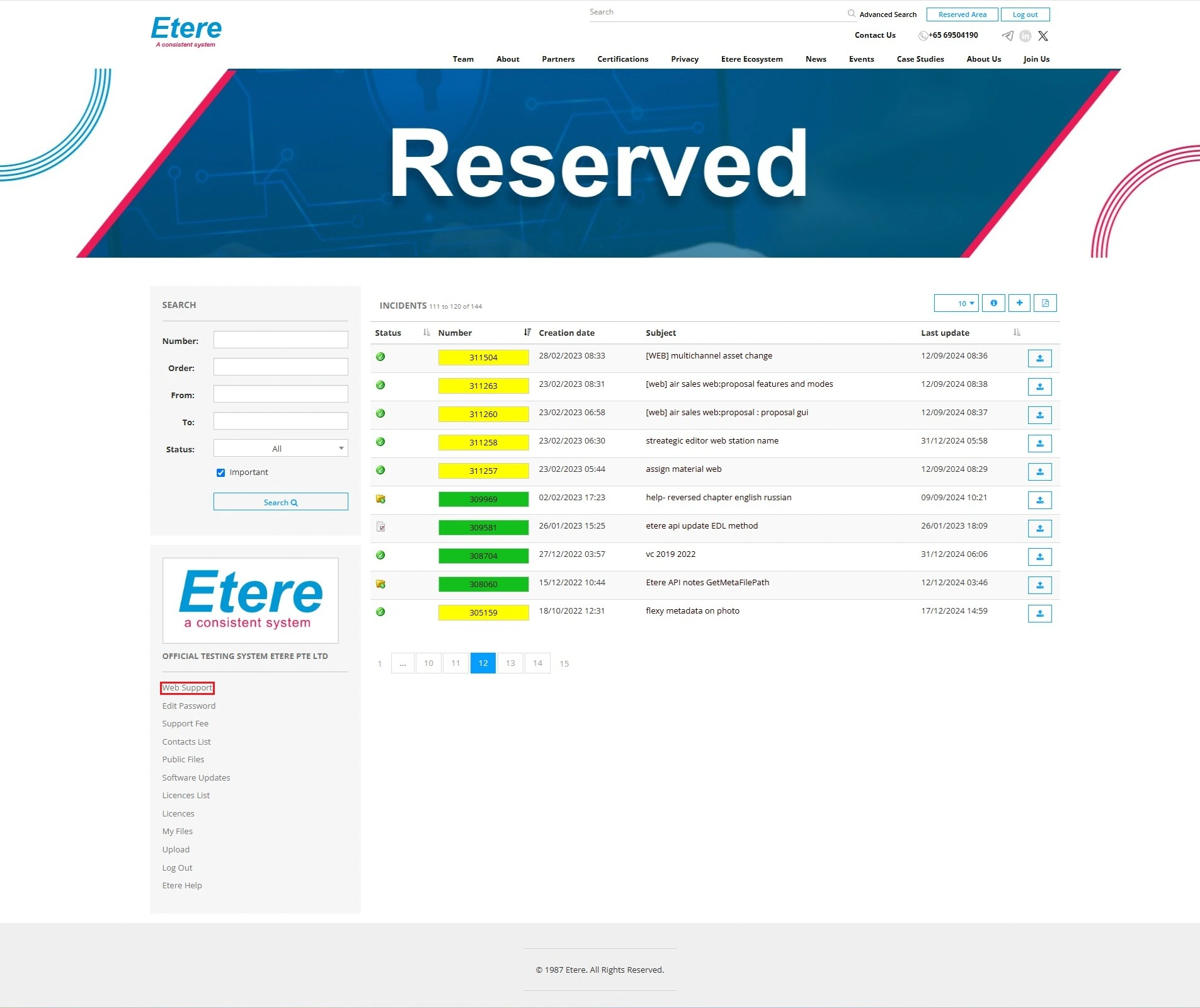 Websupport_2025
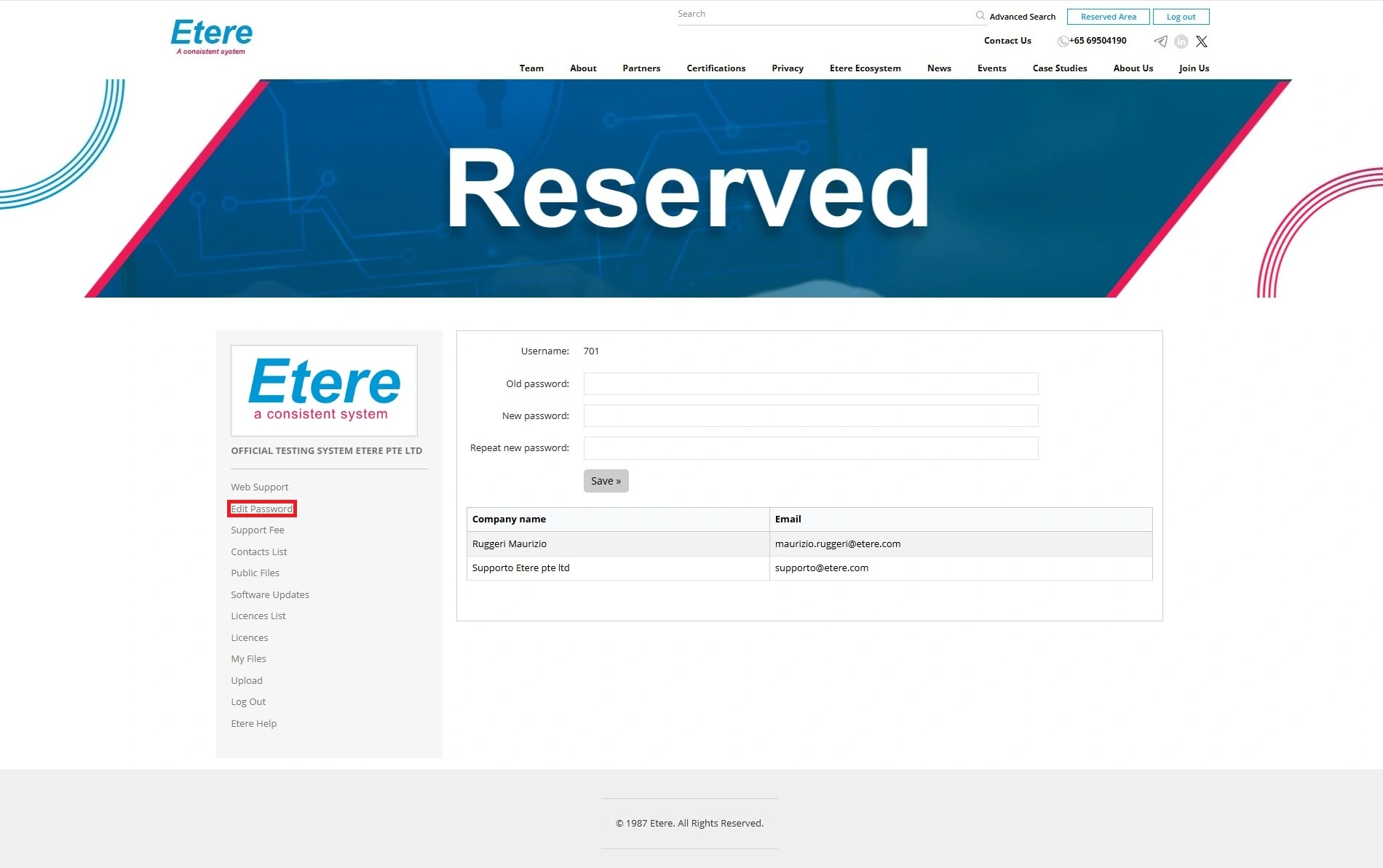 Editpassword_2025_v2
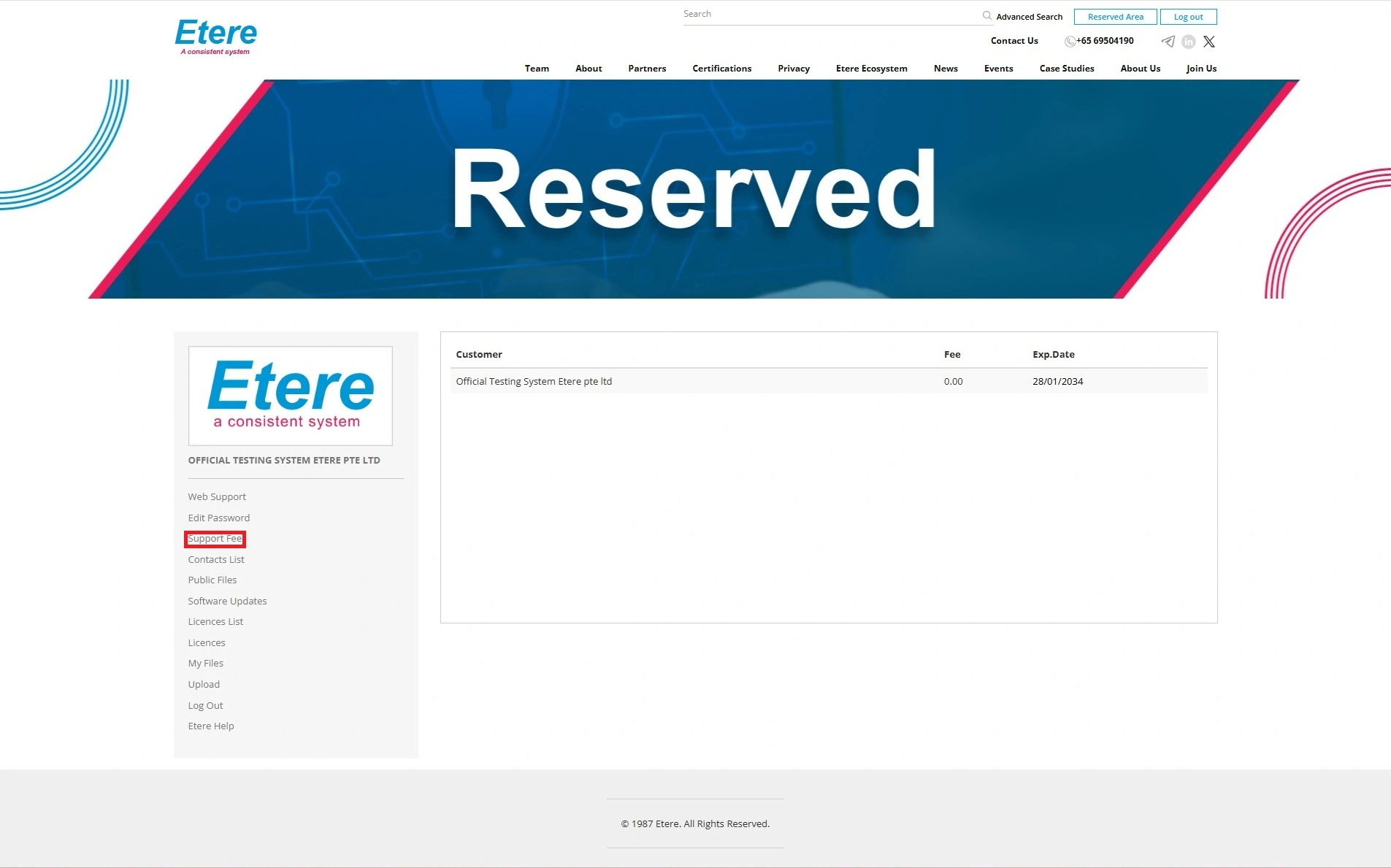 Supportfee_2025
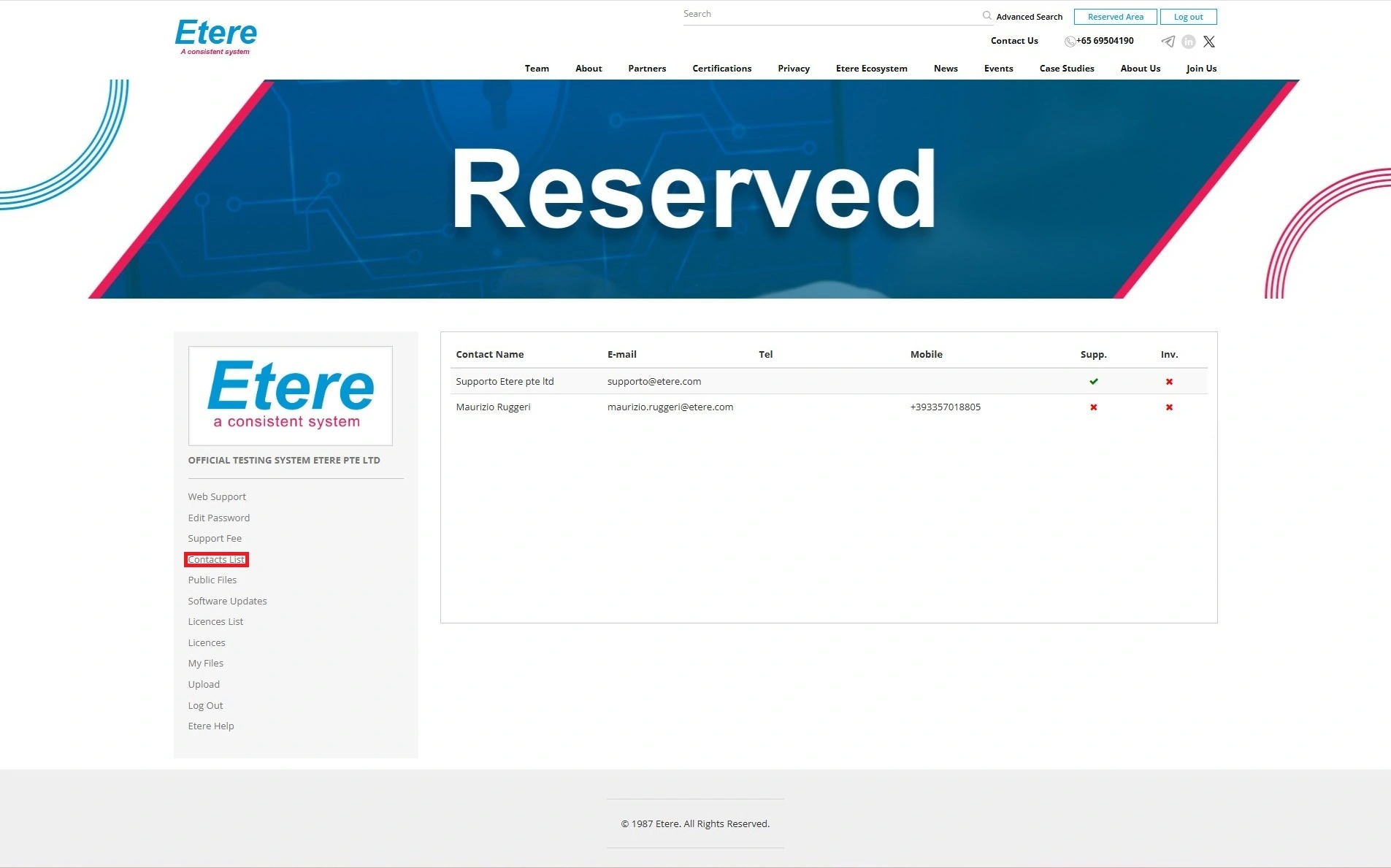 Contactslist_2025
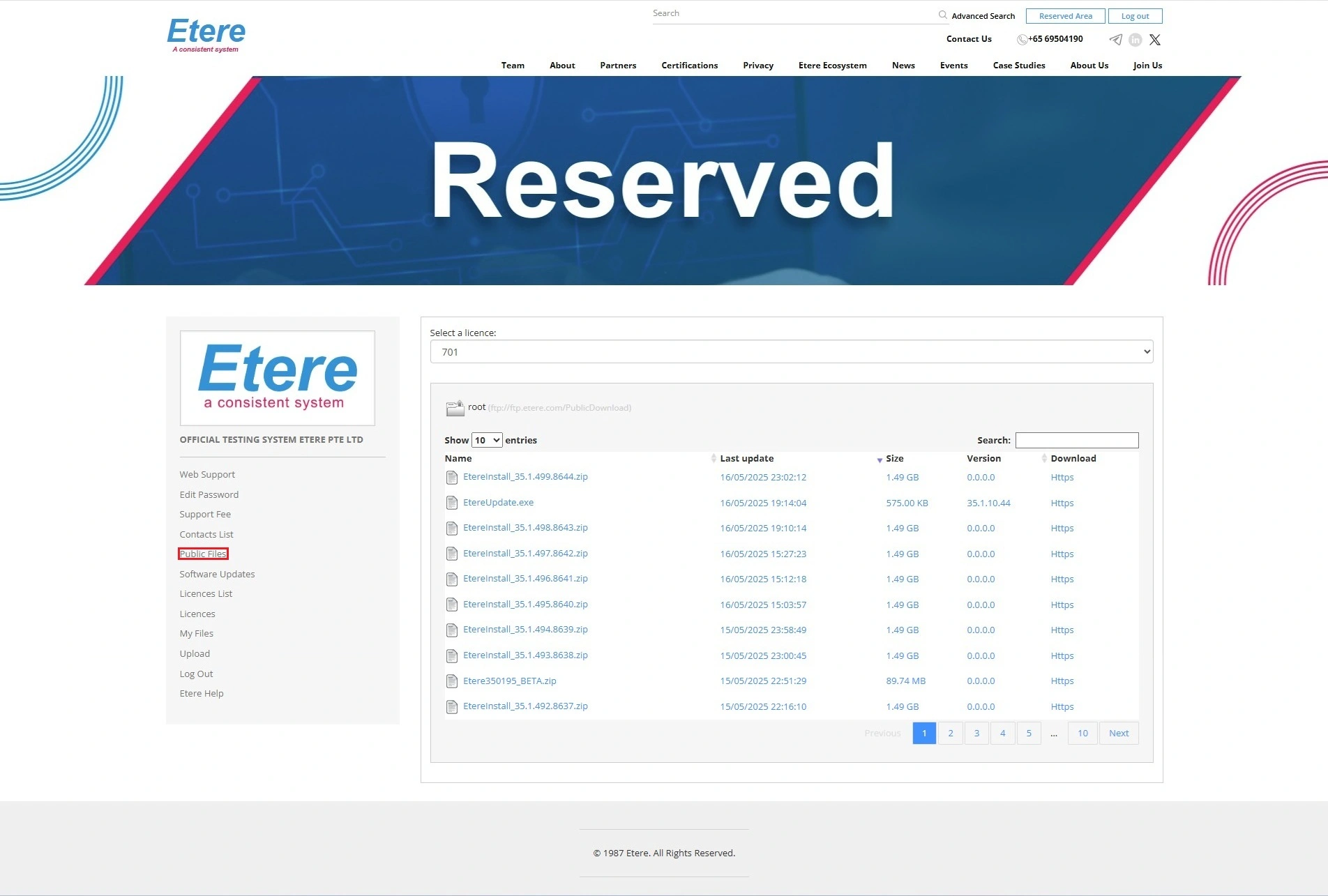 Publicfiles_2025
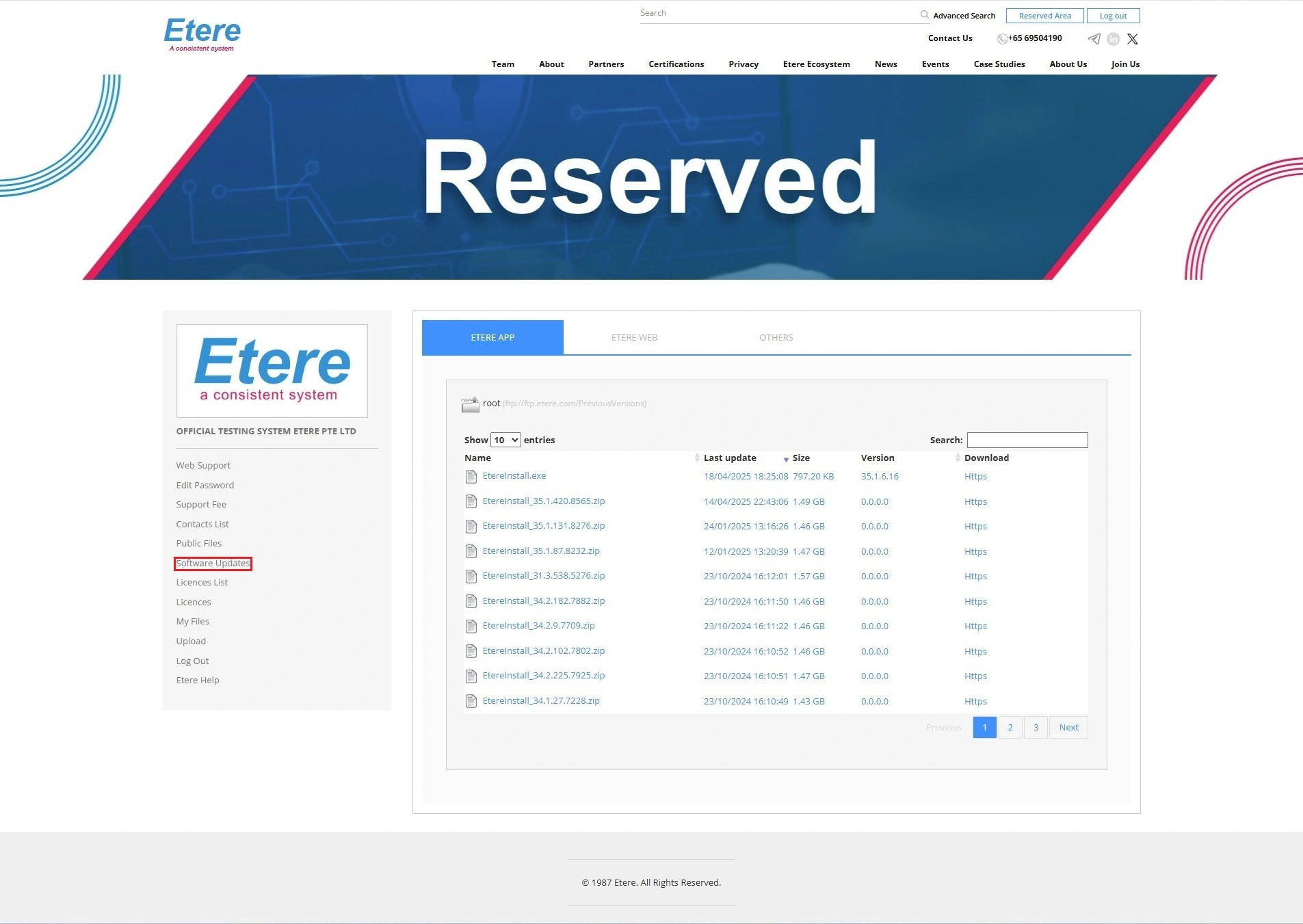 Softwareupdates_2025
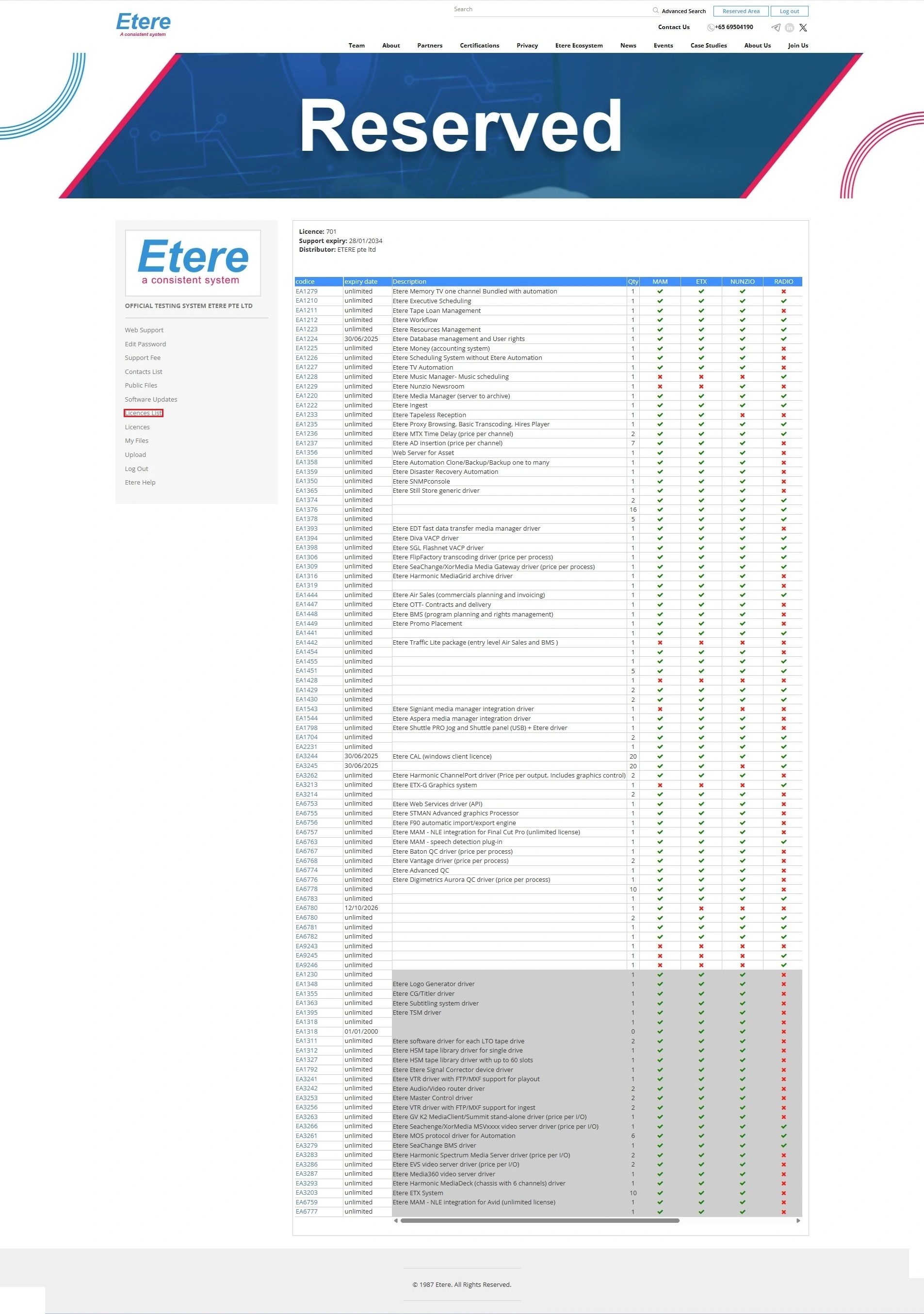 Licenceslist_2025
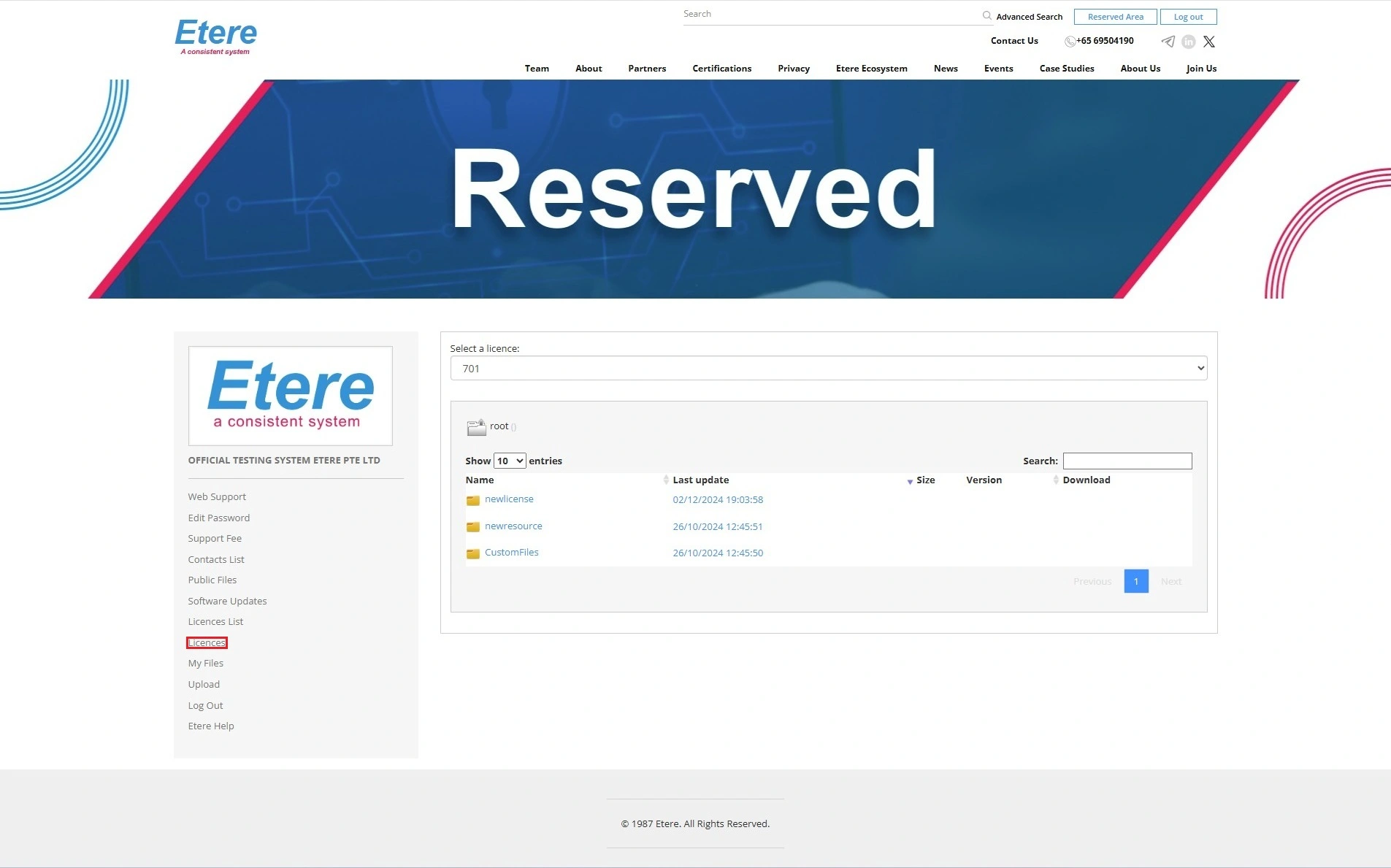 Licences_2025
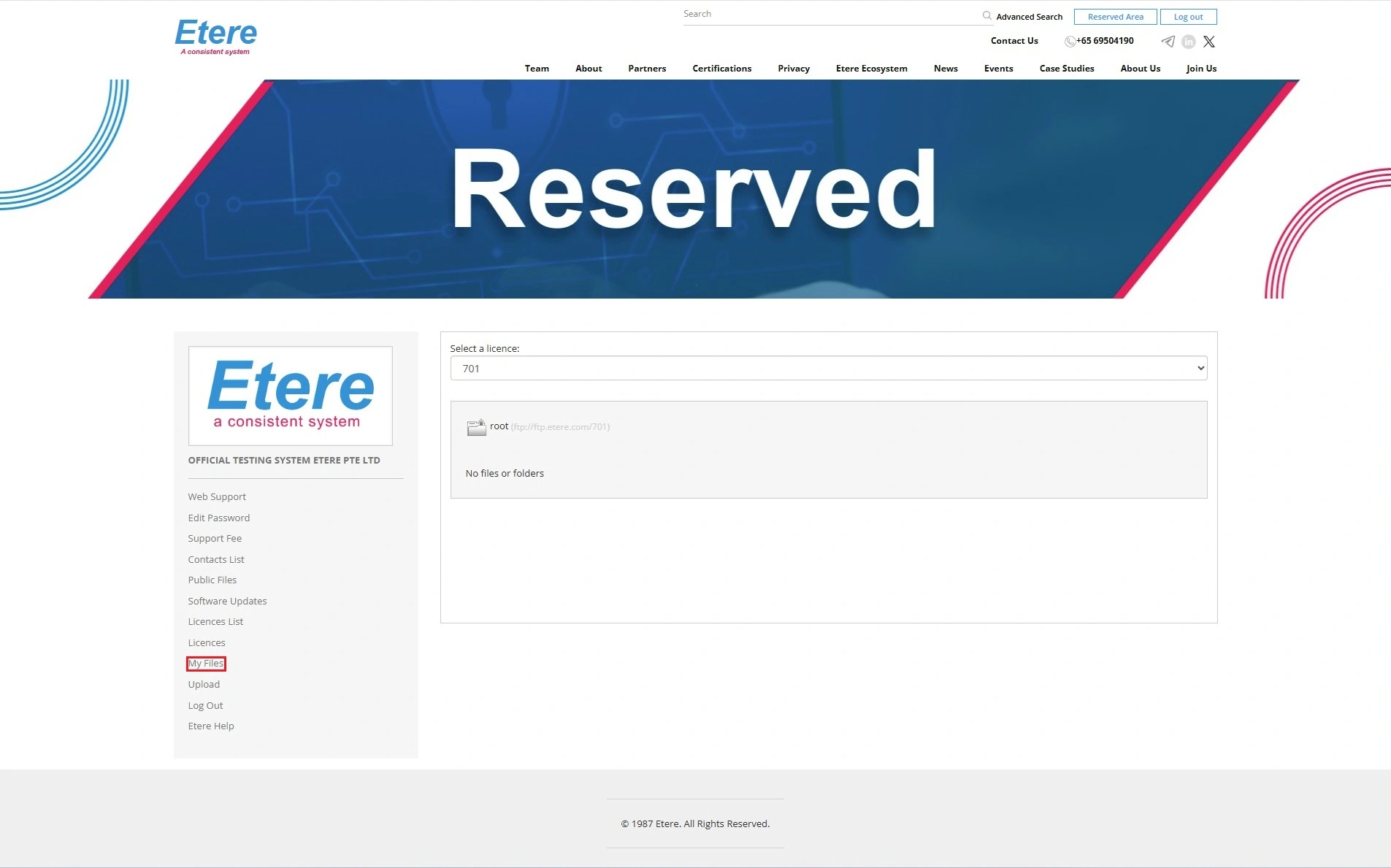 Myfiles_2025
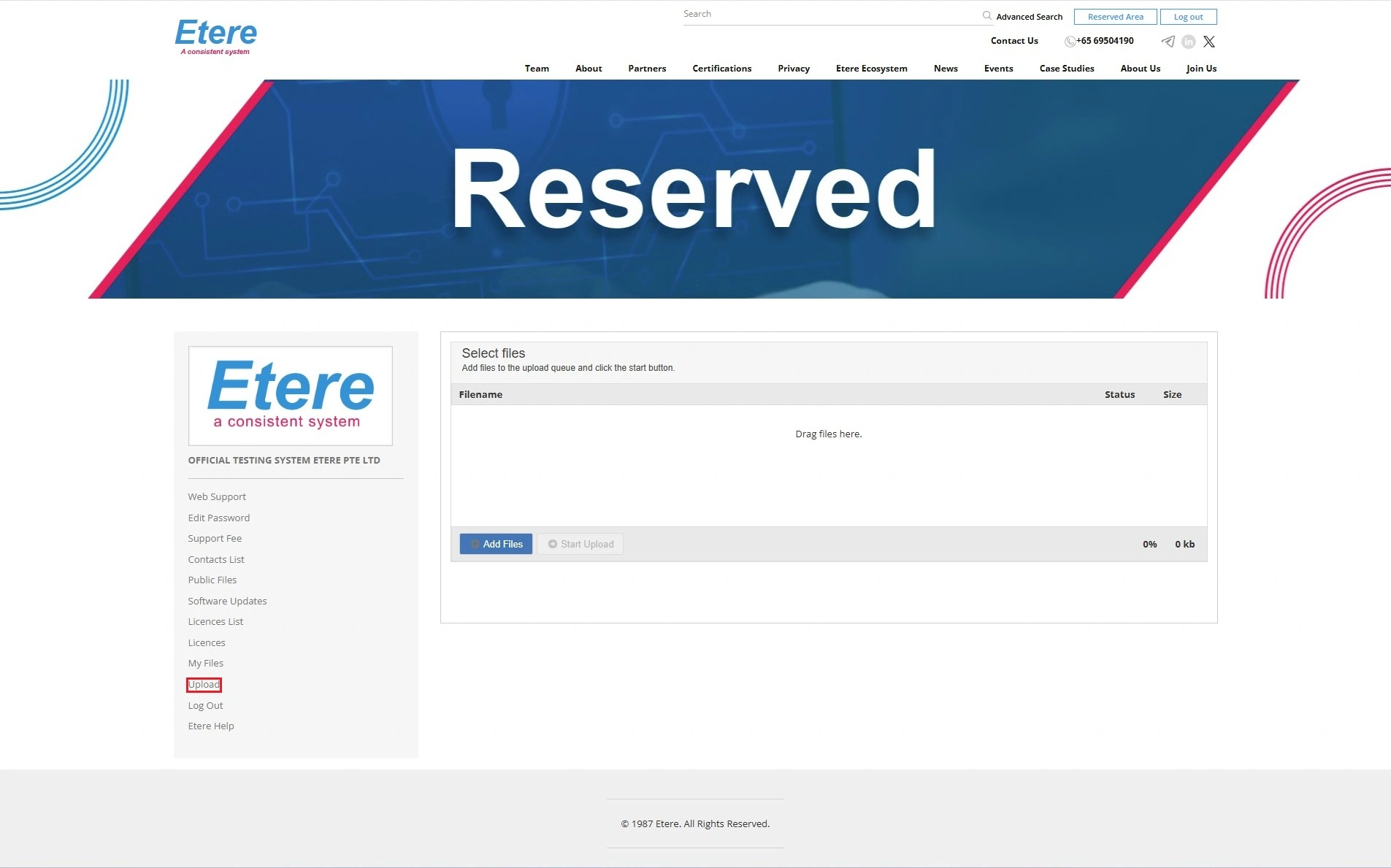 Upload_2025