77.1.1 Insert Asset Data
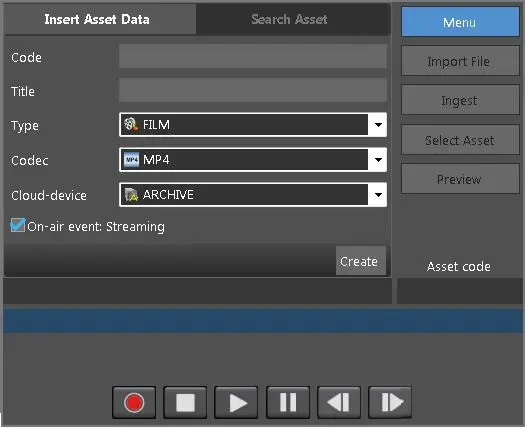
The Insert Asset Data tab enables you to create asset data to be ingested.
Insert Asset Data
•Code: Specify the name of the asset code, e.g., Test1. If the Code does not exist, a New Asset dialogue will pop up, and you are requested to enter the information for creating a new asset.
•Title: Specify the title of the asset data, e.g., Test 1
•Type: Select an appropriate asset type from the list, e.g., Commercial, File, ETX Graphic, etc.
•Codec: Select a suitable codec from the list, e.g., H264, MP4, WMV, etc.
•Could-device: Select the cloud device where the new asset should be inserted, e.g., Archive, Memory, etc.
On-air event: Stream: By enabling this option, you can edit the asset while the asset is recording. This option is enabled by default.
Click the <Create> button to insert the asset data. If the asset already exists, one of the scenarios would take place:
•If the asset has no metafile, the asset would be created with a warning to alert the user.
•If the asset has one metafile, the user would be prompt to replace the metafile.
•If the asset has more than one metafile, the asset would not be created.
The asset is inserted adhere to the process:
- The new asset is created when recording starts, with asset duration set to 0 (zero)
- The asset duration and metafile size are updated when the recording is completed.
- If the user confirms the recording, the workflow will be attached.
- If user confirmation is omitted, the metafile would be deleted.
 Inesrt_Asset_Data