1.1.3.7 How to manage incidents in Web Support
Customers can monitor and manage the incidents submitted to Etere with the Etere Web Support portal, which allows accessing a specific incident, sending communications to Etere, uploading files to an incident, sorting them by different parameters and creating new incidents.
In the incident web page, your message/request for modification is located in the Question box, while the answer from the Etere Technical Support Team is located in the Reply box. The timestamps of the communications are displayed on the left, under the Creation Date and Last Update columns.
If you want to upload any kind of file to our FTP platform, you can click on the Upload File icon to open the the uploading form. After you've attached the file/s to be uploaded, click the Upload File button to send your file/s to our FTP platform or the Close button to abort the operation and close the dialogue form.
To create a new incident, select Web Support in the Menu of your Reserved Area and use the New incident button, represented by the + symbol to open the New incident webpage.
Contact
Enter an email address that will receive further communications from Etere Support Team
Subject
Provide a brief description of the problem and/or the request for modification
Message
Provide more detailed information on the subject of the problem and/or the request for modification to help Etere Support Team in better understanding the problem and/or the request for modification
Upload Logs
In this tab you can attach any kind of file to the incident you are creating
After filling the requested fields, click the Save incident button to save the new incident.
To sort incidents according to different parameters, you can click on Status / Number / Last update to sort them according to those values, be it in ascending or descending order.
To track incidents by incident number, enter the incident number in the Number field and click the Search button. If you know the exact number of the incident, this is the fastest way to locate it, regardless of its status and/or submission date.
To track incidents by date, enter the date range in the From and To fields and click the Search button to filter incidents created within those days.
Please Note: the starting date and the ending dates are excluded from the search query. Therefore, if you wish to, for example, view those incidents created within the 4th of June 2025 and the 12th of June 2025, you will need to input 06/03/2025 in the From field and 06/13/2025 in the To field.
To track incidents by status, select one of the predefined statuses from the drop-down list in the Search panel on the left and click the Search button.
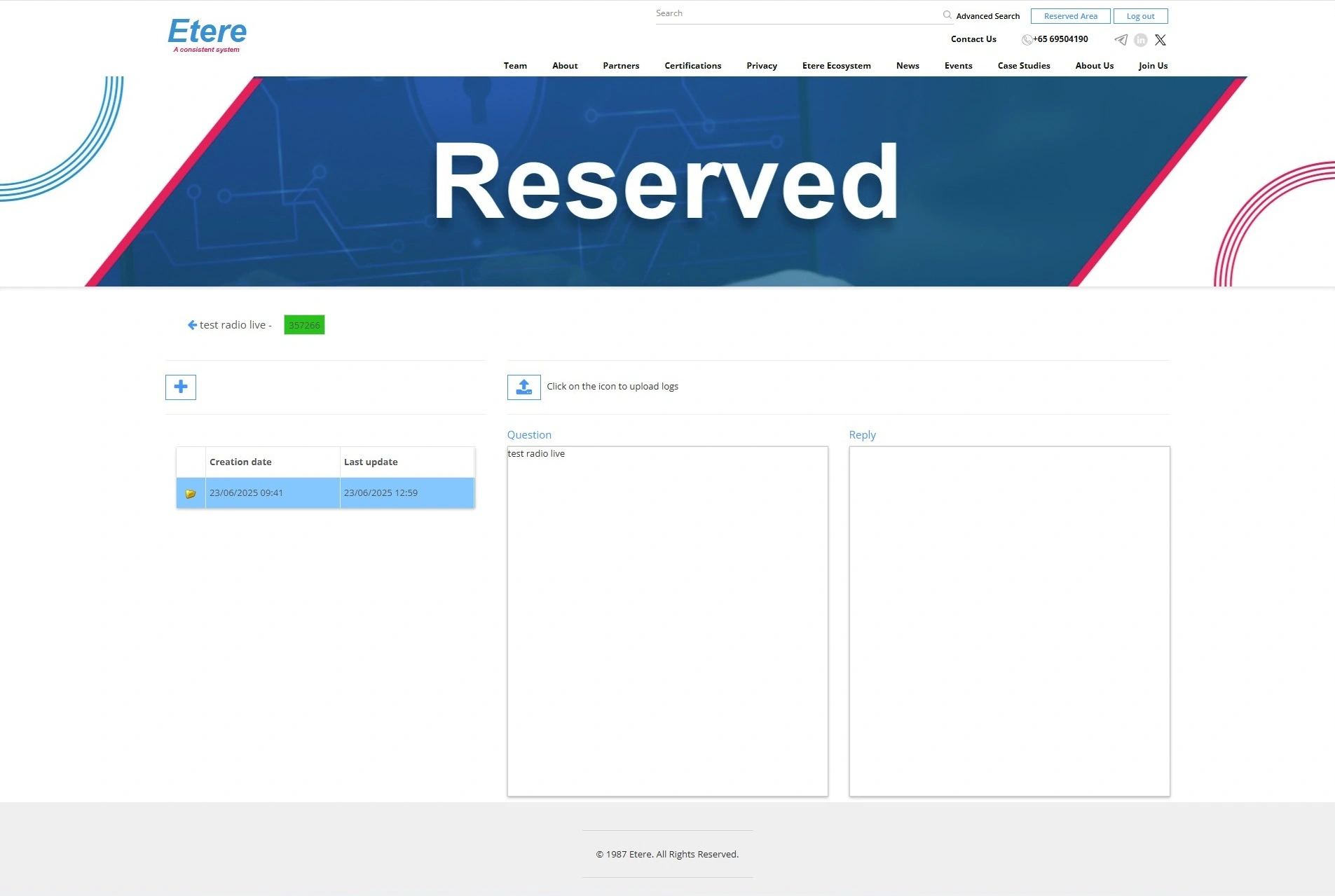 Websupportincident_2025
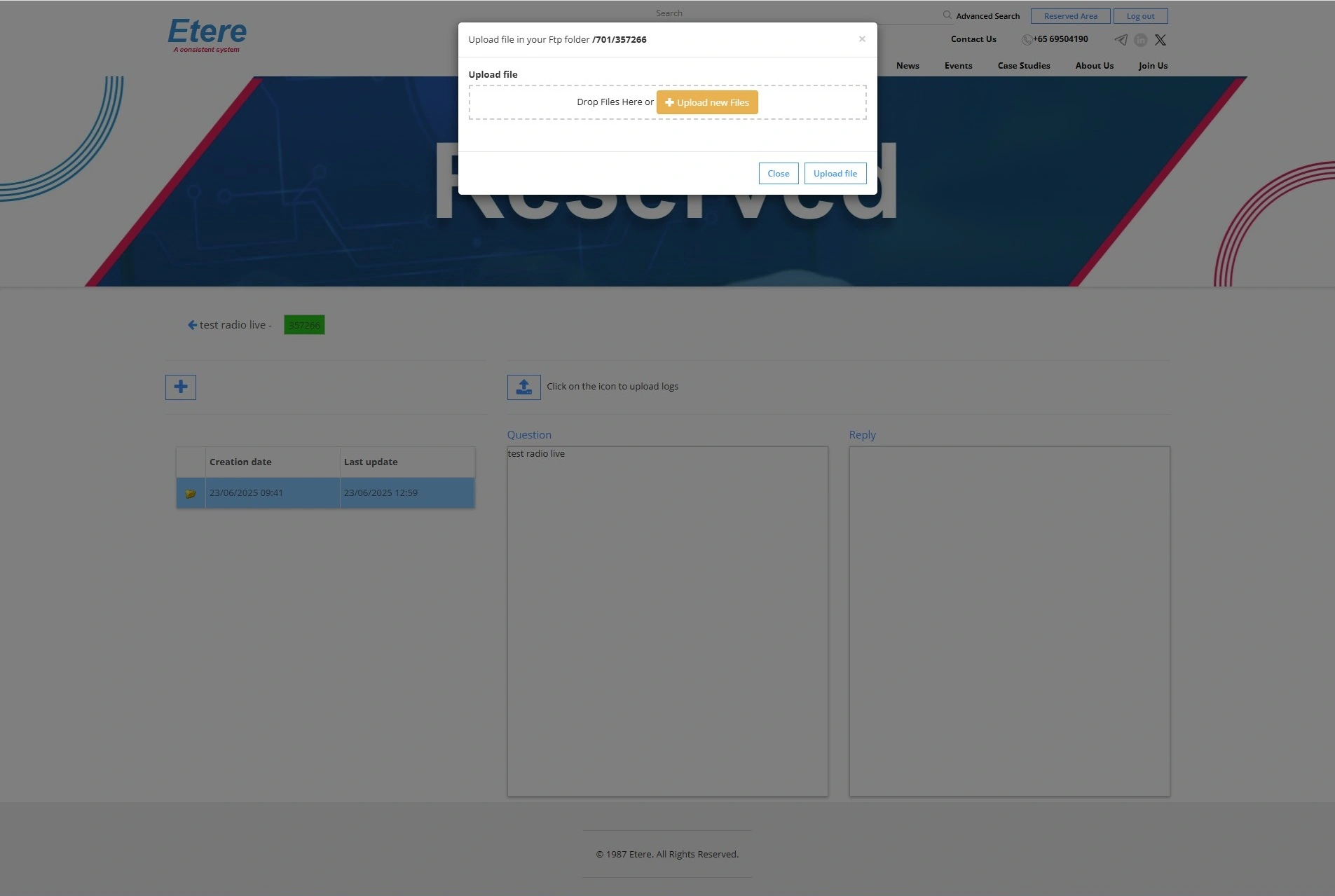 Uploadform_2025
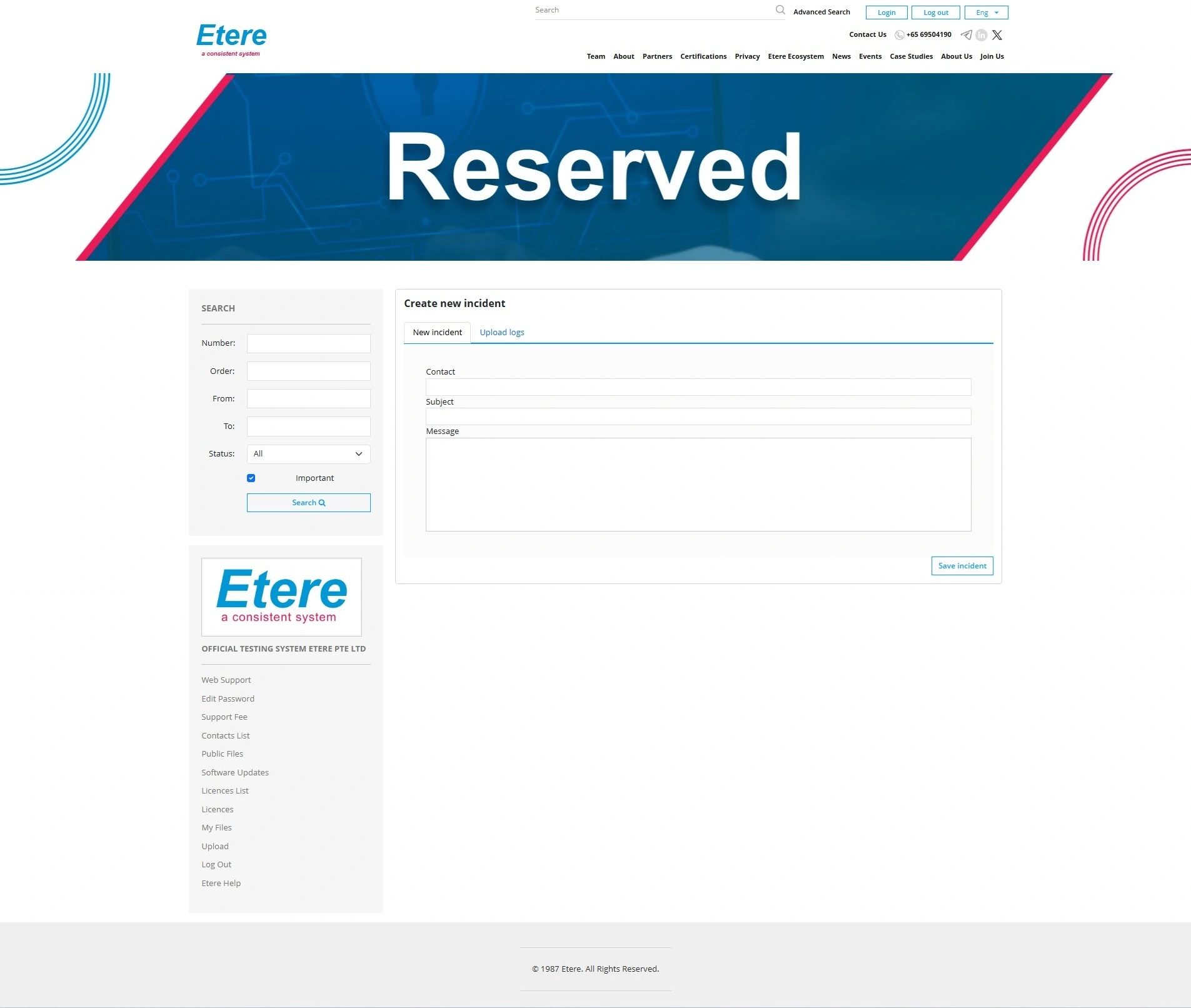 Newincident_2025_v2
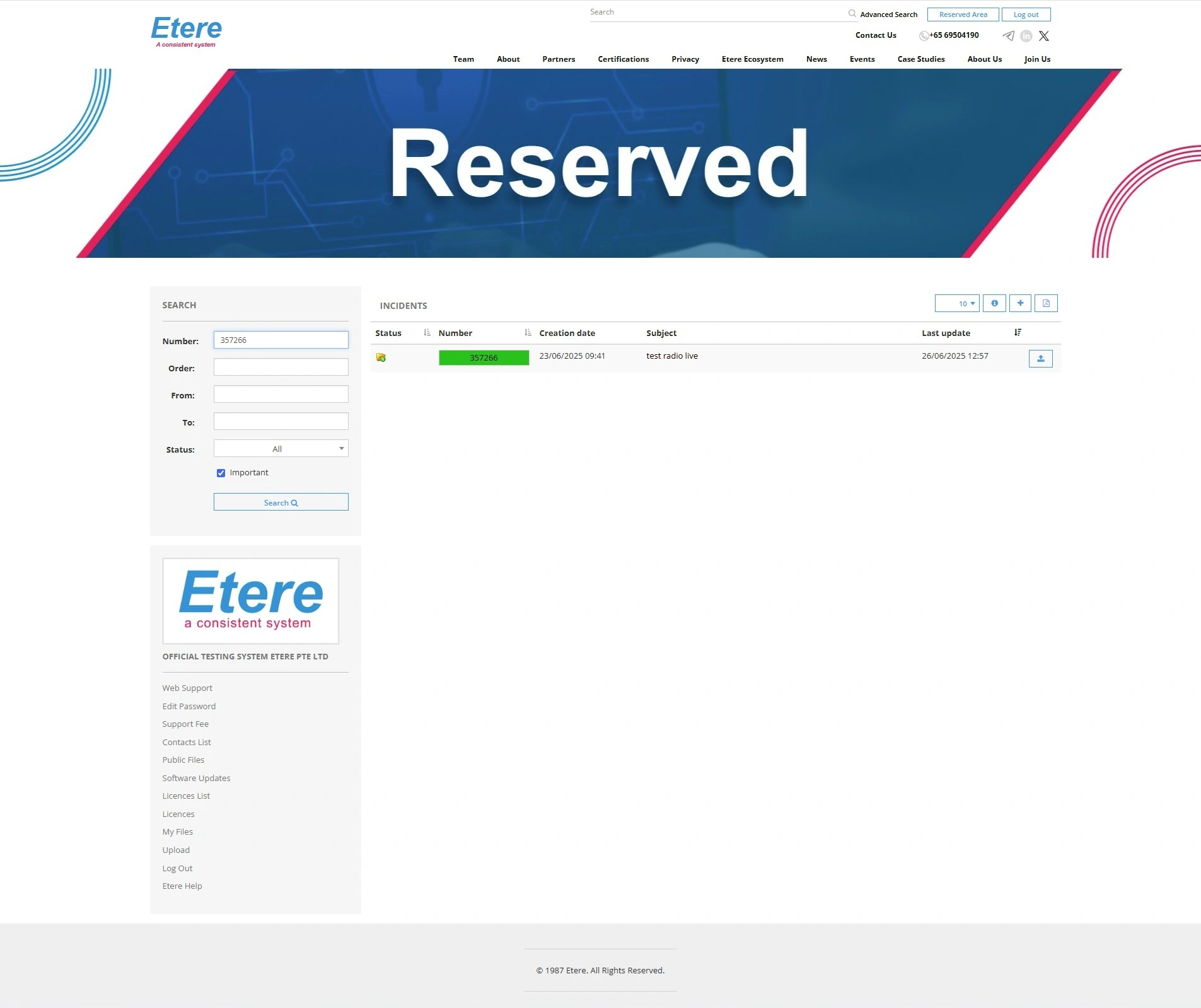 Trackingincidentnumber_2025
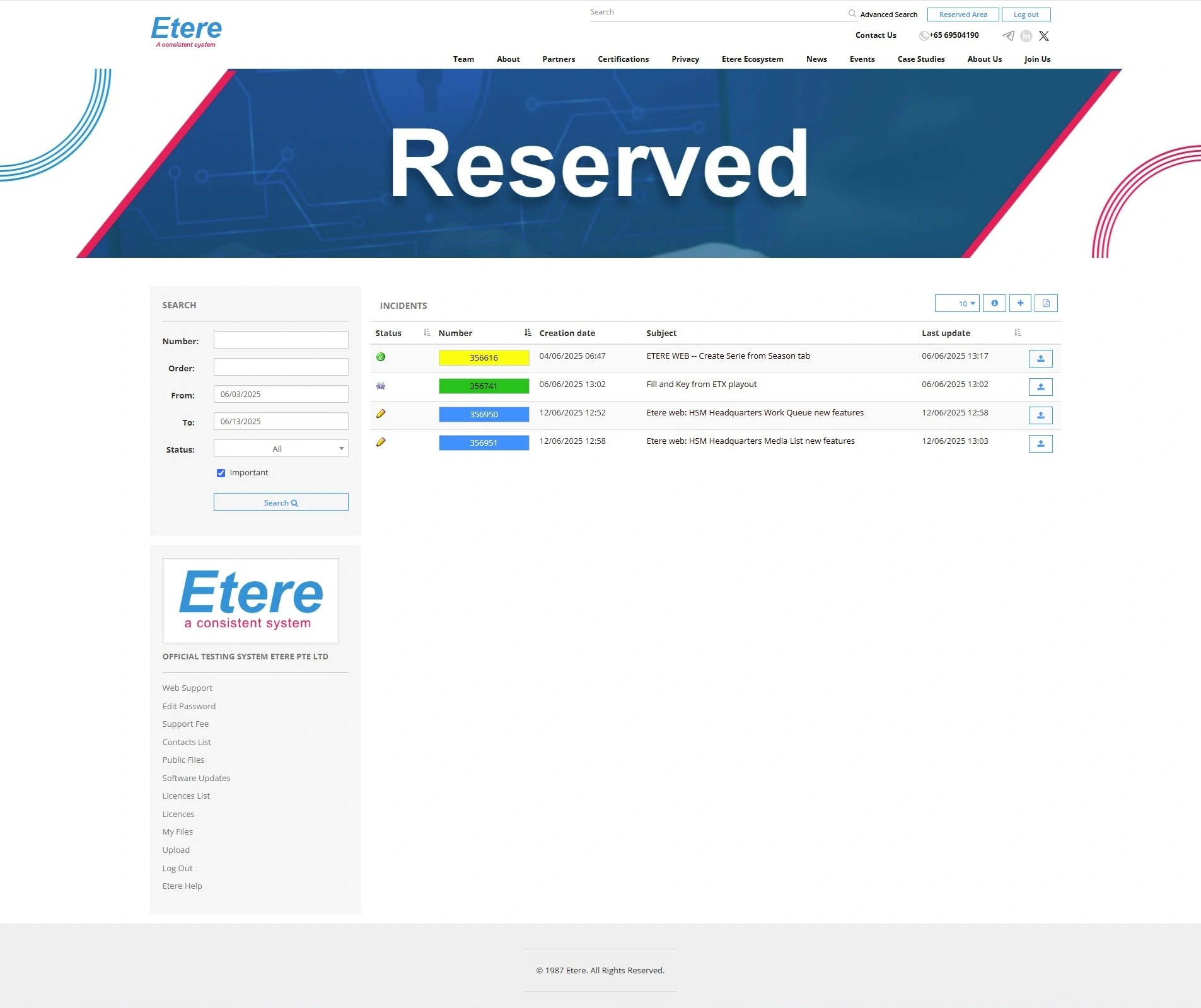 Trackingincidentdate_2025
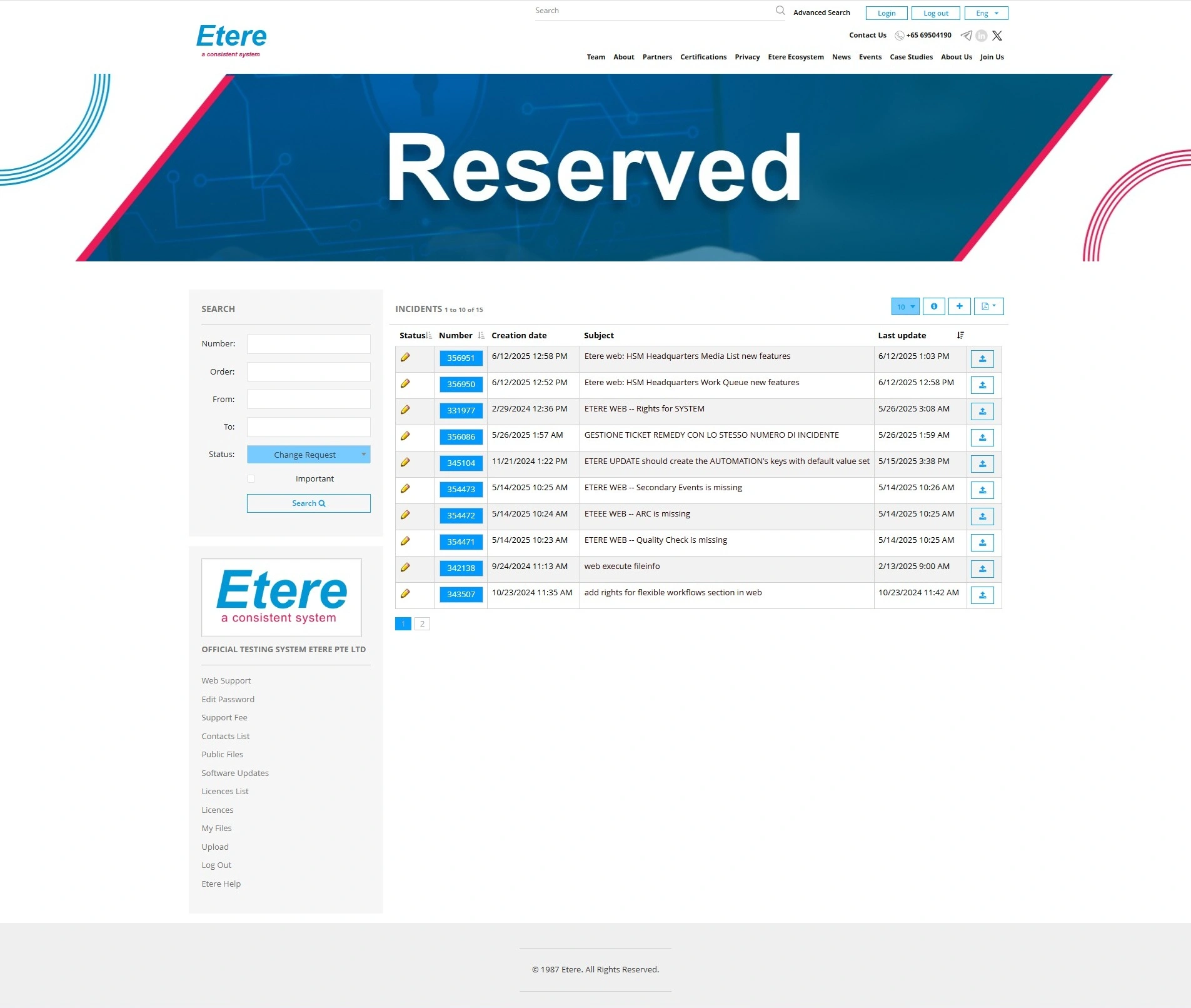 Trackingincidentstatus_2025