Client Interface
77.1.5 Play Asset
Once the import or ingest asset is completed, you can filter the asset and start playout the asset.
First, find the asset using the Search Asset function.
Search Asset
When the asset is located, double-click on an asset to load the asset into Preview.
Preview 1
When an asset is loaded into Preview, the <Preview> button would be activated.
Preview 2
In the Preview window:
•It contains the last clip loaded into the Preview.
•If you single-click on another asset in the Search Asset form and click the <Preview> button, the previously loaded clip would appear in Preview.
•If you double-click on an asset, a new preview window would be loaded, where you can preview the asset and modify the MarkIn and MarkOut of the asset.
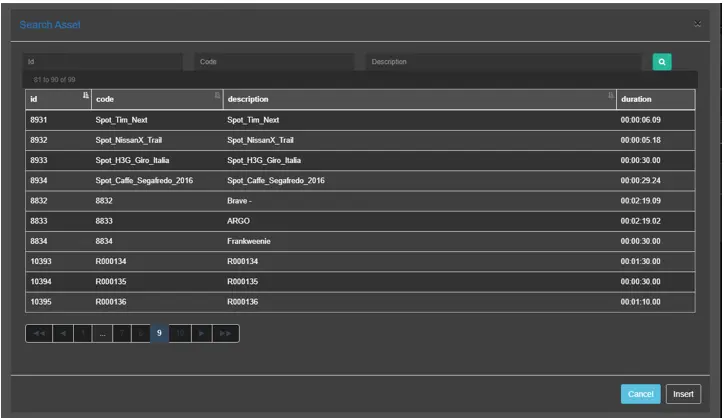 Search_Asset
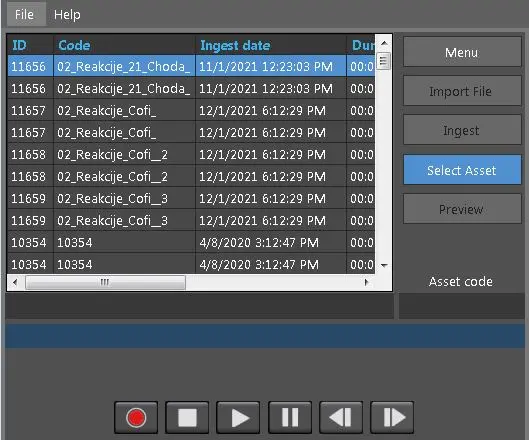 Preview_1
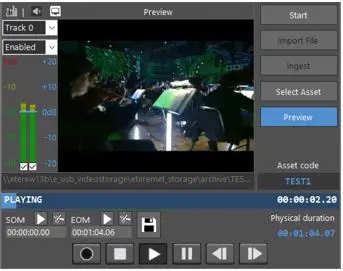 Preview_2