79.4.5 Platforms
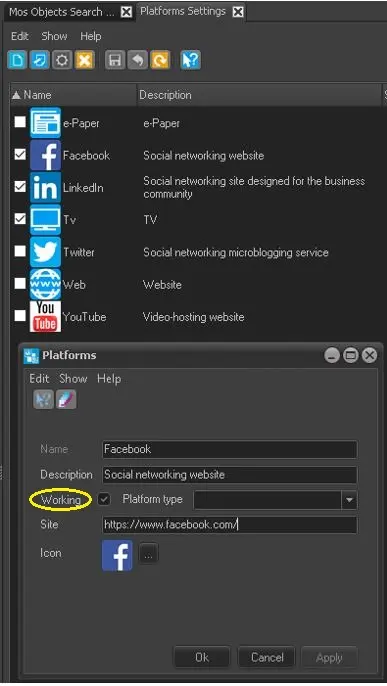
The Platforms tree node enable you to configure the destination platforms for Etere Nunzio content when a new story is saved.
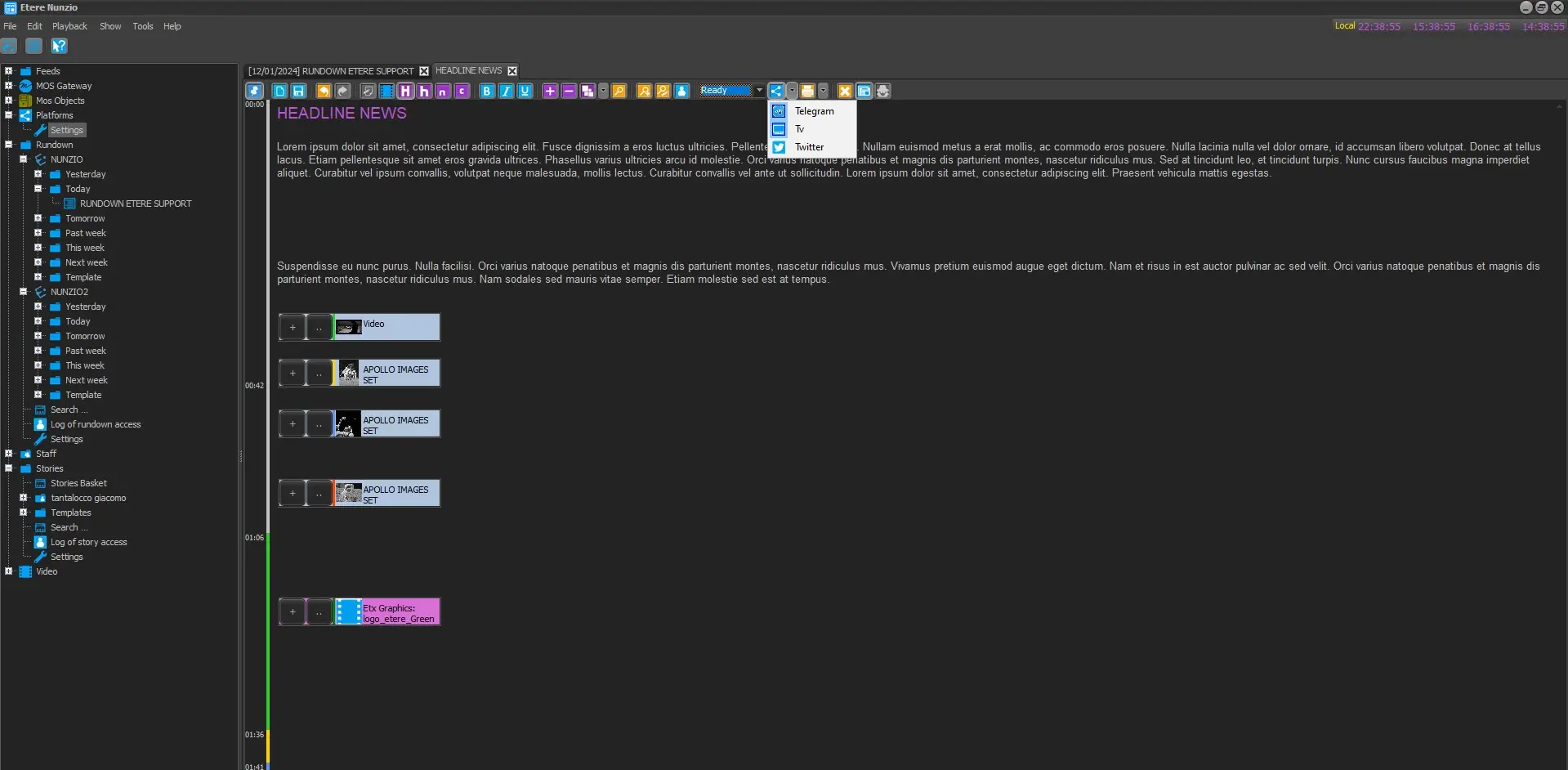
Once the needed platforms have been enabled in this node, it's possible to select the preferred one in each nunzio story, using the Platform button in the toolbar of the story editor. This is a mandatory step in order to publish the story from the rundown's contextual menu.
select_platform_to_publish
Etere Nunzio can be integrated with different social Media Platform such as:
• Facebook
• LinkedIn
• Telegram
• Twitter/X
• YouTube
• Website
• Vimeo
Platforms
This means that along with the main Platform which is usually the TV one, is possible to share Nunzio Stories simultaneously, enhancing the spread of the Newsroom content and media view across multiple platforms.
It's worth mentioning that each platform has its own API and the connection method may be different from each other.
Here follows the configuration which should be performed for each platform.
In the Toolbar menu, a list of functions available are:
- New - (Ctrl + N): Add a new platform to the list.
- Edit - (Ctrl + E): Modify the selected platform.
- Configuration: Modify the settings of the selected platform, if available.
- Delete - (Ctrl + D): Remove the selected platform from the list.
- Save - (Ctrl + S) Save the changes made in selected platform.
- Cancel - (Ctrl + Z): Revert the changes made previously to the selected platform.
- Refresh -(F5) Reload the page to display current status.
TELEGRAM
In order to start publishing Nunzio Stories into a Telegram Channel follow these steps:
1. Create the Telegram Channel:
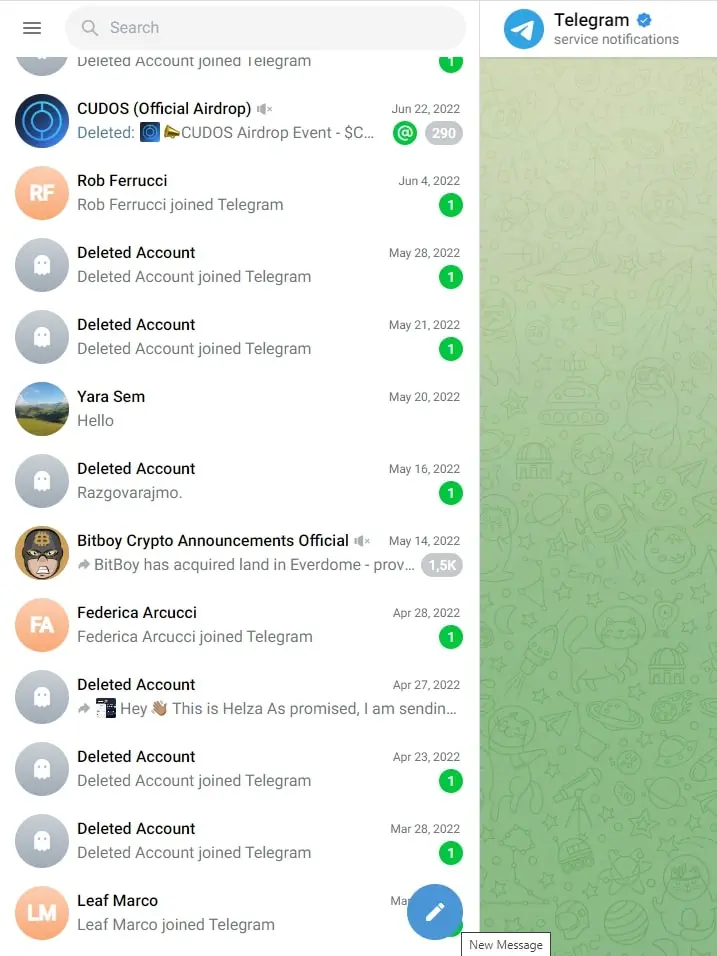
Creating a Telegram Channel is a pretty straight forward procedure. Just open Telegram press the pen icon and select New Channel. Take note of the Chat ID, it will be necessary later for the platform configuration.
You can find the chat/channel/group ID using Telegram web, in the URL of the page. It should be something like: -1002487717033
new_channel
new_channel_2
2. Create a Telegram Bot:
Telegram Bot will interact with the Telegram Channel and the Etere nunzio Content in order to allow automatic publish of the stories. In order to create a Telegram Bot, follow some precise steps:
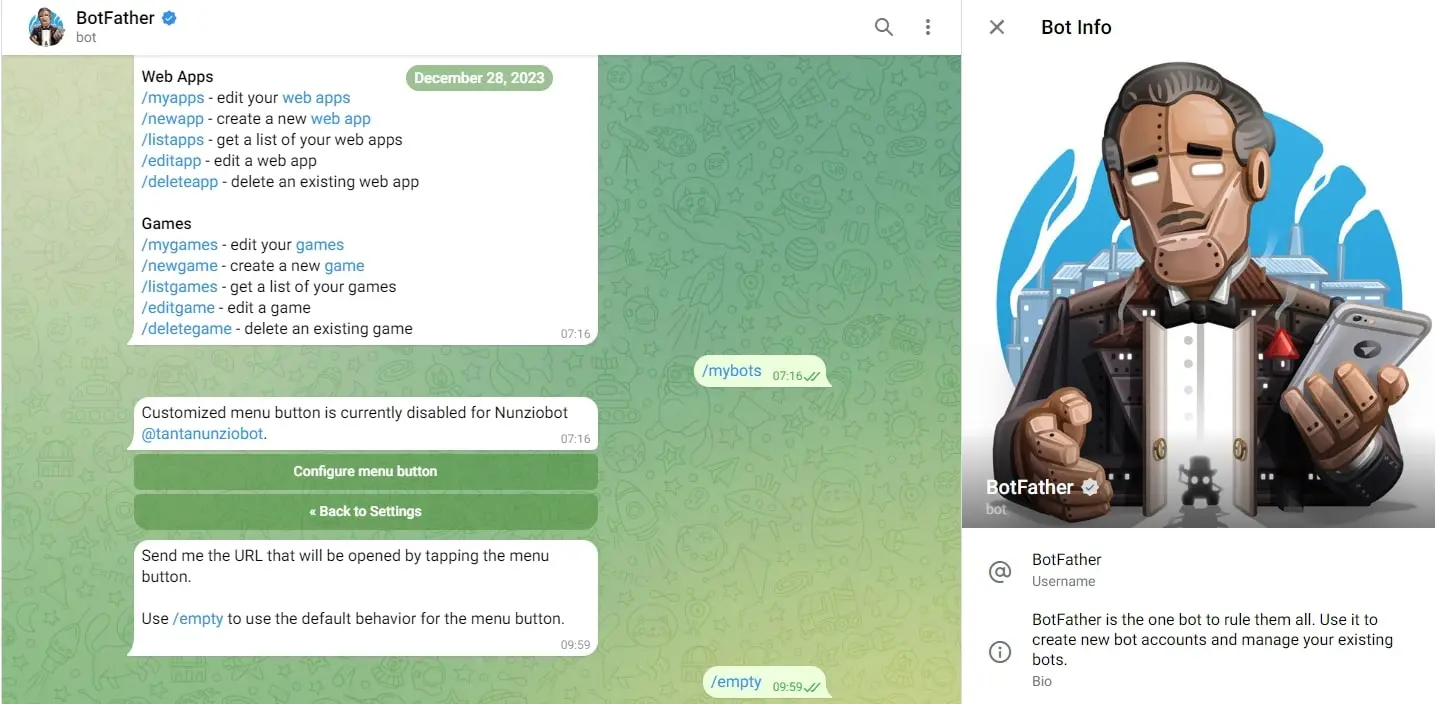
- Search for the BotFather Telegram Group. You can find it by searching for @BotFather on Telegram;
bot_father
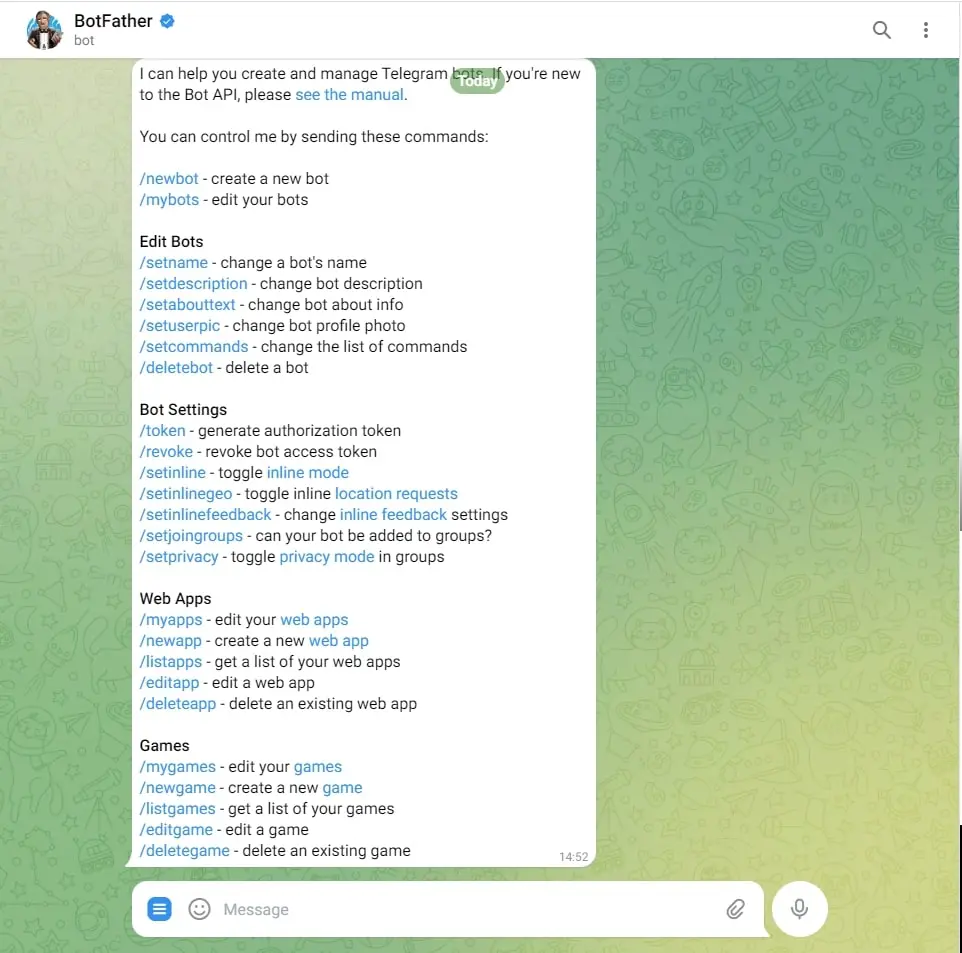
- By prompting the /start command, BotFather will be active and will provide a list of all its available commands for the first configuration;
commands_config
- create the Telegram Bot by issuing the command /newbot and follow BotFather's instructions.
The just created bot must be a member of the channel or group where the stories will be published.
3. Create a Telegram Bot Token:
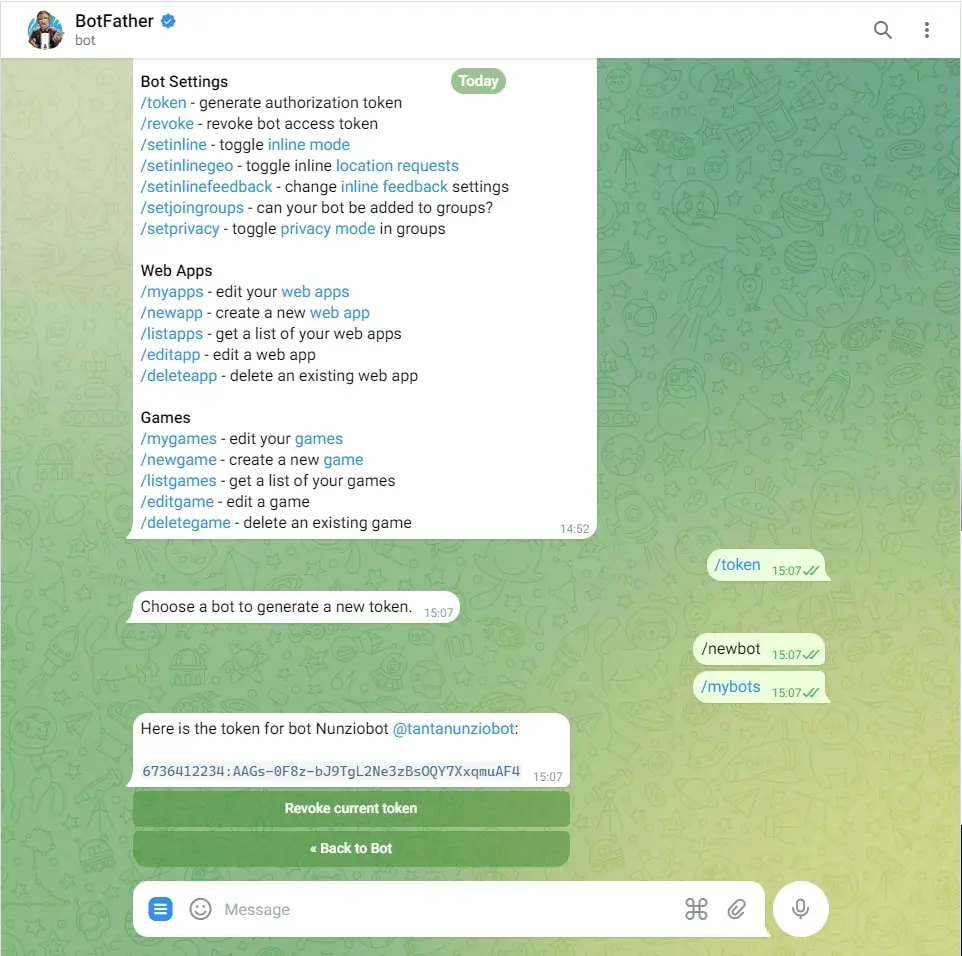
At the end of the bot creation, BotFather provides the bot token that can be already used in Nunzio along with the Telegram Channel ID previously created.
We can ask to display the token, simply sending the /token command. The response would be something like:
You can use this token to access HTTP API:
123543656:CVCCX-tubHuILxxRtDDD0P65KXE0482LPqQ
For a description of the Bot API, see this page: https://core.telegram.org/bots/api
We can also change the bot token, but we need to revoke the current one first. Use the command /revoke and choose the bot for which you want to generate the new token by typing its username (e.g.: @nunziobot). A message like this will be prompted:
Your token was replaced with a new one. You can use this token to access HTTP API:
123543656:AABBC-0P65KXE0482LPqQxRtDDDtubHuILeh
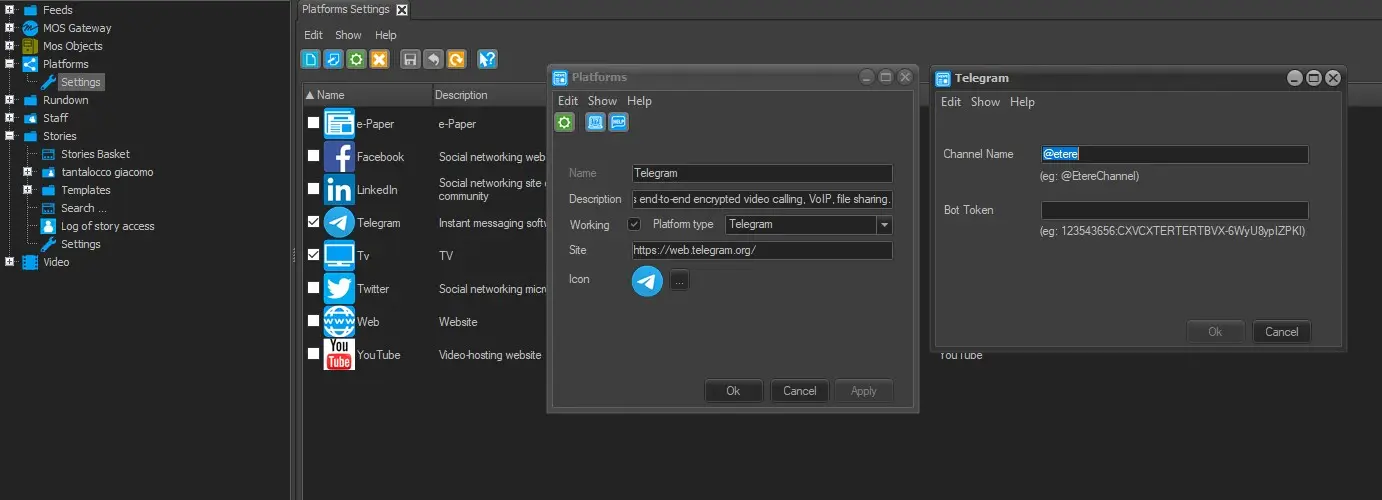
Once we have both the token and the chat/channel/group ID, we can configure them into Nunzio Platforms > Telegram > Configuration.
nunzio_telegram_config
Important notes
It's possible to send to Telegram also the files associated to the story, but they have to meet some requirements:
- File size must not be over 50MB
- Files must be linked to assets
- The codec of the metafile must be playable by automation
TWITTER/X
In order to start using Twitter Platform in Etere Nunzio, we need to perform some configurations on Twitter Devs Platform first:
1. Create an account on https://developer.twitter.com/
2. Request for a free Twitter/X API V.2;
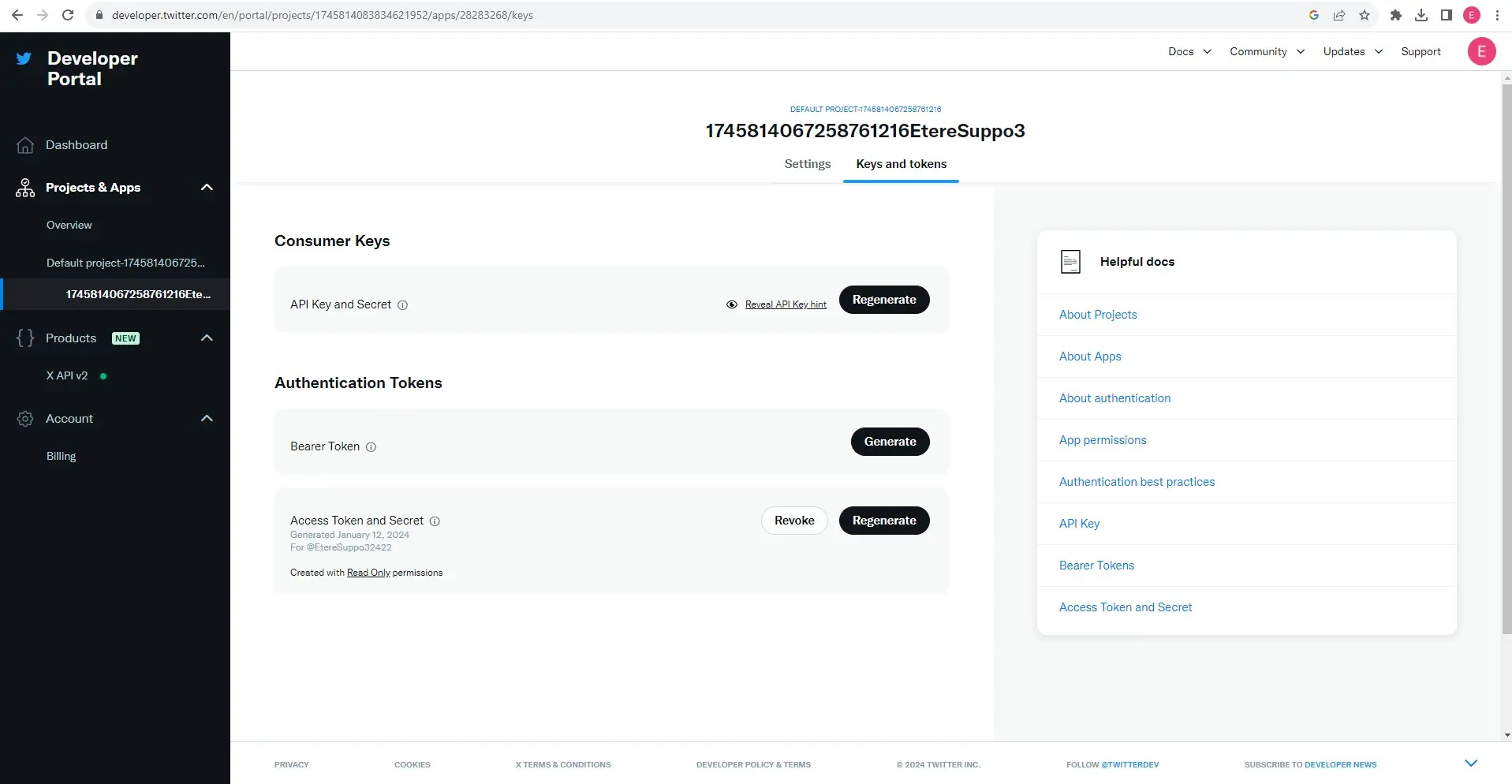
3. From Twitter/X Dev Platform, request/generate the following informations:
- Consumer Key(API Key);
- Consumer Secret(API Secret);
- Access Token;
- Access Secret.
twitter_keys_token
Once the above information have been gathered, is it possible to insert them into Etere Nunzio Platform > Twitter > Configuration
twitter_api_config
YOUTUBE
In order to start publishing video on YouTube we need to request a Account from this platform (Google).
WARNING: this must be done initially from the social network site, before starting any configuration in ETERE
In order to get a Google Service Account file for YouTube we need to:
1. Log in to https://console.cloud.google.com
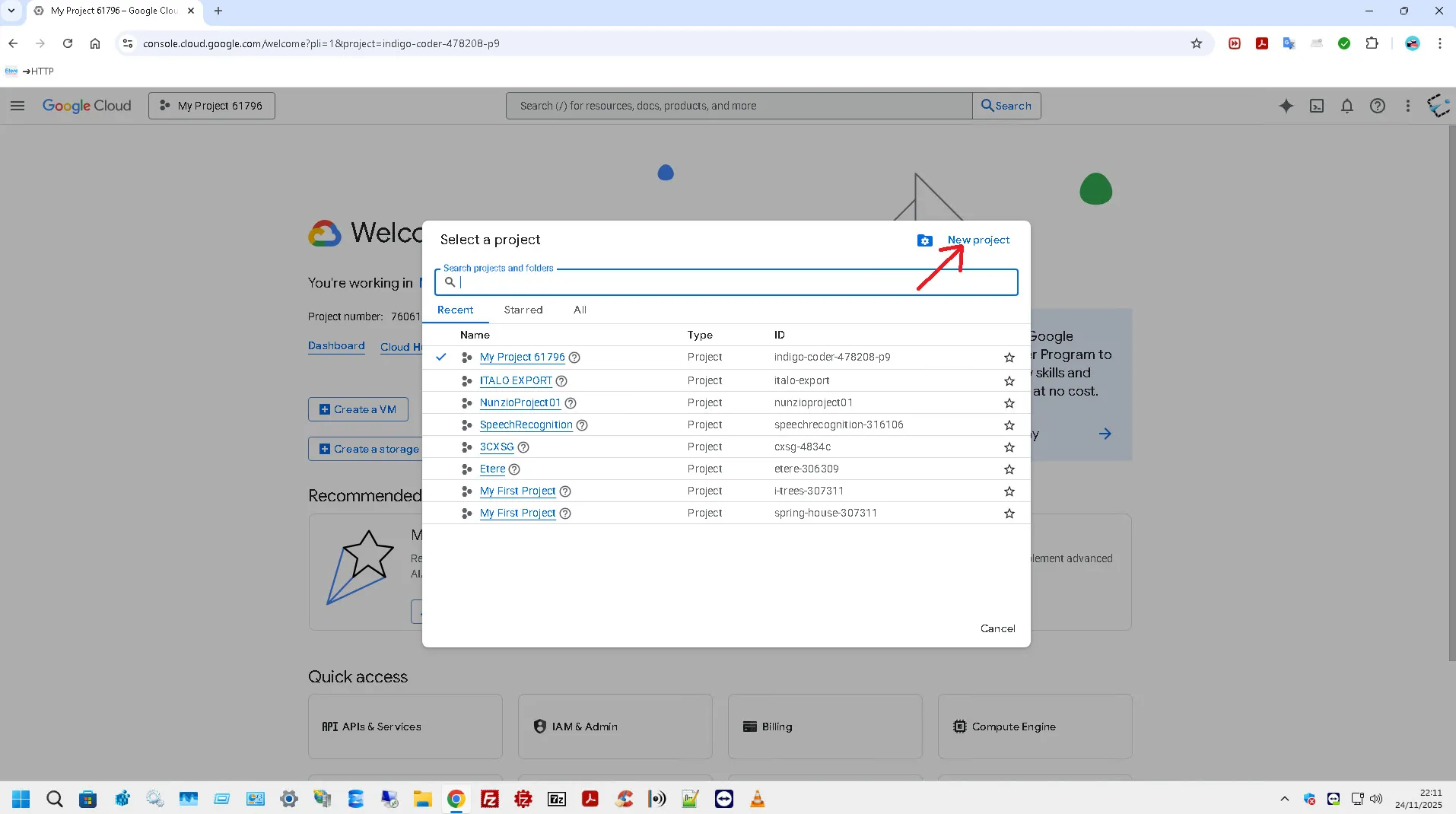
2. Create a New Project
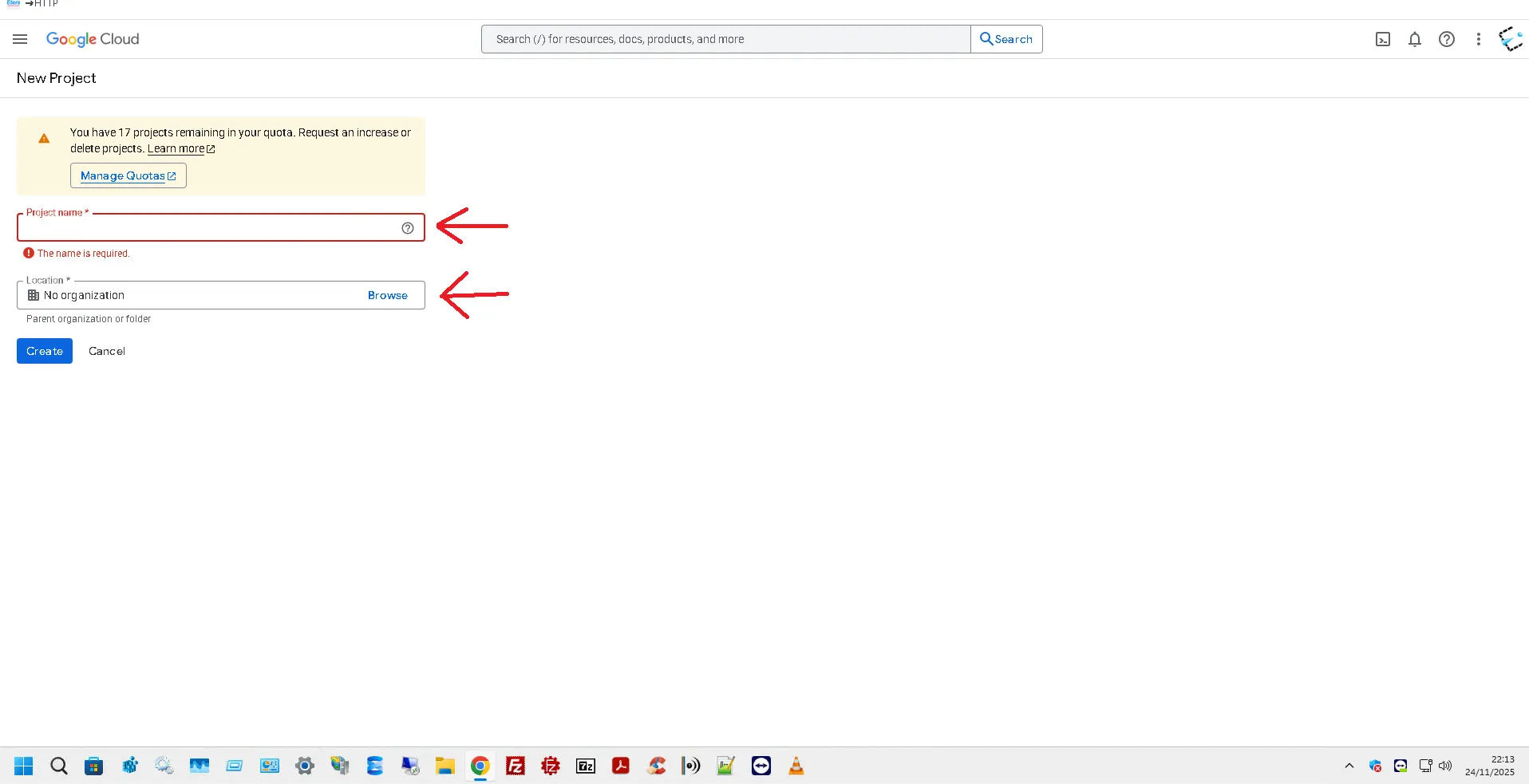
3. In the next form set, Project Name and Location (this field can also be set to "No Organization"). Then click on Create
4. Once created, select and click on the part + Enable APIs and Services
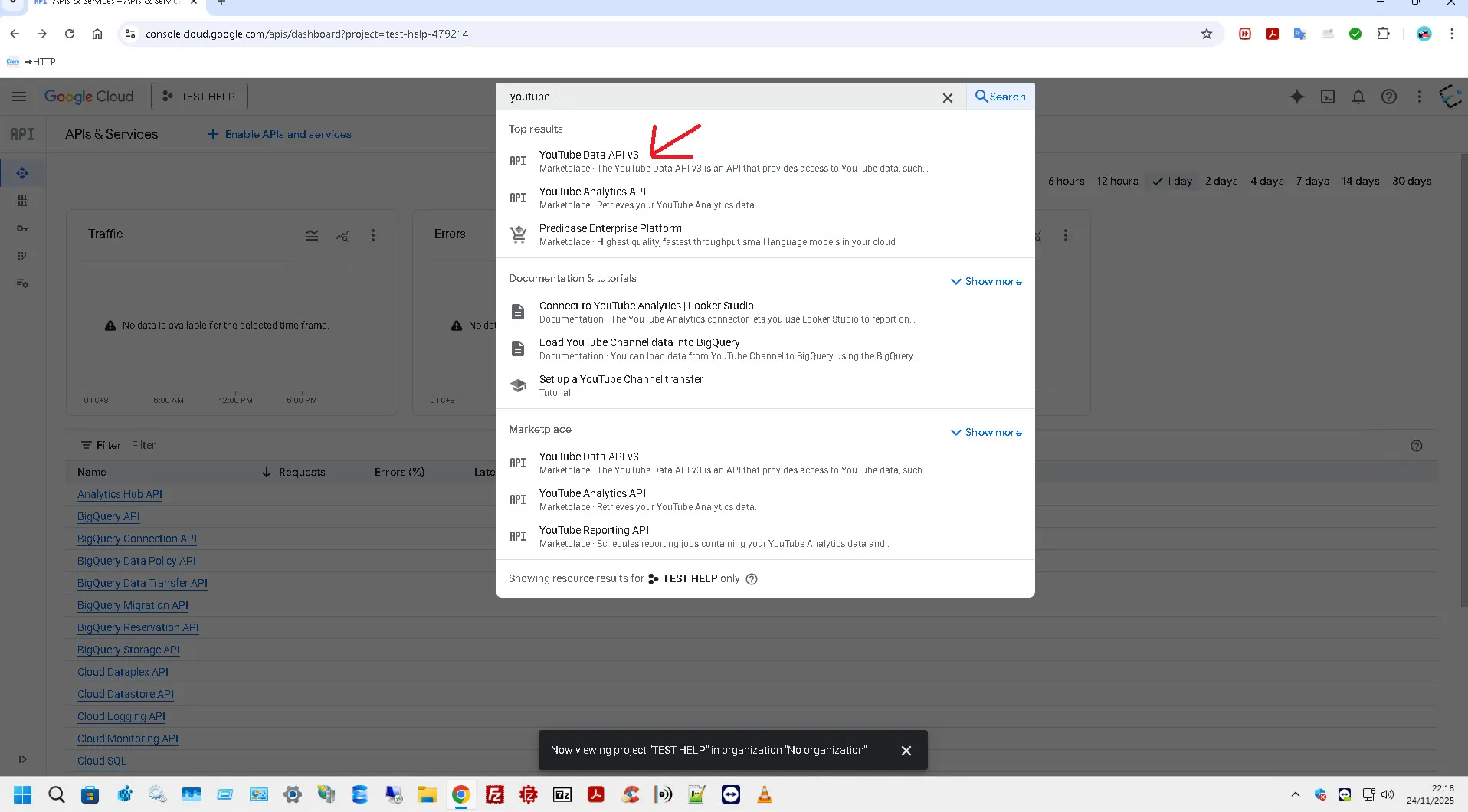
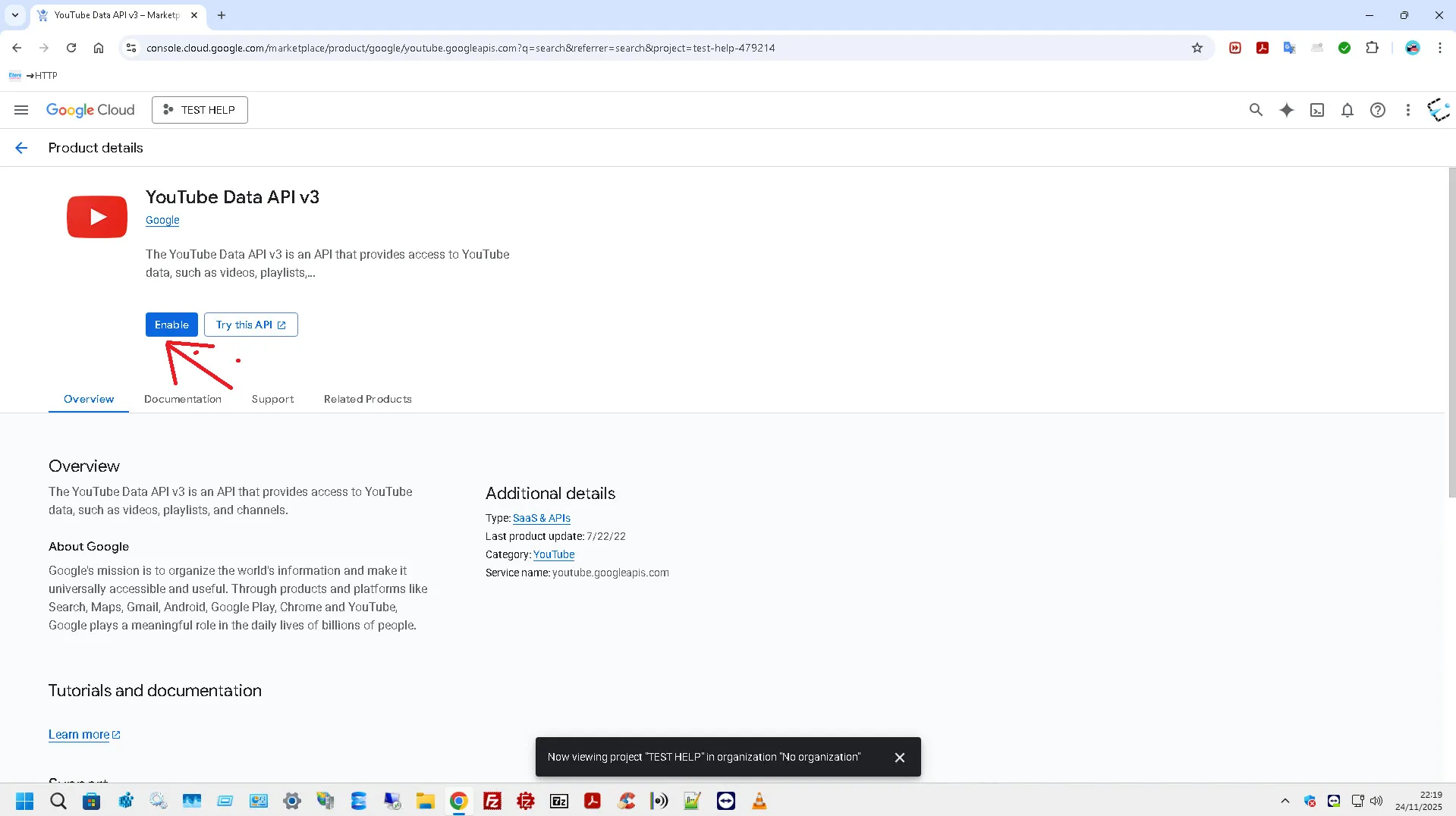
5. Search for YouTube Data API v3, click on it and enable it
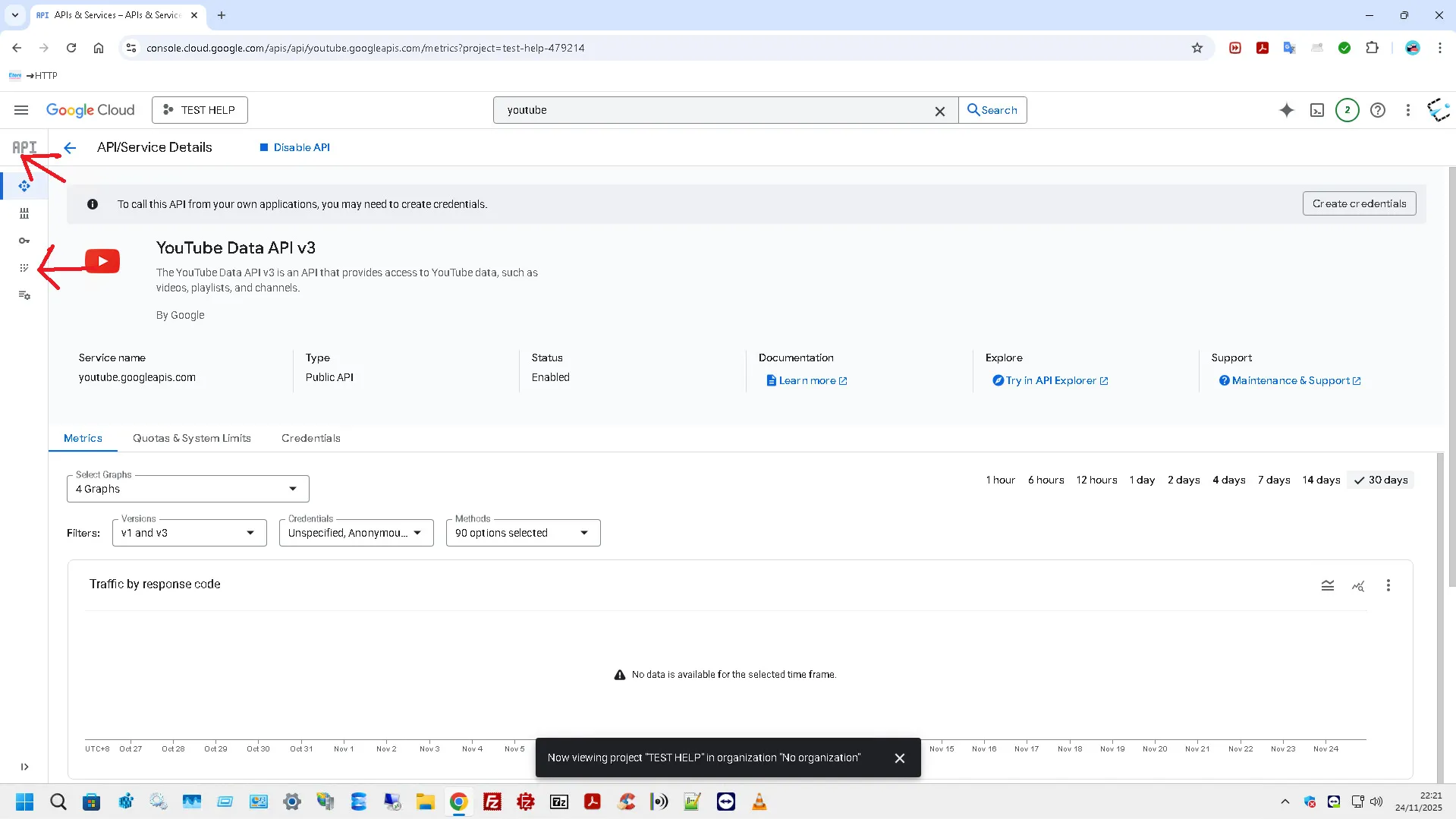
6. Go back with the arrow next to API Library and under the voice API & Services select OAuth Consent Screen
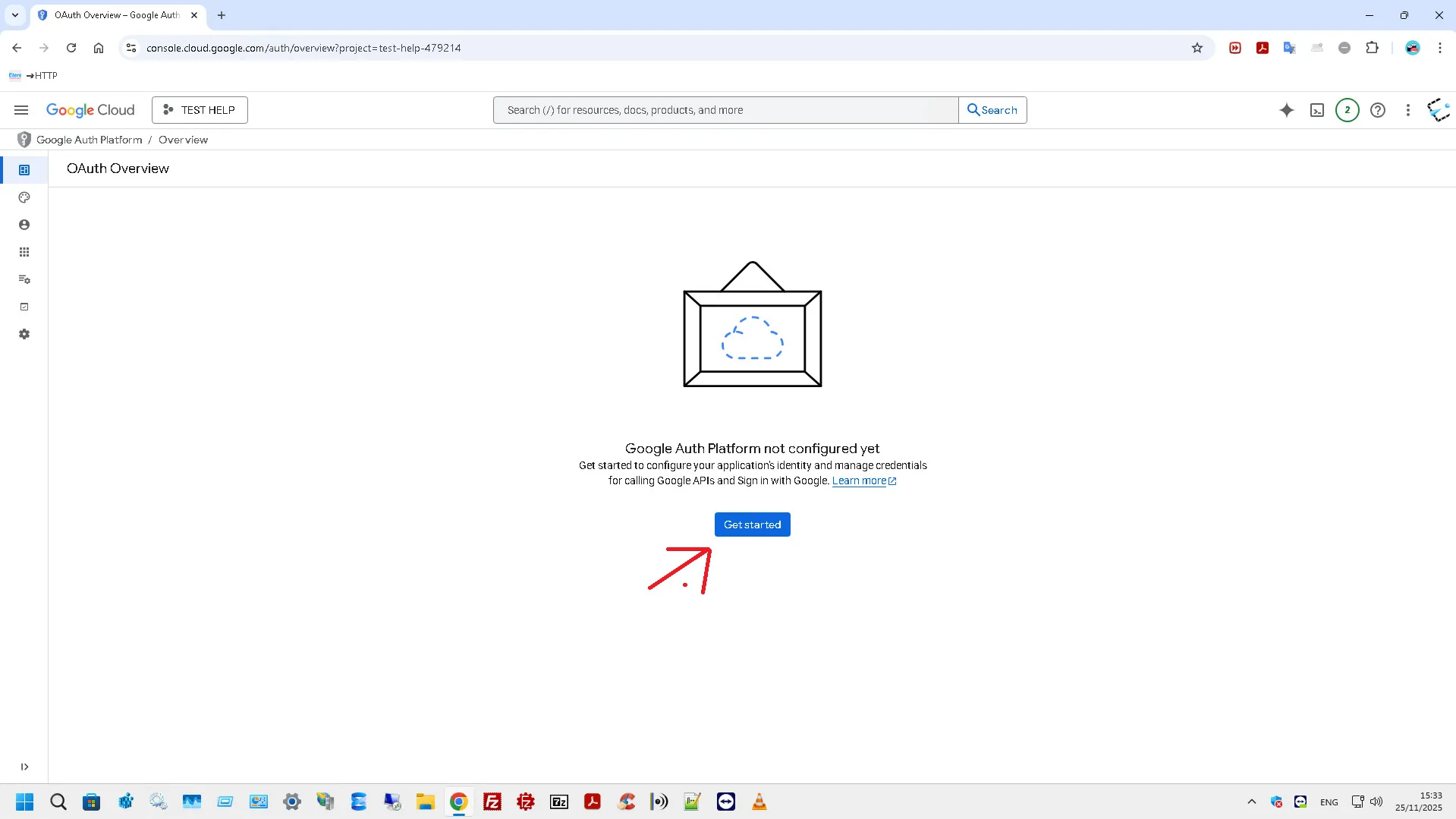
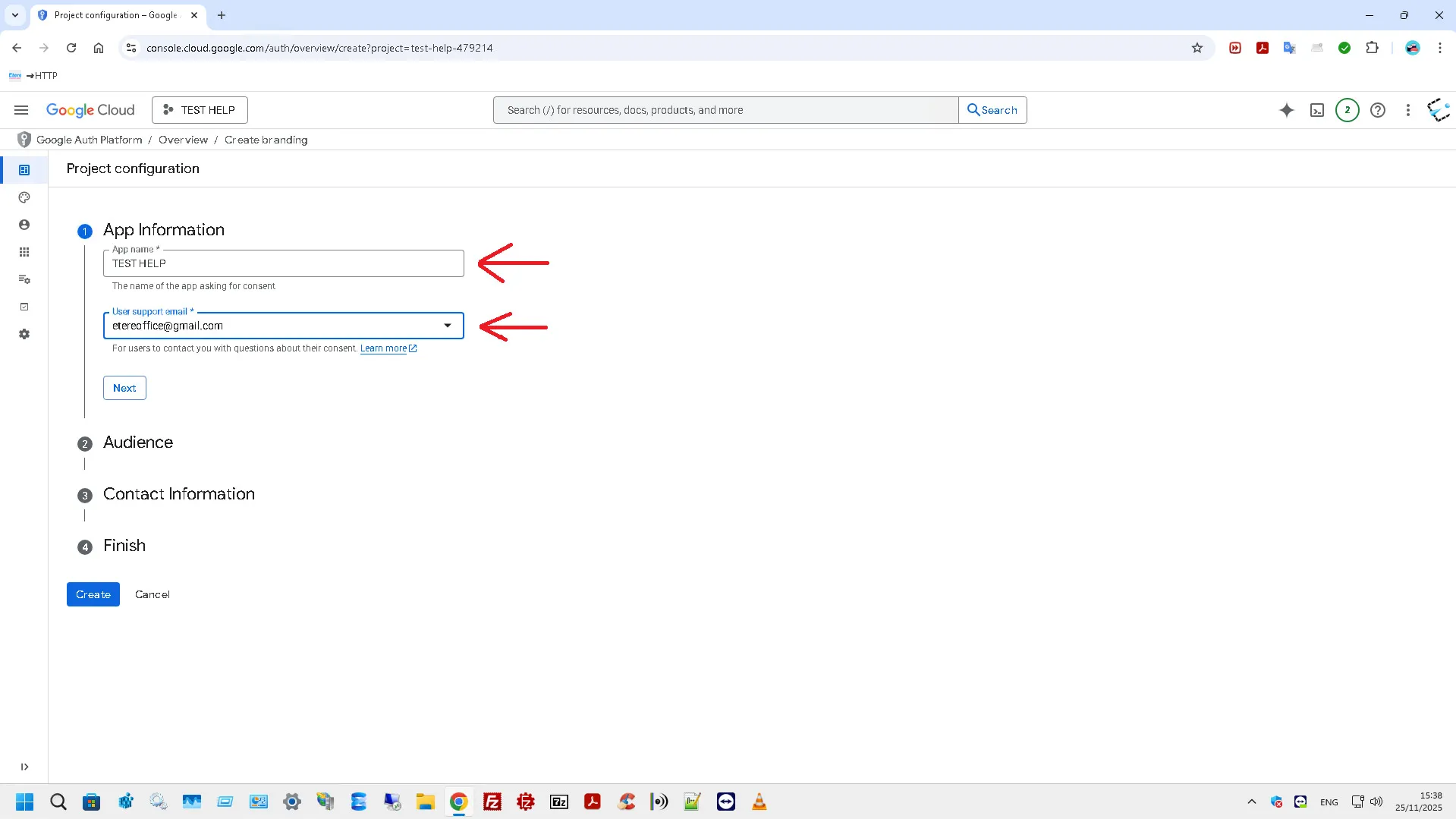
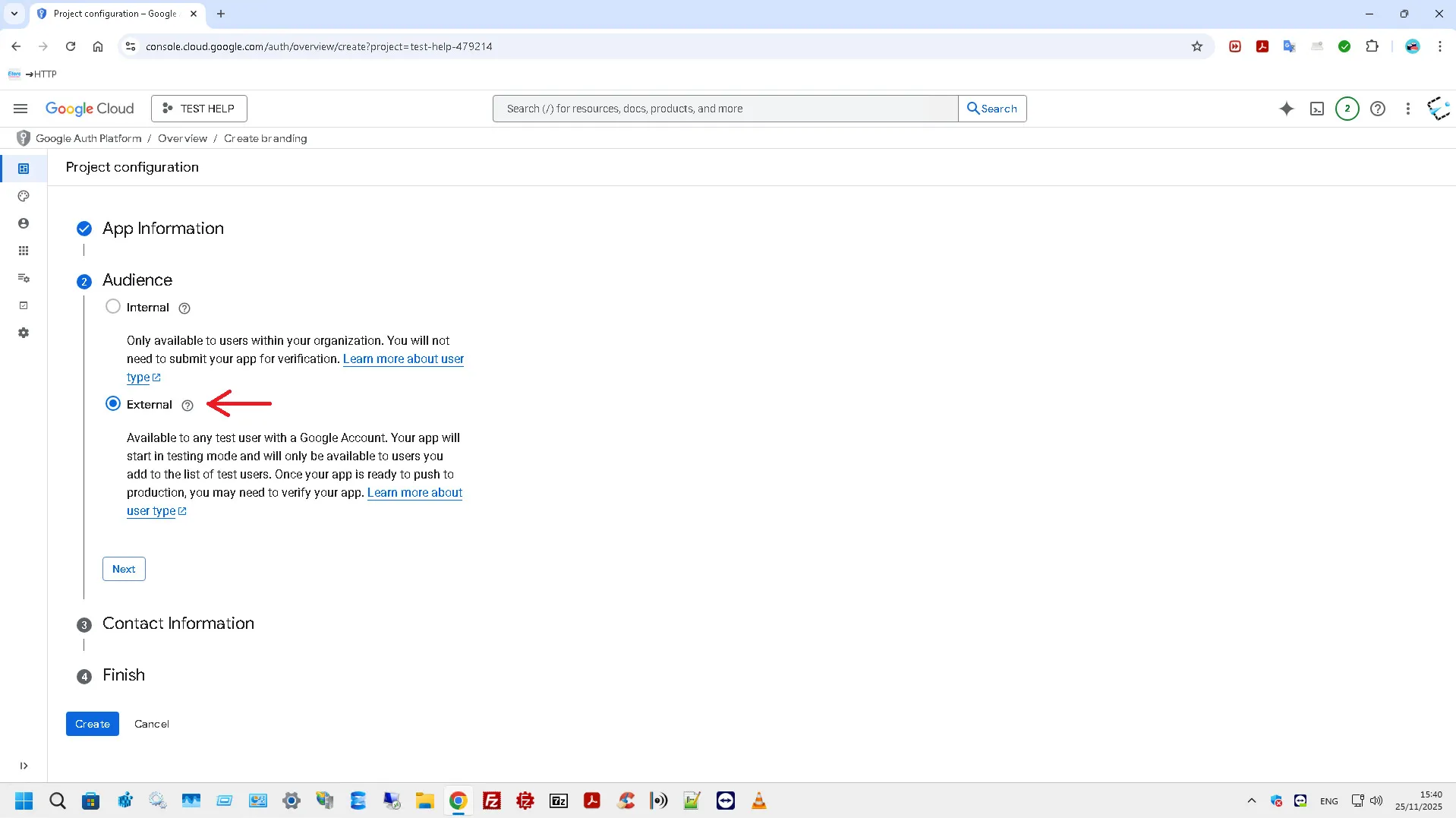
7. Click on Get started and in the points;
A) Fill in the App name and User support email fields
B) Select the External
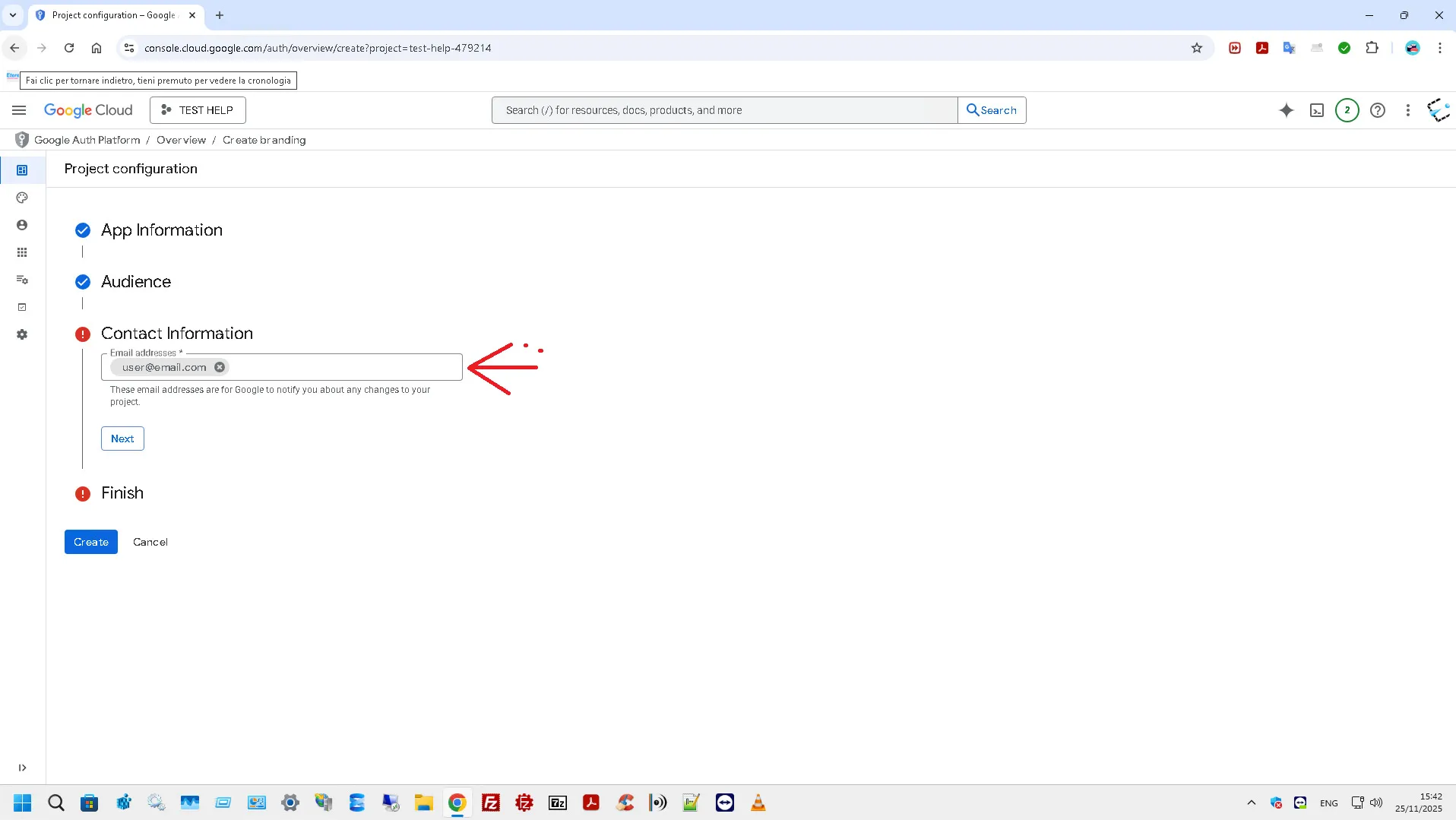
C) Enter an email address in the field Enter (different from point 1)
D) Select the checkbox "I agree to the Google..." and click Continue
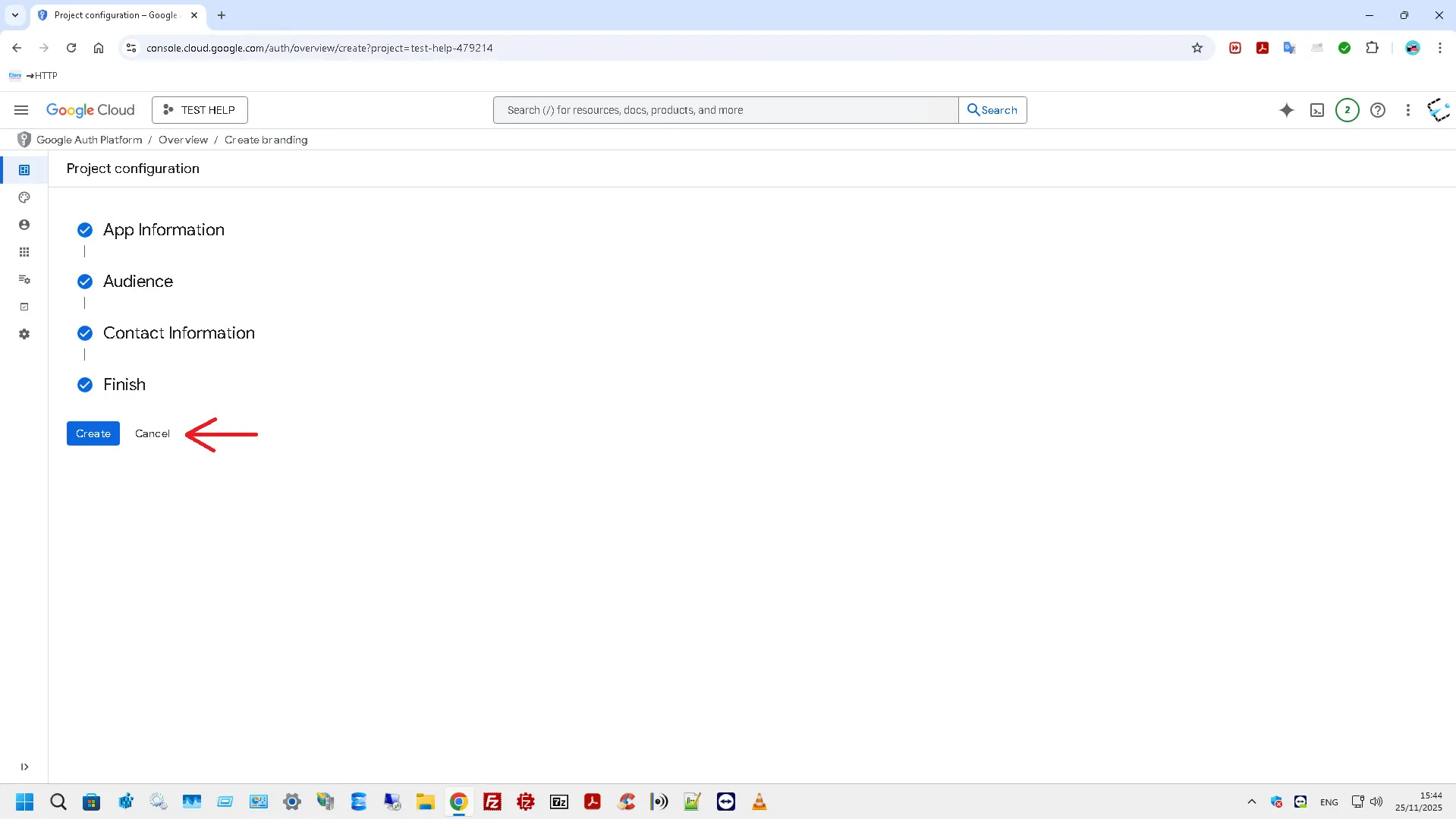
8. Click Create and wait for the redirect
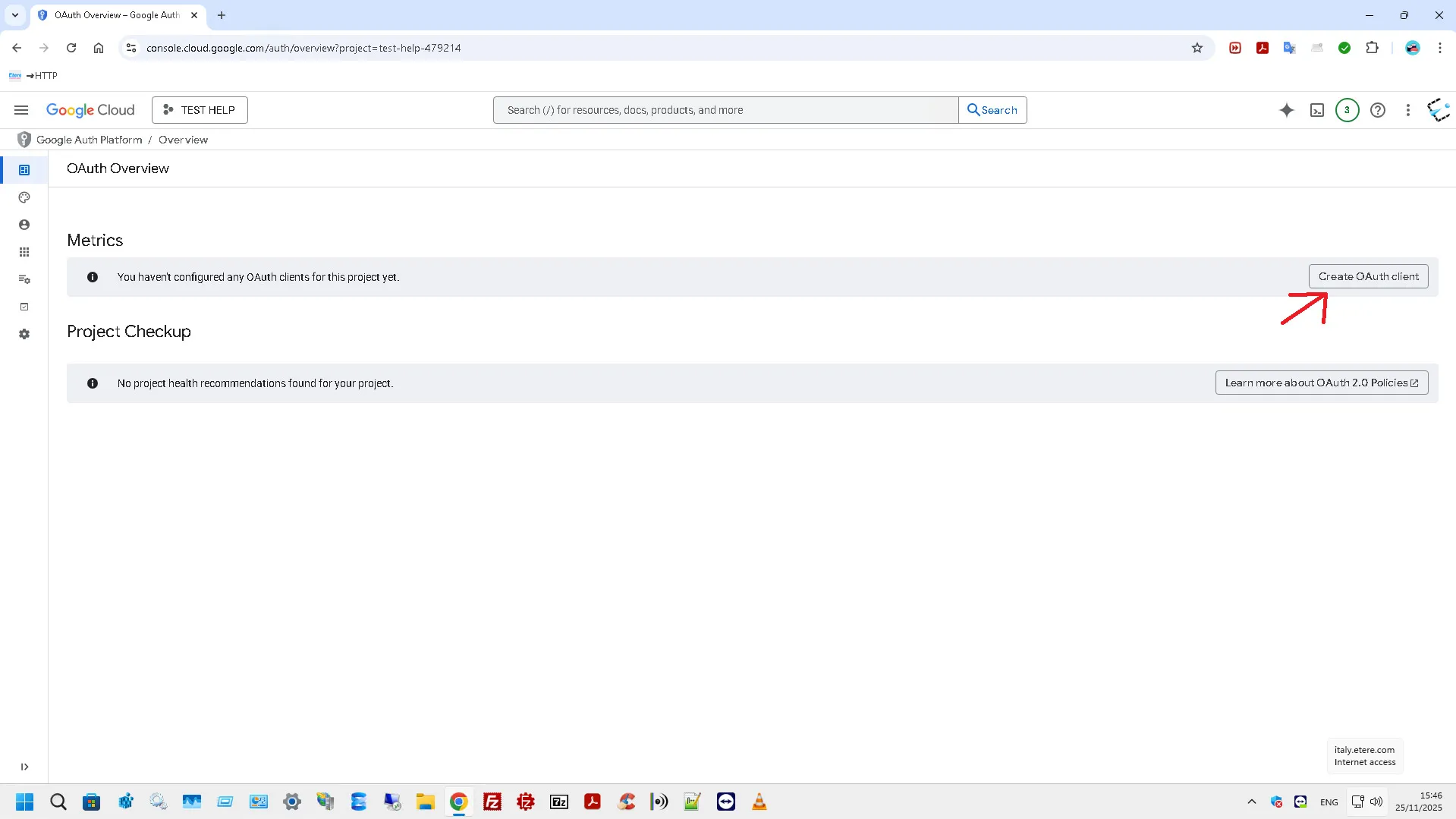
9. Go to Metrics and click the Create OAuth client button.
10. Select the type app "Desktop" among the various choices proposed and in the name field Enter a name. Then click on Create
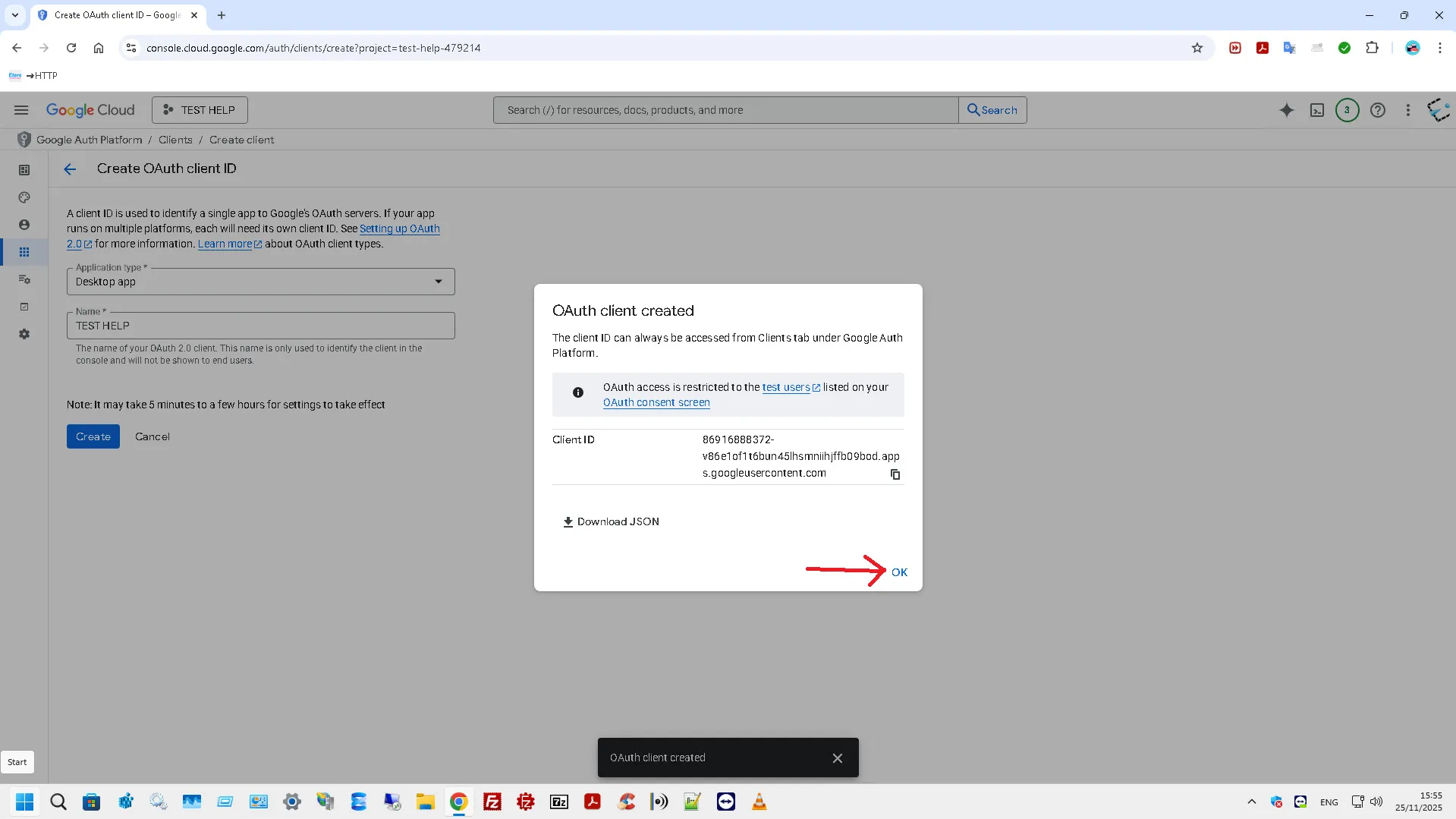
11. The form with Client ID the will be displayed and the option to download the "JSON" file. Click OK.
12. After point 11 you will be redirected to the list OAuth 2.0 Client IDs, click the Edit OAuth Client icon
13. In the Client secret area click on the download button
14. Once you have done the previous point go back and go to Audience
15. Click on the Publish app button and at the Push to production message, click on Confim
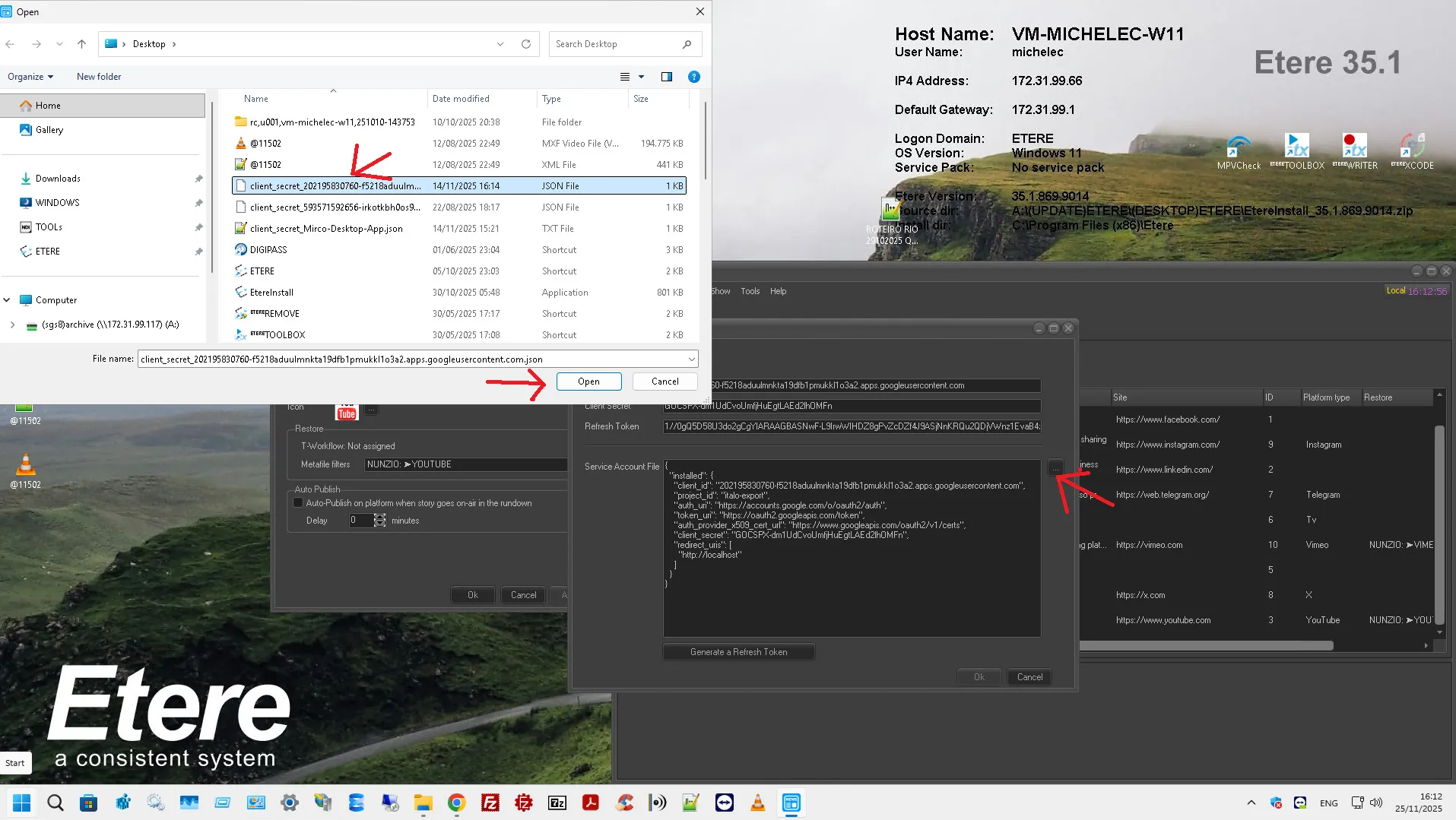
16. Import the file downloaded in step 13 to EtereNunzio\Platform\Settings\Youtube
17. To import the file into the configuration form, click the "..." button and select the file
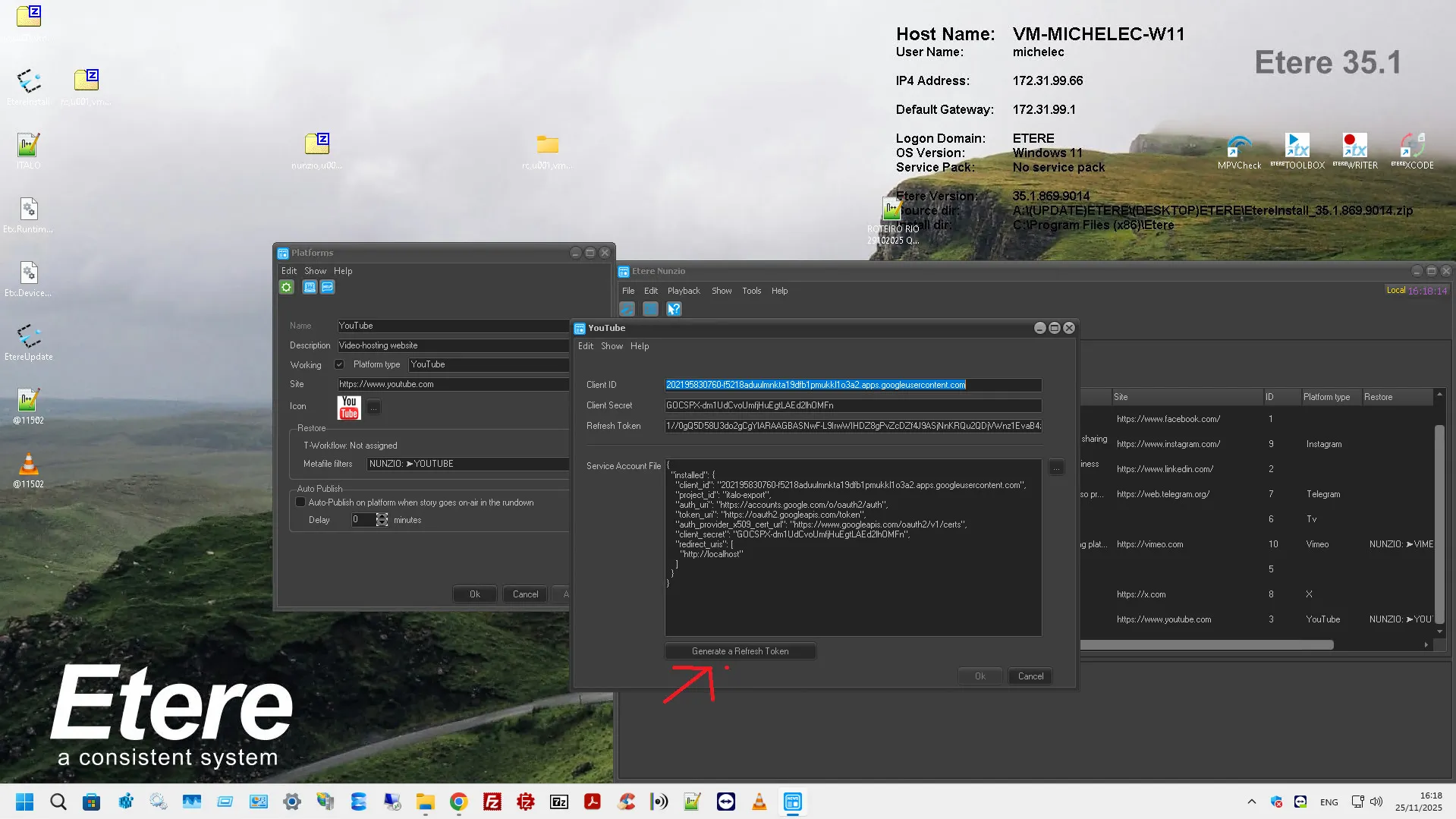
18. Once you have completed step 17, click on Generate a Refresh Token and wait for the browser redirect.
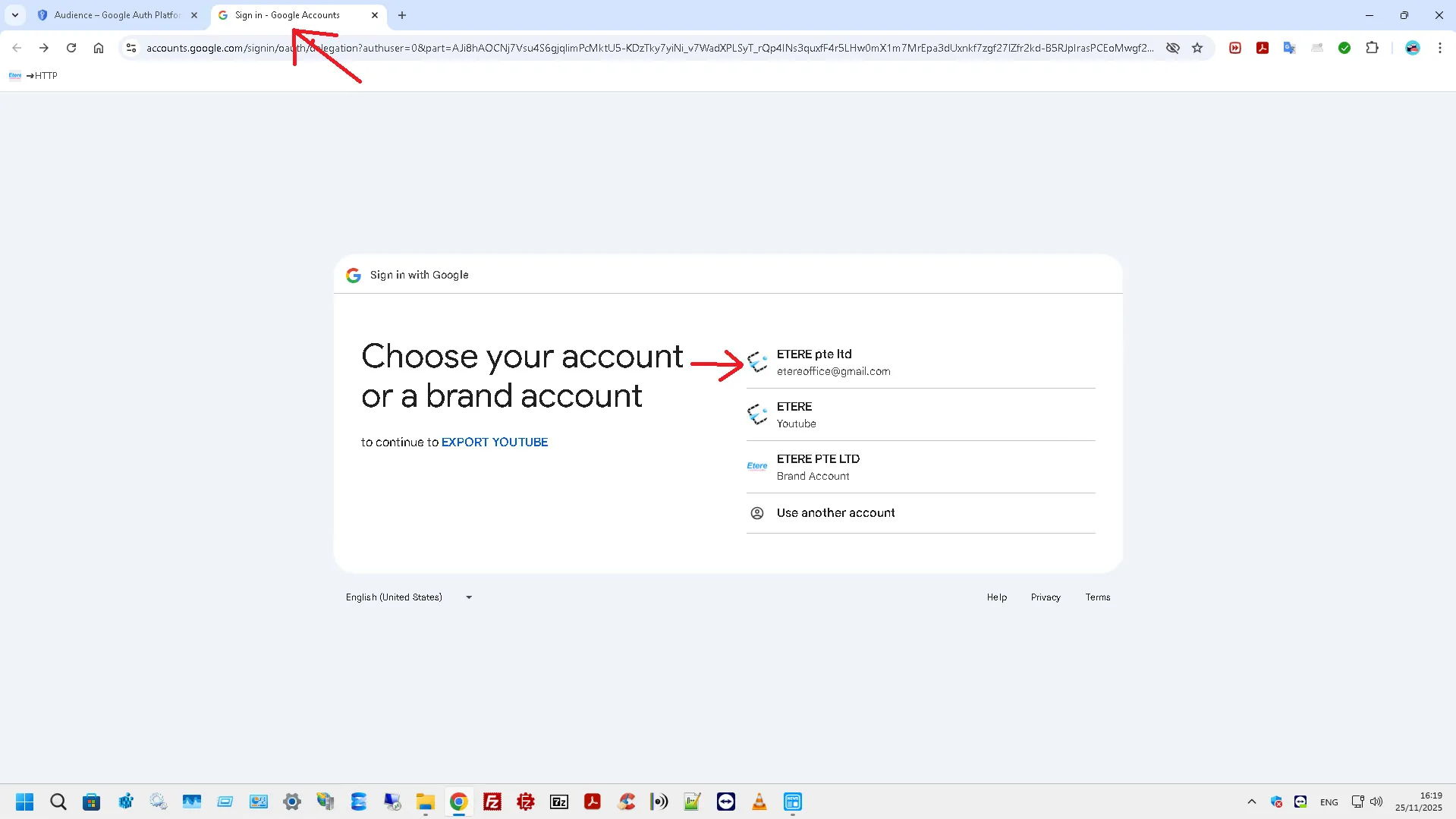
19. In the browser form, enter your login credentials (if required) or proceed to select to authorize the token with the proposed account (which should be the same one with which you created the project)
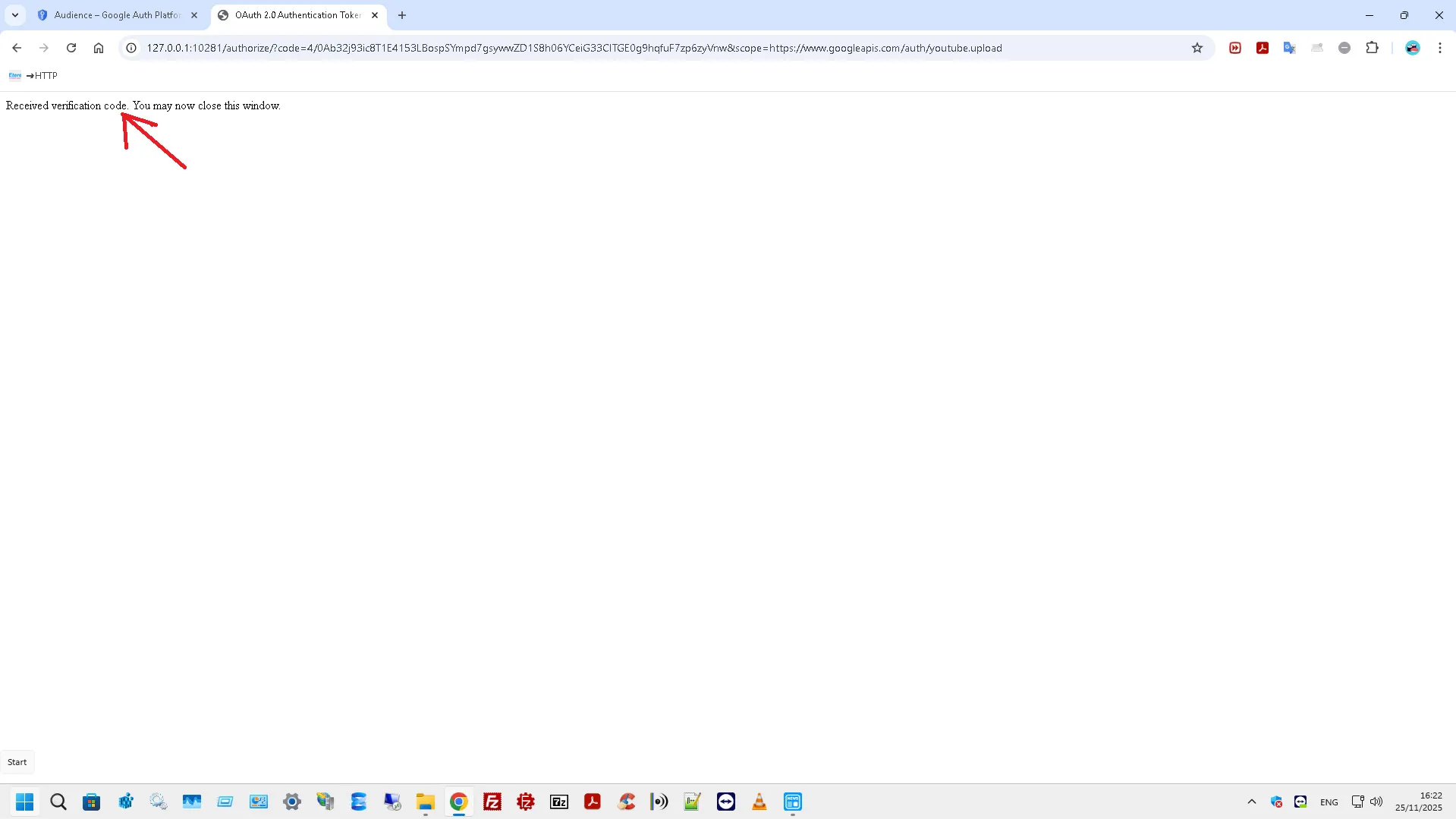
20. At the end of everything the message should appear in the browser "Received verification code. You May now close this windows"
21. In Nunzio settings, click OK, Apply and save with the button (in the social list). As in the demonstrative examples (A,B,C)
Note: When the configuration of a platform is changed, a restart of the Etere Nunzio application and service social media connector are required, in order to apply the new settings.
VIMEO
In order to start publishing video on Vimeo we need to request a Account from this platform.
WARNING: this must be done initially from the social network site, before starting any configuration in ETERE
In order to get a Access Token for VIMEO we need to:
1. Log in to https://vimeo.com/
2. Go to the page https://developer.vimeo.com/
3. Select button + Create an app
4. In the App name and App description fields, enter the relevant data.
5. In the question "Will people besides you be able to access your app?" select yes and enable the checkbox "I agree that my application does not violate the..."
6. Click on the Create App button
7. Once the app is created you will be redirected to its internal settings, click on Edit settings button
8. Enter the relevant data in the App description and App URL field
9. Click on the Update button, after having done the previous point
10. After that you will be redirected to the same page as in point 7
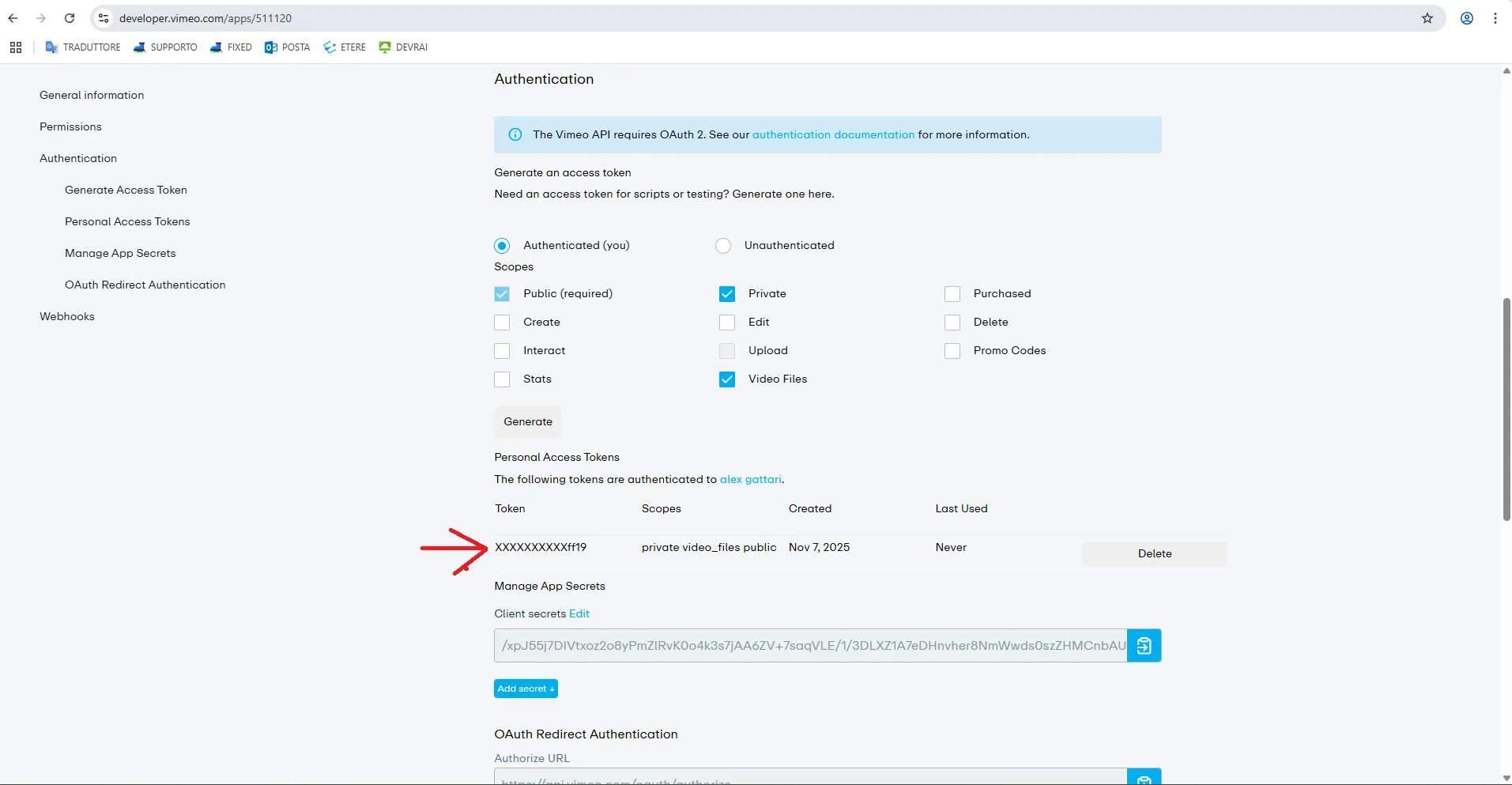
11. Go to the Authentication section and select the Authenticated (you) option
12. When the previous step is done, a list of "Scopes" options will appear.
->The following must be enabled:
- Public (required) "already enabled"
- Private
- Upload
- Video Files
13. Once the previous point has been made, the Generate button must be clicked.
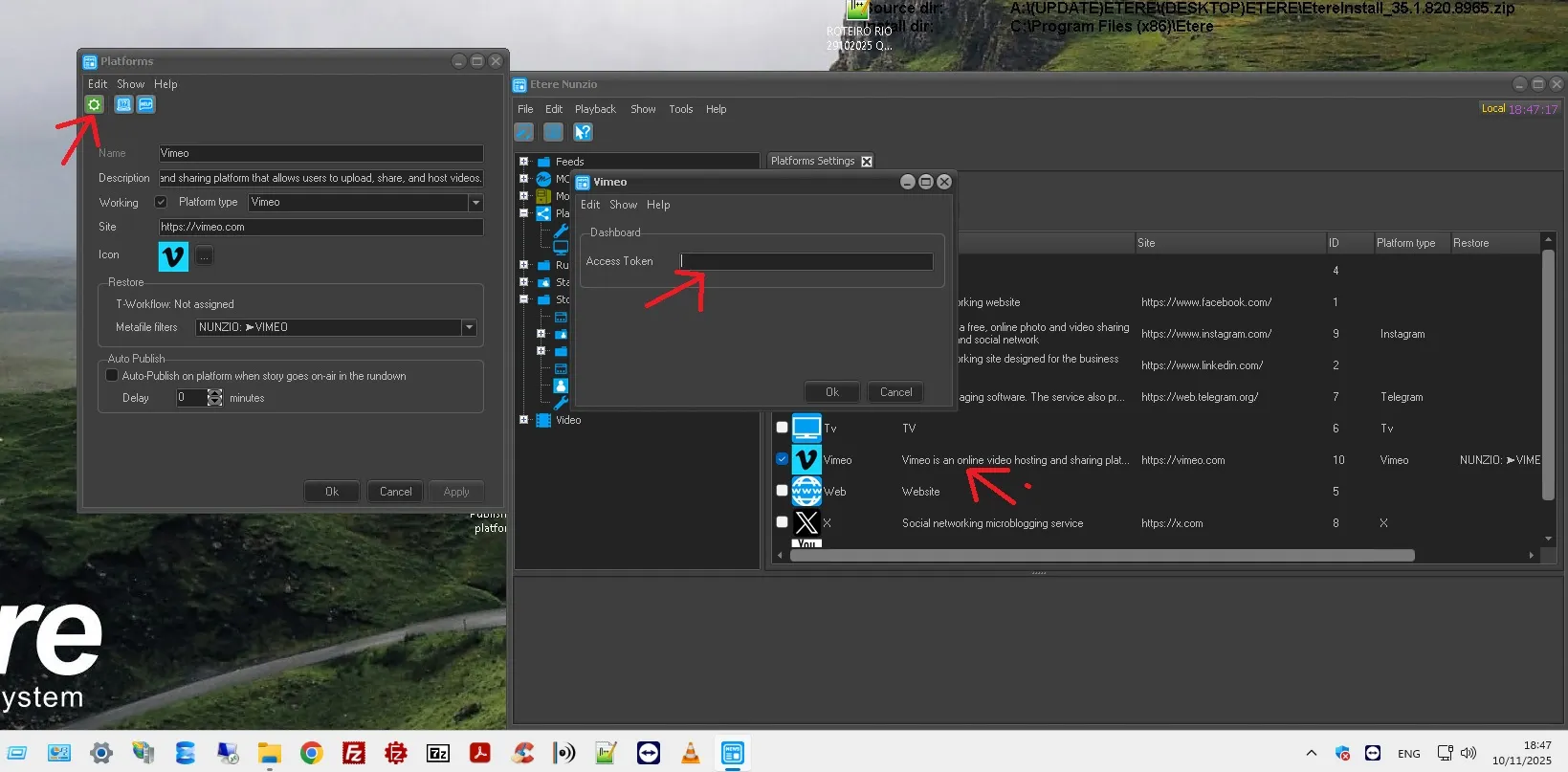
->The Token will be displayed in the first column under Personal Access Tokens
It must be copied into the "VIMEO" Social settings within the Etere Nunzio module as shown in the example image
Once you have done this, click on OK and save with the button (from the social list) to apply the changes.
 select_platform_to_publish
 Platforms
 new_channel
 new_channel_2
 bot_father
 commands_config
 bot_token
 nunzio_telegram_config
 twitter_keys_token
 twitter_api_config
 YouTube
 2_New_project
 3_Project_name_and_Location
 4_Enable_APIs_and_Services
 5A_YouTube_Data_API_v3
 5B_YouTube_Data_API_v3
 6_API_and_OAuth_Consent_Screen
 7_Get_started
 7A_App_name_and_User_support_mail
 7B_External
 7C_Contact_information
 8_Create
 9_Create_OAuth_client
 10_Application_type_and_name
 11_Clieant_ID
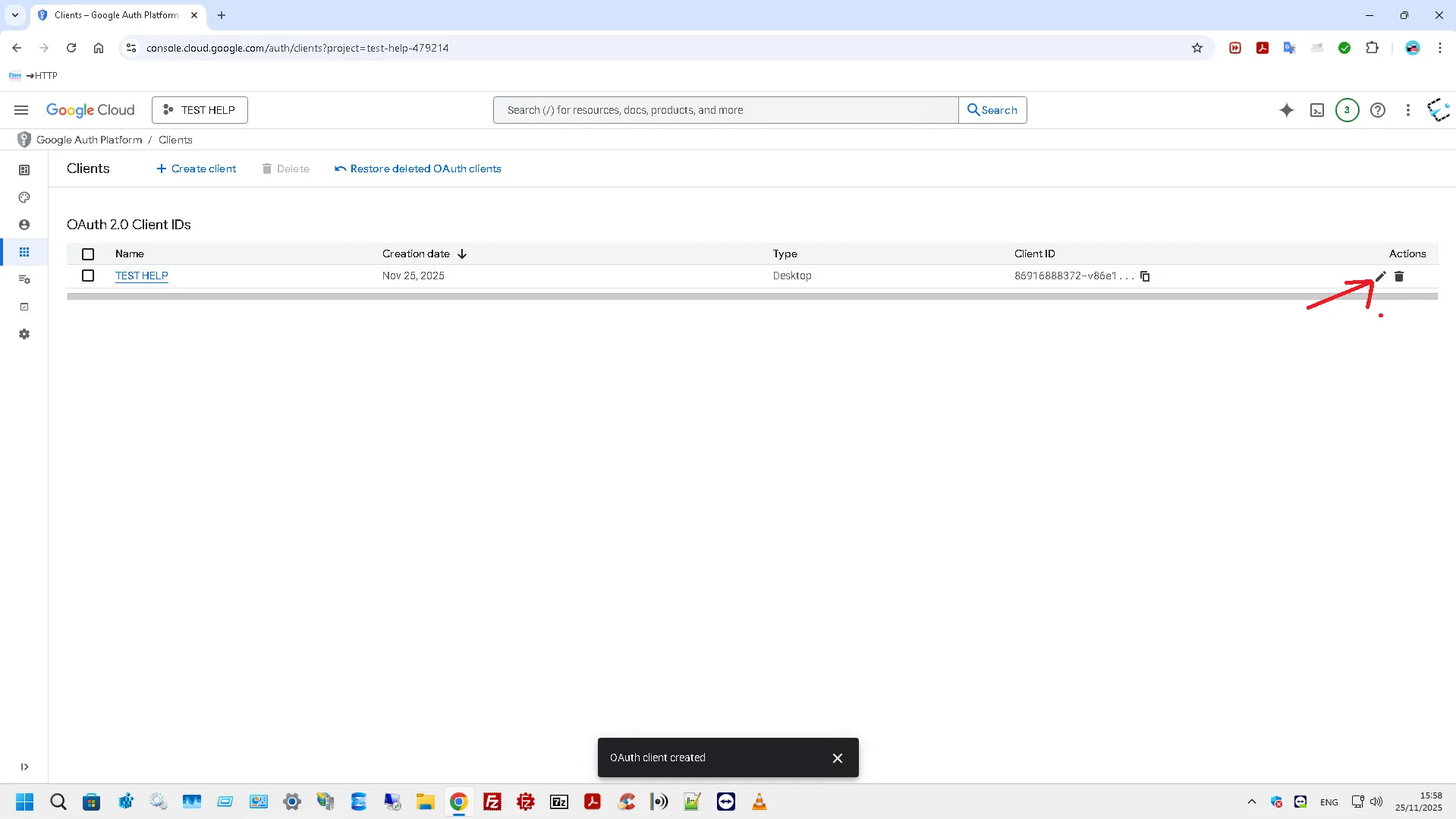 12_Edit_OAuth_Client
 13_Download_button
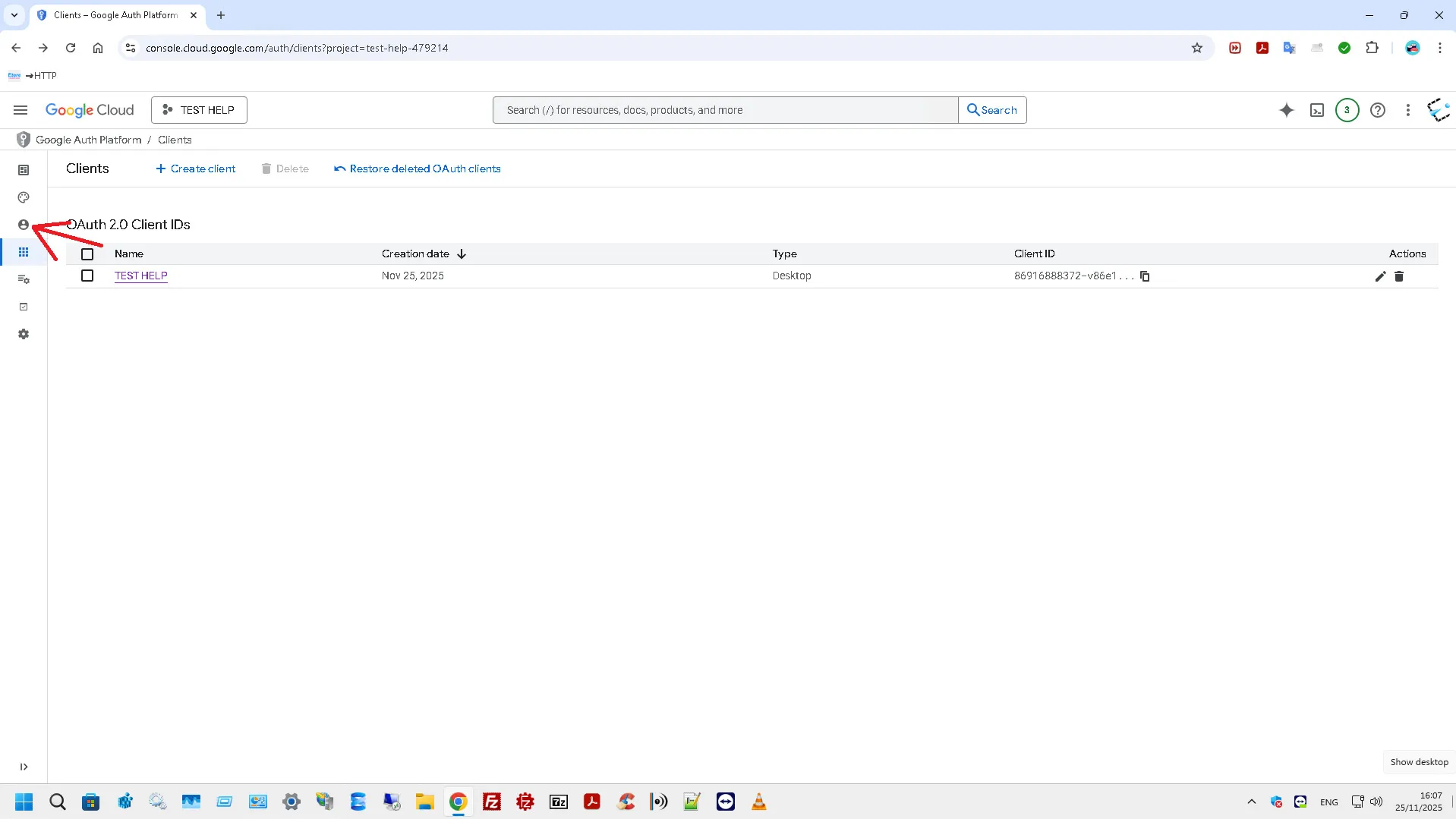 14_Audience
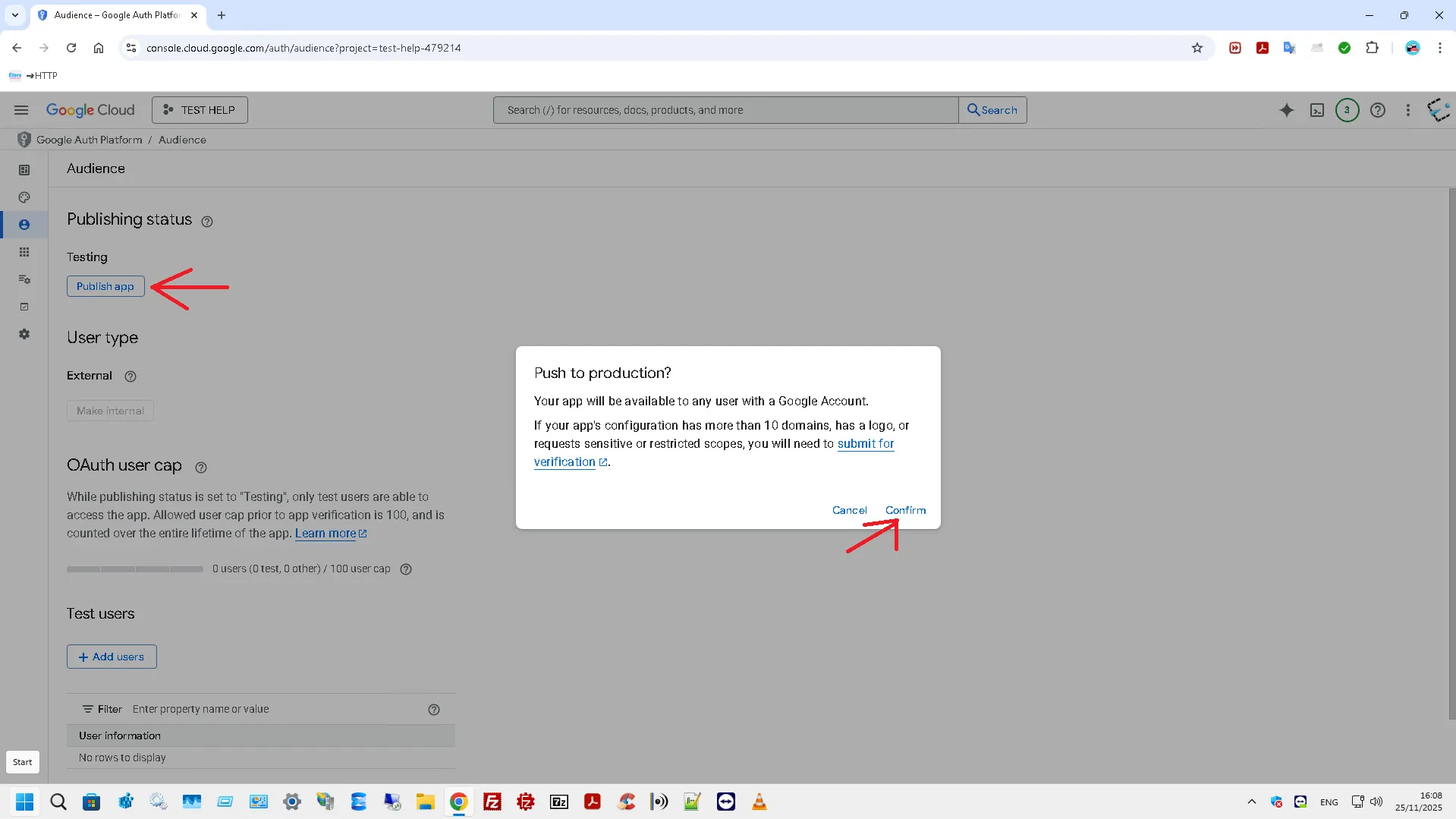 15_Publish_app_and_Confirm
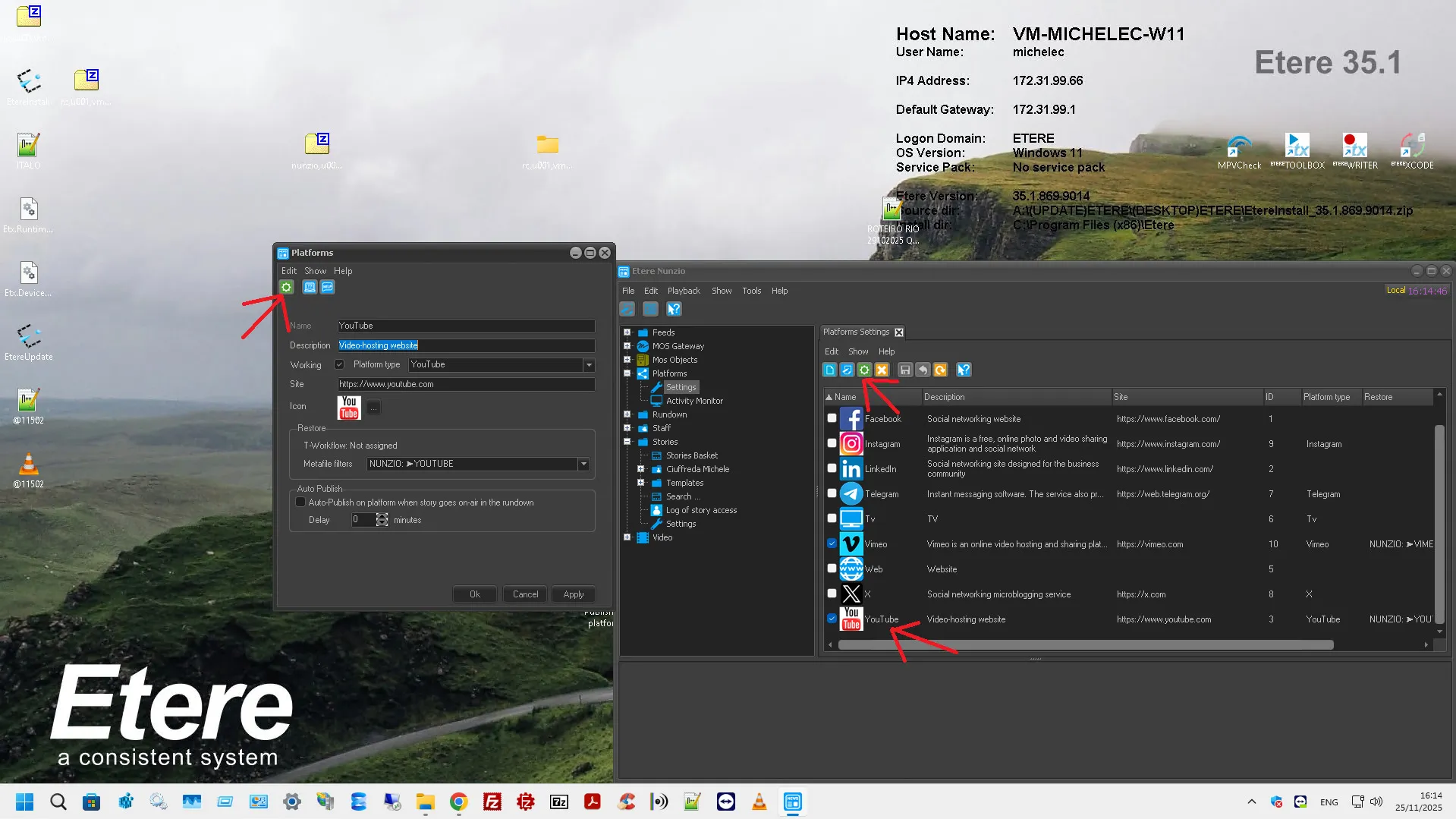 16_Etere_Nunzio_Platform_Settings_Youtube
 17_Import_file
 18_Generate_a_Refresh_Token
 19A_Login_and_Confirm_on_Google
 20_Confirm_OK
 21A_Token_Generated_and_Save
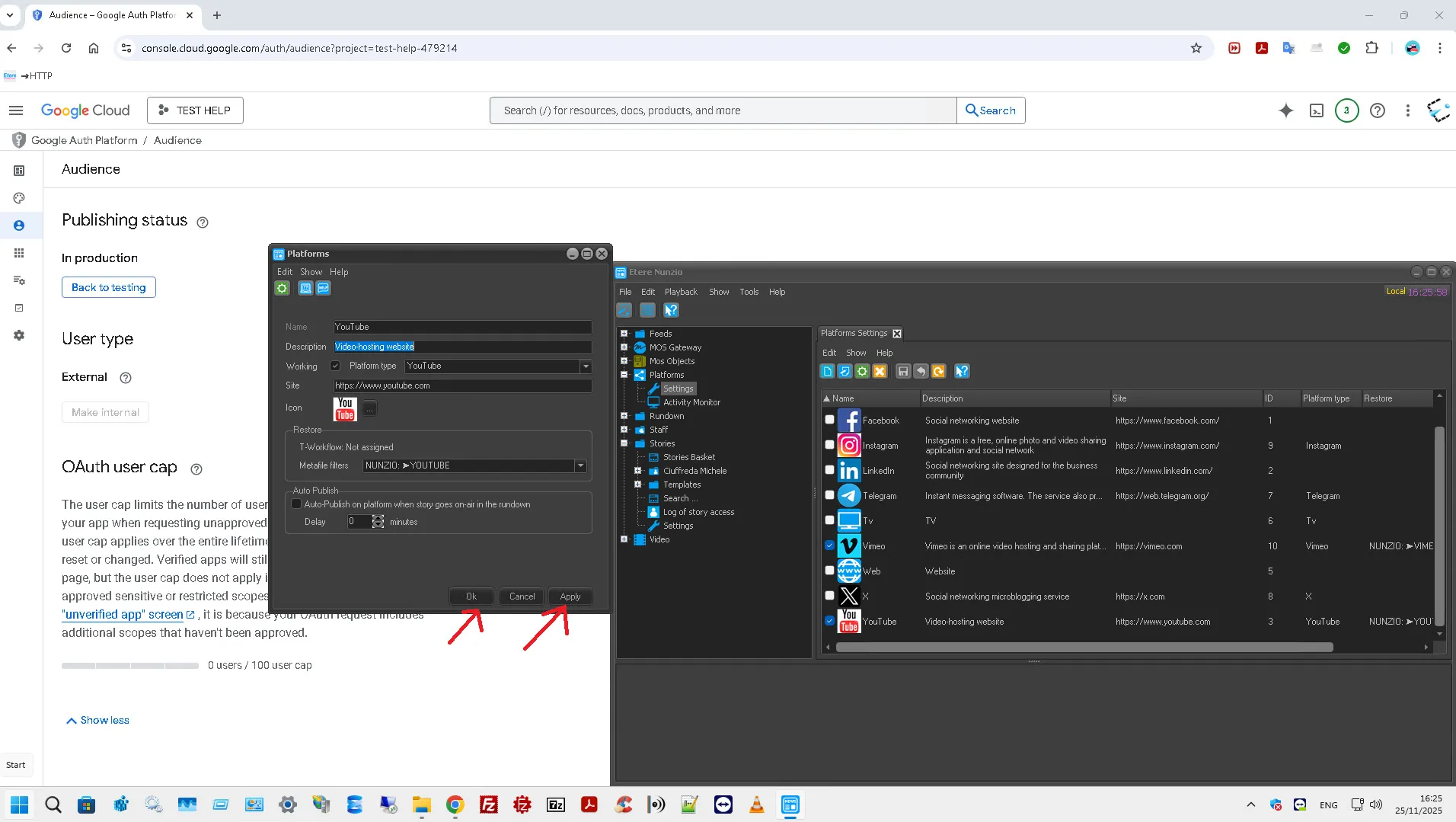 21B_Token_Generated_and_Save
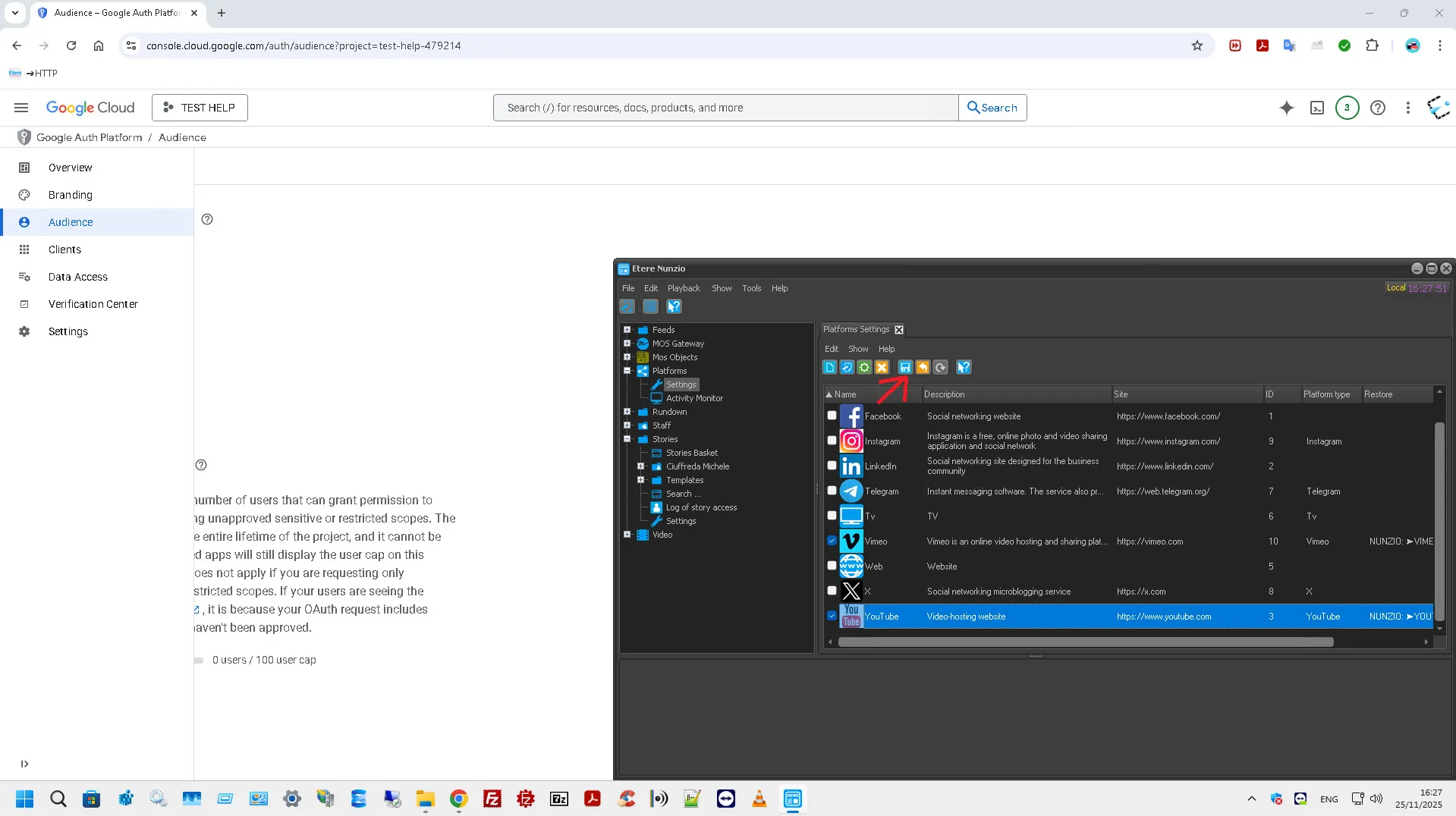 21C_Token_Generated_and_Save
 Vimeo
Vimeo
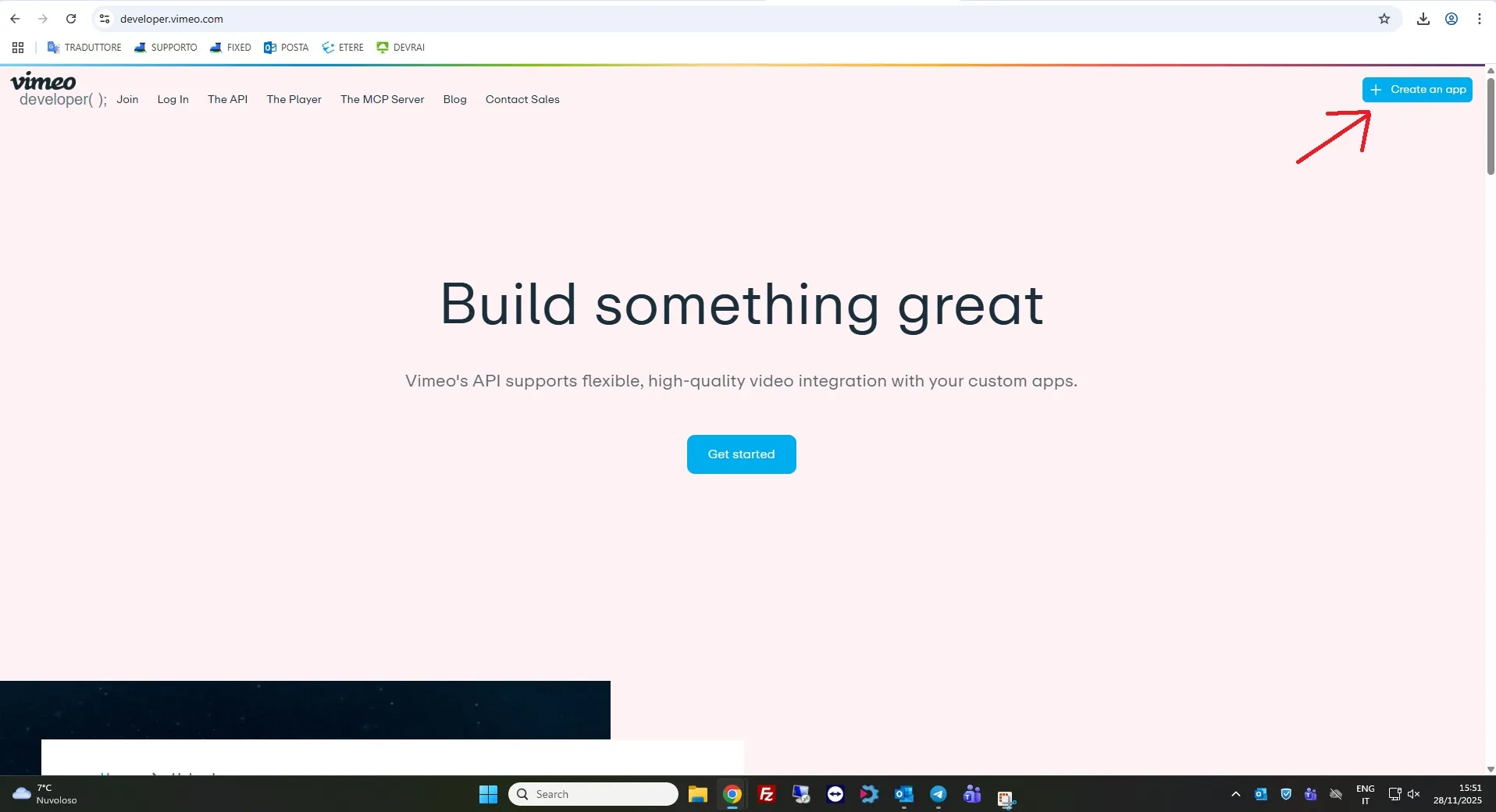 3_Create_an_app
 4_App_name_and_description
 5_Select_yes_and_checkbox
 7_Edit_settings
 8_App_description_and_url
 11_Authetication_and_select_you
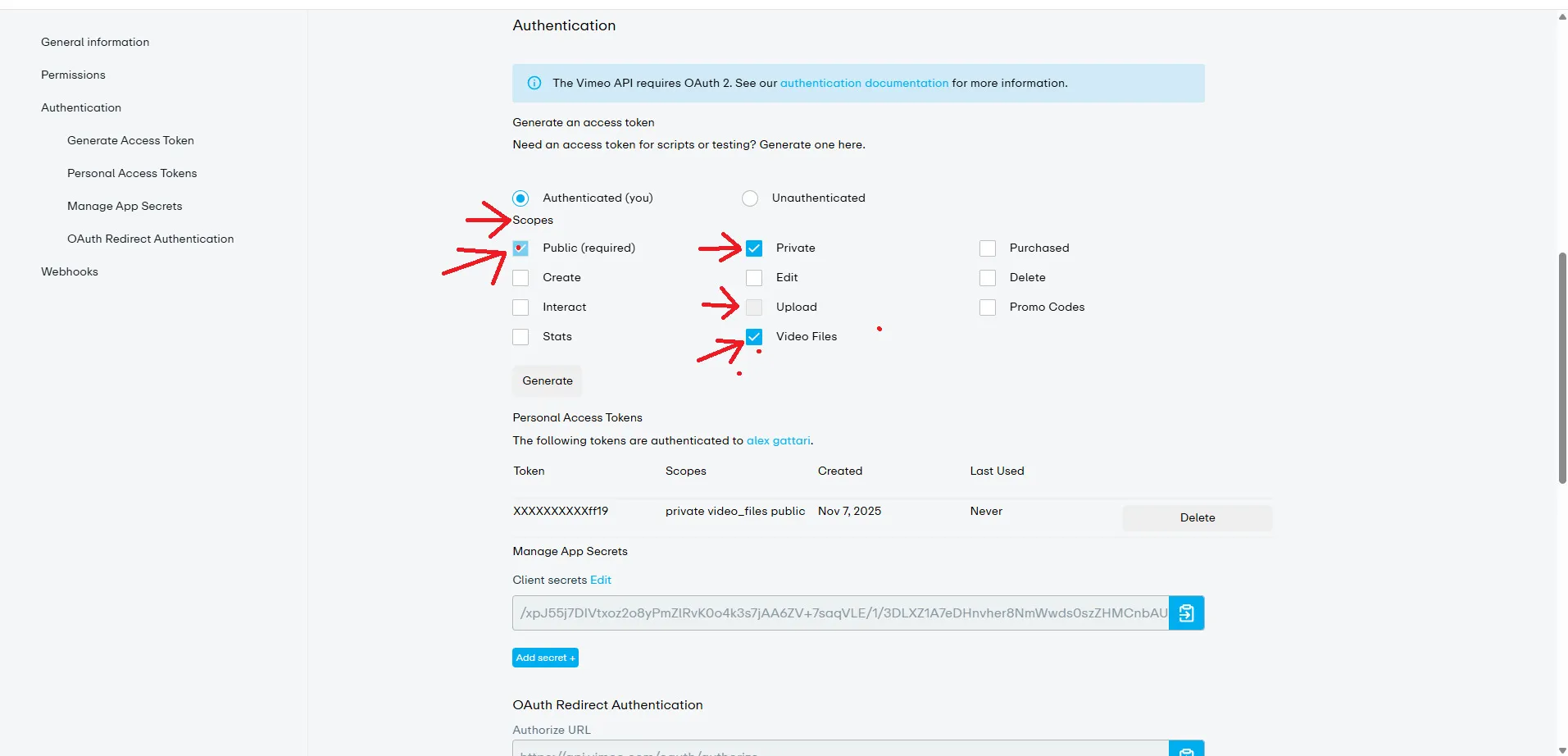 12_List_scopes
 13_Token_generated
 Setting_to_Etere_Nunzio