77.1.3 Ingest File
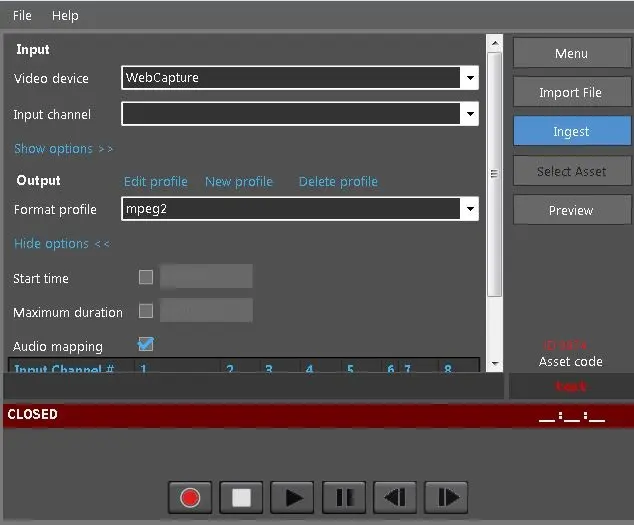
The following parameters are required to start the ingestion process:
Ingest File
Input parameters
• Video device: Select an existing video recording device.
• Input channel: Select an input channel for recording.
Other optional parameters include:
• Video format: Select an available video format from the list.
• Audio device: Select audio device, e.g. <From Video>, or <No audio>.
• Audio format: Select an audio format, e.g. <Auto/Not specific>, <None>. The current value will be set if no audio format is detected.
• External audio: Select external audio to be added or replace the existing audio in the Input device.
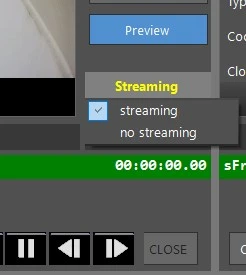
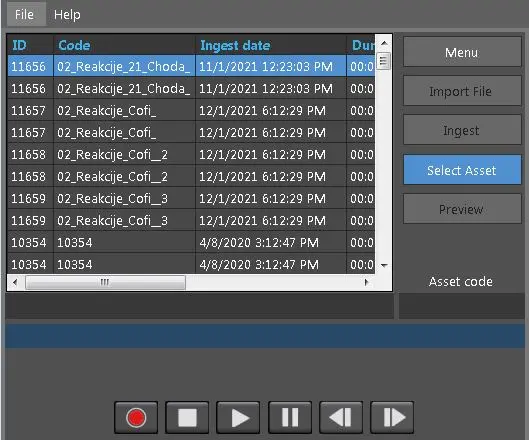
• Set as Streaming: Click on this button and select the proper option to set the selected asset as streaming or not. It's also possible to show these options right-clicking on the Asset code box below the button. If the asset is set as streaming, it will be able to start streaming while it is being ingested (see the chapter 71.18.6.0 Stream during ingest).
Note: Etere Multichannel Ingest Client-Server, considers also the parameter Set all ingesting asset as streaming in Etere Ingest > Settings > tab General 3 (see chapter 71.16.2.4 General 3).
Streaming
Output parameters
• Format profile: Select an available format profile, e.g., mpeg2, H264, etc. You could also specify a new profile here, edit an existing profile, or delete an obsolete one from the system.
Other optional parameters include:
• Output Format Profile: Select an output format from the list, e.g., H264
• Start time: Enable this option and set a scheduled start time to start recording.
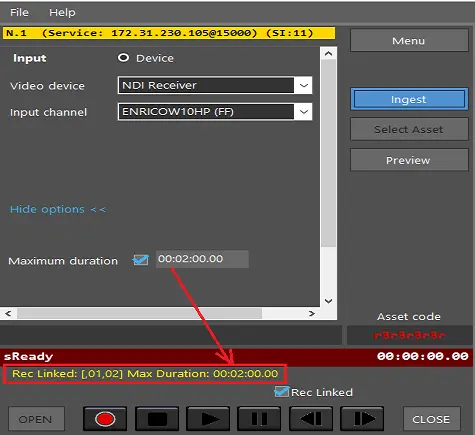
• Maximum duration: Enable this option and set a maximum recording duration. A yellow labeled line displays the Rec Linked state and the Max if the maximum duration is set with the Rec Linked function enabled. Duration you had set.
Yellow labeled
If no duration is specified, the recording would be stopped automatically after 1 hour.
• Audio mapping: If this option is enabled, for SDI / NDI input channel, you can set the track and channel for mapping in the output file for each input channel. If the output track and output channel are left blank, the input channel would be discarded even though the audio is still available during the preview.
On the right panel, the Asset Code (e.g., Test1) and Asset ID (e.g., ID 8974) of the selected asset are displayed.
Before recording, you can preview the ingest using the <Preview> button.
Preview 1
During the preview, you can show or hide the audio meter, set the number of audio tracks to record the audio by putting a tick (√ ) in the white square box under each audio track, select the channel to ingest, and set the audio meter to determine the volume of each channel, or all channels.
Moreover, the video format of the asset is displayed under the Preview window.
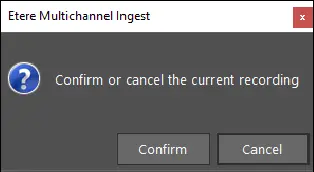
Click the <Start> button to begin to ingest and reply appropriately to the confirmation message to proceed with the recording.
Etere Multichannel Ingest
Preview 2
During ingest, you can view the video format of your recording asset.
To terminate the ingest, click on the Stop button to stop the ingest.
When ingesting ends successfully, the default T-workflow configured for ingesting in the Etere Configuration module would be activated to process the file.
Upon completion, you can click the “Menu” button to return to the Search Asset menu and start a new ingest from the same window.
 Ingest_File
 Streaming
 Etere_Multichannel_Ingest
 Yellow_labeled
 Preview_1