18.4.6.8 Ingest data
Etere Radiolive Engine Service is able to record a scheduled live event which features the secondary event Auto Recording properly configured.
See chapter 84.2.4.3 Auto Ingest for more information about the secondary event.
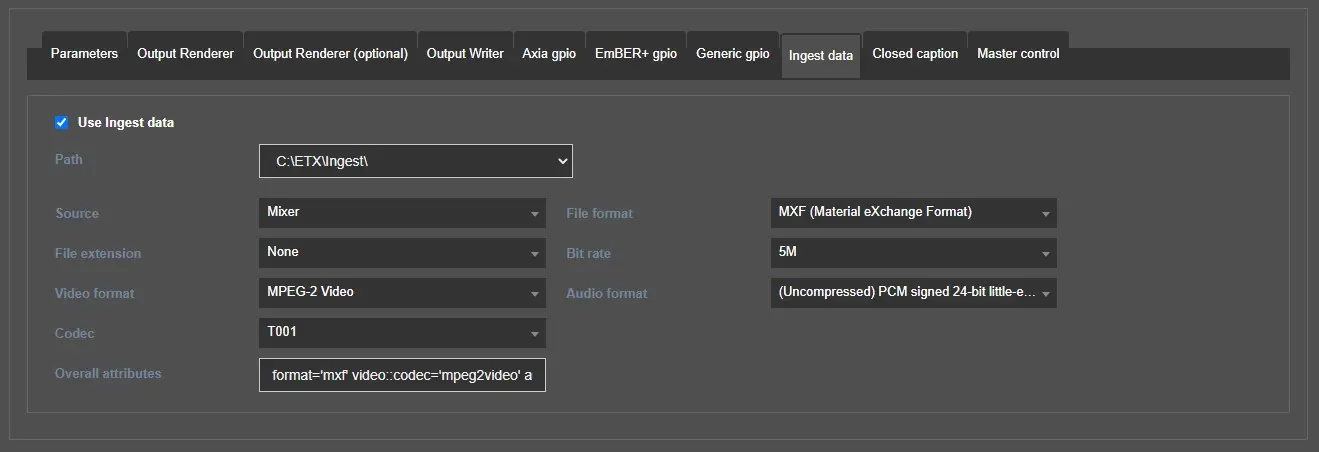
This feature can be configured through the following parameters:
ingest_data
Use Ingest data: Activate this flag to enable the parameters below and use the described feature.
Path: Select the recording path among the ones configured in Etere.
Source: Choose which engine render will be ingest source, Playlist or Mixer render.
File format: Select the format of the recorded file.
File extension: Select the extension of the recorded file. Values may change according to the file format selected.
Bit rate: Define the bitrate value to use during the encoding of the file.
Video/Audio format: Select the encoder to use when recording the file and its audio codec. Values may change according to the file format selected.
Codec: Choose the codec to assign to the metafile recorded, among the ones enabled in Etere.
Overall attributes: Here is displayed the encoding string resulting from the previous parameters. It can be customized adding further attributes that can't be set with the parameters above.
Streaming recording
It's also possible to set a recording as STREAMING, which means that an asset that is being recorded, can be simultaneously sent on-air.
An asset can be set as STREAMING in the following ways:
• From Media Library > Secondary events tab > Event type tab, enabling the related flag. In this way, this property will be valid every time the asset is scheduled.
• From Executive Editor > right-click on the event > Properties > Event type tab, enabling the related flag. In this way, this property will be valid only for the selected event.
See chapter 72.2.2.56 Secondary events - Event type for more information about the Streaming property and chapter 71.18.6.0 Stream during ingest for details about the streaming ingest functioning.
Variable on-air event
When an asset is created, it can be scheduled several times a day or for several days. It may occur that the file associated to the asset is re-ingested several times causing the asset duration to vary within schedules; to avoid performing the "update duration and media" function (in Executive Editor) every time the asset file is re-ingested, enable this property so that Radio Live puts the event on-air for its actual duration (the schedule will adapt itself forward if actual duration is greater, or backward if it's less than scheduled duration).
An asset can be set as VARIABLE in the following ways:
• From Media Library > Secondary events tab > Event type tab, enabling the related flag. In this way, this property will be valid every time the asset is scheduled.
• From Executive Editor > right-click on the event > Properties > Event type tab, enabling the related flag. In this way, this property will be valid only for the selected event.
Note: This property must be set only for ingested assets, otherwise, the automation will continuously attempt to read the actual duration of the event (e.g. live) displaying a warning icon and possibly causing issues on the automation playout. In order to check if an asset is either ingested or not just make sure it doesn't appear in the schedule with a "red triangle" warning icon.
Default workflows
Etere can launch automatically predefined workflows at specific stages of certain operations. Default workflows can be set in Etere Configuration > Configuration editor > T-Workflow > Default T-Workflows. These are the workflows that can be configured and launched by Radiolive Engine Service when performing the operations described above:
After an ingest operation: This wf will start at the end of a standard recording.
At the start of a streaming ingest: This wf will start right after a streaming recording begins.
At the end of a streaming ingest: This wf will start right after a streaming recording ends.
Check chapter 59.3.10.52 Default T-Workflows for more detailed information about them.
 ingest_data