77.1.2 Search Asset
This tab enables you to perform a full-text search to locate the asset in the database.
Search Asset
•ID: Search asset by its asset ID.
•Full-text: Enter the search word to perform a Google-like search.
•Ingest date: Narrow the search by selecting a ingest date, e.g., Today, Yesterday, Last week, etc. Or select "All" to include all dates.
Next, click the <Search> button, or press the <Enter> key to start searching for the asset.
If no asset is found, click the <Start> button to return to the Search Asset view.
In the search form, asset information is visible, including Asset ID, Asset Code, Ingest date, duration, title, codec, and last modified date and time.
The asset file name and asset path would not be displayed.
File name
The <Select Asset> button list the available assets resulting from the Search form. To select an asset, you must highlight the asset and double-click to open the asset.
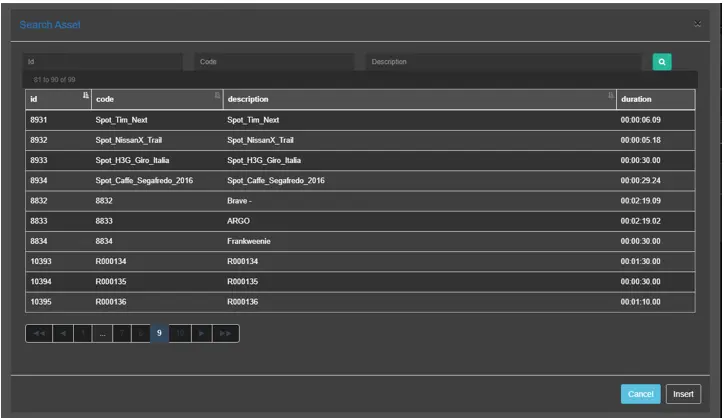 Search_Asset
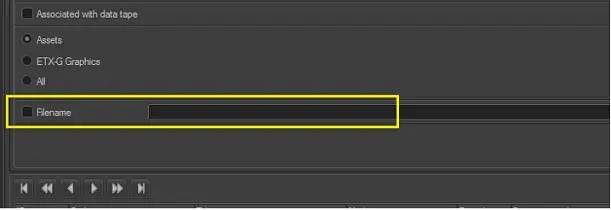 File_name