69.5 Settings
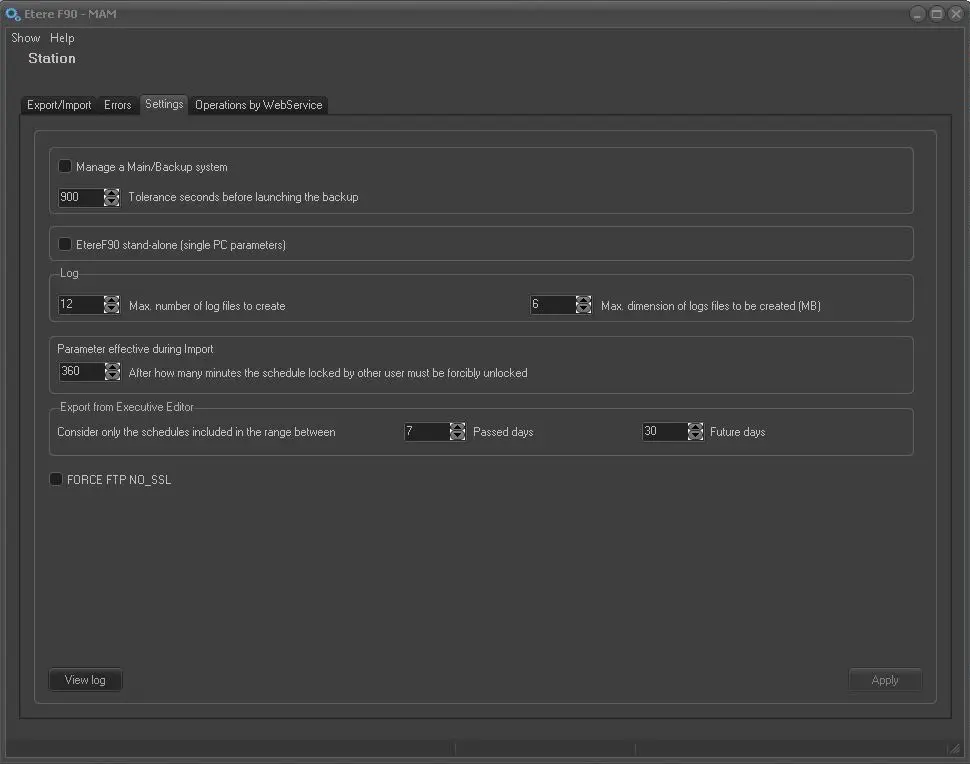
The Settings area allows the specification of some parameters related to the Etere F90 application behaviour. These parameters are explained below:
Etere F90 - Settings
Manage Main/Backup System - Enable this option if another instance of Etere F90 runs on another PC (e.g. for redundancy reasons). The Etere F90 instance that first started would be Main, and the one that started later would be Backup.
The parameter "Tolerance in seconds before launching the backup" (default=900s=15m) allows setting a maximum waiting time (between the 30s and 9000s) for the main server to give heartbeat communications. If there's no response from the main server after the time set, the backup server will become the main one to take charge of all pending import/export operations.
NB: This option is available only if the "standalone" parameter is disabled.
Etere F90 standalone (single PC parameters) - If enabled, all parameters, including selected operations, would be saved only for the current Etere PC; otherwise (if disabled), they would be common for all Etere PCs.
When this option is enabled, you must exit from F90 and relaunch F90 for changes to occur. This option is useful to bypass the F90 initial startup process in the local station and start the relevant import instantly to speed up the importing process.
Log - The log file captures detailed information on export and import operations, mainly used for audit and investigation. These parameters record up to 6 MB of information per log file by default. A maximum of 12 log files can be generated daily to record the export and import processing information.
Parameter effective during import - After how many minutes the schedule locked by another user must be forcibly unlocked:
• Set a maximum value in minutes, e.g. 360 minutes = 6 hours, to allow the import parameter to be locked by the user on other stations. The import parameter would be forced unto lock after the specified duration.
• If the user locks the schedule on the same station, the schedule will be automatically unlocked during import.
Consider only the schedules included in the range between - When automatic export is triggered from Executive Editor (using the “Start F90” feature), you can indicate the number of days from the past and the number of days in future in the parameters to include multiple schedule dates when exporting data.
By default, the schedules from the past 7 days and the next 30 days would be included in the exported data file.
FORCE FTP NO_SSL - When enabled, this option allows sending the F90 exported file to an external server without the standard Secure Sockets Layer (SSL) security feature enabled via the FTP Server.
NB: You need extreme caution when enabling this option; the data would be transmitted over the network without encryption, and there would be no authentication between the FTP server and the browser.
[View Log] - Located at the bottom of the window, the "View Log" button displays a detailed log of each operation performed by Etere F90. To search for a specific event, enter a keyword (e.g., type 'error' to go through all the operations containing the keyword 'error').
Working modes
Depending on the above configuration, Etere F90 will work in one of the following modes:
Shared - Import/export settings would be shared with other network servers of the same station.
NB: Etere systems can have an unlimited number of shared F90 servers.
Standalone - Import/export settings would be managed only for the current server. No Main/Backup functioning will be allowed.
NB: Etere systems can have an unlimited number of standalone F90 servers.
Main & Backup - One F90 would work as the main server, whereas a second one would be the backup server; if the main server doesn't give signals during a user-defined interval, the backup server would become the main to take charge of import/export operations.
NB: Etere systems can have at most one Main and one Backup F90 server.
 Etere_F90_-_Settings