Linux integration

1.5.1 Samba Active Directory

There are various alternatives to change from windows AD, the most complete is Samba Active Directory.

Samba Active Directory creation and settings require pre-installed packages like samba, smbclient, winbind, krb5-user and net-tools.
This guide is structured as tutorial for Ubuntu Desktop in Bash Console, with NANO as text editor for setting the configuration files.


1. Preparation

taking as example a workstation with IP 172.31.99.142 and domain dc1.yourdomain.local (set the ones as your needs), first set a proper hostname and ensure your system is updated:

bash console

sudo apt update && sudo apt upgrade -y
sudo hostnamectl set-hostname dc1.yourdomain.local

Make sure your /etc/hosts file is configured correctly:

bash console

sudo nano /etc/hosts

127.0.0.1 localhost
127.0.1.1 dc1.yourdomain.local dc1
172.31.99.142 dc1.yourdomain.local dc1


# The following lines are desirable for IPv6 capable hosts
::1 ip6-localhost ip6-loopback
fe00::0 ip6-localnet
ff00::0 ip6-mcastprefix
ff02::1 ip6-allnodes
ff02::2 ip6-allrouters

1.1 DHCP must be disabled

sudo cp /etc/netplan/50-cloud-init.yaml /etc/netplan/50-cloud-init.yaml.bak
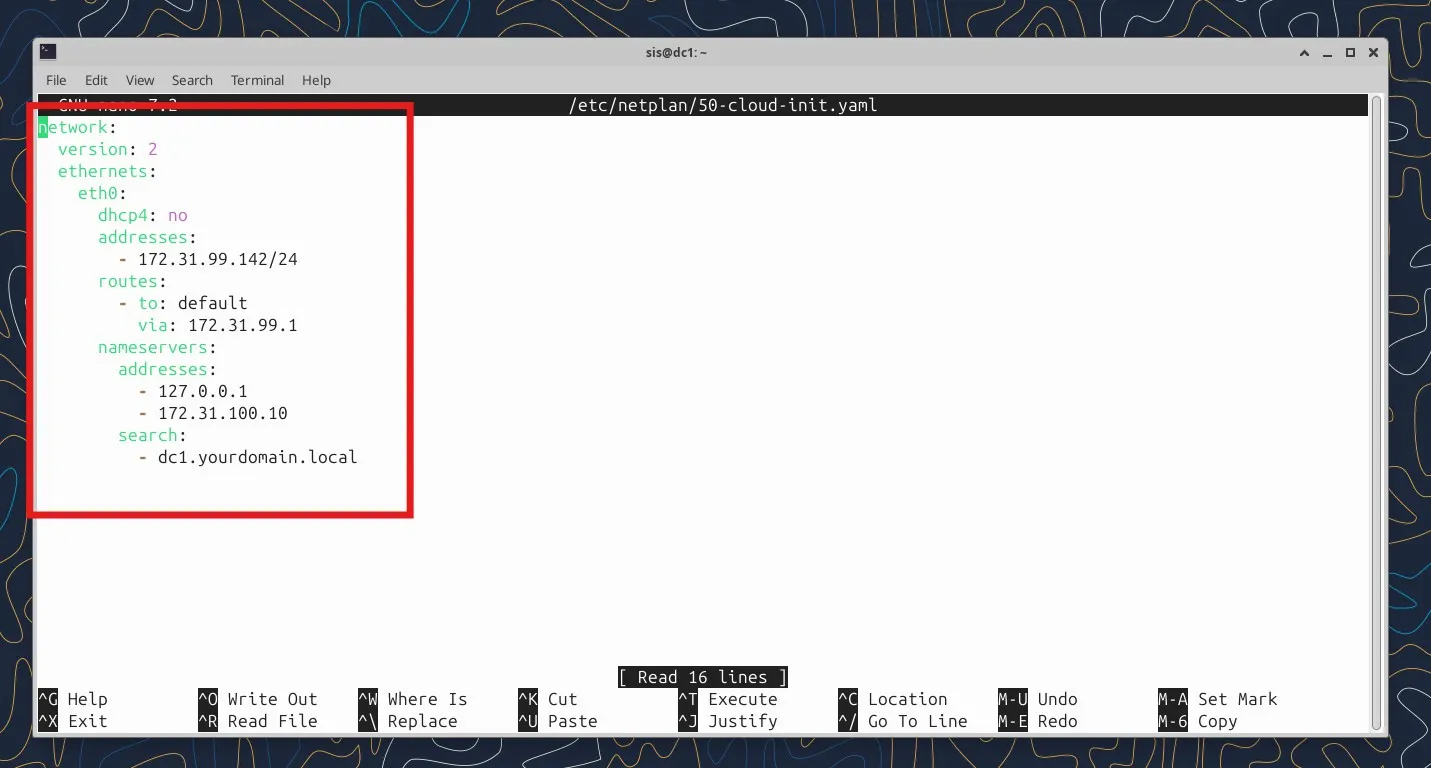
sudo nano /etc/netplan/50-cloud-init.yaml

network:
  version: 2
  ethernets:
    eth0:
      dhcp4: no
      addresses:
        - 172.31.99.142/24
      routes:
        - to: default
          via: 172.31.99.1
      nameservers:
        addresses:
          - 127.0.0.1
          - 172.31.100.10
        search:
          - dc1.yourdomain.local

apply the configuration

$sudo netplan apply


1.2 Configure DNS Resolution

Update /etc/resolv.conf to point to your DC:

bash console

sudo nano /etc/resolv.conf

nameserver 127.0.0.1
domain dc1.yourdomain.local
search dc1.yourdomain.local


NOTE: to make this permanent on Ubuntu, you might need to configure netplan or systemd-resolved depending on your setup.

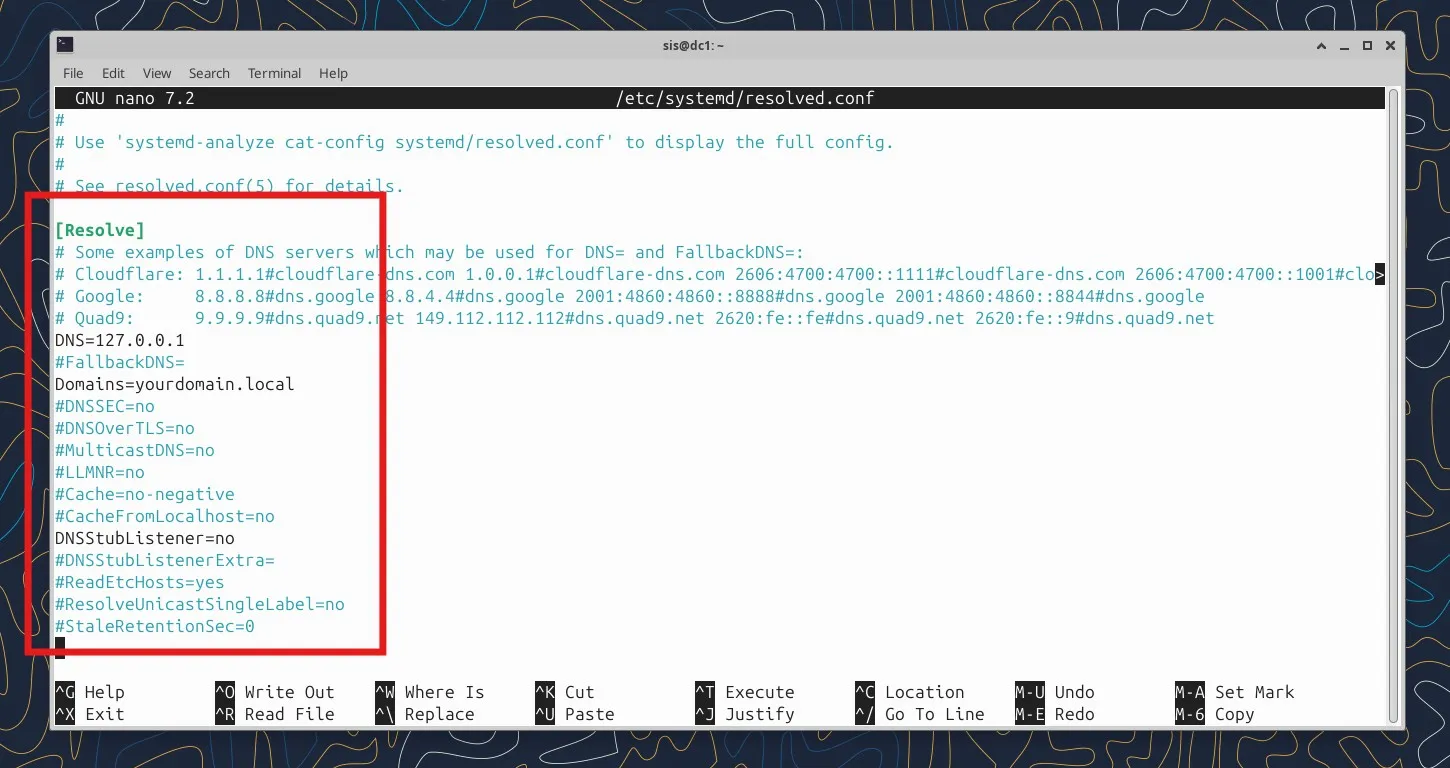
- Add or modify these lines in resolved.conf:

bash console

sudo nano /etc/systemd/resolved.conf

[Resolve]
DNS=127.0.0.1
Domains=yourdomain.local
DNSStubListener=no

Restart systemd-resolved:

bash console

sudo systemctl restart systemd-resolved


2. Install Samba


bash console

sudo apt install samba smbclient winbind krb5-user -y

During installation, it'll ask for your Kerberos realm - use your domain in uppercase (e.g., YOURDOMAIN.LOCAL).


2.1 Provision the Domain

Stop Samba services first:

bash console

sudo systemctl stop samba-ad-dc smbd nmbd winbind
sudo systemctl disable smbd nmbd winbind

Remove default config and provision:

bash console

sudo mv /etc/samba/smb.conf /etc/samba/smb.conf.bak
sudo samba-tool domain provision --use-rfc2307 --interactive

It'll ask you several questions - you can accept most defaults, but set a strong Administrator password.


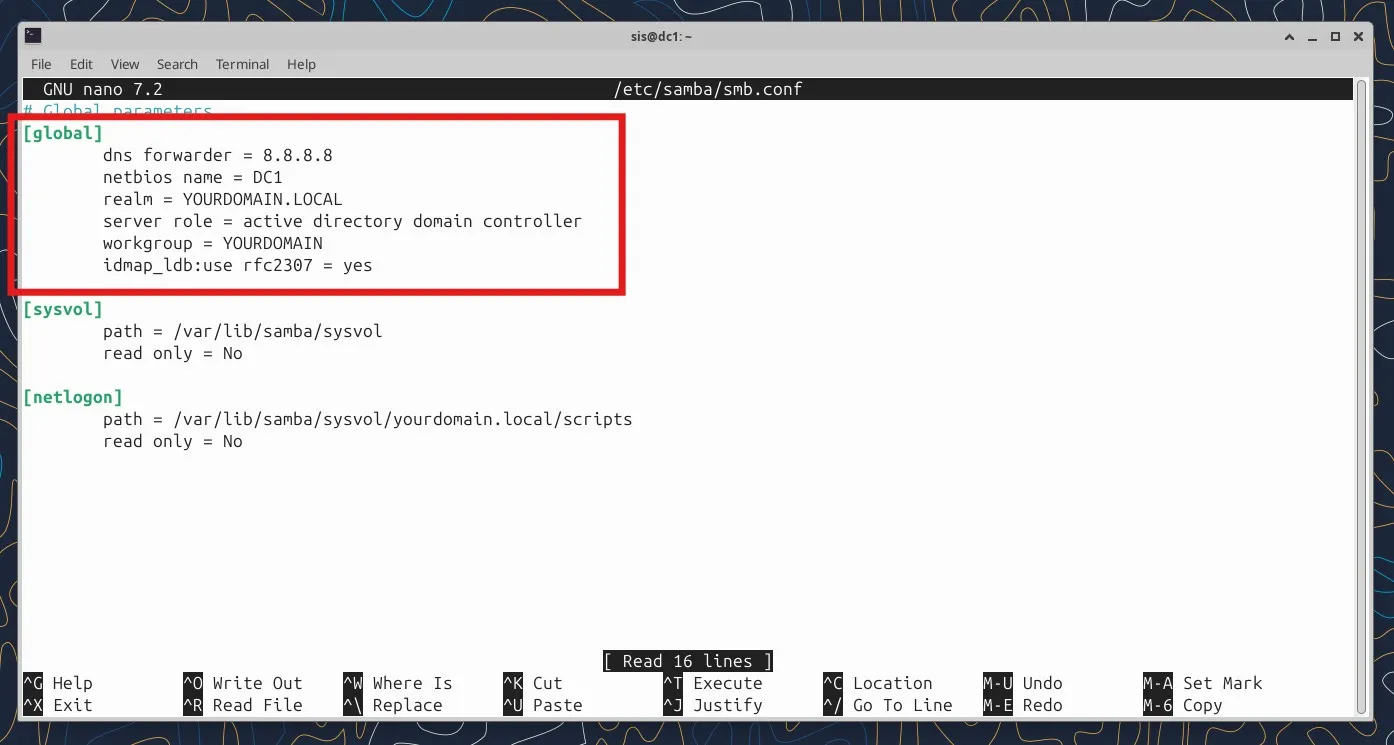
- make sure /etc/samba/smb.conf section [global] looks like this for [global] section

sudo nano /etc/samba/smb.conf

[global]
        dns forwarder = 8.8.8.8        #this is an example, put an existing DNS here
        netbios name = DC1
        realm = YOURDOMAIN.LOCAL
        server role = active directory domain controller
        workgroup = YOURDOMAIN
        idmap_ldb:use rfc2307 = yes


2.2 Start Samba AD DC


bash console

sudo systemctl unmask samba-ad-dc
sudo systemctl enable samba-ad-dc
sudo systemctl start samba-ad-dc


- Test DNS

Samba AD DC includes its own DNS server. Test it:

bash console
host -t SRV _ldap._tcp.yourdomain.local
host -t A dc1.yourdomain.local

You should see your domain controller in the results.


- Test Kerberos Authentication

bash console
kinit administrator@yourdomain.local
klist

This should authenticate and show you a ticket. If this fails it could depend from /etc/krb5.conf which still has
a default configuration. In that case , samba create a personalized /var/lib/samba/private/krb5.conf,
just copy it in /etc/krb5.conf


bash console

sudo cp /etc/krb5.conf /etc/krb5.conf.bak
sudo cp /var/lib/samba/private/krb5.conf /etc/krb5.conf


- Verify Samba

bash console
smbclient -L localhost -U administrator
sudo samba-tool domain level show

- or, alternatively, you can use "dig" command to test

bash console

# Test Kerberos
dig @127.0.0.1 _kerberos._tcp.yourdomain.local SRV

# Test domain controller location
dig @127.0.0.1 _ldap._tcp.dc._msdcs.yourdomain.local SRV

# Test DNS resolution of DC
dig @127.0.0.1 dc1.yourdomain.local A

if the connection tests resolve correctly the DNS your active directory is ready. Now you can create and edit
entries like users and computers


50-cloud-init.yaml
resolved.conf
smb.conf