79.7.3 Using Nunzio Playout
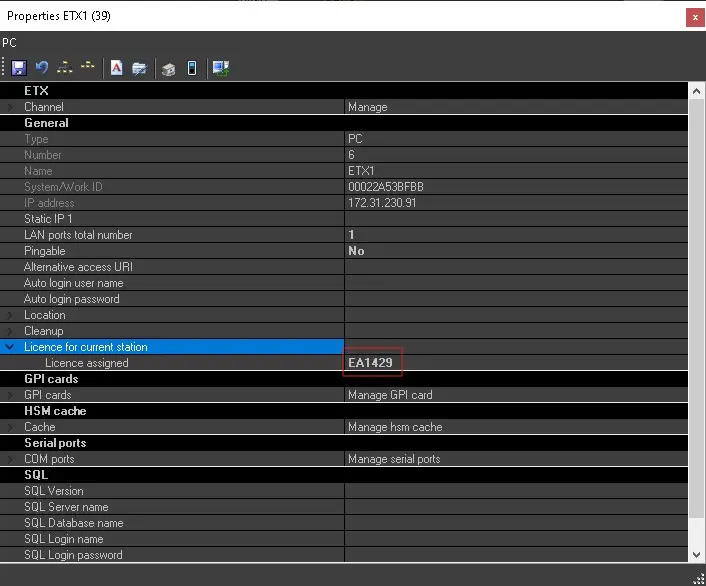
To use the ETERE NUNZIO PLAYOUT, it is mandatory to have the EA1429 licence enabled in the main licence. For further information regarding the licence, please contact our Marketing Department by sending an e-mail to marketing@etere.com.
If the licence is available, simply apply it on the workstation where you will install Nunzio Playout from RESOURCE EDITOR.
Nunzio_Licence
Configuration
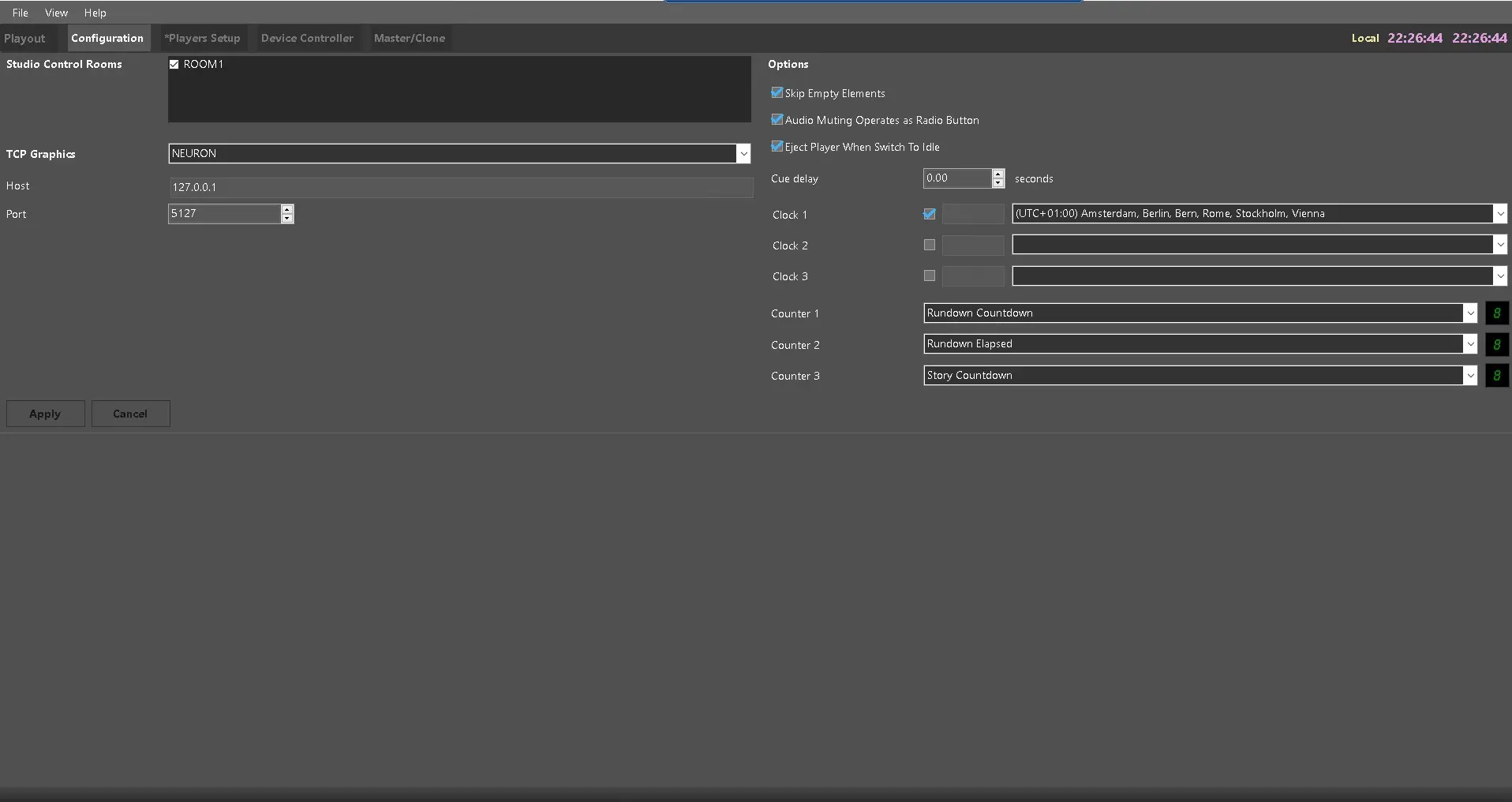
Once Nunzio Playout is launched, you can start to configure the Renderer in each player.
NunzioPlayer_Configuration
Skip Empty Elements: if enabled, it will be possible to ignore the elements without files or mos objects are skipped from playing.
Studio Control Rooms: If the rundown has been assigned to a specific Studio Control Room (defined in Etere Nunzio), select it here. If not selected the rundown will not be visible.
Metafile Filters: select a metafile filter to prioritize the file search on that set. Metafile filters can be set from Etere web > System > Metafile filters
Eject player when switch to idle: If enabled, when the player ends the play of a clip, it will be automatically unloaded. If disabled, the last frame of the clip will be still visible when the play ends.
Audio muting operates as radio button: If enabled, it will be possible to enable only one Audio preview button on the players at the time. If disabled, the audio preview can be enabled for more than one player at the same time (in this case, the audio will be mixed, if different players are active at the same time).
Clock 1, 2 and 3: Set additional clocks with personalized timezone to be visualized in the upper right corner of the window.
TCP Graphics: In case of integration between Nunzio and a 3rd-party graphic device, select here the device's brand and insert its IP address and communication port.
In order to apply the configuration, click on [Apply] button and restart Etere Nunzio Playout.
Playout
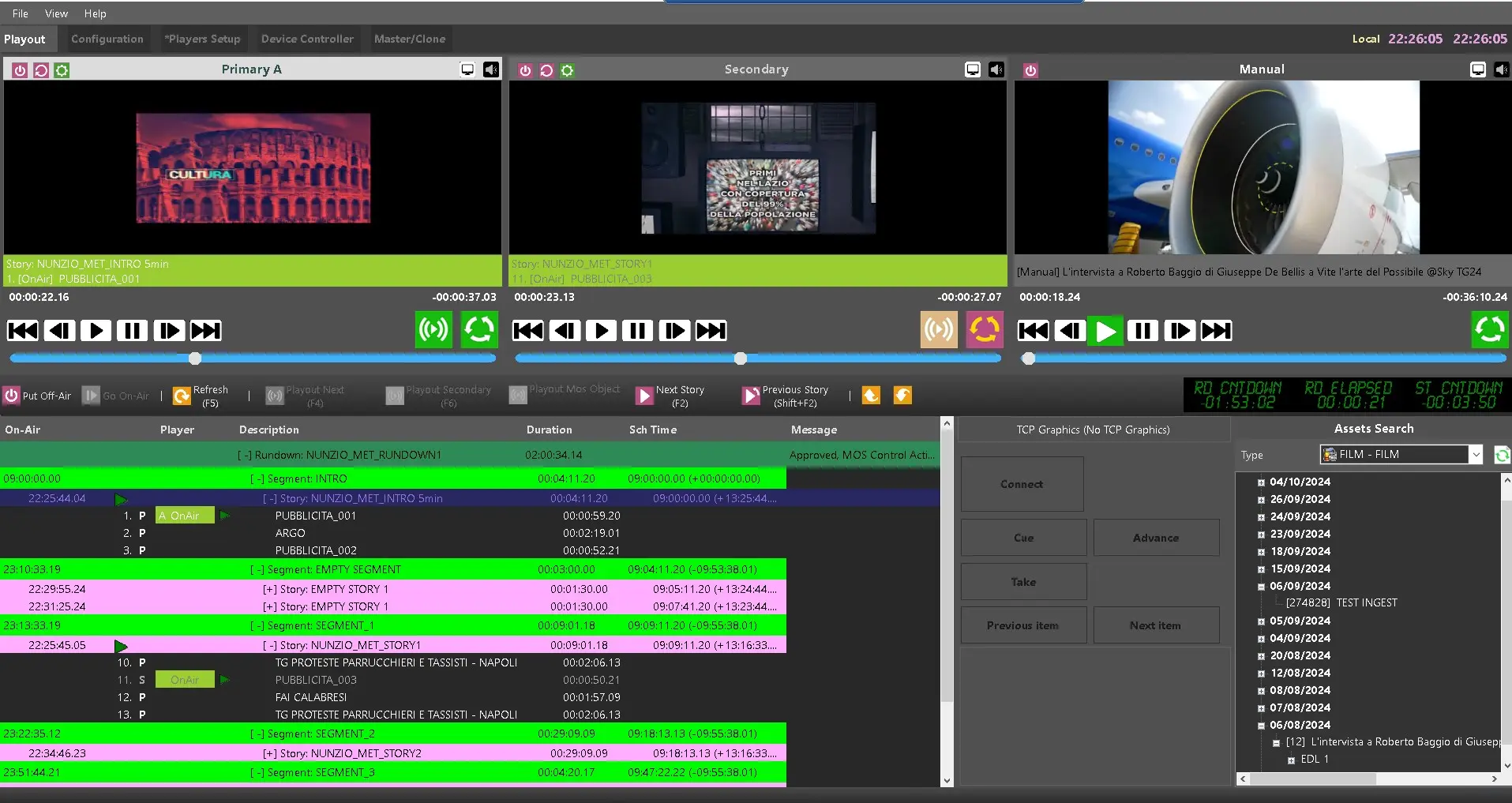
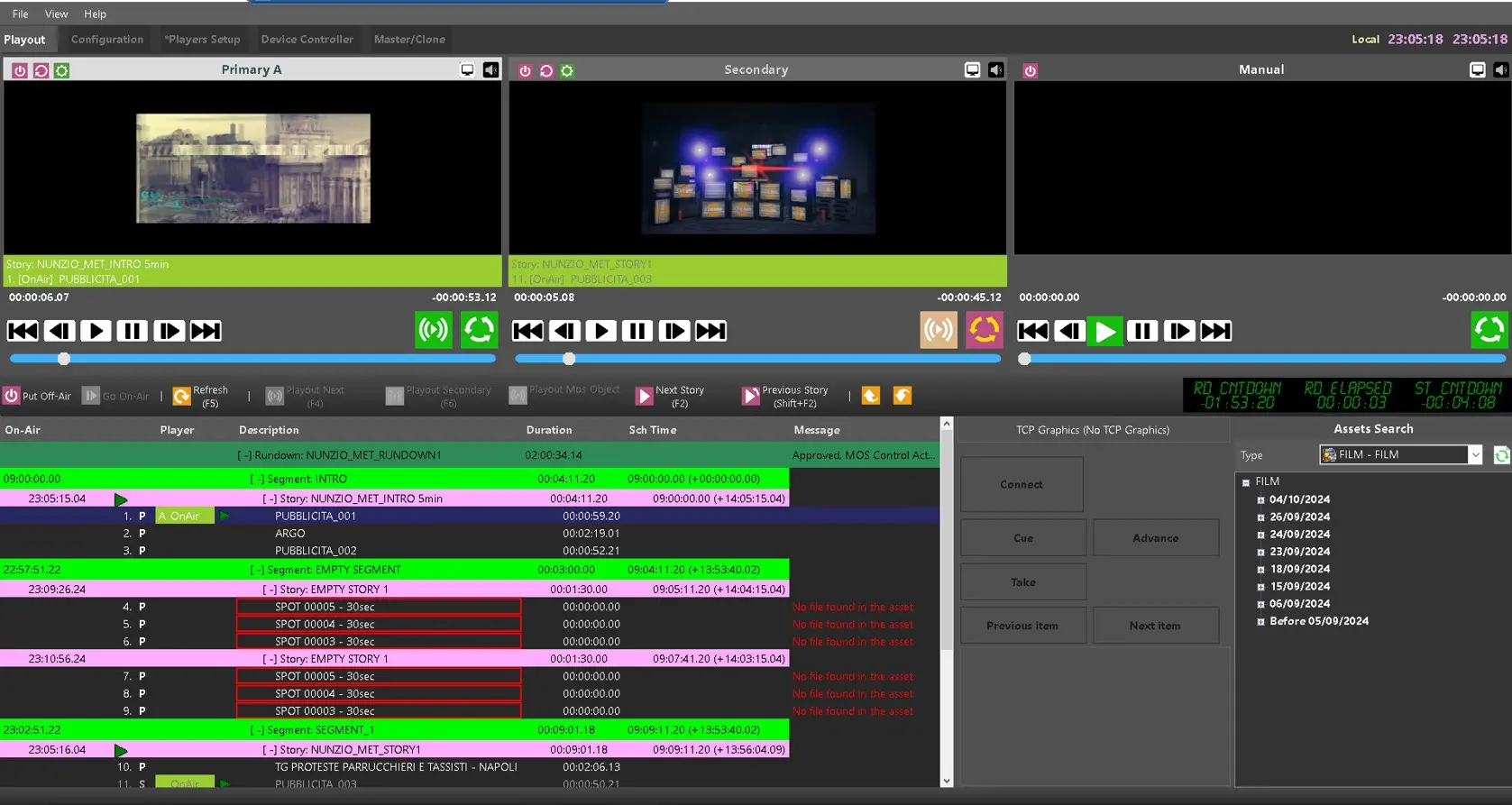
The Playout section loads the Nunzio Rundown that has been already approved from Etere Nunzio, with MOS Control Active function.
NunzioPlayer_Playout
When Nunzio Playout is launched, it loads the current rundown and loads players accordingly to the clip AsRun status in the rundown.
The players are loaded with the current clip (on-air) and followed by subsequent clips (next, cued), as indicated in the Player column above. Stories with no clip will skip the cue in favor to the next story with a clip.
When changes are made to the current rundown in Nunzio, Nunzio Playout will reload the rundown automatically upon reception of an UDP message. Similarly, an UDP message would be sent when an item’s AsRun status in rundown has been changed in Nunzio Playout.
Columns Description
• On-air: The scheduled on-air time and the AsRun status of each story.• Player: Clip loaded in players and its respective status of the loaded clip.
• Description: It displays the name of segment/story/clip in hierarchical order (expandable row).
• Duration: The duration of the loaded clip.
• Sch time: The scheduled time of each element of the rundown.
• Message: It displays any notable message, e.g. file not found, etc. On the rundown row, this column displays the same info shown on the rundown header in Etere Nunzio (e.g.: Approval, MOS Control Activation, Rundown date...)
Note: if the operator enters items without content in the history, these are now displayed with a red border around them and skipped by the player if the dedicated option has been activated.
Available Rundown Actions
• Put Off-Air: Unloads all the clips in the rundown from the players.
• Go On-Air: Loads the first clip of the selected story in the Player A and the subsequent ones on Player B and Player C.
• Refresh (F5): This action reloads the current rundown.
• Playout Next (F4): This action puts the clip marked as Next into on-air and plays the clip.
• Playout Secondary (F6): This action puts the clip marked as Next into on-air and play the clip on secondary player.
• Next Story (F2): This action puts the next story on-air and loads the first clip in the player, any player with an on-air clip would be assigned. The previous on-air clip would be marked as Done, and subsequently change to Cued status when the clip is replaced.
• Previous Story (Shift + F2): This action puts the previous story on-air and loads the first clip in the player, any player with an on-air clip would be assigned.
• Playout Graphics controller: Start manually the next MOS object, managed by Device Controller, in the rundown.
• Playout Camera controller: Start manually the next Camera Control, managed by Device Controller, in the rundown.
Asset Search
Available only if a manual player is configured, it allows to search for Assets grouped by Type and recording date, assets present on the list can be dragged and dropped into the manual player for it to load that asset.
Available Player Actions
• Unload: Unloads the clip from the player.
• Reload: Allows to stop and reload the already loaded clip from the beginning or to reload a previously unloaded clip.
• Full screen: Allows to display the video preview of the related player in full screen mode. To exit the full screen mode, click on any point of the screen.
• Audio preview ON/OFF: Allows to activate or deactivate the audio preview.
• Previous frame: Brings back the preview of 1 frame per click. This action can also be done using the [Left Arrow] key.
• Play/Pause: Starts or pauses the preview. To perform this action the user can also press respectively the [Enter] or [Spacebar] keys.
• Next frame: Takes forward the preview of 1 frame per click. This button can also be controlled with the [Right Arrow] key.
• Playout: This button sends on-air the loaded clip and automatically starts the preview.
• Loop On/Off: This button allows to enable or disable the looping of the previewed clip. When the loop is active, this button turns red.
Players Setup
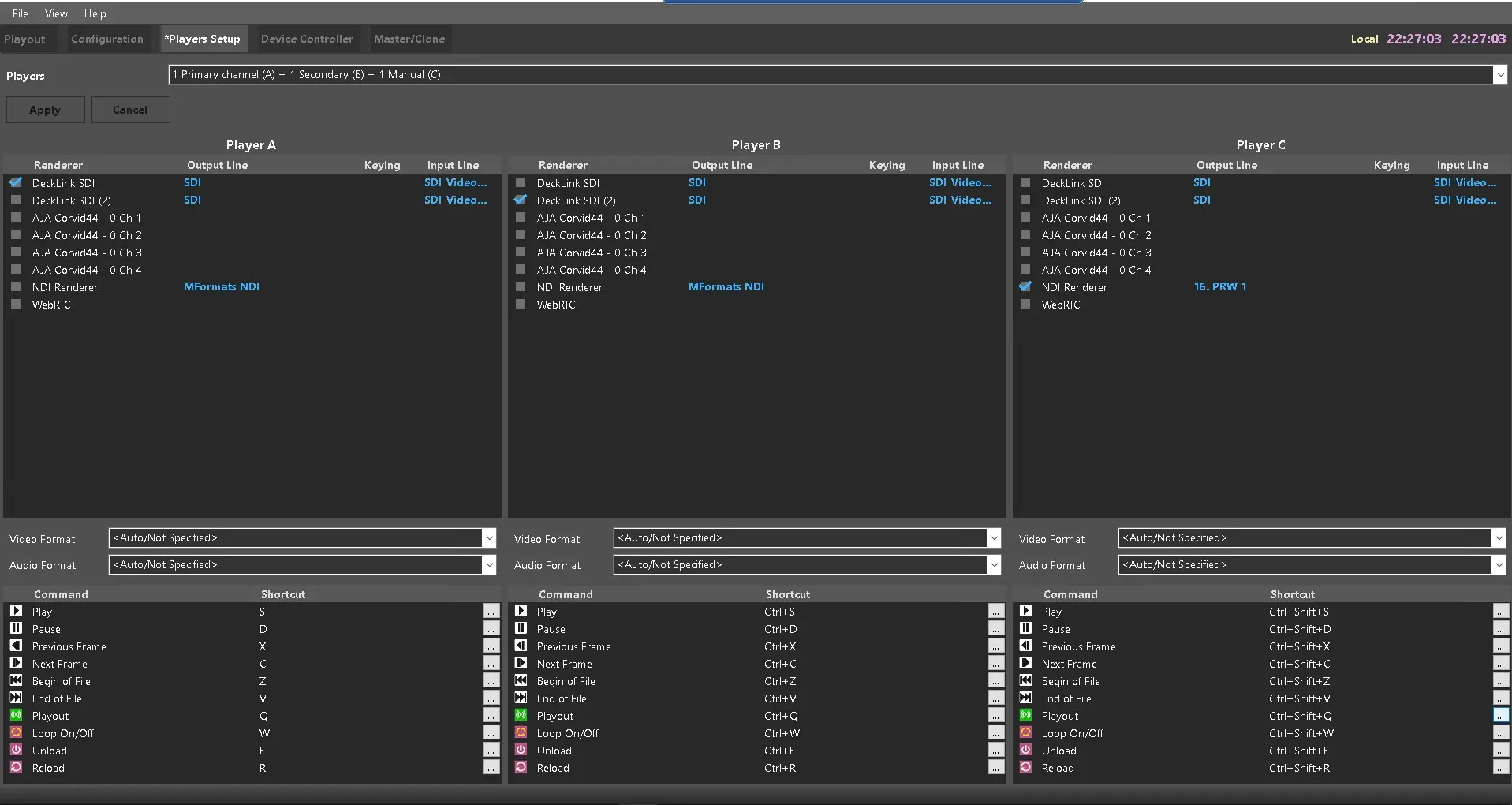
The Players Setup section allows to configure the players in the playout section.
NunzioPlayer_PlayersSetup
Players: Select the configuration of the players A, B and C. Possible configurations are:
- 3 Primary channels (ABC)
- 2 Primary channels (AB)
- 2 Primary channels (AB) + 1 Secondary (C)
- 2 Primary channels (AB) + 1 Manual (C)
- 1 Primary channel (A)
- 1 Primary channel (A) + 1 Secondary (B)
- 1 Primary channel (A) + 1 Manual (B)
- 1 Primary channel (A) + 1 Secondary (B) + 1 Manual (C)
PLAYER A-B-C: In the 3 panels at the middle, it's possible to define the available SDI devices, NDI Renderers and other software renderers in the machine by putting a tick on the related checkboxes.
When selecting NDI Renderer, specify the output channel defined in Etere IP Router resource.
Next, define the video format and audio format on each player.
Shortcuts: For each player, it's also possible to set a shortcut for each command. Select the space under the "Shortcut" column corresponding to the desired command, then press the preferred key to set the shortcut. Do the same and press Del to remove the shortcut.
In order to apply the configuration, click on [Apply] button or [Cancel] to ignore the latest changes.
Device Controller
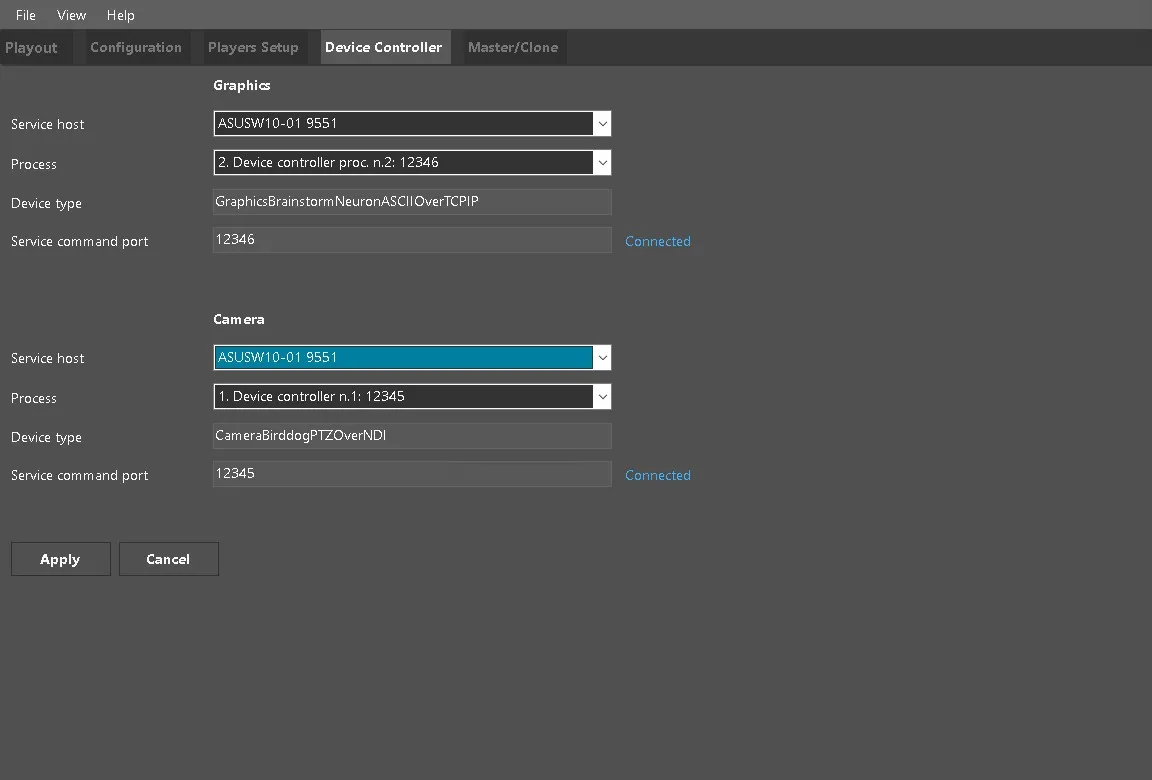
The Device Controller section allows the operator to configure the devices to be driven.
NunzioPlayer_DeviceController
• Service Host: In the drop-down menu you can choose which service host is available.
• Process: The drop-down menu will show the processes available for the host selected above.
• Device Type: Once the first two parameters have been selected, this will be auto-compiled according to the above settings.
• Service Command Port: Will be auto-filled according to what was configured in the previous sections. The connected button will be used to connect to the newly configured device.
See chapter 79.7.5.0 Device Controller functionality for more information.
In order to apply the configuration, click on [Apply] button or [Cancel] to ignore the latest changes.
Master/Clone Mode
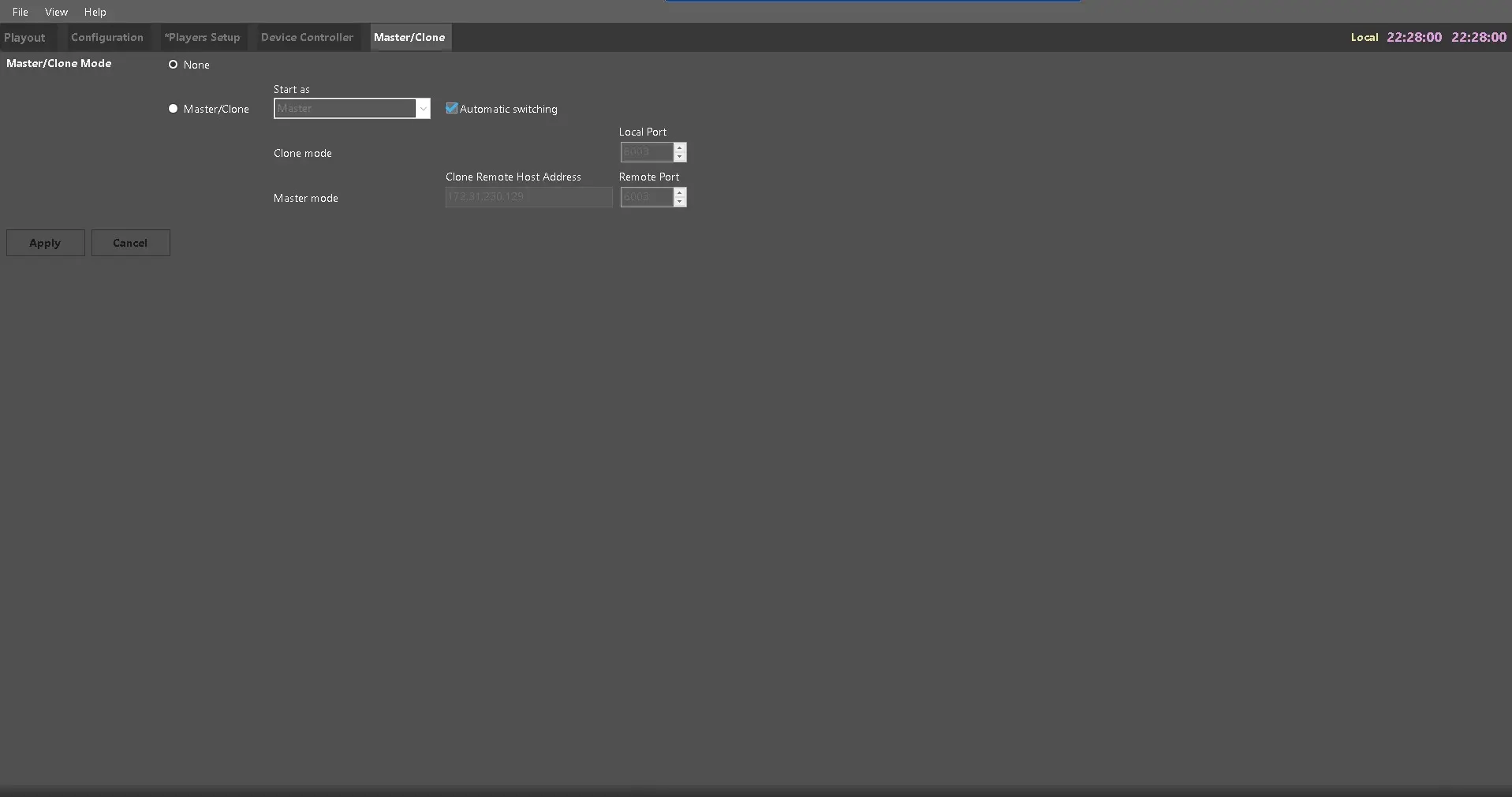
The Master/Control Mode section allows the users to configure Nunzio Playout in main and clone mode, to have two redundant players and avoid any possible ONAIR problems.
NunzioPlayer_MasterCloneMode
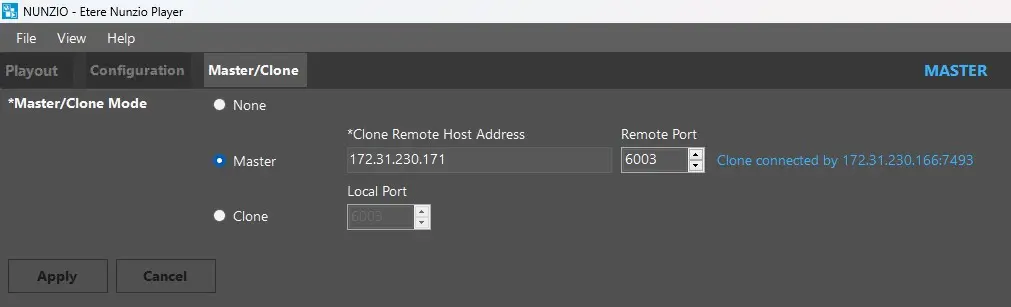
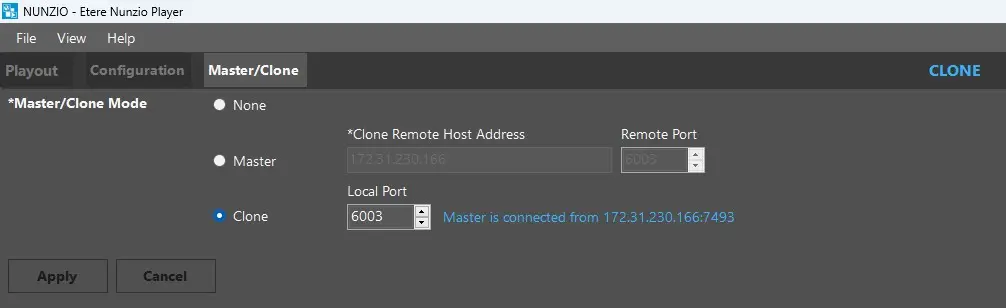
Install one Etere Nunzio Playout on a machine, and another Etere Nunzio Playout on another machine, starting them on same Station.
Set one of them as Master, specifying the address of the Clone.
Set the other one as Clone, specifying the port where it will receive connection by the Master.
Nunzio_master_player
Nunzio_clone_player
Parameters
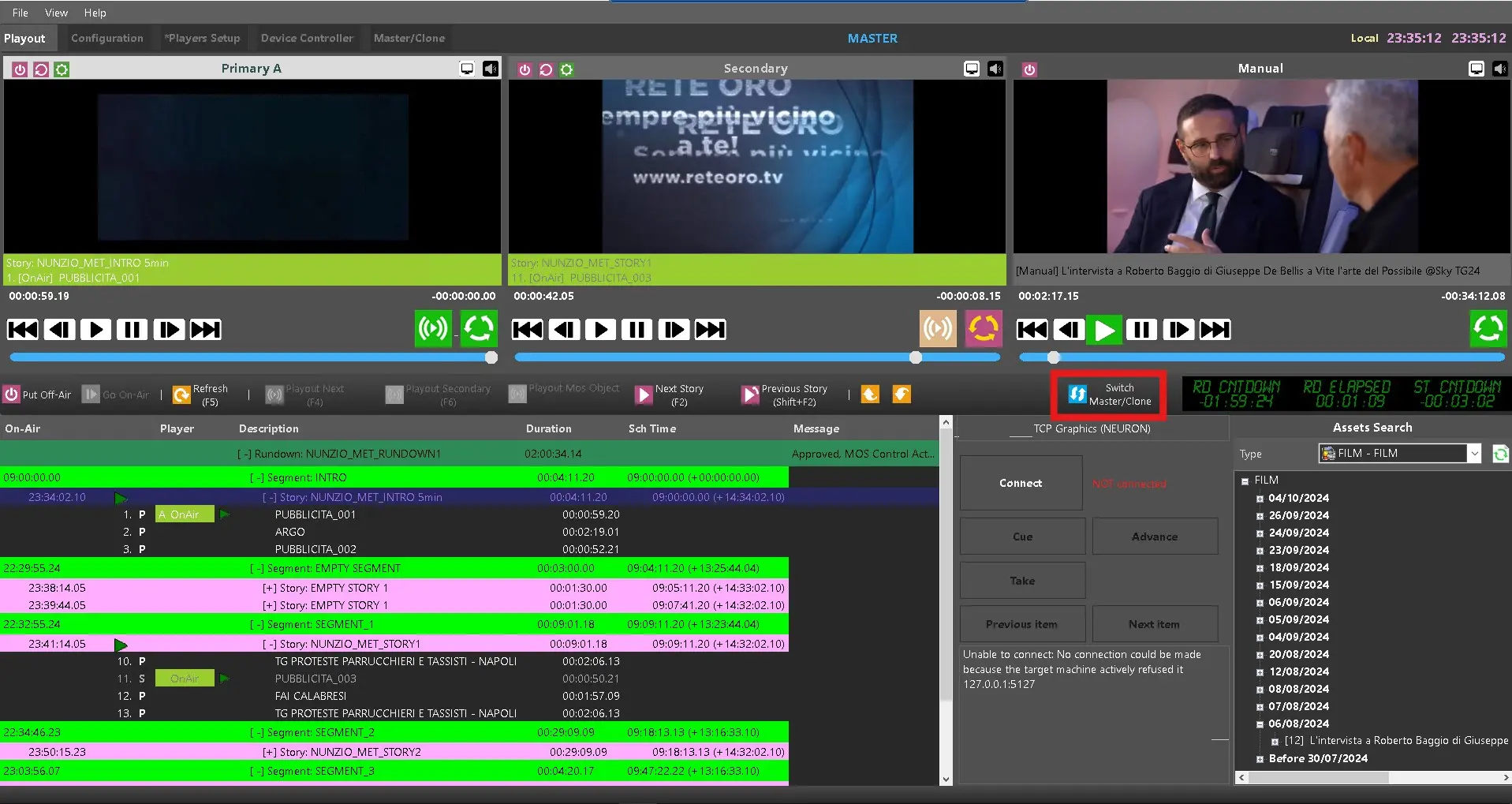
• Master/clone mode: If set to None, Nunzio Playout will run as the main airing module. If set to Master/Clone, the following parameters will be enabled, allowing to set a clone (or master) Nunzio Playout to connect to. Additionally, on Playout section, the button [Switch Master/Clone] will become visible.
• Start as: Select if the current Nunzio Playout instance should start as Master or Clone.
• Automatic switching: In case Nunzio Playout clone gets disconnected from master, it switches automatically to master role, enabling the buttons to control the rundown in order to be fully functional for airing. If a manual switch is needed, simply click the button [Switch Master/Clone] on Playout section.
Nunzio_Switch_MainToClone
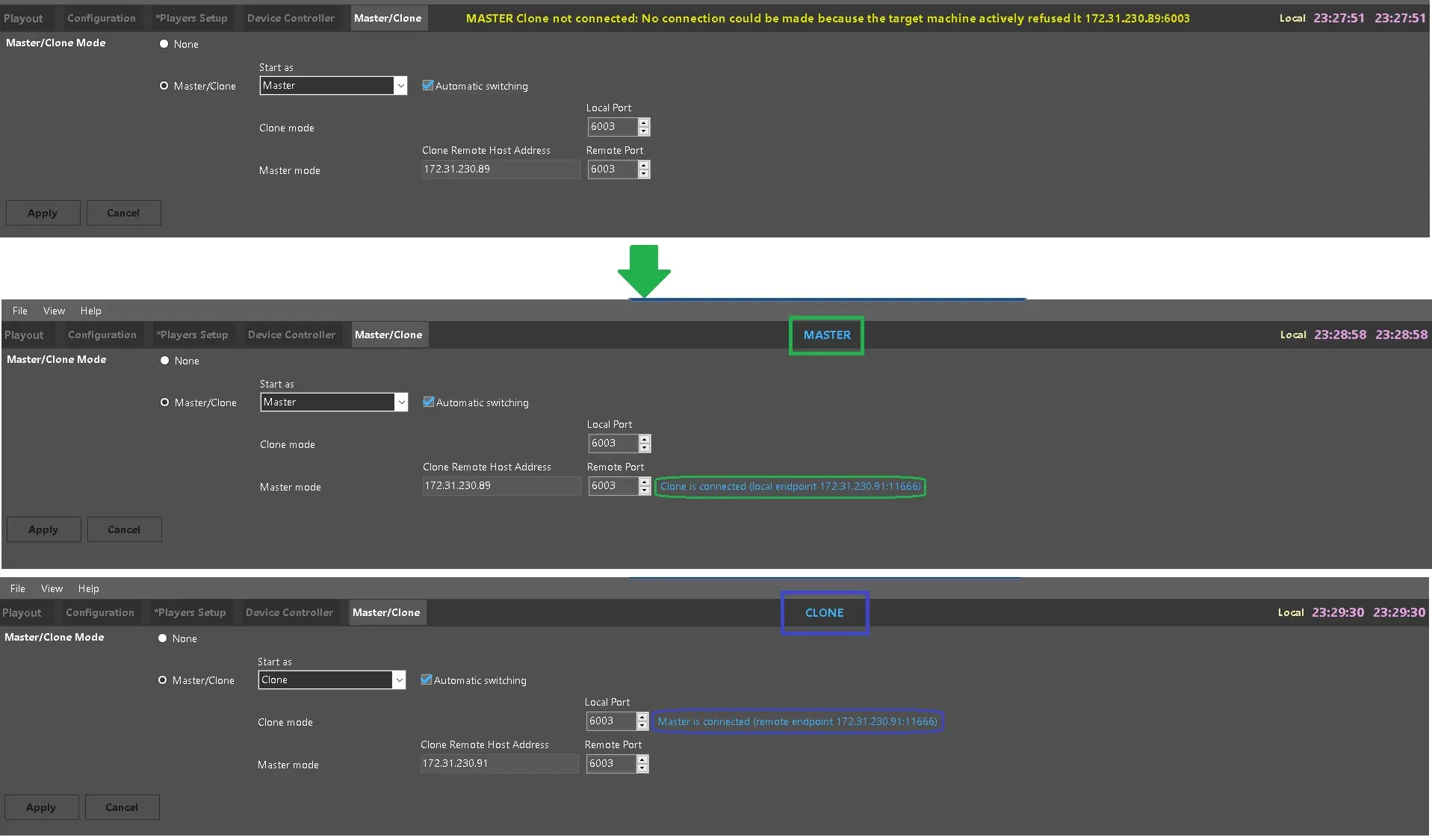
When it starts as Master, but it detects a Master already running on Remote Host (parameter "Clone remote host address"), then it switches to Clone;
When it is running as Clone and does not find a Master on Remote Host, then it switches to Master.
• Clone mode: When it is in Clone mode, this is the Local Port used to receive commands from Master (connection is from Master side).
• Master mode: When it is in Master mode, this is the Remote Host Address and Port where to find and connect to the Clone.
Notes:
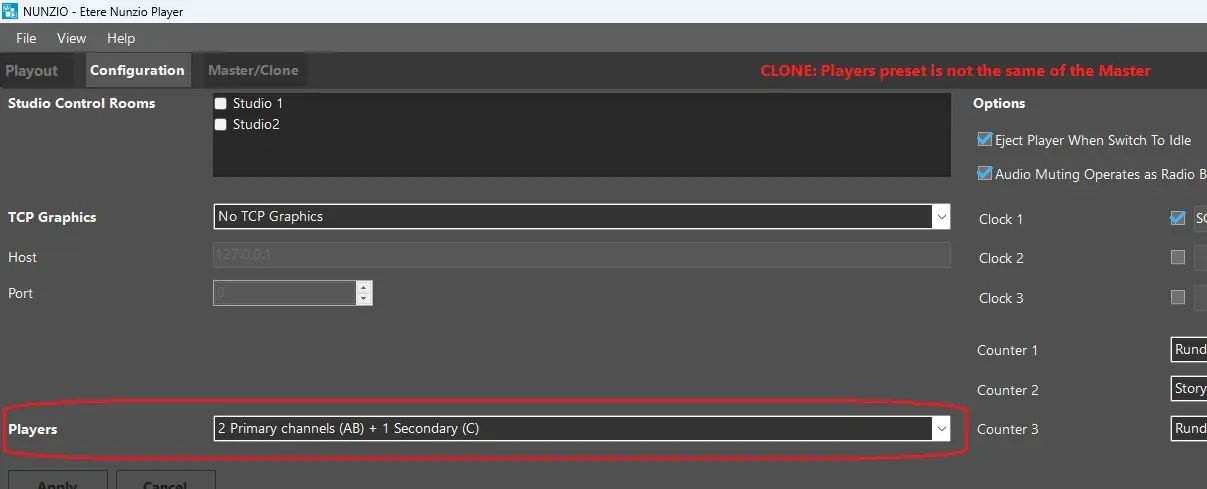
- The players configurations (ABC) must be the same on both Master and Clone, otherwise the Clone will not work, showing the error message “Players preset is not the same of the Master”.
nunzio_players
- If players have NDI outputs (NDI Renderer), the NDI signal will have the property ‘ndi_backup’ set as the corresponding NDI name of the other Nunzio Playout.
In order to apply the configuration, click on [Apply] button or [Cancel] to ignore the latest changes.
How To use it
Once the Nunzio Playout Master and Clone have been configured, the system will contact the 2 players and make a connection, signalling this visually.
 NunzioPlayer_Playout
 Nunzio_Licence
 NunzioPlayer_DeviceController
 NunzioPlayer_Configuration
 Nunzio_Playout_NoFileFoundInTheAsset
 NunzioPlayer_PlayersSetup
 NunzioPlayer_MasterCloneMode
 master_nunzio_player
 clone_nunzio_player
 nunzio_players
 Nunzio_MAIN_CLONE
 Nunzio_Switch_MainToClone