77.2.3 Preview and Recording Section
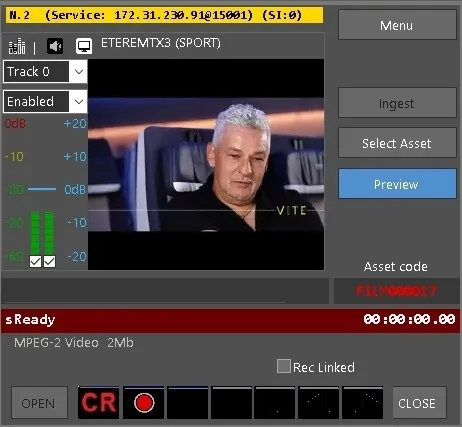
Once the asset has been selected and sets the input device, you can open the Preview channel and start recording.
Preview
You can monitor the ingest channel status while recording:
•sReady: Displayed in brick red, it indicates the ingest channel is OPEN and ready for recording.
•sFree: Displayed in green, it indicates the channel is available, but it's not OPEN.
•INACTIVE: Displayed in gray, it indicates that the channels/Services are unavailable. When the service is INACTIVE, it is impossible to create any asset, and the [OPEN] and [CLOSE] would not be displayed.
❑ Rec Linked: This check box would be enabled when the recording is ready to start. You can enable this check box to allow the recording of multiple ingests to begin simultaneously at the same time by clicking on the REC button.
The Rec Linked function would check to ensure all ingest operations are in Cued before triggering the collective recording. The checking would last from 3 seconds to a maximum of 10 seconds.
Once the [OPEN] button is pressed, the button would be disabled to prevent interrupting the operation. The [OPEN] service will check the channel responding status; if the channel is established, it will change to sReady; if it fails to establish, the status will change to sFree. The channel mentioned above check service would be applied to individual ingests in multiple rather than all selected ingests.
To start a recording, it is possible to first press the CR button (Cue Rec) in order to ask the service to prepare the REC, and then trigger the actual recording pressing the REC button (red circle). Otherwise it is possible to leave the service CUE/REC by itself just pressing only the REC button
To stop the multiple ingests, click on any Stop button in any ingest session to stop all ingest, and only one confirmation message would popup to confirm the Stop action. When recording stops, the presence of the recording file is checked before it is linked to the asset.
When the Rec button is clicked without setting the duration, the default maximum duration is 5 hours.
When all ingest is completed, the timecode of all would be synchronized with a maximum discrepancy of one frame.
NB: Once the REC button is activated, if the recording counter remains static after 5 seconds, the ingest operation would be aborted with an error message written in the log file.
The ingest operation can be terminated by pressing the [CLOSE] button.
When the recording is completed, you can preview the asset directly, relying on Etere Multichannel Ingest UI controls, and perform modification (cutting) on the asset.
Multichannel Ingest
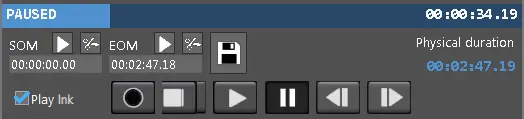
The function of UI control includes:
Function: Move device to SOM
Description: Position the playout at the SOM of the file.
Function: Read the device position for SOM
Description: Pause the SOM counter to read the current timecode position in SOM. The pause will release within seconds.
Function: Move device to EOM
Description: Position the playout at the EOM of the file.
Function: Read the device position for EOM
Description: Pause the EOM counter to read the current timecode position in EOM. The pause would be released within seconds.
Function: Save in the asset's EDL
Description: Save the current playout into the asset's EDL.
Function: (File saved)
Description: The Save function has been completed.
Function: Play linked
Description: When more chips are recorded or loaded into preview, enabling the Play link option to link and play all chips simultaneously.
Transaction records in Media Library
When ingest is processed with the Start and Stop phase with the Rec Linked function, the transactions would be inserted in the Operations tab of the Asset in Media Library, where
•The Source column indicates the source file
•The Destination column indicates the file name of the completed file.
•In the Notes column indicates the file duration and any dropped frames or skipped frames that occurred during ingest.
Summary of New Asset Creation and Recording
From Etere version EtereInstall_31.2.466.4590.zip or later, the creation and recording of new assets have been simplified into the following steps:
•Create a new asset; the Code and Description of the asset will be automatically entered.
•When you click [Create], the preview will be launched with the last asset recorded.
•Verify or change the video input and click the [Open] button.
•Click the [Rec] button to start recording. It is possible to change the asset Code, Title, and Type during recording.
•Upon recording, click on the [Confirm] button to accept the recording registration or click the [Cancel] button to cancel the registration and delete the asset.
NB: When the ingest channel toggles between "sFree - INACTIVE - sFree" status, you can set a Windows Registry key to overcome the situation.
In [HKEY_LOCAL_MACHI am running a few minutes late; my previous meeting is over.NE \ SYSTEM \ CurrentControlSet \ Services \ Tcpip \ Parameters], create a DWORD type key value "MaxUserPort" and set the decimal value as "32768".
After which, close Windows Registry and restart the service for the changes to take effect.
 Multichannel_Ingest_2
 Preview
 Function_in_UI_control