97.13 Etere Ingest Services - Debug Tool
Here is a clear and professional manual in English based on the information you provided.
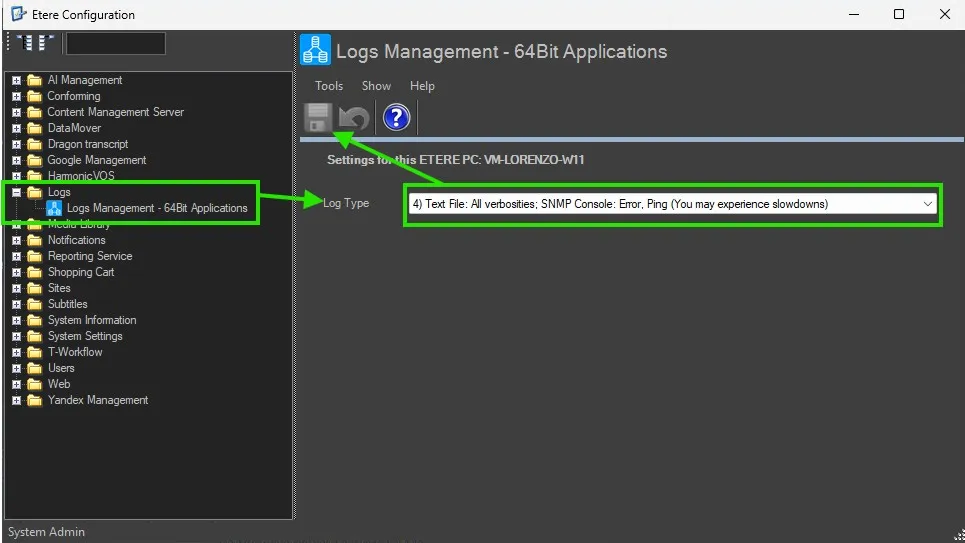
📘 Manual: Enabling Logs for 64-bit Applications in ETERE
1. Introduction
This guide explains how to configure and enable logging for 64-bit applications within the ETERE environment.
Logging is essential for:
- Monitoring system activity
- Troubleshooting errors
- Tracking application behavior
2. Accessing Log Settings
To configure logging:
- Open the ETERE configuration panel
Navigate to the section:
Logs Management (64-bit application)- Locate the Log Type setting
3. Log Type Configuration
From the Log Type drop-down menu, select the desired logging level.
🔹 Log Type 0 (Recommended)
- Logs to SQL database
- Includes:
- Process errors
- Journal information (program Start / End)
- SNMP errors
- Ping commands
- Process errors
✔ Recommended for production environments
🔹 Log Type 1
- Logs to SQL database
- Includes:
- Everything in Log Type 0
- Warning messages
- Everything in Log Type 0
✔ Suitable when additional visibility is needed without excessive verbosity
🔹 Log Type 2
- Logs to SQL database
- Includes:
- All verbosity levels (Log Type 0 + 1 + additional details)
- All verbosity levels (Log Type 0 + 1 + additional details)
⚠ Warning:
- May cause system performance degradation
✔ Use only for advanced troubleshooting
🔹 Log Type 3
- Logs all verbosity levels into a text file instead of SQL database
⚠ Warning:
- May significantly slow down the system
✔ Recommended only for:
- Debug sessions
- Temporary diagnostics
4. Applying the Configuration
After selecting the desired Log Type:
- Save the configuration
- Restart the affected 64-bit application or related ETERE service
5. Best Practices
- Use Log Type 0 in normal operations
- Use Log Type 1 for extended monitoring
- Enable Log Type 2 or 3 only temporarily
- Always monitor system performance when using high verbosity logs
- Regularly clean or archive logs (especially when using text file logging)
6. Troubleshooting
If logs are not generated:
- Verify SQL database connectivity (for Log Type 0–2)
- Check file system permissions (for Log Type 3)
- Ensure logging is properly saved and applied
- Restart the application after changes
7. Notes
- High verbosity logging can impact system performance
- Logging to database vs file depends on operational needs
- Always revert to a lower log level after troubleshooting
If you want, I can extend this manual with screenshots, step-by-step UI navigation, or adapt it to a specific ETERE version.
Important Note:
In the event of an issue, the client must always save and provide the relevant logs from both the server and client systems to the ETERE support team. It is essential to include accurate time references and as much detailed information as possible (like asset ID and operation performed by the operator) to facilitate effective analysis and identification of the root cause of the problem.
Specifically, the operator must manually collect the log files from both servers by compressing (zipping) the following directory on each system:
C:\Users\user.domain\AppData\Local\Etere\Log
Both the server logs and the client logs must be included and sent to support for analysis.
 Enable_Ingest_Serivce_logs