1.3.4.9 VM Mirroring
Microsoft Hyper-V virtual machine mirroring was first released on Windows Server 2008 and is available now on Windows Server 2012/2012 R2 and Microsoft Server 2016. Microsoft Hyper-V was formally known as Windows Server Virtualization; it is a native hypervisor that can create virtual machines on x86-64 systems running on Windows platforms. A Windows Server running Hyper-V can be configured to expose individual virtual machines to one or more networks.
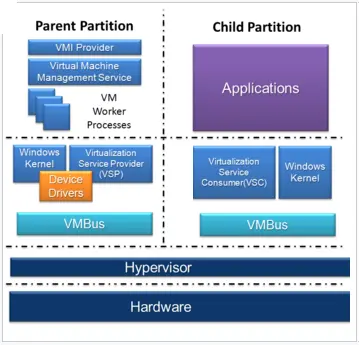
Hyper-V implements the isolation of virtual machines in terms of a partition. A section must have at least one parent partition in a hypervisor instance. The virtualisation software runs in the parent partition and directly accesses hardware devices. A parent partition can create child partitions using the hyper call API.
A child partition does not have access to the physical processor. Instead, it has a virtual view of the processor and runs in a virtual address space created during the VM configuration. Similarly, the child partition also does not have access to hardware resources. Instead, it has a virtual view of resources known as "virtual devices". Any virtual device request is redirected via the VMBus to the devices in the parent partition. A VMBus is a logical channel in the parent partition that enables communication between partitions.
Memory requirement
•Windows Server 2008 supports up to 31 GB of memory running VMs, and 1 GB for the host system.
•Windows Server 2008 R2 supports up to 32 GB. Enterprise and Datacenter Edition supports up to 2 TB. Hyper-V Server 2008 R2 supports up to 1 TB.
•Windows Server 2012 supports up to 4 TB.
Supported CPU
•Windows Server 2008, 2008 R2, Hyper-V Server 2008 R2 supports 1, 2 and 4 CPUs per VM.
•Windows Server 2012 supports up to 64 CPUs per VM.
Concurrent activities
•Windows Server 2008, 2008 R2, and Hyper-V Server 2008 support up to 384 per server.
•Windows Server 2012 and Hyper-V Server 2012 support 1024 per server.
•Windows Server 2016 supports 8000 per cluster and node.
Mirroring Considerations
1. The failover members' virtual hosts must reside on different physical hosts.
2. The storage used by the failover members must be isolated in separate data stores on different disk groups to avoid a single point of storage failure.
3. The quality of service (QoS) timeout setting must be higher for certain operations performed on the virtualisation platform level, e.g. backup, migration, etc.
4. During planned maintenance, stop the connectivity from failover members to avoid unwanted failover during the interruption.
VM Replica
VM (Virtual Machine) Replica enables you to create a system backup version of the virtual machine to restore critical data in case of disaster or system failure. It is a reliable and high-availability recovery method to reduce system downtime during disaster recovery.
Minimum System Requirements
•Windows Server 2012 / 2016 (primary server)
•Hyper-V Server 2012 / 2016 (replica server)
Enable Replication on Replica Server
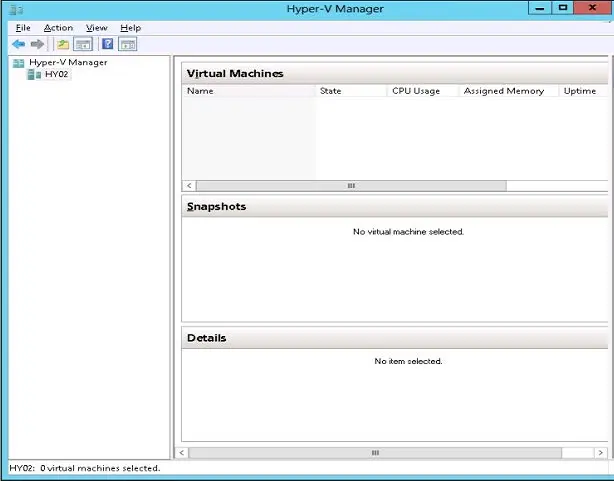
1. In Server Manager, click Tools and launch Hyper-V Manager.
2. In the Action panel, click on Connect to Server on the right panel and enter the Server Name or select the Server Name from the list if it's available.
3. On the connected server name under Hyper-V Manager, right-click on Server Name and select Hyper-V Settings.
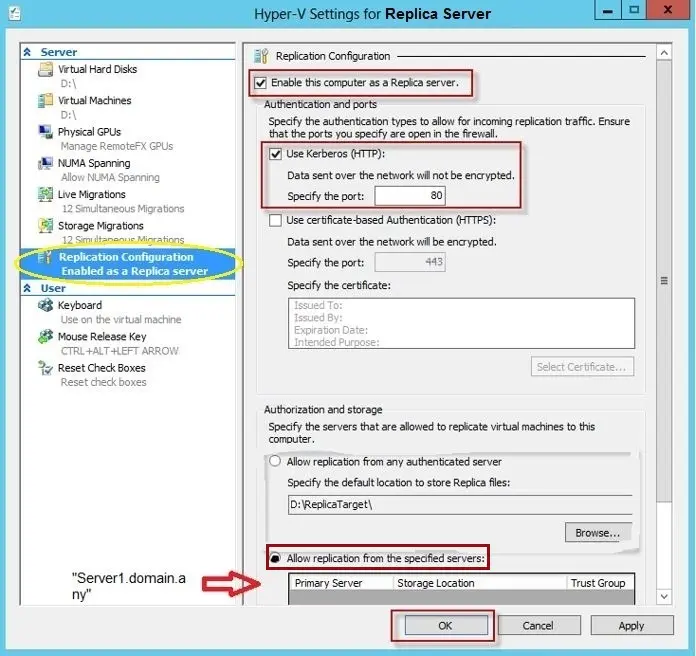
4. Configure the following settings:
•Click on Replication Configuration > Enable as a Replica server on the left panel.
•Enable the option "Enable this computer as a Replica server".
•Enable the option "Use Kerberos (HTTP):" and enter "80" as the port number.
•Enable the option "Allow replication from the specified servers:" and add the Primary Server name, including the Domain name and Trust Group.
•Enter the storage location where the replicas would be stored.
5. Click <OK> to confirm the settings and exit from Hyper-V Manager.
Initial VM Replication in Primary Server
Before using VM Replica, you must transfer the data in virtual hard disks (VHDS) to the Replica Server.
1. In Server Manager, click Tools and launch Hyper-V Manager.
2. In Hyper-V Manager, select the virtual machine you wish to replicate, right-click and select "Enable Replication".
3.Click <Next> to continue.
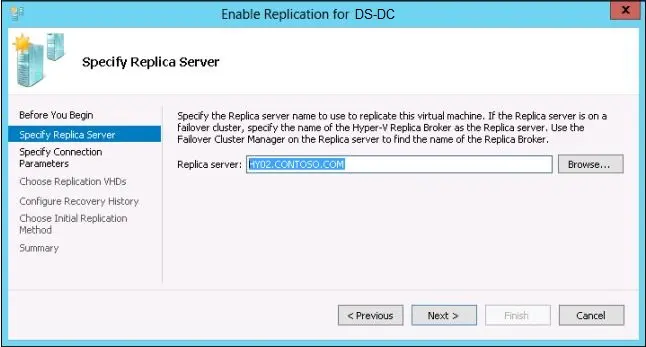
4. Enter the name of the Replica Server, or click the browse button to locate the Replica Server in the network.
5. Click <Next> to connect to the Replica Server.
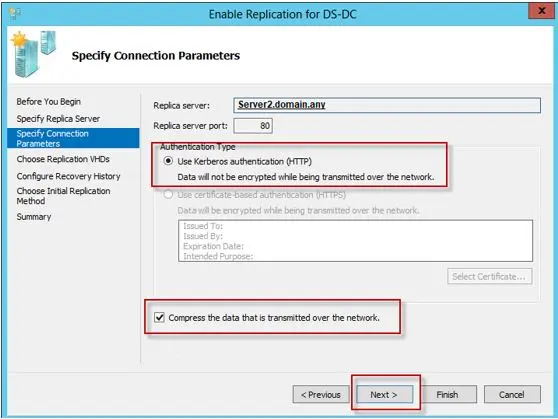
6. The Replica Server name and port number have been specified, along with the "Use Kerberos authentication (HTTP)" option enabled; make sure that the "Compress the data that is transmitted over the network" option is turned on.
7.Click <Next> to continue.
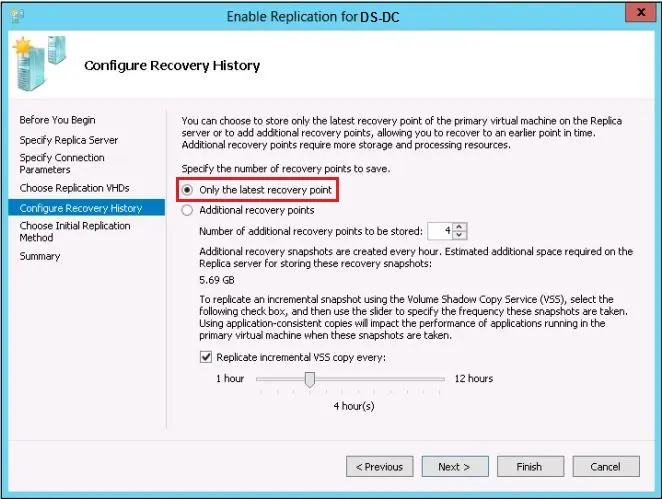
8. select the "Only the latest recovery point" option in the Configure Recovery History. It is recommended that the recovery point be archived with 30 seconds of frequency.
9.Click <Next> to continue.
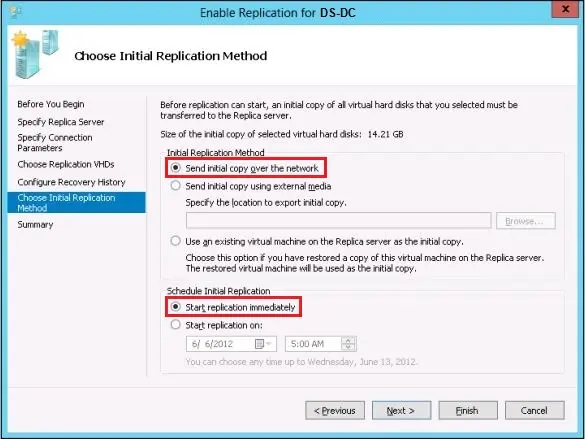
10. In Choose Initial Replication Method, enable the option "Send initial copy over the network" and "Start replication immediately" to initiate the replication process.
11. Click <Finish> to complete the replication settings.
Hyper-V Replica Operations
Hyper-V Replica is designed to manage Planned schedule events and Unplanned disaster recovery failover situations. In general, there are three failover options available:
•Planned Failover to Replica Server
A planned failover operation would enable you to failover the production virtual machine to a Replica Server in a predetermined and orderly manner. It is recommended to carry out the planned failover operation to Replica Server on off-peak hours or non-business days to cater for unforeseen circumstances.
During the Planned failover operation, you can fine-tune the failover checklist to rectify the areas for improvement and consider the time management to complete an entire recovery cycle. All key members from various departments must be involved in the planned failover exercise and familiar with the overall operation workflow and their respective areas of responsibility.
You must also consider a "reverse replication", where replication is initialled from Replica Server to Primary Server when the Primary Server has resumed its operational capability.
It is recommended to conduct the planned failover exercise on a timely basis in a calendar year, e.g. quarterly, half-yearly, or yearly.
•Test Failover to Replica Server
Besides the full-cycle failover to Replica Server, you must also plan for a partial failover of a selective virtual machine from the Primary Server to the Replica Server during business hours without interrupting the ongoing replication. During the test, you can rectify the configuration settings and readiness of the virtual machine before a planned failover takes place.
The partial failover test can be conducted quickly at any time.
•Unplanned Failover to Replica Server
When the Replica Server is appropriately configured (e.g. with the option "Enable this computer as a Replica Server", "Send initial copy over the network", "Start replication immediately" enabled, etc.), if the Primary Server fails, you can bring up the virtual machine in Replica Server and start to recover from the Replica Server.
 microsoft_hyper-v_diagram
 hyper-v_manager
 replica_server_configuration
 replica_server_selection
 replica_server_connection
 replica_server_recovery_point
 replica_server_initial_method