66.3 ETX-G Parameters
The ETX-G Parameters icon allows you to configure the parameters of the character generator item.
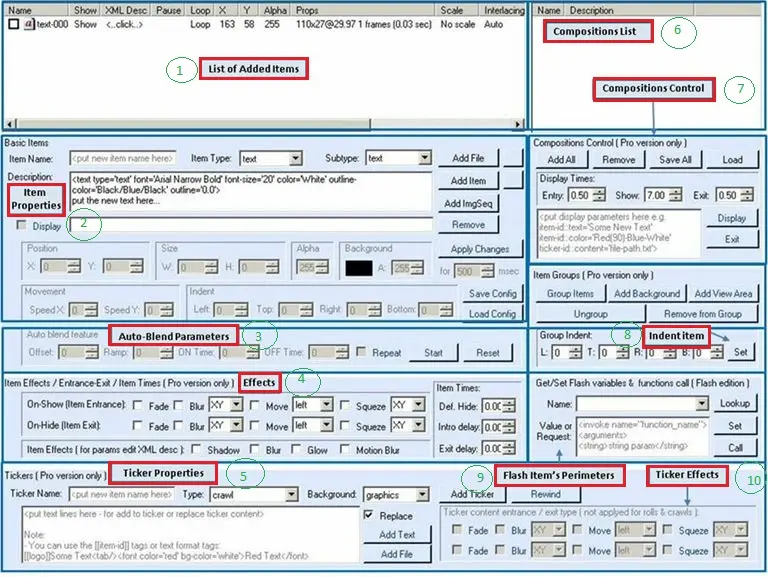
Features are specified in the diagram below:
Etx-g_parameters
- List of Added Items
This section displayed the items currently loaded into the ETX-G. Information in this table contains the status of the items (show, pause, loop), their position and alignment. You can change the scale type, alignment, screen anchor, and interlacing type by clicking on the appropriate column. You could also configure the properties by double-clicking on the item name; for the text item, it opens the settings for content and font; for the ticker, it opens its settings for background.
- Item Properties
In this section, you can add an item (file or image) and modify the added item:
- Change the position and size
- Change its background colour
- Move the item horizontally (Movement X) or vertically (Movement Y)
- Specify the indent item, its indent group and item rate
- Save the configured parameters or load previously saved parameters
Upon completion, click the <Apply Changes> button to take effect.
- Auto-Blend Parameters
This section allows for stitching or combining images in the composite image. Enter the auto-blend parameters (in milliseconds) to set the auto-blend properties for the selected item and click on <Start> to apply settings. To reset the settings, click on the <Reset> button.
- Effects
This section contains all the effects you could apply to the items using the “Item Effects” row.
The “On-Show” and “On-Hide” rows contain the effects for items in composition.
- Ticker Properties
This section provides two option buttons, “Add Ticker Text” and “Add Ticker File,” enabled to add a text ticker or ticker file to ETX-G and specify whether to add a new ticker or replace the old ticker with a specific type. You could also set the background for the ticker.
- Compositions List
Items added to compositions are displayed in the area.
- Composition Control
The function keys in this section manage the composition list. To display a composition, simply set the requirement in the “Display Times” field (in milliseconds) and click the <Display> button. To hide the composition, select the composition and click on the <Exit> button.
To add the item to the composition, select the item from the list, specify its target composition and click the <Add All> button to add to the composition. To remove from the composition list, select the item and click the <Remove> button.
Click the <Save All> button to save the composition upon completion. Existing composition could be loaded using the <Load> button to open the dialogue.
- Indent Item
Specify the indent item, its indent group and item rate (speed field).
- Flash Item’s Parameters
This section sets the flash variables and functions for the selected item. Use the <Lookup> button to retrieve a list of variables and functions, enter the variable name and set the new value in the “Value or Request” parameter. Use the <Set> button to set the new value or the <Call> button to call the function.
- 10. Ticker Effects
This section lets you apply the effects to the ticker added in point #5.
 Etx-g_parameters