99.1.1 Etere TimeDelay Service
The Etere Censor EX Time Delay service is responsible for acquiring the incoming live signal and continuously generating the media files that compose the time delay buffer.
The service records the selected input source into sequential media files, which are stored in a configurable recording folder. Each file is timestamped using the UTC date and time, allowing the other CENSOR EX components to accurately identify and process the recorded content.
Multiple Time Delay service instances can be installed on the same workstation, with each instance operating independently and supporting its own configuration.
Installation
The Time Delay service is installed through the Etere Update module.
During installation:
• Select the Time Delay Service feature.
• Specify the number of service instances to install.
• Configure the Windows Log On account if required.
• No startup arguments are required.
Each installed instance is registered as an independent Windows service.
Licensing
Each Time Delay service instance requires its own EA1236 license.
For example, if three Time Delay services are installed on the same workstation, the corresponding Etere Resource must contain three EA1236 licenses.
Note → The license is validated when the service starts, not during installation or configuration.
Configuration
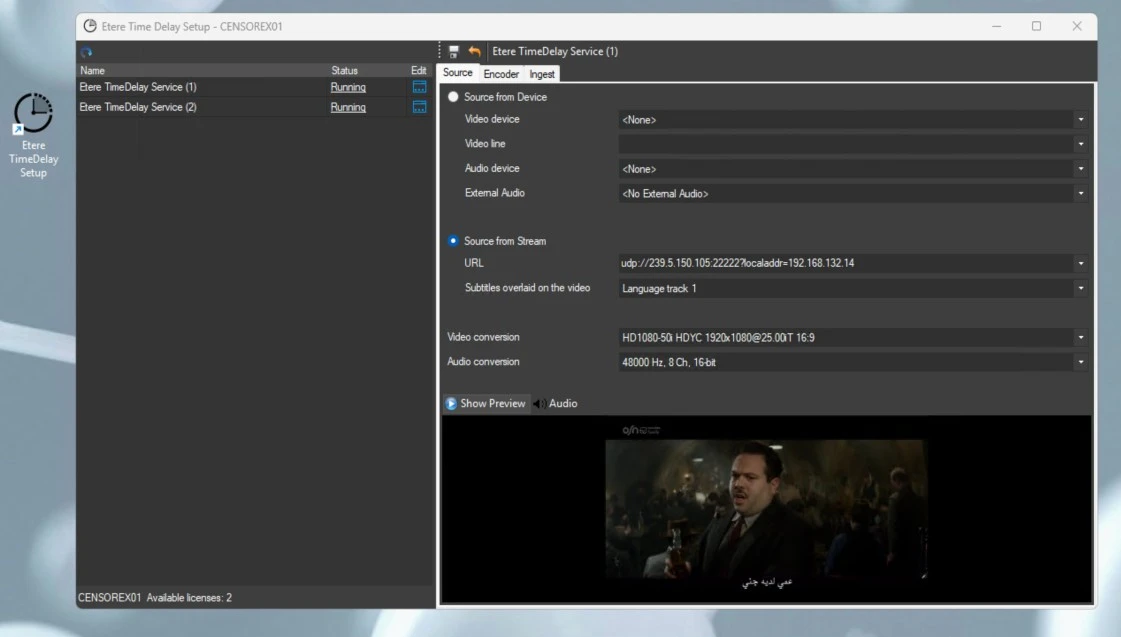
The Time Delay Setup application is used to configure all installed service instances.
The left panel displays the list of available Time Delay services together with their current status and the available Start and Stop commands.
Selecting Edit on a service instance opens its configuration.
The licenses available for the current workstation are listed in the lower-left corner.
Source
Configure the input source to be recorded by the selected Time Delay instance. Supported input types include: SDI, NDI, UDP, RTSP, RTMP and HTTP. The Subtitles can be enabled if present on source. The Bandwidth Low or High can be enabled to limit the traffic on NIC.
The setup utility also provides optional video and audio preview windows.
Note → Preview should not be enabled while the service is actively recording, as it may interfere with the acquisition process depending on the selected input device.
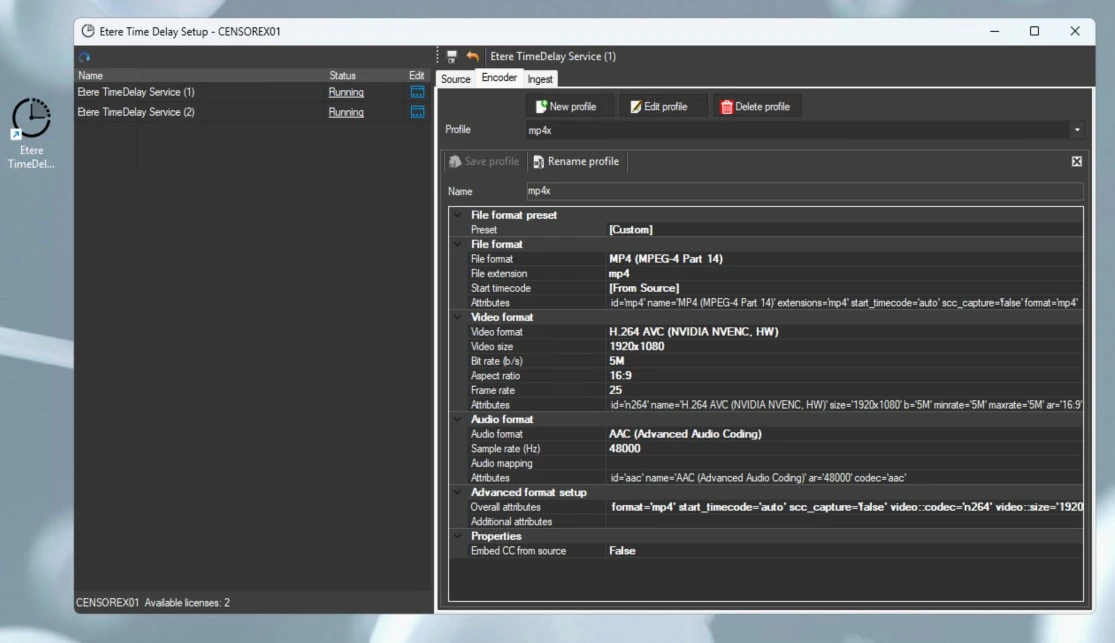
Encoder
The Encoder section defines the encoding profile used to generate the recorded media files.
Encoding profiles are shared across all Time Delay service instances and can be created, edited, or removed from this section. Each service instance can be assigned a different encoding profile according to operational requirements.
Here an example of an usable recording string:
format='mp4' start_timecode='auto' scc_capture='false' video::codec='n264' video::size='1920x1080' video::b='5M' video::minrate='5M' video::maxrate='5M' video::ar='16:9' audio::codec='aac' audio::ar='48000'
Ingest Parameters
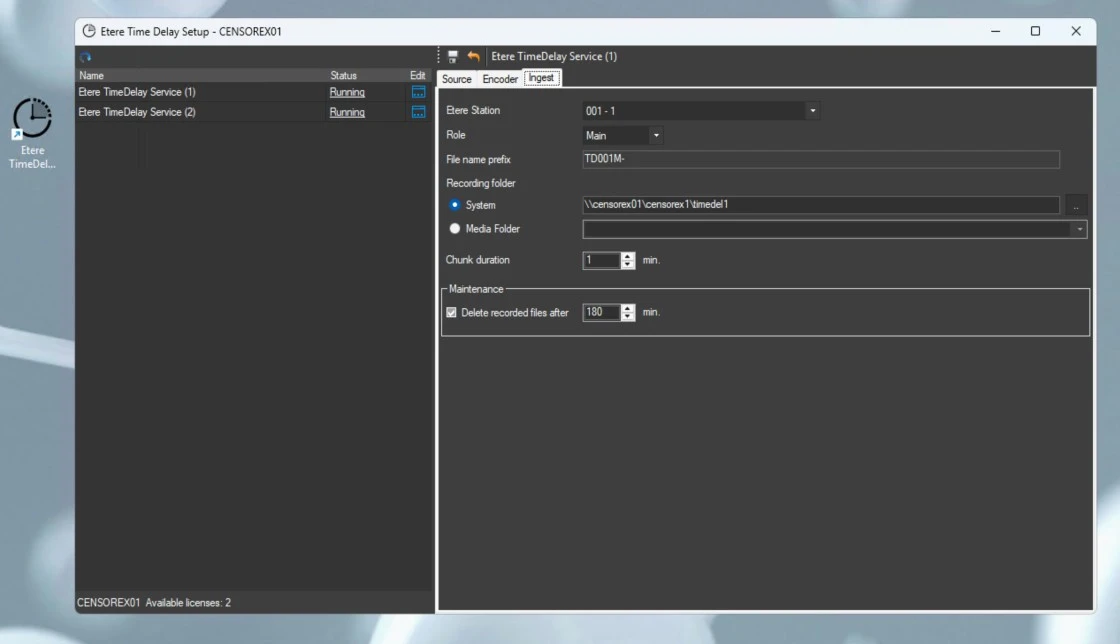
The Ingest Parameters section defines how recordings are generated and managed.
The available parameters include:
Etere Station and Role: Defines the station associated with the recordings and whether the service operates as Main or Backup. This information is also used when generating the filename prefix.
File Name Prefix: The prefix assigned to every recorded file cannot be modified, it will be set by the system.
Recording Folder: Directory where media files are continuously stored.
Media Folder: Select an existing Etere Cloud Device that will store all media files generated by the Time Delay service.
Chunk Duration: Duration of each recorded media file before a new file is created.
Delete Recorded Files After: Automatically removes files older than the configured retention period whenever recording starts.
Recorded files follow the naming convention: <Prefix>-YYYYMMDDZHHMMSS.ext
Example: TD001M-20250515Z09183000.mp4
where:
TD001M identifies the station and service role (Main or Backup).
20250515Z09183000 represents the UTC date and time when recording of the file started.
.mp4 is the extension generated by the selected encoding profile.
Recording Workflow
Once the service is started, recording begins automatically.
The incoming signal is continuously encoded into sequential media files. When the configured chunk duration is reached, the current file is finalized and a new recording immediately begins, ensuring uninterrupted acquisition.
Recording continues until the service is stopped.
Log Files
Each Time Delay service instance generates dedicated log files in the Etere log directory under the corresponding user folder.
Two log files are created for every service instance:
TimeDelay.log: Records service activity and operational events.
TimeDelayEncoding.log: Records encoding-related events and errors.
The log filename includes both the service instance number and the workstation name, making it possible to distinguish logs generated by multiple instances running on the same machine.
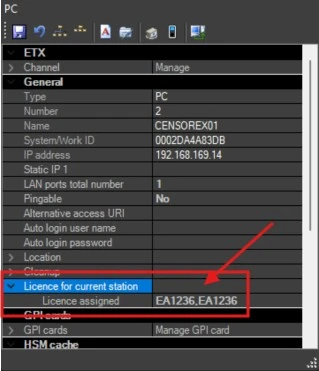 TimeDelay_AssignLicencesToRelevantWorkstation
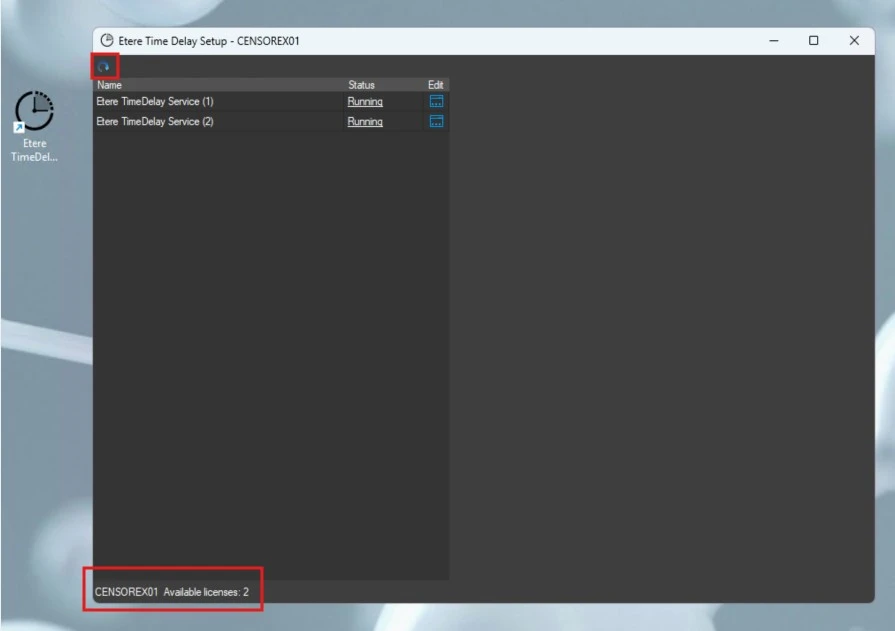 TimeDelay_Information
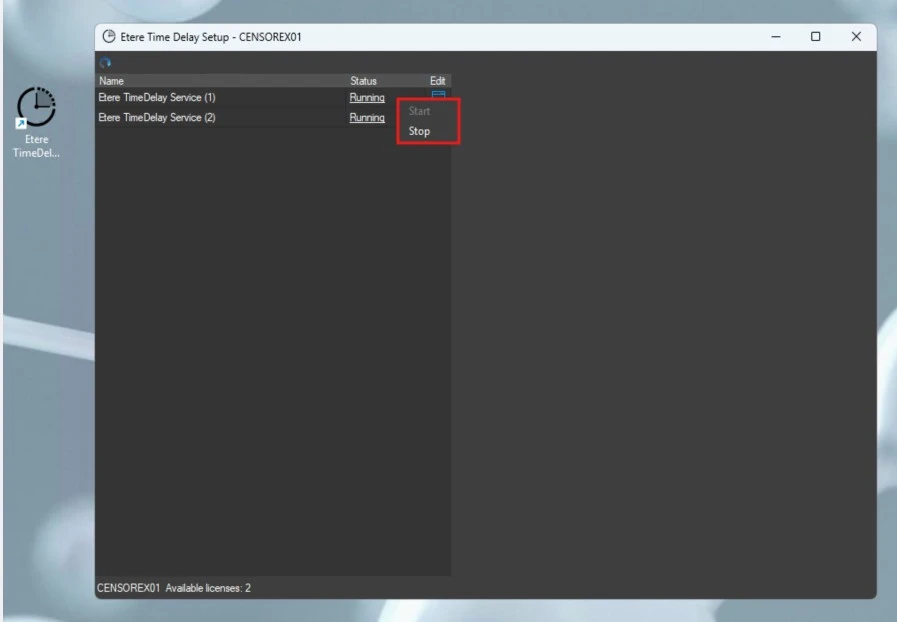 TimeDelay_Start_Stop
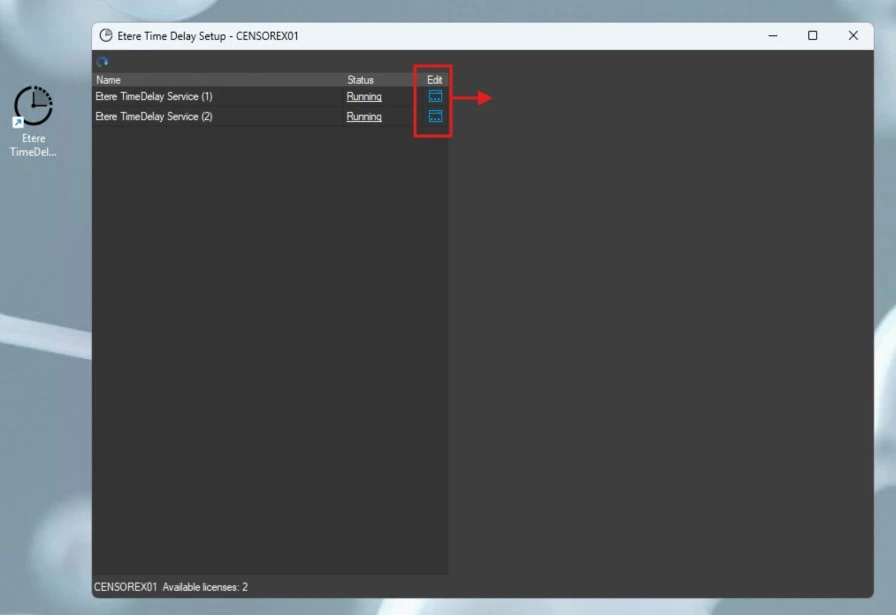 TimeDelay_OpeningEdit
 TimeDelay_Source
 TimeDelay_Encoder
 TimeDelay_Ingest