99.1.4.2 Censor Ex - Configuration - Main
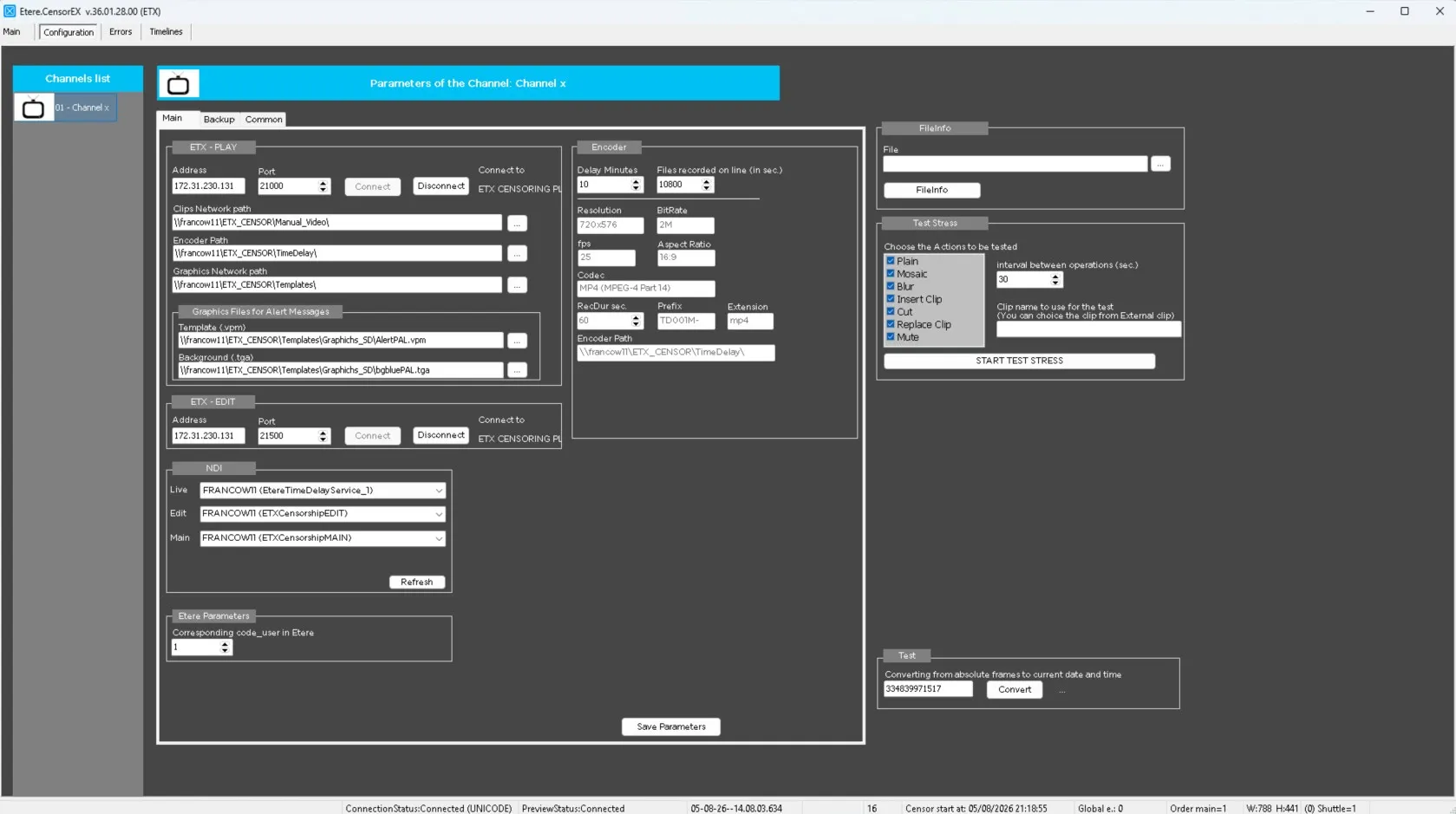
The Main tab is the primary configuration page of the CENSOR EX desktop application.
It is divided into two macro areas:
• Client Configuration (left side), used to configure the client for normal operation.
• Debug Area (right side), intended exclusively for testing, troubleshooting, and diagnostic activities.
Client Configuration
The Client Configuration section contains all the parameters required for the CENSOR EX client to communicate with the backend services and correctly display the video streams.
ETX-PLAY
This section configures the connection with the MAIN process of the CENSOR EX Live Censorship Service.
Address: Specifies the IP address of the workstation where the CENSOR EX Live Censorship Service is running.
Port: Specifies the communication port configured in the service XML for the MAIN process.
Note → The configured value must match the PortS parameter defined in the service CensorEx Player configuration.
Connect/Disconnect:These buttons establish or close the communication with the remote service.
They can be used to verify that the configured address and port are reachable and correctly configured.
Clip Network Path: Specifies the shared folder containing all video clips available for censorship operations. The clips stored in this location are displayed in the Media Library and can be used for insertions, replacements, audio replacement, and other censorship actions.
Encoder Path: Specifies the folder where the Time Delay Service continuously records the media files used to generate the delayed buffer. This path must correspond to the Recording Folder configured in the Time Delay Service.
Graphics Network Path: Specifies the shared folder containing all graphics resources used by CENSOR EX during censorship operations. This folder typically contains templates, backgrounds, and other graphical assets.
Graphics Files for Alert Messages: This section defines the default graphics used when generating Alert messages.
Template (.vpm): Specifies the default VPM template used for Alert messages.
Background (.tga): Specifies the default TGA background image displayed together with Alert messages.
ETX-EDIT
This section configures the communication with the **EDITOR** process of the CENSOR EX Live Censorship Service.
Address: Specifies the IP address where the EDIT process is running.
Port: Specifies the communication port configured in the service XML for the EDIT process.
Note → The configured value must match the corresponding PortS parameter.
NDI
This section defines the NDI streams used by the CENSOR EX client.
Live: Specifies the LIVE NDI stream generated by the CENSOR EX Live Censorship Service. This stream is displayed in the Live In area of the application.
Edit: Specifies the EDIT NDI stream used by the Preview area. This stream allows operators to review and edit delayed content before it is transmitted on-air.
Main: Specifies the MAIN NDI stream generated by the CENSOR EX Live Censorship Service. This stream is displayed in the On-Air area and represents the final censored output that will be transmitted with the configured delay (10 minutes by default).
Refresh: Scans the network and refreshes the list of available NDI sources. This function should be used whenever new NDI streams become available after the application has been started.
Etere Parameters
Corresponding Code_User in Etere, Specifies the Etere Code_User associated with the workstation.
The configured value determines the Etere user under which the CENSOR EX client operates.
Encoder
This section contains parameters that describe the encoding profile currently used by the Time Delay Service.
Delay Minutes: Specifies the delay between the incoming live signal and the final on-air output. The default value is 10 minutes.
Files Recorded Online (seconds): Specifies the amount of online buffer maintained by the Time Delay Service. For example: 10800 seconds = 3 hours. This value determines how much recorded content remains immediately available.
Important: The values configured in this section must exactly match the corresponding Time Delay Service configuration. Incorrect values may prevent the client from correctly rebuilding the delayed buffer.
Resolution: Displays the video resolution configured in the Time Delay encoding profile. This value is automatically retrieved from the Time Delay Service and cannot be modified.
Bitrate: Displays the encoding bitrate currently used by the Time Delay Service. This value is automatically populated and cannot be modified.
FPS: Displays the frame rate configured in the encoding profile. This value is automatically retrieved from the Time Delay Service and cannot be modified.
Aspect Ratio: Displays the aspect ratio configured in the encoding profile. This value is automatically retrieved from the Time Delay Service and cannot be modified.
Codec: Displays the video codec configured in the encoding profile. This value is automatically retrieved from the Time Delay Service and cannot be modified.
RecDurSec: Displays the recording chunk duration used by the Time Delay Service. This value is automatically retrieved from the Time Delay Service and cannot be modified.
Prefix: Displays the filename prefix configured in the Time Delay Service. This value is automatically retrieved from the Time Delay Service and cannot be modified.
Extension: Displays the recording file extension defined in the encoding profile. This value is automatically retrieved from the Time Delay Service and cannot be modified.
Encoder Path: Displays the recording folder configured in the Time Delay Service. This value is automatically retrieved from the Time Delay Service and cannot be modified.
Debug Area
The right side of the Main tab contains several diagnostic tools intended exclusively for testing and troubleshooting purposes.
These tools should only be used by:
• Etere technical engineers
• Authorized administrator users
Improper use of these functions is not recommended during normal production.
FileInfo: The FileInfo tool generates a complete MediaInfo report for any selected media file. It is mainly used to inspect technical properties such as codecs, bitrate, resolution, frame rate, metadata, and container information.
Test Stress: The Test Stress tool is used to execute stress and stability tests on the application. It is intended for performance validation and debugging activities.
Test: The Test tool converts Timeline frame positions into the corresponding current date and time values. It is primarily used during debugging sessions to verify Timeline calculations and synchronization with recorded media.
Note → All the tools available in the Debug Area are provided exclusively for diagnostic purposes and are not required during normal operation. Their use is recommended only for Etere technical personnel o*authorized administrator users performing installation, testing, or troubleshooting activities.
 EtereCensorEx_MAIN