99.4 ShuttlePro: Installation, Configuration and Controls
The Shuttle Pro controller provides operators with an efficient alternative to traditional mouse and keyboard controls for navigating and editing video and audio content.
By using the Shuttle Pro, operators can perform timeline navigation, preview operations, and editing actions using dedicated physical controls, improving accuracy and workflow efficiency during live censorship operations.
Installation and Configuration
To install and configure the Shuttle Pro V2:
1. Download the Shuttle Pro V2 drivers from the [Contour Design support page](https://care.contourdesign.com/t/pro-v2-and-xpress-drivers/179).
2. Once the drivers have been downloaded, install them and connect the Shuttle Pro V2 device to the workstation.
3. Open the Contour Multimedia Controller application to configure the device.
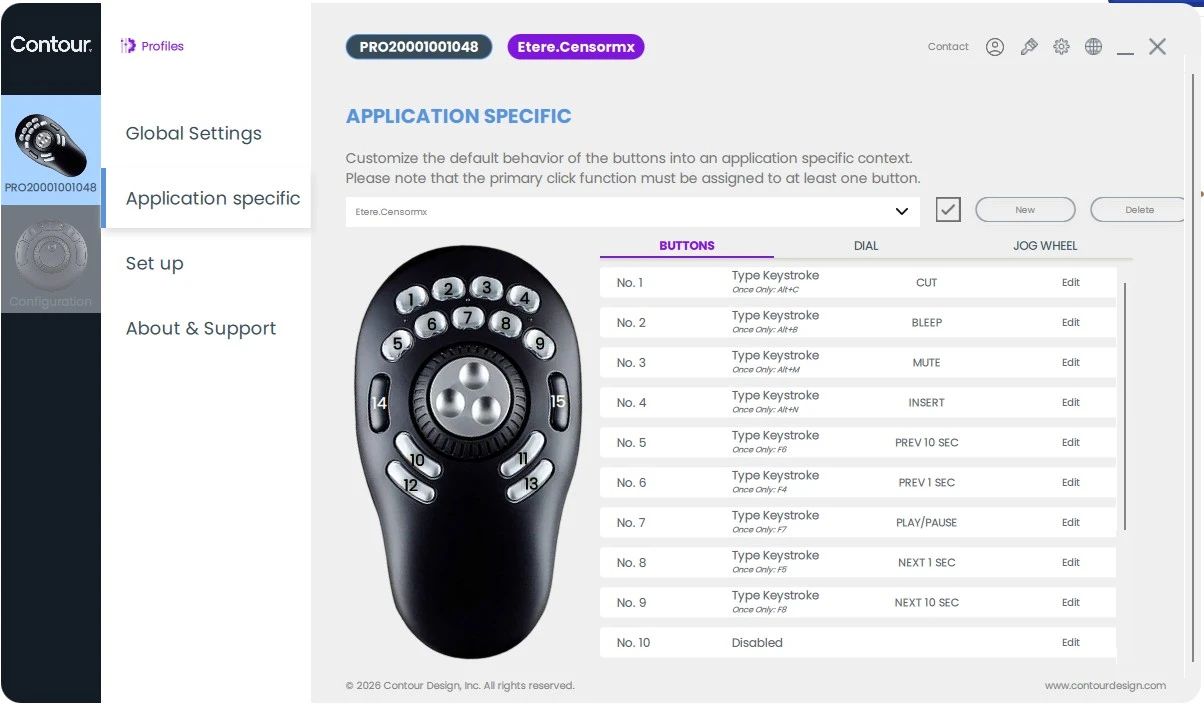
4. Go to Application Specific and create a new profile for Etere CensorEX:
Assign the profile the name Etere.CensorMX.
Set the application path to: C:\Program Files (x86)\Etere\Etere.CensorMX.exe
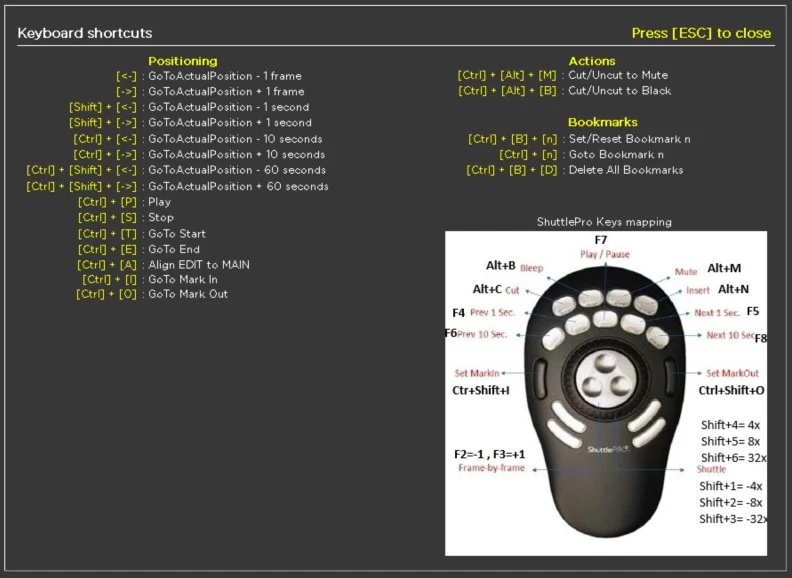
Assign the Shuttle Pro V2 commands as shown in the images below (To configure the Shuttle Pro buttons, simply refer to the image alongside, which shows all the shortcuts available to the operator. The same commands are also listed below.).
This configuration allows the Shuttle Pro V2 to automatically use the dedicated profile and assigned commands whenever Etere CensorEX is launched using the specified executable. The device will therefore recognize the application and apply the corresponding configuration automatically.
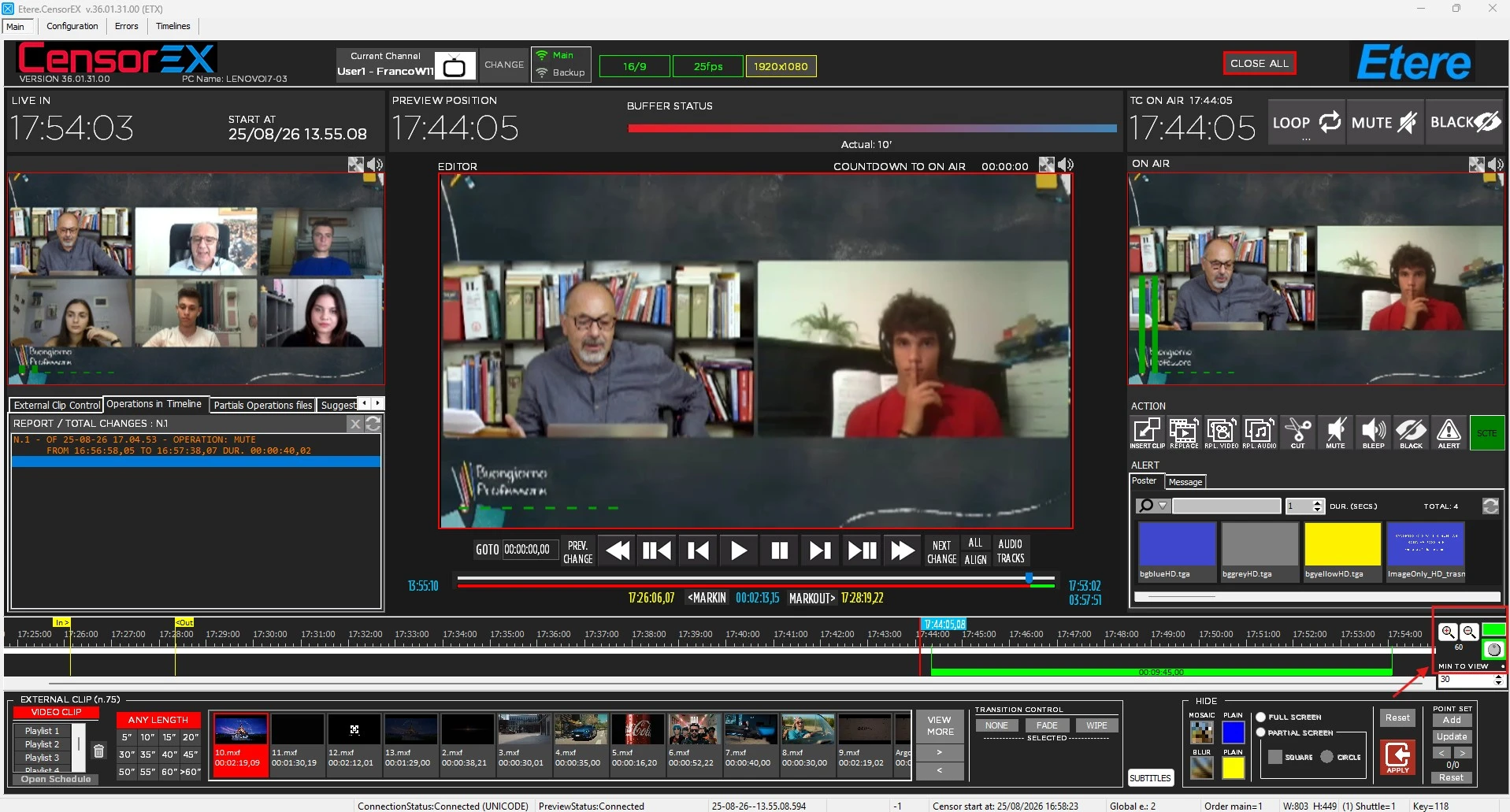
The Shuttle button, located near the Timeline area, changes to green, indicating that the device has been detected and is ready for use.
Shuttle Pro Overview
The Shuttle Pro provides dedicated physical controls for timeline navigation and application commands.
The device is pre-configured to interact with CensorEX operations, allowing operators to quickly perform common actions without relying on the mouse and keyboard.
The Shuttle Pro layout and its assigned functions are shown in the following image.
Shuttle Pro Controls
The Shuttle Pro layout, viewed from above, is described below:
- Top row, from left to right: Cut (Alt+Cut), Bleep (Alt+B), Mute (Alt+M), Insert (Alt+N).
- Second row, directly below the first: Prev 10 sec (F6), Prev 1 sec (F4), Play/Pause (F7), Next 1 sec (F5), Next 10 sec (F8).
- Left black button in the center: Set Mark In (Ctrl+Shift+I).
- Center: The Shuttle, used to quickly navigate through the timeline with two levels of precision: By Frame (-1f F2 and+1f F3) and By Seconds (Shift+4 4x, Shift +5 8x, Shift+6 32x, Shift +1 -4x, Shift +2 -8x, Shift +3 -32x).
- Right black button in the center: Set Mark Out (Ctrl+Shift+O).
- Directly below the Shuttle: Four user-configurable buttons.
Enabling Shuttle and Keyboard Commands
To enable the ShuttlePro the Shuttle button, located in the bottom-right corner of the CensorEX application, must first be clicked by the operator.
To enable the and keyboard commands the Keyboard botton, located in the bottom-right corner of the CensorEX application above the shuttle button, must first be clicked by the operator.
If both button have been enabled (shuttle and keyboard) the operator can use the configured Shuttle Pro controls and keyboard shortcuts.
Keyboard Shortcuts
To allow the operator to use CensorEX in a user-friendly manner, the following keyboard shortcuts are available.
Positioning
| [←] | Move 1 frame backward |
| [→] | Move 1 frame forward |
| [Shift] + [←] | Move 1 second backward |
| [Shift] + [→] | Move 1 second forward |
| [Ctrl] + [←] | Move 10 seconds backward |
| [Ctrl] + [→] | Move 10 seconds forward |
| [Ctrl] + [Shift] + [←] | Move 60 seconds backward |
| [Ctrl] + [Shift] + [→] | Move 60 seconds forward |
| [Ctrl] + [P] | Play |
| [Ctrl] + [S] | Stop |
| [Ctrl] + [T] | Go to Start |
| [Ctrl] + [E] | Go to End |
| [Ctrl] + [A] | Align EDIT to MAIN |
| [Ctrl] + [I] | Go to Mark In |
| [Ctrl] + [O] | Go to Mark Out |
Actions
| [Ctrl] + [Alt] + [M] | Cut/Uncut to Mute |
| [Ctrl] + [Alt] + [B] | Cut/Uncut to Black |
Bookmarks
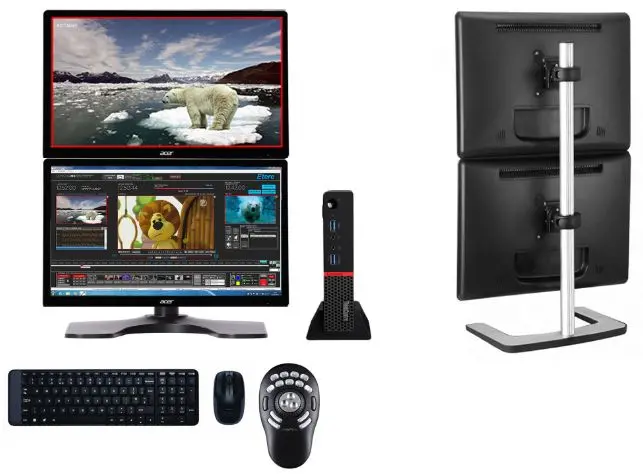
Note: In the bookmark shortcuts, N represents the bookmark number. Dual-Monitor Support CensorEX also supports dual-monitor configurations. When two monitors are available, operators can separate the main control interface from the high-resolution video preview, improving visibility and providing a more efficient working environment during live censorship operations. The dual-monitor layout allows operators to maintain full control of the application while continuously monitoring the video content. |
 Censormx_dual_monitor_design
 ContourShuttleConfigurationEtereProfile
 KeyboardShortcuts
 ButtonsToEnableShuttleAndKeyboard