New Contract
4.5.1.3 Virtual Document
The Virtual Document tab manages the virtual documents attached to the contract.
1. Click the Add button to open a dialogue and upload a virtual document.add_new_document_to_the_asset
2. Click the Add files button to locate the path to the document, or drag-and-drop the file directly from its folder.Add_files
3. Next, click the Upload button to upload the file or remove the attached document by clicking on the Clean button. You can repeat the step to add more virtual documents to the list and click the Upload All to upload all files in one go.
4. Once uploaded, the file appears listed in the table, along with some information: upload date and time, description (that is, the filename), file extension and the user who uploaded it.
Upload_button
• Edit: Modify the file description and optionally add some notes about the content.
• Delete: Unlink the file from the contract.
• Download: Download the file.
• Select/Deselect all: Useful to do the same operation on multiple files at once.
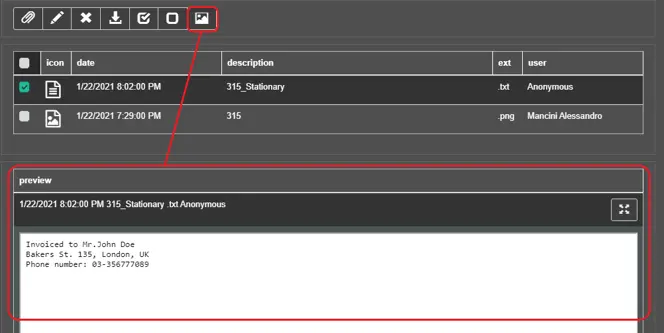
• Preview: View the content of a file in the space below the list.
Preview
Note: Not all the file extensions are supported for preview.
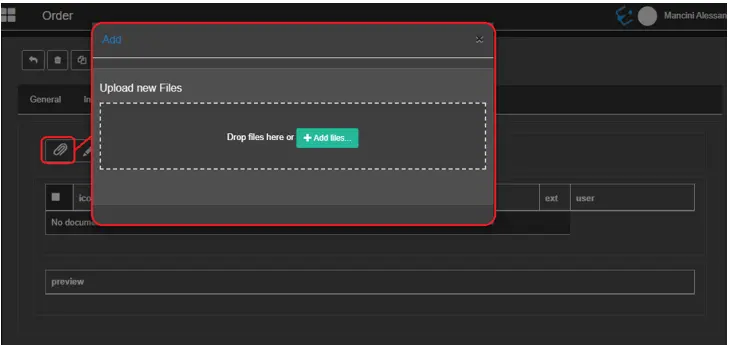 add_new_document_to_the_asset
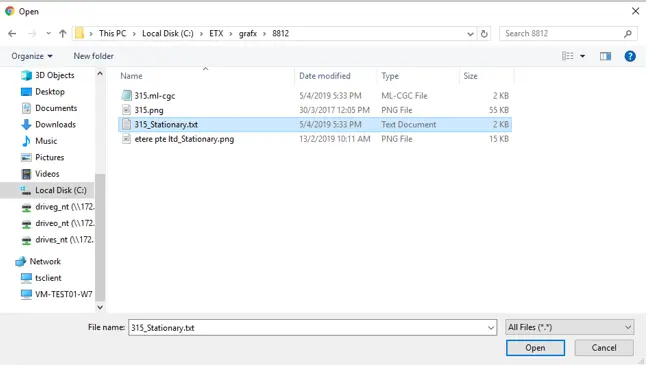 Add_files
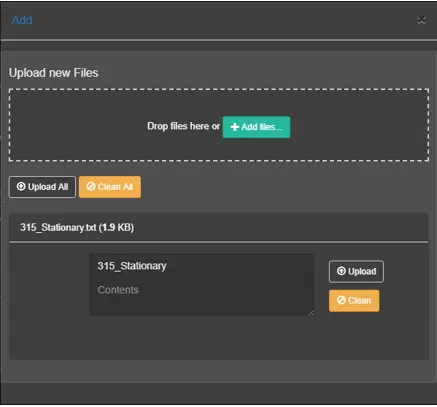 confirm_your_selection
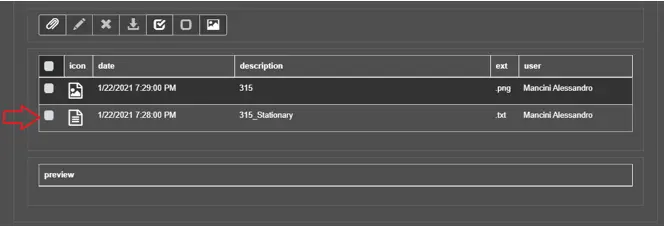 Upload_button
 Preview