99.2.1 Functions
Main Interface
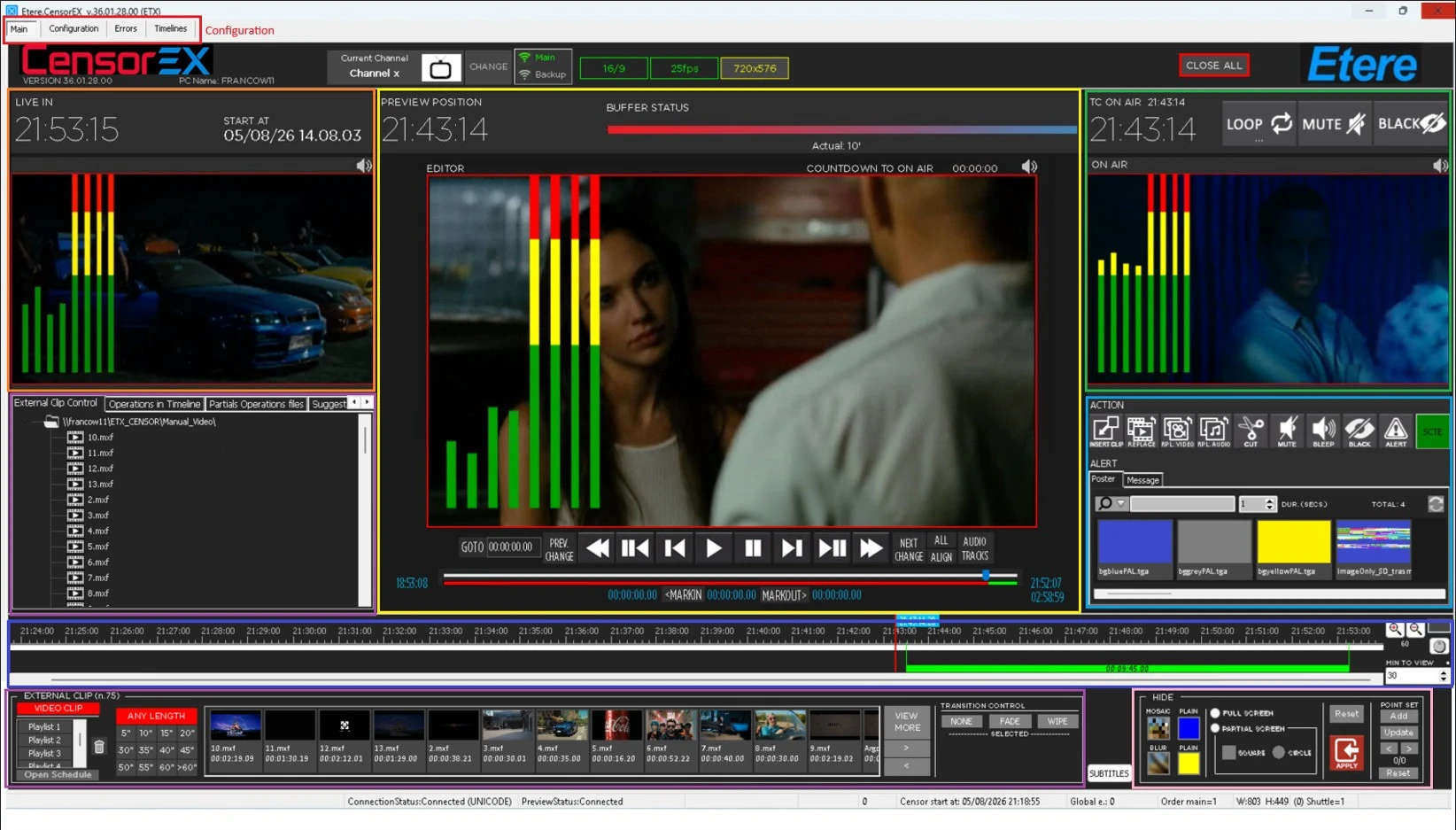
When Etere Censor EX is launched, the main window is divided into six functional areas that provide all the tools required to monitor, review, and edit delayed content before it is transmitted on-air.
The main interface consists of:
• Live In
• Editor
• On-Air
• Timeline
• Library
• Hide Effects
Each area is described in the following sections.
Live In
The Live In panel displays the incoming live signal currently being recorded by the Time Delay Service.
This section includes:
• Live Time: Displays the current system time.
• Recording Start Time: Indicates when the current recording session started.
• External Clips: Displays the clips available in the media library.
• Timeline Operations: Displays the clips currently available within the editing timeline.
Editor
The Editor is the primary workspace where censorship operations are performed before the content reaches the on-air output.
The Editor provides the following information and controls:
• Previous Position: Displays the previously selected playback position.
• Buffer Status: Shows the current delay between the live input and the editable content.
• Countdown to On-Air: Displays the remaining time before the current frame reaches the on-air output.
• Go To: Moves the editor playback position to a specified time.
• Align with On-Air: Synchronizes the editor position with the current on-air position.
• Timeline Navigation Bar: Allows navigation within the available buffer.
• Editable Area Indicator: Displays the portion of the buffer that can still be edited.
• Mark In / Mark Out: Defines the start and end points for editing operations.
• Audio Tracks: Allows preview and management of the available audio channels.
Note → All editing operations are performed on the content displayed in the Editor window.
On-Air
The On-Air panel displays the content currently being transmitted.
Available controls include:
• On-Air Time: Displays the current transmission time according to the configured delay.
• Loop: Repeats the currently transmitted clip until disabled.
• Cut to Mute: Immediately mutes the on-air audio.
• Cut to Black: Immediately replaces the on-air video with a black frame.
• Action Menu: Provides access to the available censorship operations.
• Alert: Displays configurable text or graphic alert messages on the output.
Timeline
The Timeline provides a graphical representation of the delayed buffer and all editing operations.
It displays:
• On-Air Position (red indicator).
• Editor Position (blue indicator).
• Applied editing operations.
• AutoCensor suggestions (when available).
• Clip positions and timeline markers.
The editor position can be moved directly from the timeline to review previously recorded content.
Zoom controls allow the operator to increase or decrease the visible time range according to operational requirements.
Library
The Library contains all replacement media available for censorship operations.
Operators can browse and select clips that will be used for:
• Video insertion.
• Video replacement.
• Audio replacement.
• Emergency replacement content.
Hide Effects
The Hide Effects panel provides the tools required to conceal sensitive portions of the video without replacing the entire clip.
Available effects include configurable Blur and Mosaic areas that can be positioned and adjusted according to operational requirements.
Timeline Operations
The Timeline supports all editing actions available within CENSOR EX.
The available operations include:
• Insert Clip
• Replace Clip
• Replace Video
• Replace Audio
• Delete Video
• Mute Audio
• Bleep Audio
• Hide Effects
• Cut to Black
• Alert
• View History
Each operation is represented by a dedicated marker on the timeline, allowing operators to easily identify previously applied edits.
Undo Operations
Previously applied operations can be reverted directly from the timeline by selecting the corresponding marker and choosing Undo Operation.
An operation can only be undone if it has not already reached the on-air position and sufficient buffer time remains before transmission.
Mark In / Mark Out
Editing operations are performed using Mark In and Mark Out points.
A mark is considered active when it is displayed in yellow. Marks displayed in blue are not active and will not be used during editing operations.
The timeline context menu also provides shortcuts to quickly navigate to the current Mark In or Mark Out position.
 Etere_Censor_Ex_Areas