93.2.1.29 MMS - Piper Text to Speech
The MMS - Piper Text to Speech action enables Etere to produce speech audio files from text using the integrated Piper Text-to-Speech engine. During execution, the action processes the specified .txt file and creates a .wav audio file using the selected voice model.
It is possible to use this integration for various purposes, such as generating station announcements, promotional materials, public service messages, and emergency or fallback communications, which can then be integrated into broadcasting workflows.
No additional software installation is required to use the Piper Text to Speech action. Starting from version 36.1.334.9428, the Etere installation package includes two English voice models (one female and one male) by default.
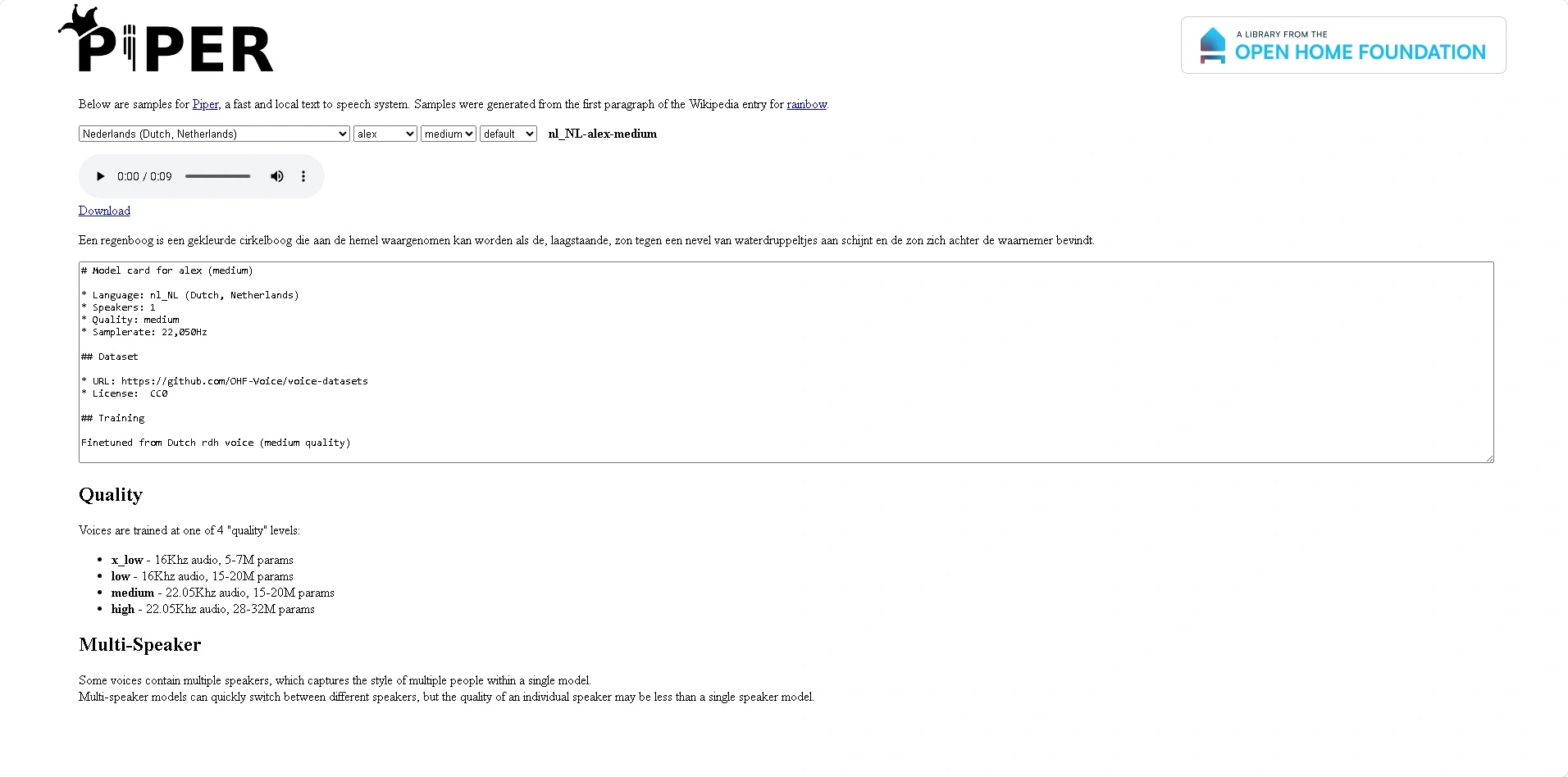
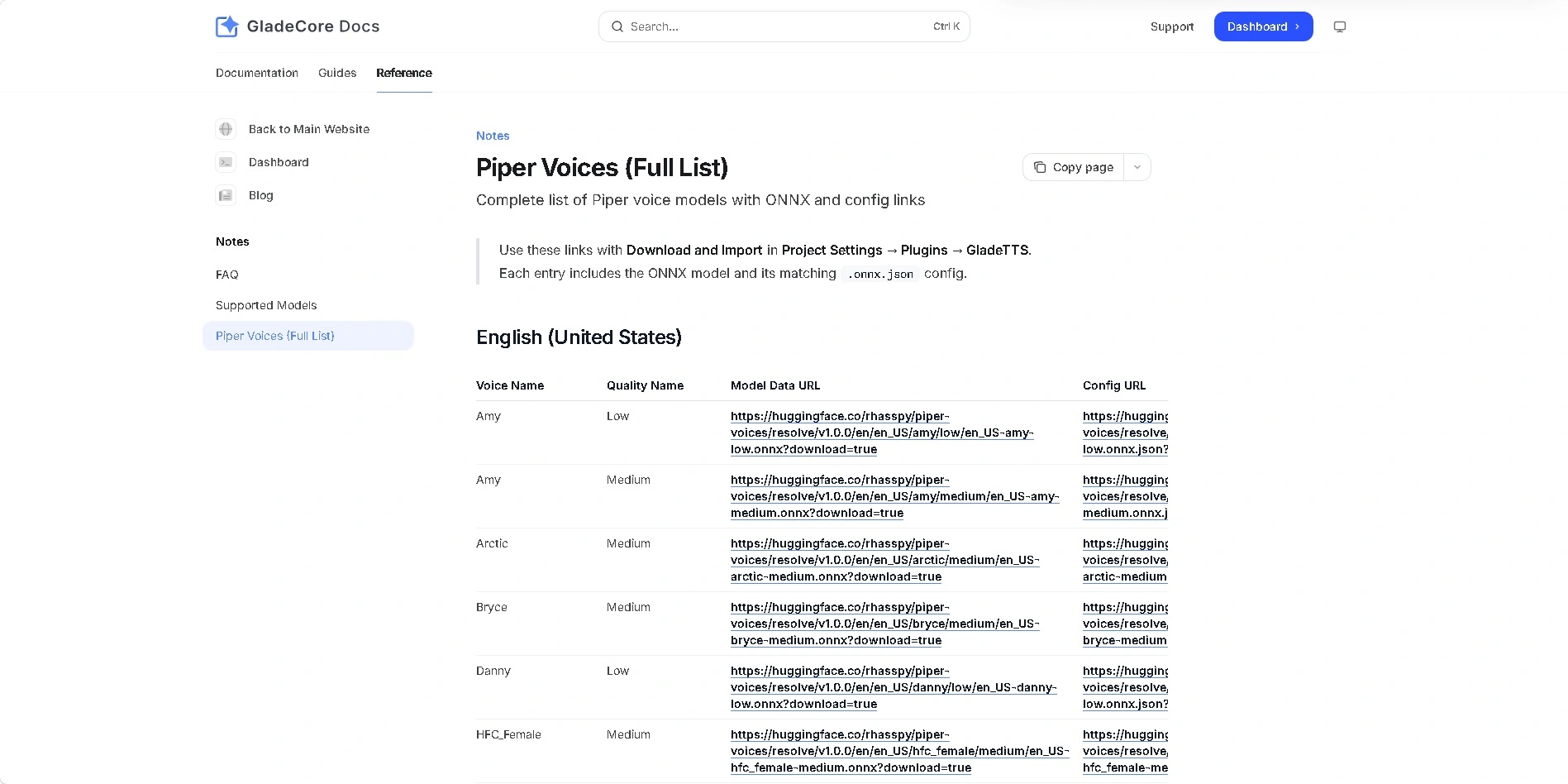
More Piper voice models can be downloaded from publicly available repositories, such as:
https://rhasspy.github.io/piper-samples/
https://docs.gladecore.com/files/piper-voice-models
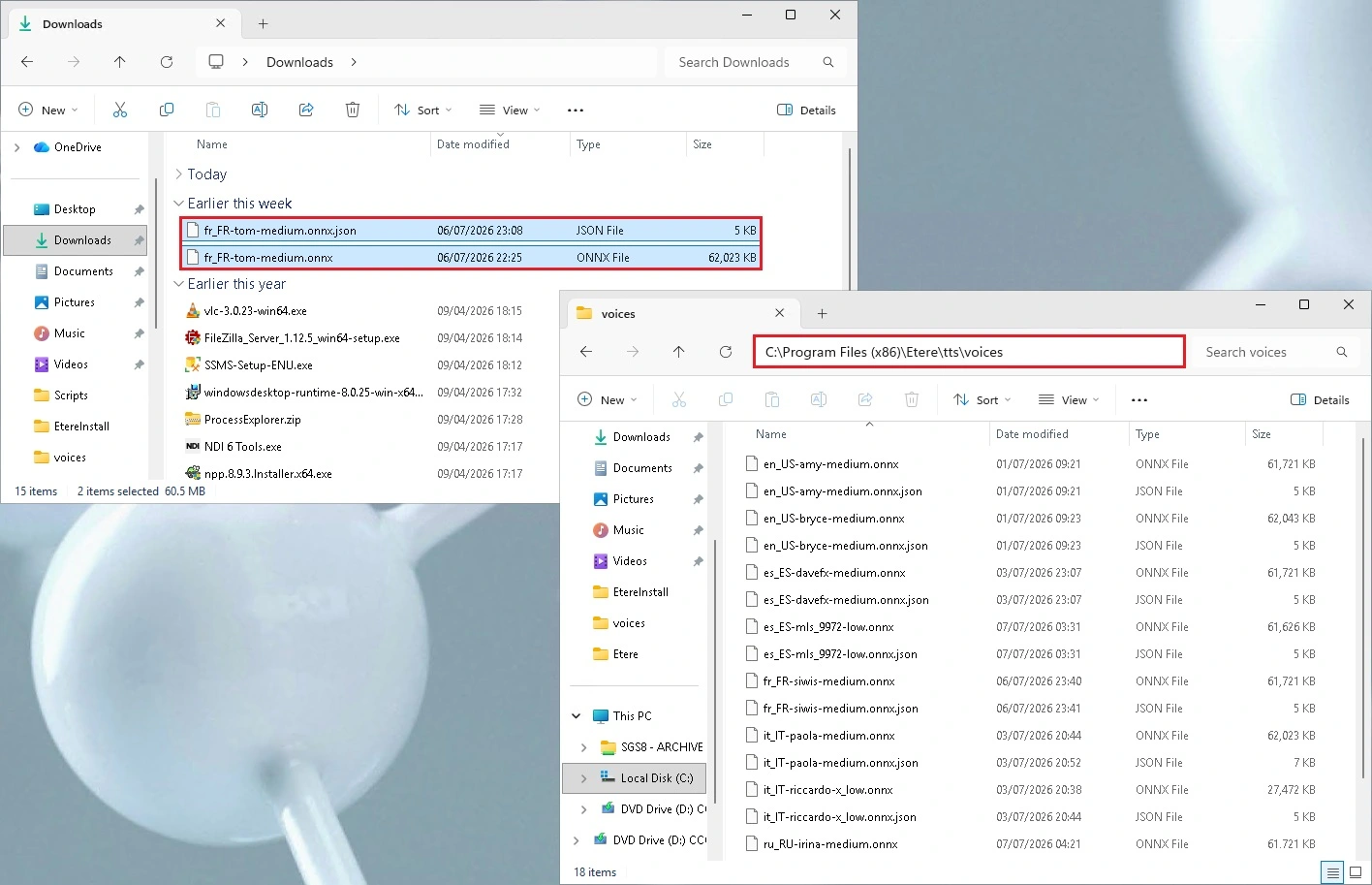
Each voice model consists of two files with the same base name and different extensions:
.onnx: the neural network model.
.onnx.json: the corresponding model configuration.
To make new voice models available in Etere, copy both files to the following folder on the workstation running the Media Manager Service:
C:\Program Files (x86)\Etere\tts\voices
Voice models copied to this folder become available for selection in the Voice Model parameter of the Piper Text to Speech tab.
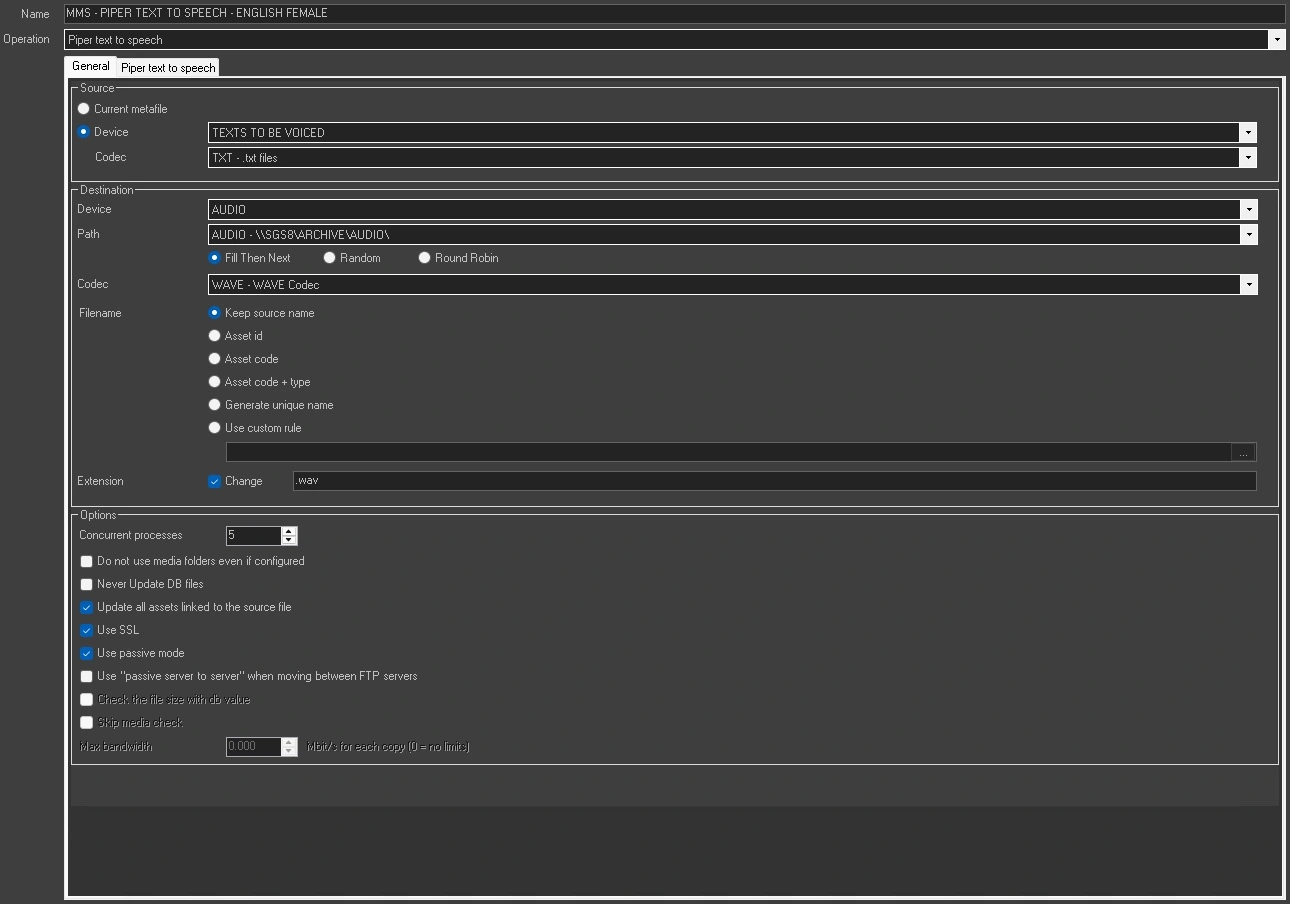
To create an MMS - Piper Text to Speech action, configure the following parameters.
General Tab
Name: Enter a descriptive name to identify the action.
Operation: Select Piper Text to Speech.
Source
Current Metafile: Uses the metafile currently associated with the workflow.
Device / Codec: Select the source device and codec.
Destination
Device: Select the destination device where the generated audio file will be stored.
Path: If the selected device contains multiple paths, choose the destination path.
Fill Then Next: When enabled, Media Manager Service checks the available paths sequentially and stores the generated file in the first path with sufficient available space.
Random: When enabled, a destination path is selected randomly from the available paths.
Round Robin: When enabled, Media Manager Service cycles through the available paths sequentially. After reaching the last path, the selection restarts from the first one. The path selection status is shared among all Media Manager Service instances using the same cloud device. For example, if one instance stores a file in the first path, the next instance stores the following file in the second path.
Codec: Select the destination codec to assign to the generated audio file.
Note: Since Piper Text to Speech always generates WAV audio files, it is recommended to use the predefined WAVE codec. Please note that the WAVE codec must be configured and enabled before it becomes available for selection. For more information, refer to Chapter 59.2.33 - Codecs.
Filename: Defines how the destination filename is generated.
- Keep Source Name: Preserves the source filename. This option is enabled by default for this action.
- Asset ID: Uses the Asset ID as the filename.
- Asset Code: Uses the Asset Code as the filename.
- Asset Code + Type: Uses both the Asset Code and Asset Type.
- Generate a Unique Name: Automatically generates a unique filename based on a UID.
- Use Custom Rules: Generates filenames using database references, Flexi-metadata fields, asset fields, or custom text.
Note: Unsupported operating system characters (| \ / : * ") are automatically replaced with a hyphen (-).
Extension: Enable Change to specify a custom file extension.
Note: As an additional safety measure, this option is enabled by default for this action to ensure that the generated file always uses the .wav extension.
Options
Concurrent Processes: Specifies the maximum number of simultaneous processes executed by the workstation.
Do Not Use Media Folders Even if Configured: Ignores translated media paths even when configured.
Never Update DB Files: Prevents updates to database file records.
Update All Assets Linked to the Source File: When enabled (default), the generated audio file is associated with all assets linked to the source media file. This option is useful when multiple assets share the same media file. If disabled, only the asset that initiated the workflow is updated.
Use SSL: Enables SSL/TLS encryption during FTP transfers. The system attempts the following protocols in sequence:
1) FTP over TLS
2) FTP over SSL
3) Plain FTP
Use Passive Mode: Uses FTP passive mode for upload and download operations.
Use Passive Server-to-Server when Moving Between FTP Servers: Enables passive transfers between FTP servers when both devices support passive mode.
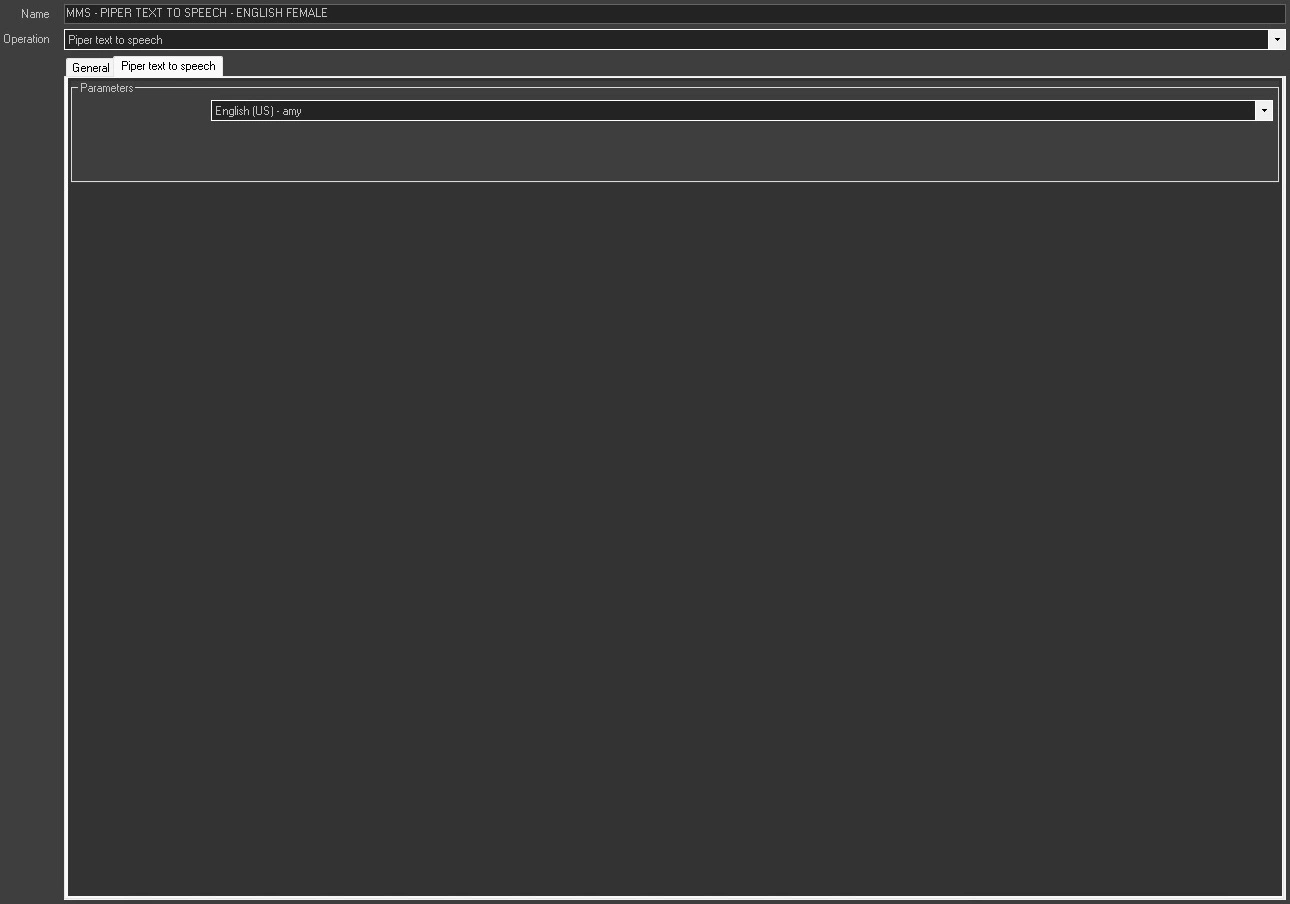
Piper Text to Speech Tab
Parameters
Voice Model: Select the voice model used to generate the speech audio file.
 Piper
Piper
 GladeCore
 onnx_json_voices
 MMS_Piper_General
 MMS_Piper_Text_to_Speech