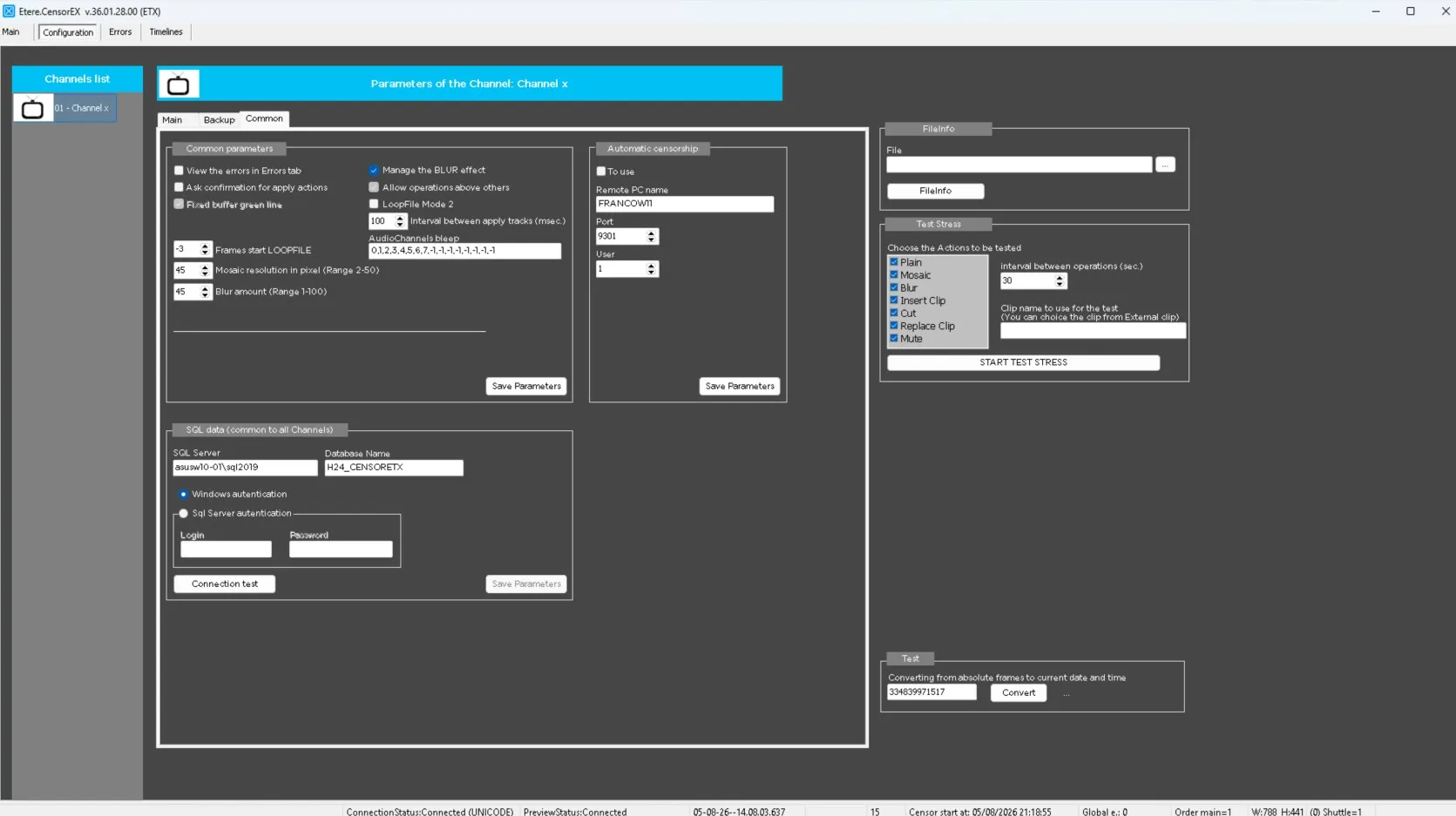
99.1.4.4 Censor Ex - Configuration - Common
The Common configuration tab contains the general settings used by the application to manage censorship operations, AI-assisted censorship, and the SQL database connection.
This section is divided into three main areas:
• Common Parameters
• Automatic Censorship
• SQL Data
Common Parameters: This section contains the main application settings that control the behavior of censorship operations and several user interface options.
View the errors in Errors tab: When enabled, all application warnings and runtime errors are automatically reported in the **Errors** tab, allowing operators and engineers to monitor any issue detected during operation.
Ask confirmation for apply actions: Displays a confirmation dialog before executing any censorship operation. This helps prevent accidental edits or unintended actions.
Fixed buffer green line: Keeps the editable (green) buffer area displayed with a fixed size on the Timeline, making navigation more consistent regardless of the current buffer status.
Frames start Loop File: Defines the number of frames before the selected position where the Loop File operation starts. Recommended value: -3, This small anticipation ensures a smoother transition when the loop begins.
Mosaic resolution (pixels): Defines the size of the blocks used by the Mosaic hide effect. Recommended value: 45. Higher values generate larger mosaic blocks, while lower values produce a finer censorship effect.
Blur amount (pixels): Defines the blur intensity applied when using the Blur hide effect. Recommended value: 45. Increasing the value produces a stronger blur effect.
Manage the Blur effect: Enables or disables the Blur hide effect within the application. When disabled, Blur is no longer available among the censorship effects.
Allow operations above the others: Allows new censorship operations to overlap or intersect existing ones already present on the Timeline. This option provides greater editing flexibility when multiple censorship actions affect the same video segment.
Loop File Mode 2: Disabled by default. When enabled, the LOOP operates in an alternative mode, changing its behavior to repeat the clip 50 times instead of the default 100 repetitions. This option should only be enabled if required by the specific project configuration or operational scenario.
Interval between Apply Tracks (msec): Defines the delay, expressed in milliseconds, between consecutive audio track processing operations. Default value:100 ms. Normally, the default value should not be changed.
Audio Channels Bleep: Specifies how the audio channels are mapped when applying the Bleep censorship effect.
Example: 0,1,2,3,4,5,6,7,-1,-1,-1,-1,-1,-1,-1,-1
In this example, audio channels 0 through 7 are overwritten by the audio in the BLEEP clip, while all remaining channels are muted because they are assigned the value -1.
The value format follows the standard ETERE audio channel mapping convention:
• The Audio Channels parameter is a comma-separated list of values.
• The position of each value in the list identifies the **output audio channel** (first position = output channel 0, second position = output channel 1, and so on).
• The value assigned to each position specifies which input audio channel is mapped to that output:
-1 = Mute the output channel.
0 = Map input audio channel 1.
1 = Map input audio channel 2.
2 = Map input audio channel 3.
And so forth.
This flexible mapping allows the system to support different audio layouts while ensuring that the bleep effect is applied only to the required channels.
Save Parameters: Stores all the current Common Parameters configuration into the application settings.
Automatic Censorship
This section configures the communication between Censor Ex and the Auto Censorship Service, allowing the desktop application to receive AI-generated censorship suggestions.
To Use: Enables or disables the Automatic Censorship feature. When disabled, no AI suggestions will be requested or displayed on the Timeline.
Remote PC Name: Specifies the hostname or IP address of the workstation running the Auto Censorship Service.
Port: Defines the communication port used by the service. Default value: 9301, Unless the service has been configured differently, the default port should be used.
User: Specifies the Etere Code_User associated with the Auto Censorship Service. This value should match the **Code_User** configured on the Auto Censorship Service to allow proper communication.
Save Parameters: Saves the Automatic Censorship configuration.
SQL Data
This section configures the database connection used by Censor Ex.
SQL Server: Specifies the SQL Server instance hosting the Etere database.
Database Name: Defines the database to which the application will connect.
Windows Authentication: Uses the credentials of the currently logged-in Windows user to establish the SQL connection.
SQL Server Authentication: Uses an SQL Server username and password instead of Windows credentials. This option is typically used when Windows Authentication is not available.
Connection Test: Verifies that the specified SQL Server, database, and authentication settings are correct before saving the configuration. A successful test confirms that the application can communicate with the database.
Save Parameters: Stores all SQL connection settings for future application sessions.
 EtereCensorEx_COMMON